
JAIOTlink Y03-W
JAIOTlink 2K Indoor Camera User Manual
Model: Y03-W
1. Introduction
Thank you for choosing the JAIOTlink 2K Indoor Camera. This camera is designed to provide comprehensive home security and monitoring, suitable for observing babies, pets, or general surveillance. It features 2K Ultra HD video, 360° pan and 60° tilt functionality, two-way audio, motion detection with auto-tracking, and flexible storage options.
Please read this manual thoroughly before operating the device to ensure proper use and optimal performance.

Image: The JAIOTlink 2K Indoor Camera, a white dome-shaped device, positioned next to a smartphone displaying a live feed of a child interacting with a dog, illustrating its use for home monitoring.
2. What's in the Box
- Pet Camera body
- Type-C Cable + USB Adapter
- Mounting Screw
- Installation Guide (this manual)
3. Setup Guide
3.1 Initial Setup
- Power On: Connect the camera to a power source using the provided Type-C cable and USB adapter. The camera will power on and indicate readiness for setup.
- Download the App: Search for "EseeCloud" in your mobile app store (App Store for iOS or Google Play Store for Android) and download the application.

Image: A smartphone screen displaying the EseeCloud app page within an app store, ready for download.
- Register/Log In: Open the EseeCloud app and follow the on-screen instructions to register a new account or log in if you already have one.
- Add Device: In the app, select the option to add a new device. Follow the prompts to connect your camera to your Wi-Fi network. The camera supports both 2.4GHz and 5GHz Wi-Fi for stable connectivity.

Image: A smartphone screen showing the Wi-Fi selection interface within the EseeCloud app, indicating support for both 2.4G and 5G networks.

Image: A smartphone screen confirming successful device addition and prompting for device naming and usage selection within the EseeCloud app.
3.2 Mounting Options
The JAIOTlink Indoor Camera can be placed on a flat surface or mounted on a wall or ceiling. Use the included mounting screws for secure installation.
- Surface Mount: Place the camera on a stable, flat surface such as a table, shelf, or desk.
- Wall/Ceiling Mount: Use the provided mounting bracket and screws to attach the camera to a wall or ceiling. Ensure the mounting surface is strong enough to support the camera.

Image: The JAIOTlink camera mounted upside down on a ceiling near a staircase, demonstrating its flexible placement options.
4. Operating Instructions
4.1 Pan & Tilt Control
The camera offers a wide viewing range with 360° horizontal pan and 60° vertical tilt. You can control the camera's movement directly from the EseeCloud app to view different areas of your room.

Image: The JAIOTlink camera illustrating its 360-degree pan and 60-degree tilt capabilities, with a smartphone displaying the live view and control interface.
Video: A demonstration of the JAIOTlink camera's 360-degree pan and 60-degree tilt functionality, showcasing its ability to cover a wide area. The video also highlights the 5G & 2.4G WiFi compatibility.
4.2 2K Ultra HD Video with Night Vision & 8x Digital Zoom
The camera captures crisp 3MP 2K resolution video, providing clear visuals day and night. Enhanced IR night vision ensures visibility even in low-light conditions. You can also use the 8x digital zoom feature to get a closer look at details within the live feed.

Image: A visual comparison demonstrating the superior clarity of 2K resolution compared to 1080P, showing a baby and a dog.

Image: A child sleeping in a dark room, with text indicating "Superb Night Vision" and "Infrared lights ensure clear visibility," demonstrating the camera's night vision capability.
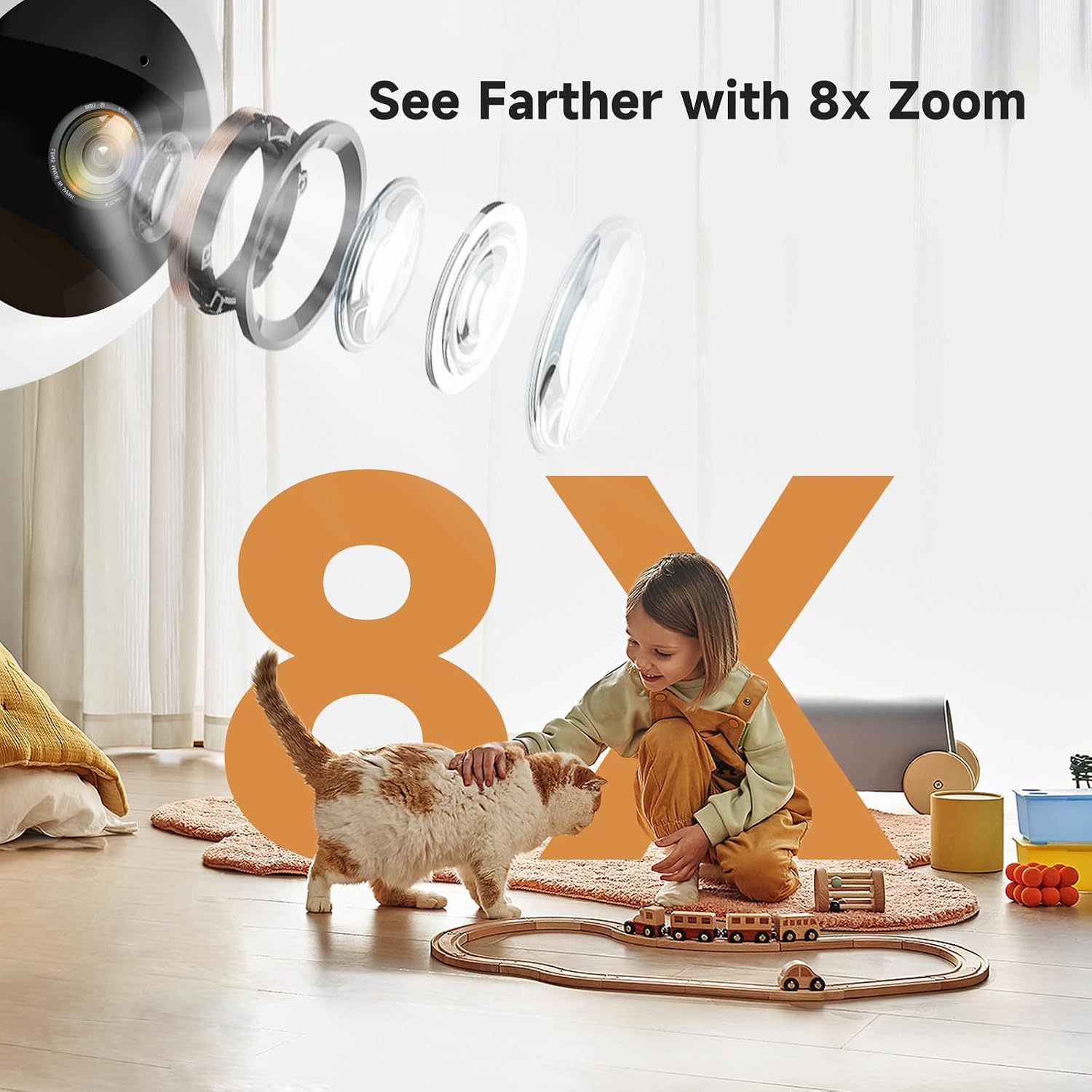
Image: A graphic illustrating the camera's 8x digital zoom capability, showing a child playing with a toy train and a cat, with lens elements overlaid to represent zoom.
4.3 Smart Motion Detection Alerts & Auto Tracking
Receive instant alerts on your smartphone when motion is detected. The camera can automatically track moving objects, ensuring you don't miss any important activity within its field of view.

Image: A smartphone displaying a "Someone is moving" notification from the EseeCloud app, with icons for human detection and siren, set against a background of a person entering a room.

Image: A cat moving across a sofa, with blue tracking boxes indicating the camera's motion detection and smart tracking capabilities, and a smartphone showing a "Someone is active" notification.
4.4 Two-Way Audio
The built-in microphone and speaker allow for real-time two-way communication. You can talk to your baby, pet, or family members directly through the camera using the EseeCloud app or compatible Alexa devices.

Image: A child in a crib with speech bubbles indicating "Baby, Mommy is coming" and "Woo...Mom...", illustrating the two-way talk feature for communication with babies or pets.
4.5 Flexible Storage Options
The camera supports both local storage via a Micro SD card (up to 256GB, not included) and secure cloud storage (trial period available). This allows you to record and review footage at your convenience.

Image: Icons representing Cloud Storage and SD Card Storage (up to 256GB), with a smartphone displaying a video timeline, indicating options for recording and reviewing footage.
5. Maintenance
- Cleaning: Gently wipe the camera lens and body with a soft, dry cloth. Do not use harsh chemicals or abrasive cleaners.
- Placement: Ensure the camera is placed in a stable location, away from direct sunlight, heat sources, and excessive moisture.
- Software Updates: Regularly check the EseeCloud app for firmware updates to ensure optimal performance and security.
6. Troubleshooting
| Problem | Possible Cause | Solution |
|---|---|---|
| Camera offline | No power; Wi-Fi disconnected; Router issue | Check power connection; Restart camera and router; Reconnect Wi-Fi in app |
| Poor video quality | Weak Wi-Fi signal; Dirty lens | Move camera closer to router; Clean lens; Ensure sufficient lighting for night vision |
| Motion alerts not received | App notifications disabled; Motion detection sensitivity too low | Enable app notifications in phone settings; Adjust motion detection sensitivity in app |
| Two-way audio not working | Microphone/speaker muted in app; Volume too low | Check audio settings in app; Adjust volume on your device |
7. Specifications
| Feature | Detail |
|---|---|
| Model Name | Indoor Security Camera |
| Model Number | Y03-W |
| Indoor/Outdoor Usage | Indoor |
| Video Capture Resolution | 2K (3MP Effective Still Resolution) |
| Pan & Tilt | 360° Pan, 60° Tilt |
| Night Vision Range | 33 Feet |
| Digital Zoom | 8x |
| Connectivity Protocol | Wi-Fi (2.4GHz & 5GHz) |
| Two-Way Audio | Yes |
| Motion Detection | Yes (with Auto Tracking) |
| Storage Options | Micro SD Card (up to 256GB), Cloud Storage |
| Compatible Devices | Smartphone, Amazon Alexa |
| Power Source | Corded Electric (5 Volts) |
| Dimensions (L x W x H) | 1 x 2 x 0.5 inches |
| Item Weight | 11.7 ounces (0.33 Kilograms) |
| Included Components | Pet Camera body, Type-C Cable+USB Adapter, Mounting Screw, Installation Guide |
8. Warranty and Support
8.1 Warranty Information
JAIOTlink products come with a standard manufacturer's warranty. Please refer to the warranty card included in your packaging or visit our official website for detailed warranty terms and conditions.
8.2 Customer Support
For any questions, technical assistance, or support inquiries, please contact our customer service team:
- Email: E-Mingxun@outlook.com
- Online Support: Visit the JAIOTlink store on Amazon for FAQs and additional resources. JAIOTlink Amazon Store

Image: A graphic depicting a customer service representative and an email address, indicating support availability.
Ask a question about this manual
Ask about setup, troubleshooting, compatibility, parts, safety, or missing instructions. Manuals+ will review the question and use this page’s manual context to help answer it.