
Introduction
This manual provides detailed instructions for the installation, operation, and maintenance of your APHQUA A96 Wireless Portable Carplay & Android Auto Backup Camera. This device is designed to enhance your driving experience by integrating smartphone functionalities into your vehicle's dashboard, offering navigation, music, communication, and a backup camera display on a 9.26-inch screen.
Package Contents
Please verify that all items listed below are included in your package:
- APHQUA A96 9.26-inch Portable Car Stereo
- Suction Mount Bracket
- Self-Adhesive Bracket
- 3.5mm Audio Cable
- Reversing Camera
- Power Cable with USB Port (Cigarette Lighter Adapter)
- Suction Cup Gasket
- User Manual

Image: All components included in the APHQUA A96 package.
Setup and Installation
Main Unit Installation
- Choose a Mounting Location: Select a flat, clean surface on your dashboard or windshield that does not obstruct your view or interfere with vehicle controls.
- Clean the Surface: Ensure the chosen area is free from dust, oil, and moisture. Use a clean cloth to wipe the surface thoroughly.
- Attach the Bracket:
- For Suction Cup Mount: Peel off the protective film from the suction cup. Press the suction cup firmly onto the cleaned surface and engage the locking lever to secure it.
- For Self-Adhesive Bracket: Peel off the protective backing from the adhesive tape on the bracket. Affix the bracket to the cleaned surface and press firmly for a secure fit.
- Attach the Display: Connect the APHQUA A96 display unit to the chosen bracket. Adjust the angle for optimal viewing.
- Power Connection: Insert the power cable's Type-C connector into the device and the cigarette lighter adapter into your vehicle's 12V power outlet. The adapter also includes a USB charging port for other devices.
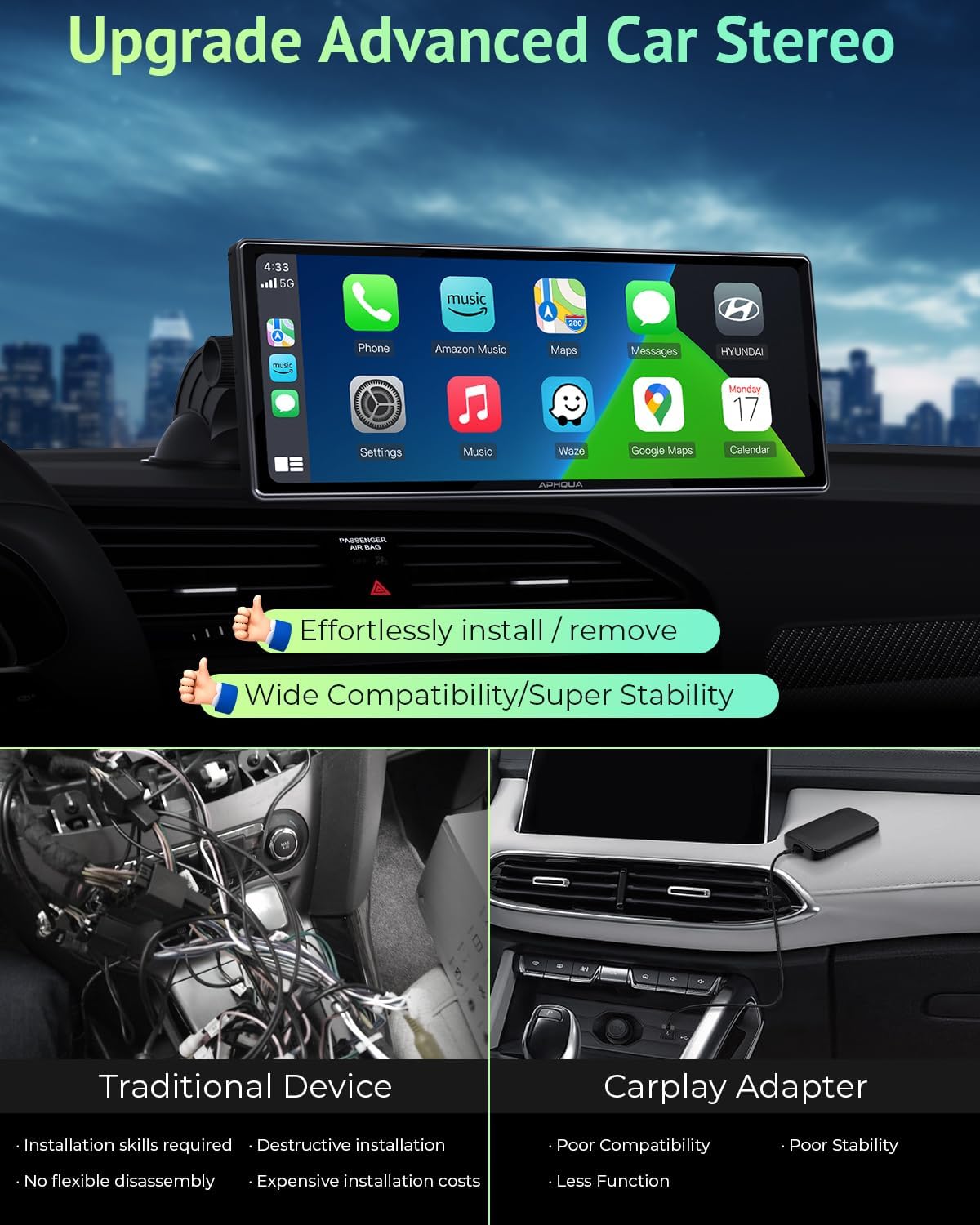
Image: Stable bracket adjustable angle options for the APHQUA A96.

Image: Easy installation of the APHQUA A96 on a car dashboard.
Rear Camera Installation
The APHQUA A96 includes a high-definition rear camera for enhanced safety during reversing.
- Confirm Installation Position: Choose a suitable location at the rear of your vehicle, typically above the license plate, ensuring a clear view. Clean the area thoroughly.
- Attach Adhesive Tape: Apply the provided adhesive tape to the rear camera bracket.
- Secure the Camera: Affix the rear camera securely to your chosen location using the adhesive tape. For a more permanent installation, screws may be used if appropriate for your vehicle.
- Connect Rear Camera Cable: Route the rear camera cable from the camera to the main APHQUA A96 unit. Plug the camera's AV-IN connector into the corresponding port on the side of the main unit.
- Connect to Reversing Light (Optional but Recommended): Connect the red wire from the camera cable to the positive terminal of your vehicle's reversing light. This allows the display to automatically switch to the rear camera view when reversing.
- Tidy Cables: Use the provided cable clips to neatly route and secure all cables, preventing interference and maintaining a clean interior.

Image: 1080P Waterproof Rear Camera view on the APHQUA A96 screen.
Video: Installation Guidelines for Rear Camera. This video demonstrates the steps to install the rear camera with the APHQUA A96 unit.
Video: RC06 Wireless Portable Car Stereo Installation steps. This video provides a comprehensive guide for installing the portable car stereo.
Operating Instructions
Wireless CarPlay and Android Auto
The APHQUA A96 supports both wireless CarPlay and Android Auto, allowing seamless integration with your smartphone.
- Enable Bluetooth and Wi-Fi: On your smartphone, ensure both Bluetooth and Wi-Fi are turned on.
- Pair with Device: On the APHQUA A96 screen, navigate to the CarPlay or Android Auto icon. The device will appear in your phone's Bluetooth settings (e.g., "CarKit-xxxx"). Select it to pair.
- Confirm Connection: Follow any on-screen prompts on both your phone and the APHQUA A96 to confirm the connection. Your smartphone's interface will then be displayed on the car stereo screen.

Image: Wireless Apple CarPlay connection steps.

Image: Wireless Android Auto connection steps.
Phone Mirroring (Mirror Link)
Mirror Link allows you to display your phone's screen directly onto the APHQUA A96. This supports both wireless and wired connections.
- Wireless iOS Mirror Link:
- Turn off Bluetooth and Wi-Fi on your iPhone.
- Connect only to the Wi-Fi of the car stereo (Bluetooth should remain off).
- On your iPhone, open Control Center and select "Screen Mirroring."
- Select "car" from the available devices to initiate wireless mirroring.
- Wired AutoLink (Android/iOS):
- Connect your smartphone to the USB port on the APHQUA A96 using a high-quality data cable.
- Follow the prompts on your phone and the car stereo screen to confirm the connection and begin mirroring.

Image: Wireless iOS Mirror Link connection steps.

Image: Wired AutoLink connection steps.
Audio Output Options
The APHQUA A96 offers four methods for audio output:
- Bluetooth Audio: Connect your phone to your car's stereo via Bluetooth for high-quality sound. (Recommended)
- AUX Cable: Use the provided 3.5mm AUX cable to connect the APHQUA A96 to your car's AUX input.
- FM Transmitter: Transmit audio to your car's stereo via an FM channel. Select a clear, unused FM frequency on both the APHQUA A96 and your car radio.
- Built-in Speaker: The device has a high-quality built-in speaker for direct audio output.

Image: Four Audio Output Modes.
Voice Control (Siri & Google Assistant)
Utilize the built-in microphone or an external microphone (not included) for voice commands:
- Access Siri or Google Assistant by saying the wake word or pressing the voice command button on the screen.
- Issue commands for navigation, calls, messages, and music playback (e.g., "Call [Contact Name]", "Navigate to [Address]", "Play [Song Title]").

Image: Voice Control & GPS Navigation.
Navigation
Through CarPlay or Android Auto, the APHQUA A96 provides real-time intelligent navigation with voice broadcast and clear map display.
Multimedia Playback
Access music, videos, and other media from your smartphone or via the device's TF card slot.
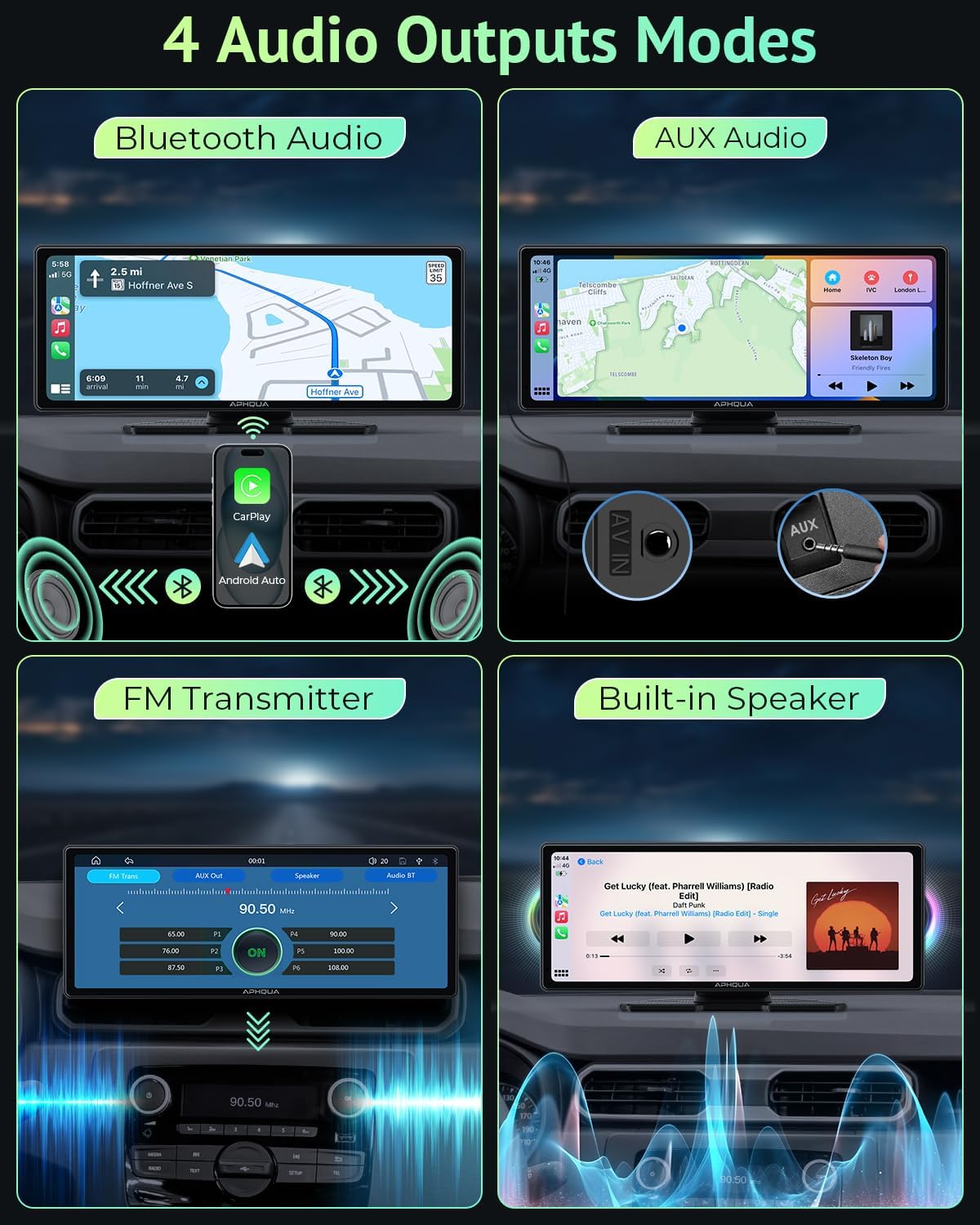
Image: Play Videos with Airplay & Android Cast.
Split Screen Display Mode
The 9.26-inch screen supports split-screen functionality, allowing you to view navigation and music playback simultaneously.
Video: RC06 Switch to split-screen. This video demonstrates how to activate and use the split-screen feature on the APHQUA A96.
Maintenance
- Cleaning: Use a soft, dry cloth to clean the screen and device exterior. Avoid abrasive cleaners or solvents.
- Temperature: Do not expose the device to extreme temperatures (hot or cold) for extended periods.
- Cable Management: Regularly check cables for wear and tear. Ensure they are securely routed to prevent damage.
Troubleshooting
| Problem | Possible Cause | Solution |
|---|---|---|
| Device does not power on | No power supply; loose connection | Ensure the cigarette lighter adapter is fully inserted and the vehicle's 12V outlet is functional. Check the power cable connection to the device. |
| CarPlay/Android Auto not connecting | Bluetooth/Wi-Fi issues; incorrect pairing | Ensure Bluetooth and Wi-Fi are enabled on your phone. Forget the device in your phone's Bluetooth settings and re-pair. Check for any software updates for your phone or the device. |
| No audio output | Incorrect audio output setting; volume too low | Verify the selected audio output mode (Bluetooth, AUX, FM) is correctly configured. Adjust the volume on both the device and your car stereo. For FM, ensure a clear frequency is selected. |
| Rear camera not displaying | Loose cable connection; reversing light trigger issue | Check the AV-IN cable connection for the rear camera. Ensure the red trigger wire is correctly connected to the reversing light's positive terminal. |
| Screen unresponsive | Temporary software glitch | Restart the device by unplugging and re-plugging the power cable. If the issue persists, perform a factory reset (refer to the device settings). |
Specifications
- Model: A96
- Screen Size: 9.26 Inches
- Human Interface Input: Touchscreen
- Connectivity Technology: Auxiliary, Bluetooth, USB, Wi-Fi
- Special Features: Android Auto, Apple CarPlay, Built-In Bluetooth, GPS Navigation, Mirror Link
- Tuner Technology: FM
- Compatible Devices: Smartphone, Speaker
- Audio Output Mode: Stereo
- Speaker Surround Sound Channel Configuration: 4.0
- Video Encoding: H.264
- Color: Black
- Item Weight: 1.16 kg
- Power Input: 5-24V 2A (via cigarette lighter adapter)
Warranty and Support
APHQUA is committed to providing reliable products and excellent customer service. For any inquiries or support, please refer to the following:
- Warranty: The product includes a one-year return and replacement of accessories.
- Returns/Exchanges: 90 days no reason to return or exchange.
- Online Service: 24-hour online service is available for assistance.
- Lifetime After-Sale Service: Lifetime service for products and accessories.
- Boot Logo Customization: Contact customer service to customize the start screen logos with your preferred car logo or photo.
For warranty activation and further support, please contact APHQUA customer service.