
BARCODE-USA C6000 (Android 13)
Chainway C6000 Mobile Computer User Manual
Model: C6000 (Android 13)
Brand: BARCODE-USA
1. Introduction
The Chainway C6000 Mobile Computer is a robust and versatile device designed for efficient barcode scanning and inventory management. Running on Android 13, it integrates a high-performance Zebra SE4710 2D/1D/QR Code Reader, an ergonomic pistol grip, and a full keyboard for comfortable and intuitive operation. This manual provides essential information for setting up, operating, maintaining, and troubleshooting your C6000 Mobile Computer.

Figure 1.1: Chainway C6000 Mobile Computer with Pistol Grip. This image shows the device being held in a user's hand, highlighting its ergonomic design and integrated pistol grip for comfortable use during scanning operations.
2. Setup
2.1. Initial Device Inspection
Upon unboxing, inspect the Chainway C6000 for any visible damage. Ensure all components listed in the packaging are present.
2.2. Battery Installation and Charging
The C6000 features a removable battery.
- Locate the battery compartment on the rear of the device.
- Insert the battery, ensuring proper alignment of the contacts.
- Secure the battery compartment cover.
- Connect the device to the power adapter using the provided USB cable. Allow the device to fully charge before first use. A full charge typically provides up to 12 hours of continuous operation.
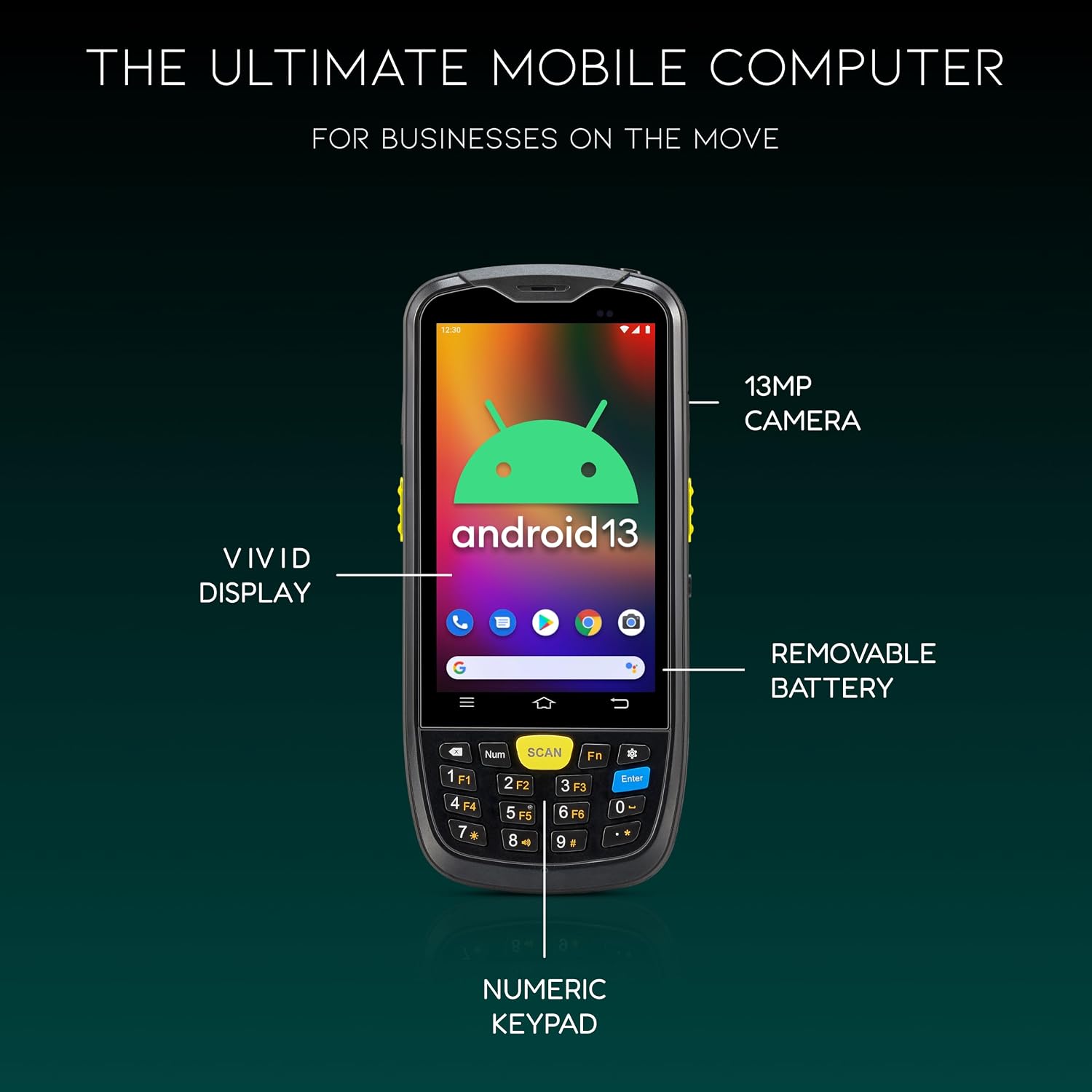
Figure 2.1: Key Components of the C6000. This diagram highlights the vivid display, 13MP camera, numeric keypad, and the location of the removable battery, crucial for initial setup and maintenance.

Figure 2.2: Battery Life Indication. This image illustrates the device displaying its battery charge level, emphasizing the long operational duration provided by its 5000mAh battery.
2.3. Powering On/Off
To power on the device, press and hold the power button located on the side until the screen illuminates. To power off, press and hold the power button, then select "Power off" from the options.
2.4. Network Connectivity
The C6000 supports Wi-Fi and Bluetooth connectivity.
- Wi-Fi: Navigate to Settings > Network & internet > Wi-Fi. Select your desired network and enter the password if prompted.
- Bluetooth: Navigate to Settings > Connected devices > Connection preferences > Bluetooth. Enable Bluetooth and pair with compatible devices.
3. Operating Instructions
3.1. Android 13 Operating System
The C6000 operates on the Android 13 platform, providing a familiar and intuitive user experience. Navigate through applications, settings, and files using the touchscreen and physical keypad.

Figure 3.1: Android 13 Platform. This image visually represents the advanced Android 13 operating system and the 2.0 GHz Octa-Core Processor that powers the C6000, ensuring fast and responsive performance for all applications.
3.2. Barcode Scanning
The integrated Zebra SE4710 scan engine allows for rapid and accurate scanning of 1D, 2D, and QR codes.
- Open a scanning application or a field that requires barcode input.
- Point the scanner window at the barcode.
- Press one of the side scan buttons or the dedicated "SCAN" button on the keypad to activate the scanner.
- Ensure the red aiming beam covers the entire barcode for optimal reading. A successful scan will typically be indicated by an audible beep or a visual confirmation on the screen.

Figure 3.2: Zebra SE4710 Scan Engine. This diagram illustrates the precise location of the Zebra SE4710 scan engine and the side scan buttons, highlighting its capability for fast and accurate reading of various barcode types.
3.3. Using the Numeric Keypad
The C6000 features a physical numeric keypad for efficient data entry. Use the number keys for numerical input and function keys (F1-F6) for specific application functions. The "Num" and "Fn" keys can be used to toggle between different key modes.
3.4. Camera Functionality
The device is equipped with a 13MP camera. Access the camera application from the home screen or app drawer to capture images or videos as needed for documentation or other tasks.
4. Maintenance
4.1. Cleaning the Device
To maintain optimal performance and appearance, regularly clean your C6000 Mobile Computer.
- Use a soft, lint-free cloth slightly dampened with water or a mild, non-abrasive cleaning solution.
- Wipe the screen and device body gently.
- Avoid spraying liquids directly onto the device or into any openings.
- For the scanner window, use a lens cleaning cloth to avoid scratches.

Figure 4.1: IP65 Durability. This image demonstrates the C6000's IP65 rating, indicating its resistance to dust and water ingress, making it suitable for tough working environments.
4.2. Battery Care
To prolong battery life, avoid extreme temperatures and fully discharge the battery periodically before recharging. Store the device in a cool, dry place when not in use for extended periods.
5. Troubleshooting
| Problem | Possible Cause | Solution |
|---|---|---|
| Device does not power on. | Low or depleted battery; faulty power adapter/cable. | Ensure battery is charged. Connect to power adapter and try again. Check power adapter and cable for damage. |
| Barcode scanner not working. | Scanner application not open; barcode damaged/unreadable; scanner window dirty. | Ensure a scanning application is active. Try scanning a different barcode. Clean the scanner window. |
| Wi-Fi connection issues. | Incorrect password; out of range; router issue. | Verify Wi-Fi password. Move closer to the Wi-Fi router. Restart the router. |
| Device is slow or unresponsive. | Too many applications running; low memory. | Close unnecessary applications. Restart the device. Clear cache if possible. |
For issues not covered here, please refer to the support section or contact customer service.
6. Specifications
| Feature | Detail |
|---|---|
| Model Number | C6000 (Android 13) |
| Operating System | Android 13 |
| Processor | 2.0 GHz Octa-Core Processor |
| Barcode Scanner | Zebra SE4710 (2D/1D/QR Code Reader) |
| Camera | 13MP |
| Battery | 5000mAh (Up to 12 hours continuous use) |
| Connectivity | Wireless, Wi-Fi, Bluetooth, GPS |
| Durability Rating | IP65 |
| Compatible Devices | Laptop, Desktop, Smartphone (for data transfer/management) |
| Power Source | Battery Powered |
| Manufacturer | Chainway |
| Brand | BARCODE-USA |
| UPC | 198168184486 |
| ASIN | B0D4C5QXSF |
7. Warranty and Support
For specific warranty terms and conditions, please refer to the documentation provided with your purchase or contact the seller, BARCODE-USA, directly.
For technical support or further assistance, please visit the official BARCODE-USA store on Amazon: BARCODE-USA Store.
Related documentsC6000 (Android 13)


Ask a question about this manual
Ask about setup, troubleshooting, compatibility, parts, safety, or missing instructions. Manuals+ will review the question and use this page’s manual context to help answer it.