
1. Introduction
Welcome to the Gezoon 15.6 Inch Laptop user manual. This guide provides essential information for setting up, operating, maintaining, and troubleshooting your new laptop. Please read this manual thoroughly to ensure proper use and to maximize your device's performance and longevity.
2. What's in the Box
Upon opening your Gezoon laptop package, you should find the following items:
- Gezoon 15.6 Inch Laptop
- Power Adapter
- Battery (pre-installed or separate)
- User Manual
Video: Unboxing the Gezoon 15.6 Inch Laptop. This video demonstrates the contents of the package and the initial unboxing process for your new laptop.
3. Product Overview
3.1 Key Features
- Processor: Powered by the 12th Generation Intel Celeron N100 processor with 4 cores, 4 threads, 6M cache, and clocked up to 3.40GHz, offering efficient multitasking performance.
- Memory & Storage: Equipped with 12GB LPDDR4 memory and a 512GB M.2 2280 SATA Solid State Drive (SSD) for smooth system operation and ample storage.
- Display: Features a 15.6-inch Full HD (FHD) IPS screen with a resolution of 1920 x 1080p, a 16:9 aspect ratio, and over 80% screen occupancy for vibrant visuals.
- Connectivity: Stay connected with Wi-Fi 6 for faster internet speeds and Bluetooth 5.2 for stable and efficient data transmission.
- Portability: Designed to be lightweight at 1.7kg (3.74 lbs) and thin at 19mm, making it suitable for on-the-go use.
- Battery Life: High-performance 6500mAh battery provides 10 to 12 hours of continuous operation.
- Privacy: Includes a physical camera switch to block the camera lens for enhanced privacy.
3.2 Visual Components
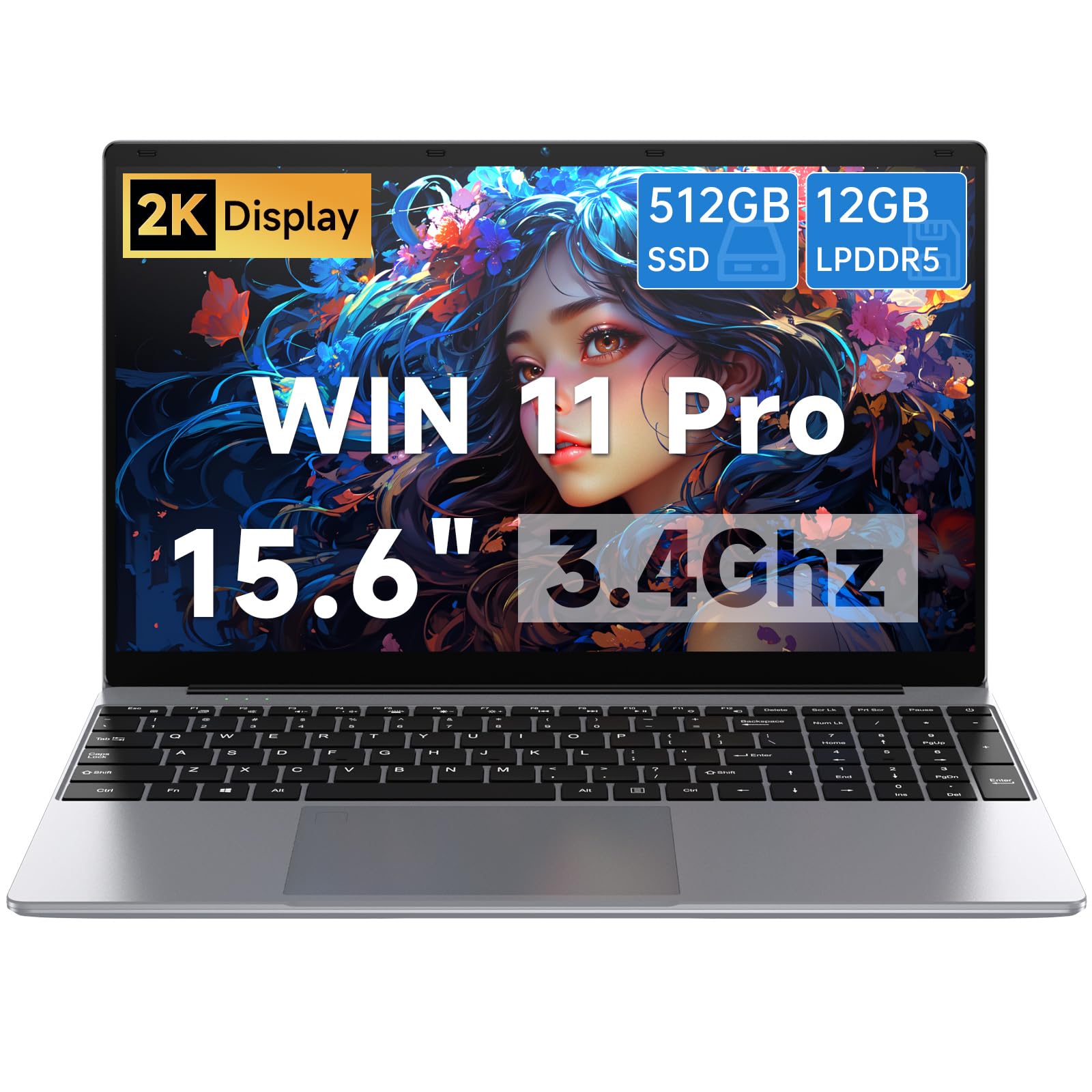
Image: The Gezoon 15.6 Inch Laptop in a closed position, showcasing its sleek design.

Image: Diagram illustrating the Intel N100 processor, highlighting its 7nm process, 4 cores, 4 threads, 6MB cache, and 3.4GHz turbo frequency.

Image: View of the laptop's full-size keyboard, including the numeric keypad with Num Lock, and the touchpad.

Image: Side view of the laptop displaying its multiple interfaces, including TF Card slots, 3.5mm earphone jack, USB 3.0 ports, DC power input, Mini HDMI, and Type-C port.

Image: The laptop screen showcasing its 1920x1080 Full HD resolution and 15.6-inch display size.

Image: Underside view of the laptop, highlighting the cooling vents designed for efficient heat dissipation and system stability.

Image: Two individuals comfortably using the lightweight and portable Gezoon laptop, demonstrating its ease of use for various tasks.
4. Setup
4.1 Initial Power On
- Charge the Battery: Before first use, connect the power adapter to the laptop and a power outlet. Allow the battery to charge fully.
- Power On: Open the laptop lid and press the power button. The laptop will begin its initial boot sequence.
- Operating System Setup: Follow the on-screen instructions to complete the Windows 11 Pro setup, including language, region, network connection, and user account creation.
4.2 Connecting Peripherals
Utilize the available ports to connect external devices:
- USB Devices: Plug USB drives, mice, or keyboards into the USB 3.0 ports.
- External Display: Connect an external monitor or TV using the Mini HDMI port.
- Audio: Use the 3.5mm earphone jack for headphones or external speakers.
- Memory Card: Insert a TF card into the TF Card slot for additional storage.
5. Operating Instructions
5.1 Basic Usage
- Keyboard: The laptop features a full-size keyboard. Use the Fn key in combination with function keys (F1-F12) for special functions like adjusting brightness, volume, or toggling Wi-Fi.
- Touchpad: The integrated touchpad supports multi-touch gestures for navigation. Refer to Windows settings for customization.
- Wi-Fi & Bluetooth: Connect to wireless networks via Wi-Fi 6 and pair Bluetooth devices through the Windows settings.
5.2 Power Management
- Sleep Mode: Close the lid or press the power button briefly to enter sleep mode.
- Shut Down: Click the Start button, then Power, and select 'Shut down' to turn off the laptop completely.
- Restart: Click the Start button, then Power, and select 'Restart' to reboot the system.
6. Maintenance
6.1 Cleaning
- Screen: Use a soft, lint-free cloth slightly dampened with water or a screen cleaner. Avoid harsh chemicals.
- Keyboard & Chassis: Use a soft cloth to wipe surfaces. For dust in crevices, use compressed air.
6.2 Battery Care
- Avoid fully discharging the battery frequently.
- Store the laptop in a cool, dry place if not used for extended periods.
6.3 Software Updates
- Regularly check for and install Windows updates to ensure system stability and security.
- Keep device drivers updated for optimal hardware performance.
7. Troubleshooting
If you encounter issues with your laptop, refer to the following troubleshooting steps. For visual guidance, please watch the embedded video.
Video: Troubleshooting Guide for Laptop Charging Issues. This video provides detailed steps to diagnose and resolve common charging problems.
7.1 Laptop Won't Charge or Power On
- Power Adapter Issue:
- Check the power adapter and cable for any visible damage.
- Try using a different power outlet.
- If possible, use another compatible power adapter to see if the laptop charges and powers on.
- Battery Issue:
- If the battery is removable, remove it and try to power on the laptop with just the power adapter connected. If it powers on, the battery might be the issue.
- Alternatively, try using a spare or replacement battery.
- Perform a power reset: Press and hold the power button for 20-30 seconds to drain any residual power. Reconnect the power adapter and try to power on.
- Internal Hardware Issues:
- If you feel comfortable, check for any loose connections inside the laptop, particularly around the battery and power components.
- Look for any signs of physical damage or burnt components.
- Software Issue:
- Boot in Safe Mode: Attempt to start the laptop in Safe Mode. This can help determine if the issue is related to a software or driver problem. To enter Safe Mode, press the F8 key (or another key depending on your laptop model) repeatedly while the laptop is booting up.
7.2 Professional Support
If none of the above steps resolve the issue, please contact Gezoon customer support for further assistance. Our team is dedicated to helping you resolve any problems you may encounter.
8. Specifications
| Feature | Detail |
|---|---|
| Brand | Gezoon |
| Model Name | 12GB RAM 512GB SSD |
| Screen Size | 15.6 Inches |
| Screen Resolution | 1920 x 1080 pixels (FHD IPS) |
| Processor | Intel Celeron N100 (Quad-Core, up to 3.4 GHz) |
| RAM | 12GB LPDDR4 |
| Hard Drive | 512GB SSD (M.2 2280 SATA) |
| Operating System | Linux (as per specifications, though product title mentions Win 11 Pro, following specifications data) |
| Graphics Card | Integrated |
| Wireless Type | 802.11ax (Wi-Fi 6) |
| Bluetooth | Bluetooth 5.2 |
| USB 3.0 Ports | 2 |
| Other Ports | Mini HDMI, Type-C, 3.5mm Earphone Jack, TF Card Slot, DC Power |
| Battery Life | Up to 12 Hours (6500mAh) |
| Item Weight | 3.64 pounds (approx. 1.65 kg) |
| Product Dimensions | 14.09 x 8.97 x 0.78 inches |
9. Warranty and Support
Your Gezoon laptop comes with a warranty. Please refer to the warranty card included in your package for specific terms and conditions. For any technical assistance, troubleshooting beyond this manual, or warranty claims, please contact Gezoon customer support. Our dedicated team is ready to provide professional support and resolve any issues you may encounter.
You can often find contact information on the manufacturer's website or through the retailer where you purchased the product.