
Introduction
This manual provides instructions for the Generic 10-inch Wireless Bluetooth Keyboard with Touchpad. This ultra-thin, rechargeable keyboard is designed for portability and multi-device compatibility, supporting Windows, iOS, and Android systems. It features a built-in multi-touch trackpad and a comfortable scissor-switch key structure for efficient typing.
Video: Overview of the Wireless Bluetooth Keyboard with Touchpad, highlighting its features and design.
Setup Instructions
1. Bluetooth Pairing Procedure
- Turn the power switch to the ON position. The power indicator will illuminate for 3 seconds, and the Bluetooth indicator will begin to blink, indicating the keyboard is in pairing mode.
- On your device (e.g., iPad, tablet, smartphone), turn on and unlock it, then tap the Settings icon.
- In the Settings menu, locate and select the Bluetooth option.
- Turn on the Bluetooth switch on your device. Simultaneously press the Fn + C keys on the keyboard. The Bluetooth indicator light on the keyboard will flash to initiate pairing.
- On your device, find "Bluetooth Keyboard" in the list of available devices and tap it. The keyboard will automatically connect.
- Once the Bluetooth connection is successful, the pairing indicator on the keyboard will turn off, and your device's Bluetooth list will display "Connected" next to "Bluetooth Keyboard".
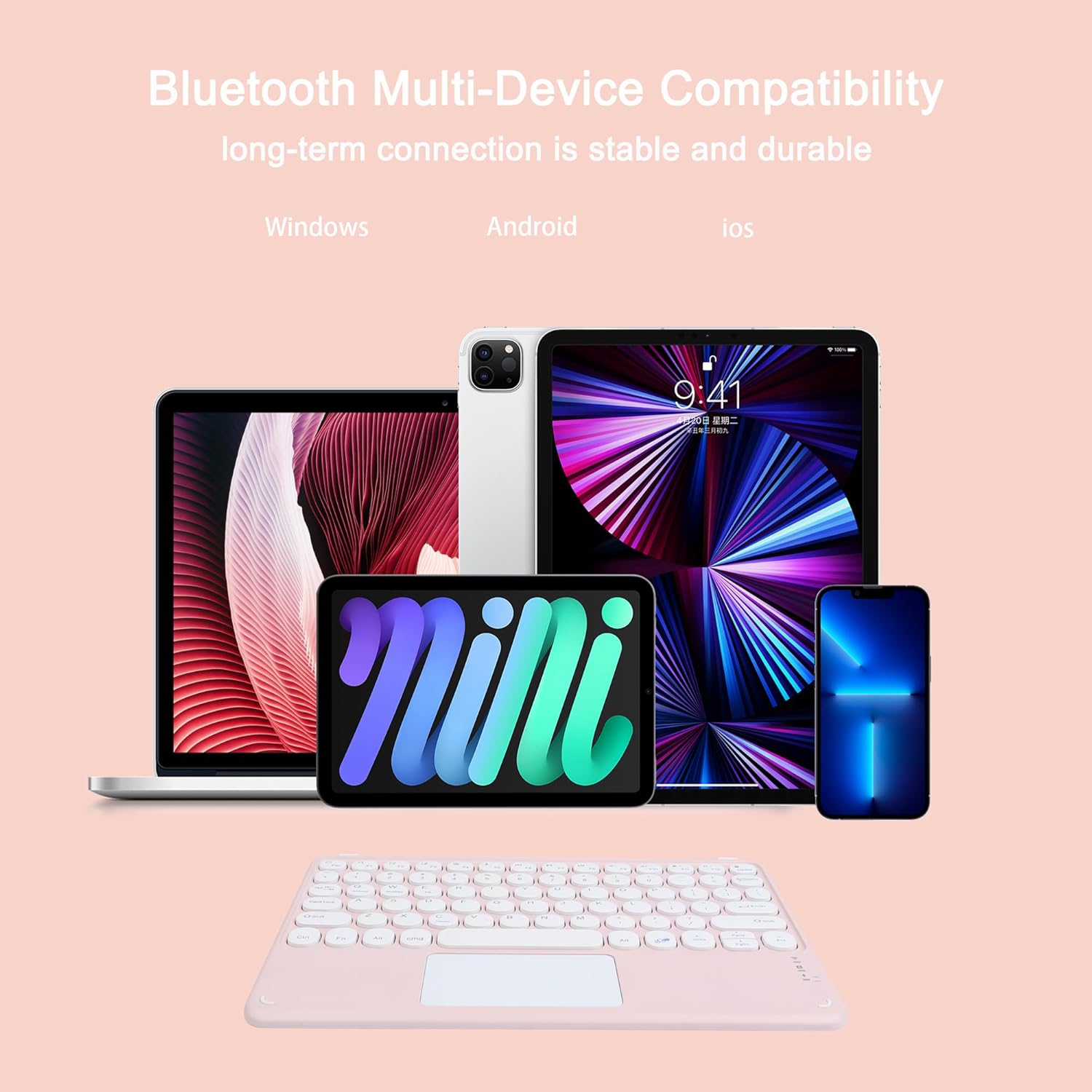
Image: The keyboard demonstrating multi-device compatibility with various Windows, Android, and iOS devices.
2. System Mode Switching
This keyboard is universally compatible with three systems: iOS, Android, and Windows. For optimal compatibility and functionality, switch the keyboard to the correct operating system mode after pairing:
- For iOS devices (iPad, iPhone): Press Fn + E
- For Android devices: Press Fn + Q
- For Windows devices: Press Fn + W
Operating Instructions
1. Touchpad Usage
The keyboard features a built-in multi-touch trackpad for navigation and control without an external mouse. It supports basic trackpad operations for daily screen browsing and selection tasks.
- Left Click: Single tap on the touchpad.
- Right Click: Two-finger tap on the touchpad.
- Scrolling: Drag two fingers up or down on the touchpad.

Image: A hand interacting with the touchpad, illustrating its functionality.
2. Energy Saving Sleep Mode
To conserve battery life, the keyboard automatically enters sleep mode after 15 minutes of inactivity. All LED lights will turn off in this mode.
To wake the keyboard, simply press any key. It will reconnect to the last paired Bluetooth device within approximately 3 seconds and resume normal operation.
Maintenance
Charging the Keyboard
When the keyboard's built-in battery is low, it may not function correctly or pair successfully. Use the provided USB charging cable to charge the keyboard. Connect the small end of the USB cable to the keyboard's charging port and the other end to a USB power source (e.g., computer, wall adapter).

Image: The keyboard being charged via its USB port, connected to a power source.
Troubleshooting
If your keyboard is not working properly, please follow these steps:
- Ensure your device's Bluetooth function is enabled.
- Verify the keyboard is within 10 meters (33 feet) of your device.
- Confirm that the connection password (if any) was entered correctly during pairing.
- Charge the keyboard if its built-in battery is low. Refer to the "Charging the Keyboard" section.
- If the keyboard cannot pair or connect, or if there is a typing delay or incorrect characters after successful pairing, perform the following reset steps:
- Delete all existing Bluetooth devices from your tablet's Bluetooth settings.
- Turn off the Bluetooth option on your tablet.
- Restart your tablet.
- Attempt to connect the keyboard to your tablet again following the "Bluetooth Pairing Procedure".
Product Specifications
| Product Name | 10-inch Touchpad Bluetooth Keyboard |
| Brand | Generic |
| Model | B0D49NJ4BS |
| Connectivity Technology | Bluetooth |
| Compatible Devices | Laptop, PC, Smartphone, Tablet (Windows, iOS, Android) |
| Keyboard Layout | QWERTY US Layout |
| Number of Keys | 78 |
| Special Features | Lightweight, Portable, Rechargeable, Round Key, Integrated Trackpad, Magnetic Bottom Design |
| Dimensions (L x W x H) | 243 x 170 x 7.4 mm (9.5 x 6.6 x 0.29 inches) |
| Weight | 218 Grams |
| Material | Plastic (with alloy bottom) |
| Power Source | Battery Powered (Rechargeable) |
| Switch Type | Scissor-switch |

Image: Visual representation of the keyboard's dimensions and weight, highlighting its lightweight and ultra-thin design.

Image: The keyboard in use with a tablet, showcasing its comfortable keypad feeling and scissor frame design.

Image: Illustration of the keyboard's magnetic bottom plate design, allowing it to securely attach to compatible surfaces or cases.
Package Contents
The package includes the following items:
- 1 x Wireless Bluetooth Keyboard with Touchpad
- 1 x USB Charging Cable
- 1 x User Manual

Image: All items included in the product package: the keyboard, USB charging cable, and user manual.
Warranty Information
This product comes with a 1-Year Warranty from the date of purchase. Please retain your proof of purchase for warranty claims. The warranty covers manufacturing defects and malfunctions under normal use. It does not cover damage caused by misuse, accidents, unauthorized modifications, or normal wear and tear.
Customer Support
For any questions, technical assistance, or warranty inquiries regarding your Generic Wireless Bluetooth Keyboard, please refer to the contact information provided with your purchase documentation or contact the retailer where the product was acquired. Always ensure you have your model number (B0D49NJ4BS) and proof of purchase ready when seeking support.