
ANKEWAY AW1030-EU
ANKEWAY Wireless Carplay Screen for Motorcycle User Manual
Model: AW1030-EU
1. Introduction
This manual provides comprehensive instructions for the installation, operation, and maintenance of your ANKEWAY Wireless Carplay Screen for Motorcycle. This device is designed to enhance your riding experience by integrating smartphone functionalities like navigation, music, and communication directly onto your motorcycle's handlebars.

Figure 1: ANKEWAY Wireless Carplay Screen for Motorcycle.
2. Key Features
- Wireless CarPlay & Android Auto: Seamlessly connect your smartphone for navigation, calls, music, and messages.
- Built-in Dual Bluetooth: Connect both your smartphone and a Bluetooth helmet/headphones simultaneously.
- 5-inch HD IPS Touchscreen: Clear and responsive display with 1024x600 resolution.
- Universal Motorcycle Compatibility: Designed to fit all motorcycle models with included mounting kit.
- IP67 Waterproof & Anti-Theft Design: Withstands various weather conditions and features a removable anti-theft stand.
- Wide Operating Temperature: Functions smoothly from -20°C to 70°C.
3. Package Contents
Please verify that all items are present in the package:
- ANKEWAY Wireless Carplay Screen Unit
- Motorcycle Mounting Kit (including bracket and screws)
- Power Cable (for battery connection)
- USB-C Power Cable (alternative power source)
- Installation Tools (wrench, screwdriver)
- User Manual (this document)

Figure 2: Package Contents and Dimensions.
4. Setup and Installation
4.1 Mounting the Device
- Select a suitable location on your motorcycle's handlebars for optimal visibility and access.
- Attach the mounting bracket securely to the handlebar using the provided screws and tools. Ensure it is tightened firmly to prevent movement during riding.
- Slide the ANKEWAY Carplay Screen unit onto the mounting bracket until it clicks into place. The anti-theft design allows for easy removal when parked.
4.2 Power Connection
The device can be powered via direct battery connection or a USB-C port.
- Direct Battery Connection: Connect the provided power cable to your motorcycle's 12V battery. Ensure correct polarity (red to positive, black to negative). It is recommended to connect to a switched power source to prevent battery drain when the motorcycle is off.
- USB-C Connection: If your motorcycle has a USB-C port, you can use the USB-C power cable for convenience.
4.3 Initial Power On
Once connected to power, the device should automatically power on. If not, check the power connections.
5. Operating Instructions
5.1 Connecting to CarPlay / Android Auto
- Ensure your smartphone's Bluetooth and Wi-Fi are enabled.
- On the ANKEWAY screen, navigate to the CarPlay or Android Auto icon and tap it.
- The screen will display a pairing name. On your smartphone, search for this Bluetooth device and pair with it.
- Follow the on-screen prompts on both the ANKEWAY screen and your smartphone to complete the connection. Once paired via Bluetooth, the Wi-Fi connection for CarPlay/Android Auto will establish automatically.
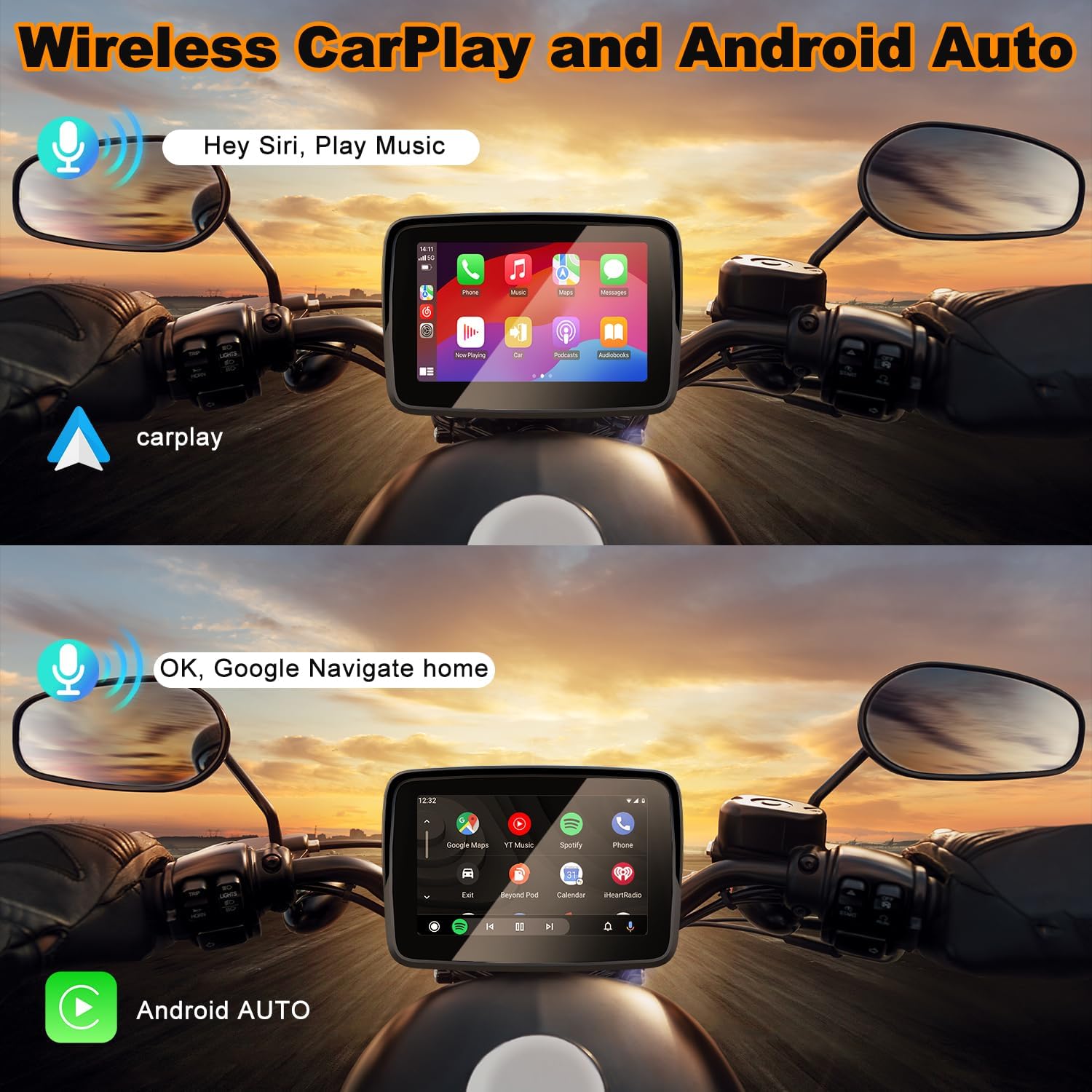
Figure 3: Wireless CarPlay and Android Auto Interface.
5.2 GPS Navigation
Once connected to CarPlay or Android Auto, you can use your preferred navigation apps (e.g., Apple Maps, Google Maps, Waze) directly on the ANKEWAY screen. Voice commands via Siri or Google Assistant are supported for hands-free operation.

Figure 4: GPS Navigation and Multimedia Functions.
5.3 Dual Bluetooth Connection (Helmet/Headphones)
The ANKEWAY screen features dual Bluetooth, allowing connection to both your smartphone and a Bluetooth-enabled helmet or headphones for audio output and hands-free calls.
- Ensure your helmet or earphone is turned on and in pairing mode.
- On the ANKEWAY screen, go to the Bluetooth settings.
- Search for and select your helmet/earphone from the list of available devices to pair.
- Important: Do not connect your mobile phone directly to the Bluetooth helmet or earphone, as this may interfere with the pairing process with the ANKEWAY screen.

Figure 5: Bluetooth Helmet Setup.
5.4 Multimedia Playback
Play music, podcasts, and audiobooks through your connected smartphone via CarPlay or Android Auto. Audio will be routed to your paired Bluetooth helmet or headphones.
5.5 Calls and Messaging
Make and receive calls, and send/receive messages using voice commands or the touchscreen interface, all while keeping your hands on the handlebars.
6. Maintenance and Care
- Cleaning: Use a soft, damp cloth to clean the screen and device body. Avoid abrasive cleaners or solvents.
- Waterproof Rating: The device is IP67 waterproof, meaning it is protected against dust and can withstand immersion in water up to 1 meter for 30 minutes. However, avoid prolonged submersion or high-pressure water jets.
- Temperature: The device operates smoothly in temperatures from -20°C to 70°C. Avoid exposing it to extreme temperatures outside this range for extended periods.
- Storage: When not in use for extended periods, store the device in a cool, dry place. Consider removing it from the motorcycle to prevent theft.

Figure 6: Weather Resistance.
7. Troubleshooting
| Problem | Possible Cause | Solution |
|---|---|---|
| Device does not power on. | No power supply; incorrect wiring; blown fuse. | Check power cable connections and polarity. Ensure the motorcycle's ignition is on if connected to a switched power source. Check vehicle's fuse box. |
| Cannot connect to CarPlay/Android Auto. | Bluetooth/Wi-Fi off on phone; phone not compatible; interference. | Ensure phone's Bluetooth and Wi-Fi are on. Confirm phone supports wireless CarPlay/Android Auto. Try restarting both devices. Ensure no other devices are interfering with Bluetooth pairing. |
| No audio from helmet/headphones. | Helmet/headphones not paired; volume too low; phone connected directly to helmet. | Ensure helmet/headphones are paired to the ANKEWAY screen, not directly to the phone. Adjust volume on both devices. Re-pair if necessary. |
| Touchscreen unresponsive. | Software glitch; extreme temperature. | Restart the device. Ensure operating temperature is within specified range (-20°C to 70°C). |
8. Specifications
- Screen Size: 5 inches
- Screen Type: Full IPS Touch Screen
- Screen Resolution: 1024x600
- Video Formats: MP4, 3GP, WMV, MKV, AVI, FLV, MOV
- Picture Format: JPG
- Power Supply: 12V
- Working Current: Maximum 2A
- Operating Temperature: -20°C to 70°C
- Waterproof Rating: IP67
- Languages: English, Spanish, French, Italian, German, etc.
- Model Number: AW1030-EU
9. Warranty and Support
ANKEWAY offers a 12-month warranty and lifetime technical support for this product. We are committed to providing high-quality customer service and products.
9.1 Firmware Updates
Our technical support team regularly releases firmware update packages to continuously improve the system experience. If you need to update, please contact the technical support team to get the upgrade package.
9.2 Contact Support
For any issues, questions, or to request firmware updates, please contact us:
- Email: ankeway@ding.com
- WhatsApp: Scan QR code or click here for WhatsApp support
Figure 7: WhatsApp Support QR Code.