
Introduction
This manual provides detailed instructions for the installation, operation, and maintenance of your FITNATE HS0434S-CA Fingerprint Door Knob with Keypad. This smart door knob offers multiple unlocking methods including fingerprint recognition, password entry, mobile application control, and traditional physical keys, enhancing security and convenience for various indoor applications.
Product Features
- 4-in-1 Unlocking Methods: Fingerprint, Password, App Control (Tuya App compatible), and Physical Key.
- App Remote Unlock: Control and manage your lock remotely via the mobile application.
- Convenient Keyless Entry: Fast biometric fingerprint identification (under 0.1s) and touch-to-open functionality.
- Stylish & Durable Design: Crafted from high-quality aluminum alloy with a sensitive LED keyboard for day and night operation.
- Emergency Power: USB Type-C port for emergency power in case of battery depletion.
What's in the Box
Please verify that all components are present before beginning installation.
- Fingerprint Door Lock Assembly
- Strike Box
- Keys (x2)
- Screws (x6)
- Screwdriver
- User Manual
- Installation Card
- Gloves (x2)
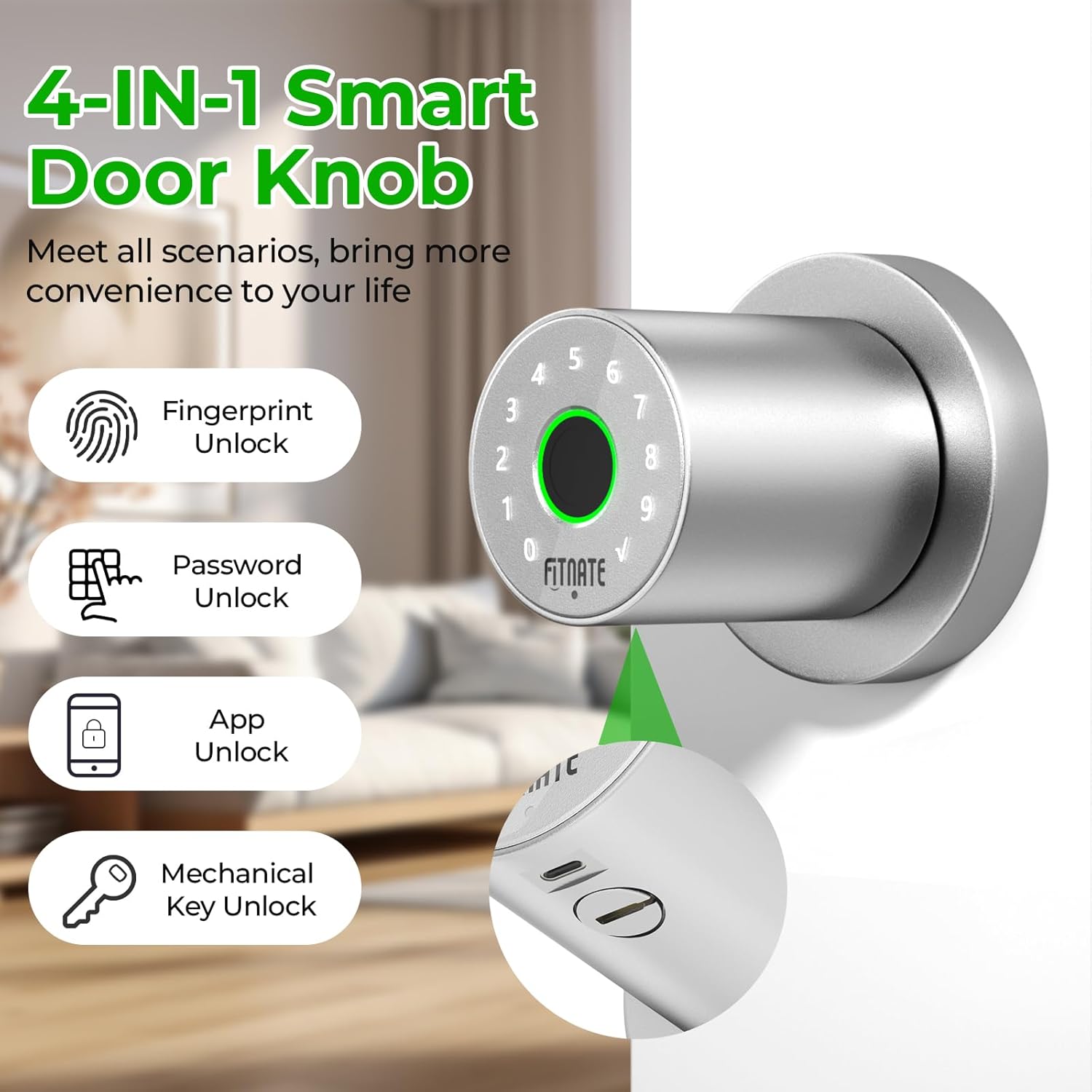
Image: All components included in the FITNATE Fingerprint Door Knob package.
Installation Guide
Before installation, ensure your door dimensions are compatible with the lock. The door hole diameter should be 2 1/8" (54mm), hole diameter 1" (25mm), door thickness 1 3/8" - 2 1/8" (35-54mm), and backset 2 3/8" or 2 3/4" (60 or 70mm).
1. Prepare the Door
Verify door dimensions using the provided template. Ensure the existing door holes match the required specifications.

Image: Diagram showing required door hole diameter, thickness, and backset measurements for installation.
2. Install the Latch
- Remove the existing latch if present.
- Insert the new latch into the door hole and secure it with screws.
3. Install Exterior Door Handle
- Carefully align the exterior door handle with the latch mechanism and door holes.
- Ensure the spindle is correctly inserted into the latch.
4. Install Interior Door Handle
- Pass the power cord from the exterior handle through the rear door handle.
- Connect the power cord to the interior handle.
- Secure the interior door handle with screws.
5. Install Batteries
- Insert four AA batteries (not included) into the interior handle, observing the correct positive (+) and negative (-) terminals.
- Plug in the power cord to the battery compartment.
- Install the door lock top cover.
Video: Detailed installation steps for the FITNATE Door Knob HS0434.
App Setup and Operation
The FITNATE smart door knob can be controlled via the Tuya Smart App. Follow these steps to set up and operate your lock using the app.
1. Download the App
Scan the QR code below or search for "SMART LIFE" or "TUYA SMART" in the App Store (iOS) or Google Play (Android) to install the application.

Image: QR code and links to download the Tuya Smart App for iOS and Android.
2. Connect the Lock to the App
- Open the Tuya Smart App and create an account or log in.
- Click the "+" icon in the upper right corner to add a device.
- Ensure Bluetooth is enabled on your phone. Touch the fingerprint screen of the lock to enable Bluetooth for easier connection.
- Select the discovered device (e.g., "JB-ZAM") and click "Add".
- Wait for successful connection. You can rename the lock for easy identification.

Image: Screenshot illustrating the process of adding the smart door knob to the Tuya Smart App via Bluetooth.
3. Unlocking Methods
- Fingerprint Unlocking: Place your registered finger on the sensor. The lock will unlock if the fingerprint is recognized. Collect six fingerprints from different directions with the same finger for optimal recognition.
- Password Unlocking: Enter your registered password on the keypad and press the checkmark.
- App Unlocking: Open the Tuya Smart App, select your lock, and tap the unlock icon.
- Mechanical Key Unlocking: Insert the physical key into the keyhole (located under the exterior knob) and turn to unlock. This is for emergency use.

Image: A finger being placed on the fingerprint sensor for unlocking.

Image: A hand entering a password on the illuminated keypad of the smart door knob.

Image: Mobile app screen displaying the unlock function for the smart door knob.
Video: Demonstration of fingerprint, app, and key unlocking methods for the FITNATE Fingerprint Door Knob.
4. App Features
- Member Management: Add or remove users, assign administrator or regular user roles.
- Add Fingerprint: Follow in-app instructions to register new fingerprints. Ensure your finger fully contacts the recognition area and is rotated for complete capture.
- Add Password: Create 6-10 digit passwords for keypad entry.
- Add One-Time Password: Generate temporary codes for guests or service providers.
- Passage Mode: Enable this mode to keep the door unlocked for frequent access. The lock will remain in the normally open state.
- Mute Mode: Silence locking and unlocking sounds via the app settings.
- Unlock History: View a record of when the lock was opened and by which user.
- Low Battery Reminder: The app will notify you when the battery is low. Replace batteries within a week to ensure proper function. The door lock requires four LR6/AA/1.5V alkaline batteries.
Status Indicator Lights
The smart door knob uses indicator lights to communicate its status:
- Passage Mode: Purple fingerprint light flashes twice.
- Unlock Success: Green fingerprint light, keypad lights off from 9 to 0.
- Unlock Error: Red fingerprint light.
- Low Battery: Red warning light, seven rapid beeps.
Maintenance
- Battery Replacement: Replace all four AA batteries when the low battery warning appears. Do not mix old and new batteries.
- Cleaning: Wipe the lock surface with a soft, dry cloth. Avoid abrasive cleaners or solvents that could damage the finish or electronic components.
- Fingerprint Sensor: Keep the fingerprint sensor clean and dry for optimal performance.
- Mechanical Parts: Periodically check screws and connections to ensure they are secure.
Troubleshooting
| Problem | Possible Cause | Solution |
|---|---|---|
| Lock does not respond. | Dead batteries. | Replace all four AA batteries. Use the USB Type-C port for emergency power. |
| Fingerprint not recognized. | Finger is wet, dirty, or improperly placed. Fingerprint not registered correctly. | Ensure finger is clean and dry. Place finger firmly on the sensor, covering the entire area. Re-register fingerprint if issues persist, ensuring multiple angles are captured. |
| App cannot connect to the lock. | Bluetooth is off. Lock is not in pairing mode. App permissions. | Ensure Bluetooth is enabled on your phone. Touch the lock's fingerprint sensor to activate Bluetooth. Check app permissions for Bluetooth access. Restart the app and try again. |
| Keypad not lighting up. | Batteries are low or dead. | Replace batteries. |
| Lock is not securing properly. | Latch misalignment. Mechanical obstruction. | Check the alignment of the latch and strike plate. Ensure no debris is obstructing the latch mechanism. |
Specifications
| Feature | Detail |
|---|---|
| Brand | FITNATE |
| Model Number | HS0434S-CA |
| Lock Type | Biometric, Keypad, App, Key |
| Material | Metal (Aluminum Alloy) |
| Color | Satin Nickel |
| Item Dimensions (L x W x H) | 7.95 x 3.23 x 3.23 inches |
| Power Source | 4 x AA Batteries (not included) |
| Emergency Power | USB Type-C |
| Connectivity | Bluetooth (App Control) |
| Fingerprint Storage | Up to 19 fingerprints |
| Door Thickness Compatibility | 1 3/8" - 2 1/8" (35-54mm) |
| Backset Compatibility | 2 3/8" or 2 3/4" (60 or 70mm) |
Warranty and Support
For warranty information and technical support, please refer to the contact details provided with your product packaging or visit the official FITNATE website. Keep your purchase receipt for warranty claims.
