
1. Introduction
Thank you for choosing the SETHDA Bluetooth 5.4 Transmitter & Receiver, Model C29. This versatile 4-in-1 audio adapter is designed to enhance your audio experience by providing seamless wireless connectivity. It functions as a Bluetooth transmitter, a Bluetooth receiver, supports TF card playback, and enables hands-free calling. Equipped with the latest Bluetooth 5.4 technology, it ensures stable connections, low latency, and broad compatibility with various devices.
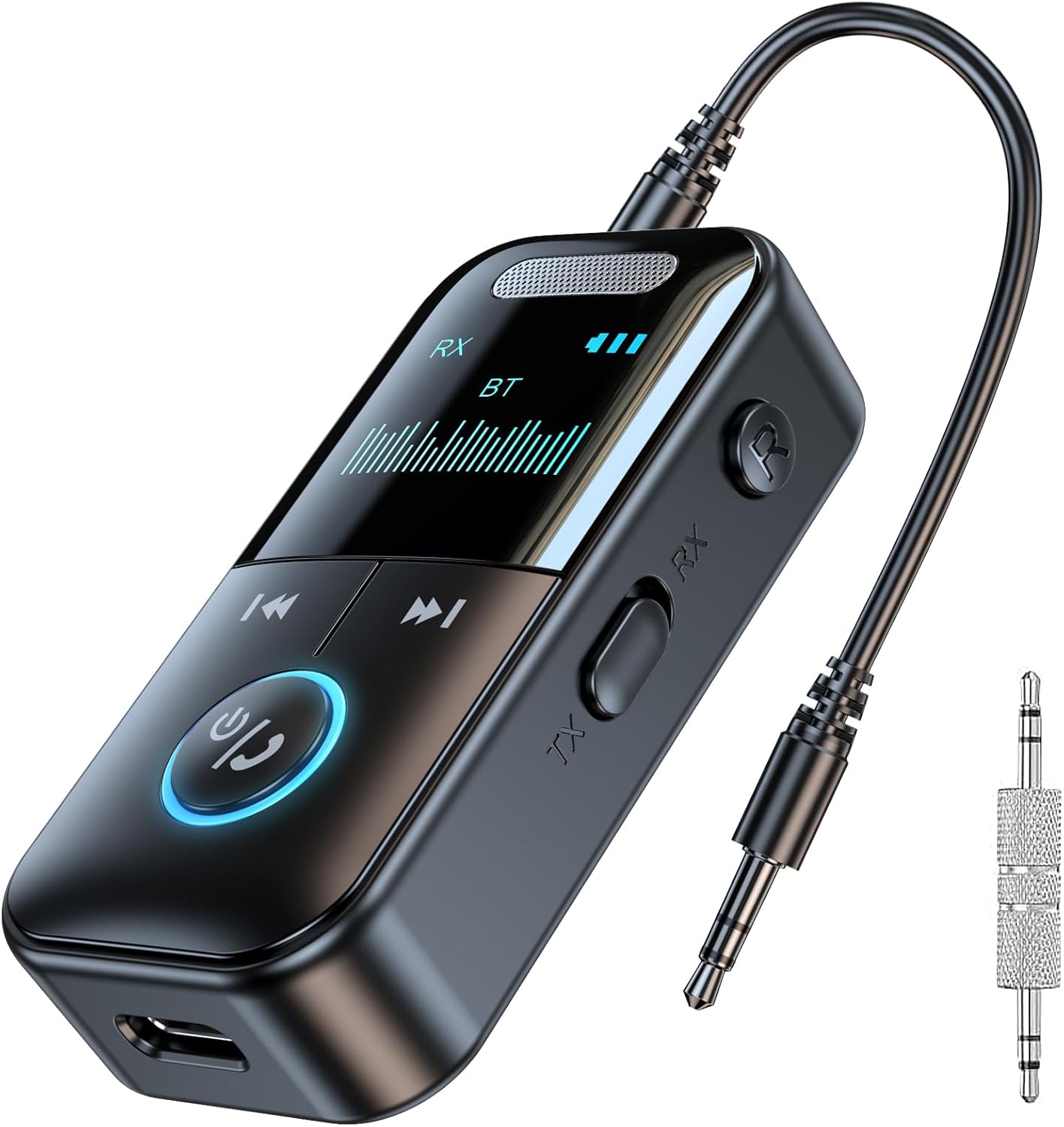
Figure 1: SETHDA Bluetooth 5.4 Transmitter & Receiver with included accessories.
2. Package Contents
- 1 x SETHDA Bluetooth Adapter (Model C29)
- 1 x 3.5mm Aux Audio Cable
- 1 x USB-C Charging Cable
- 1 x User Instruction Manual
3. Device Overview

Figure 2: Overview of the Bluetooth adapter's components and ports.
- LED Display: Shows connection status, battery level, and current mode (RX/TX/TF/AUX).
- Multi-function Button: Power ON/OFF, Play/Pause, Answer/End/Reject calls, Redial.
- Previous Track / Volume Down Button: Short press for previous track, long press for volume down.
- Next Track / Volume Up Button: Short press for next track, long press for volume up.
- TX/RX Mode Switch: Slide to select Transmitter (TX) or Receiver (RX) mode.
- TF Card Slot: For inserting a TF (Micro SD) card for direct music playback.
- 3.5mm AUX Audio Jack: For connecting to audio devices via the 3.5mm audio cable.
- USB-C Charging Port: For charging the device.
- Built-in Microphone: For hands-free calling.
4. Setup and Operation
4.1. Charging the Device
Before first use, fully charge the device. Connect the included USB-C charging cable to the device's USB-C port and the other end to a USB power adapter (not included). The LED display will indicate charging status. A full charge takes approximately 1 hour.

Figure 3: Device charging and battery life information.
4.2. Power On/Off
- Power On: Long press the Multi-function button until the LED display lights up.
- Power Off: Long press the Multi-function button until the LED display turns off.
4.3. Switching Modes (TX/RX)
The device features a physical switch to toggle between Transmitter (TX) and Receiver (RX) modes. Slide the TX/RX switch on the side of the device to select your desired mode. The LED display will clearly show the current mode.

Figure 4: Visual guide for switching between TX and RX modes and pairing.
4.4. Receiver (RX) Mode Operation
In RX mode, the device receives Bluetooth audio from your smartphone, tablet, or PC and outputs it to non-Bluetooth audio systems like car stereos, wired speakers, or wired headphones.
- Slide the switch to RX mode. The LED display will show "RX" and "BT" blinking, indicating it's in pairing mode.
- Connect the 3.5mm Aux audio cable from the adapter to the AUX input of your car stereo, wired speaker, or amplifier.
- On your mobile phone or other Bluetooth-enabled device, search for Bluetooth devices and select "GT69" (or similar device name) to pair.
- Once paired, the "BT" indicator on the LED display will stop blinking, and you can now stream audio wirelessly.
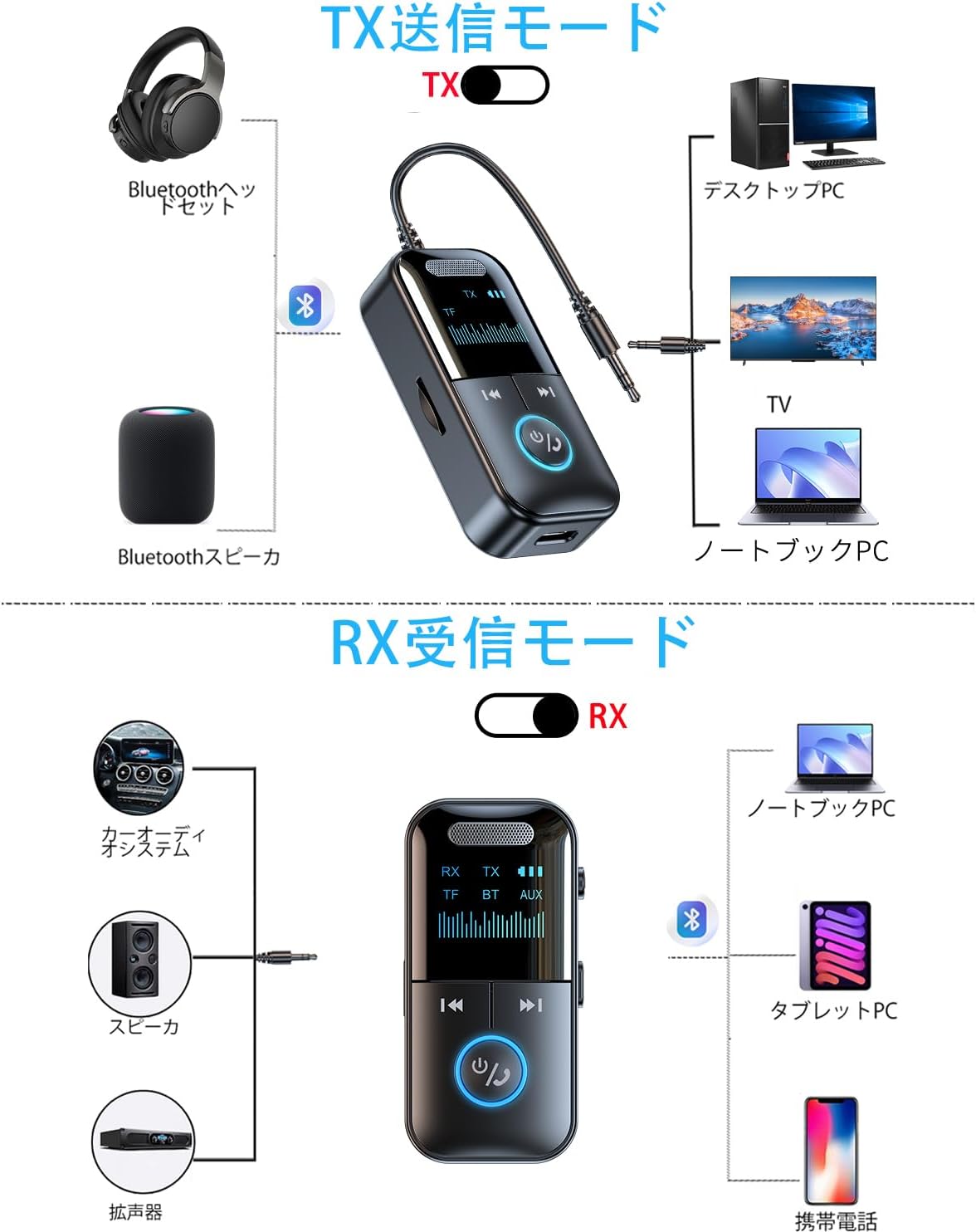
Figure 5: RX mode connection examples.
Note: The device supports automatic pairing with the last connected device in RX mode, eliminating the need for manual searching each time.
4.5. Transmitter (TX) Mode Operation
In TX mode, the device transmits audio from non-Bluetooth devices like TVs, PCs, or laptops to Bluetooth headphones or speakers.
- Slide the switch to TX mode. The LED display will show "TX" and "BT" blinking, indicating it's in pairing mode.
- Connect the 3.5mm Aux audio cable from the adapter to the audio output (e.g., headphone jack) of your TV, PC, or laptop.
- Put your Bluetooth headphones or speaker into pairing mode. The adapter will automatically search for and connect to nearby Bluetooth audio devices.
- Once paired, the "BT" indicator on the LED display will stop blinking, and audio will be transmitted wirelessly.
Figure 6: TX mode connection examples.
4.6. TF Card Playback
The device supports direct music playback from a TF (Micro SD) card.
- Insert a TF card (up to 32GB, formatted with supported audio files like MP3, WMA, APE, WAV, FLAC) into the TF card slot.
- The device will automatically switch to TF card playback mode. The LED display will show "TF".
- You can then use the Previous/Next Track buttons to navigate your music and the Volume Up/Down buttons to adjust the volume.
- If you wish to transmit the TF card audio wirelessly, ensure the device is in TX mode and paired with a Bluetooth headphone or speaker.
- If you wish to play TF card audio through wired speakers, ensure the device is in AUX mode and connected via the 3.5mm audio cable.

Figure 7: TF card playback functionality.
4.7. Hands-Free Calling
When in RX mode and connected to a smartphone, the built-in microphone allows for hands-free calls.
- Answer Call: Short press the Multi-function button.
- End Call: Short press the Multi-function button during a call.
- Reject Call: Long press the Multi-function button when an incoming call rings.
- Redial Last Number: Double-press the Multi-function button.
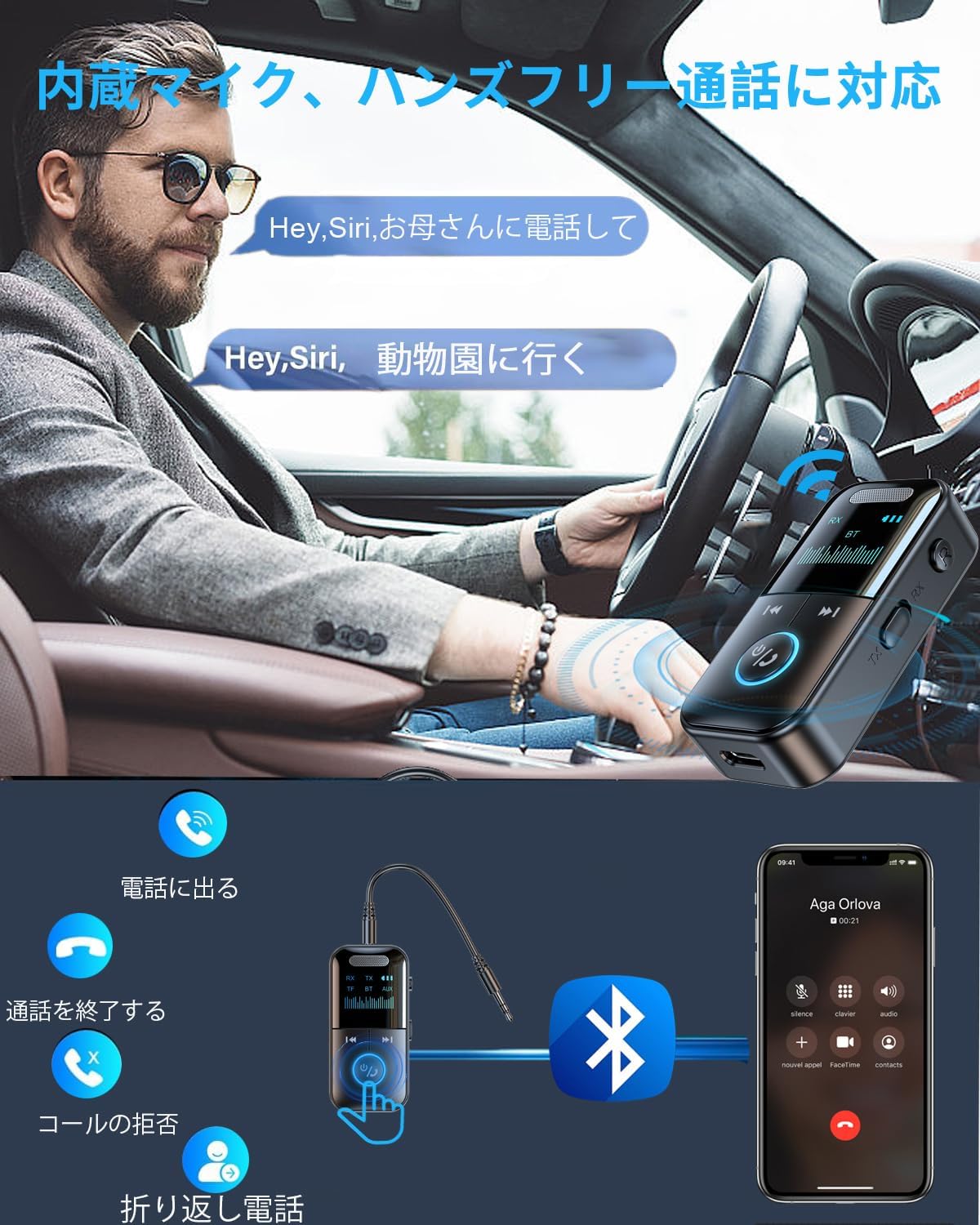
Figure 8: Hands-free calling in a car environment.
5. Maintenance
- Keep the device dry and away from moisture.
- Do not expose the device to extreme temperatures.
- Clean the device with a soft, dry cloth. Do not use harsh chemicals or abrasive materials.
- Avoid dropping or subjecting the device to strong impacts.
6. Troubleshooting
6.1. Low Volume Output
If the volume is too low, adjust it from multiple sources:
- In RX Mode: Increase the volume on your mobile phone/tablet, then increase the adapter's volume, and finally increase the volume on the connected car speaker/amplifier.
- In TX Mode: Increase the volume on your TV/laptop/desktop, then increase the adapter's volume, and finally increase the volume on your Bluetooth headphones/speaker.
6.2. Mono Sound or Sound from One Side of Headphones
Ensure the 3.5mm audio cable is fully and securely connected to both the adapter and your audio device. An incomplete connection can result in mono sound or sound only from one channel.
6.3. Device Not Connecting or Unstable Connection
- Ensure the device is sufficiently charged.
- Make sure the adapter is within the 10-meter (32ft) transmission range without significant obstructions.
- Clear all previous pairing records by long-pressing the 'R' (Redial) button on the device, then re-search and pair.
- Restart both the adapter and the device you are trying to connect to.
- Verify that the correct mode (TX or RX) is selected for your intended use.
6.4. TF Card Playback Issues
- Ensure the TF card is properly inserted into the slot.
- Check that the TF card capacity is 32GB or less.
- Verify that the audio files on the TF card are in a supported format (MP3, WMA, APE, WAV, FLAC).
- If issues persist, try reformatting the TF card and reloading the music files.
6.5. Microphone Not Working (Headset Microphone)
Note: The hands-free calling feature uses the built-in microphone on the SETHDA adapter itself, not the microphone on a connected headset. If you intend to use a headset microphone for calls, this adapter will not support that functionality when connected via the 3.5mm jack, as the 3.5mm jack on this product is for audio output/input only, not microphone input from a headset.
7. Specifications
| Model Number | C29 |
| Bluetooth Version | 5.4 |
| Bluetooth Protocols | AVRCP, A2DP, HFP |
| Audio Output | 3.5mm Audio |
| Charging Port | USB-C |
| Supported TF Card Capacity | ≤32GB |
| Supported TF Card Formats | MP3, FLAC, WMA, WAV, APE |
| Frequency Range | 2.402GHz-2.480GHz |
| Frequency Response | 10Hz-20KHz |
| Signal-to-Noise Ratio | >90dB |
| Audio Codec | SBC |
| Battery Type | Lithium Polymer Battery |
| Battery Capacity | 200mAh 3.7V (0.74Wh) |
| Charging Time | Approx. 1 hour |
| Operating Time (TX Mode) | Approx. 6 hours |
| Operating Time (RX Mode) | Approx. 7 hours |
| Transmission Distance | 10 meters / 32 feet (unobstructed) |
| Product Dimensions | 6.5 x 3.22 x 1.8 cm |
| Product Weight | 51 grams |
8. Warranty and Support
This product comes with a standard manufacturer's warranty. For any questions, technical support, or warranty claims, please contact SETHDA customer service through the retailer where you purchased the product. Please refer to your purchase documentation for specific contact details.