
Introduction
This manual provides comprehensive instructions for the setup, operation, and maintenance of your CTRLBETTER XMRM-006 Voice Remote Control. This remote is designed as a replacement or secondary controller for compatible Xiaomi MI TV Stick Box S/4S/4K models, specifically MDZ-22-AB and MDZ-24-AA. It features voice control functionality and dedicated shortcut buttons for popular streaming services.
Package Contents
Please verify that all items are present in your package:
- 1 x XMRM-006 Voice Remote Control
- 1 x Instruction Manual (this document)
- 2 x AAA Batteries
Setup
1. Battery Installation
The remote control requires two AAA batteries. These are included in your package.
- Locate the battery compartment cover on the back of the remote control.
- Slide the cover downwards to open the compartment.
- Insert the two AAA batteries, ensuring the positive (+) and negative (-) terminals align correctly with the markings inside the compartment.
- Slide the battery compartment cover back into place until it clicks securely.

Figure 1: Battery installation in the XMRM-006 remote control.
2. Pairing the Remote Control
The XMRM-006 remote control uses Bluetooth for connectivity and voice functions. It must be paired with your Xiaomi MI TV Stick Box S/4S/4K device before use.
- Ensure your Xiaomi MI TV Stick Box S/4S/4K device is powered on and connected to your TV.
- Navigate to the device's settings menu. This can usually be done using your existing remote or by connecting a temporary input device (e.g., USB mouse).
- Look for a section related to Remotes & Accessories or Bluetooth Devices.
- Select the option to Add new device or Pair remote.
- While on the pairing screen, press and hold the Home button (circle icon) and the Back button (arrow icon) simultaneously on your new XMRM-006 remote control for approximately 5-10 seconds.
- The remote's indicator light (if present) may flash, and the device should detect the "XMRM-006" or a similar name.
- Select the detected remote on your TV screen to complete the pairing process. A confirmation message should appear.
If pairing fails, ensure the remote is close to the device and repeat the steps. If issues persist, try restarting your Xiaomi device.
Operating Instructions
Basic Remote Functions
The XMRM-006 remote provides standard navigation and control for your Xiaomi device.
- Power Button: Turns the device on or off.
- Navigation Ring (Up, Down, Left, Right): Moves the cursor or selection on the screen.
- OK Button (Center of Navigation Ring): Confirms selections or plays/pauses content.
- Back Button: Returns to the previous screen or menu.
- Home Button: Returns to the main home screen of your device.
- Volume Up/Down Buttons: Adjusts the audio volume.

Figure 2: Key buttons on the XMRM-006 remote control.
Voice Control Function
The XMRM-006 remote features an integrated microphone for voice commands, allowing for hands-free interaction with your device.
- Press the Voice Assistant Button (microphone icon, often located below the power button).
- Hold the remote approximately 6-12 inches from your mouth.
- Speak your command clearly into the microphone. Examples include:
- "Search for action movies"
- "Open Netflix"
- "Turn up the volume"
- "Play the next episode"
- Release the Voice Assistant Button once you have finished speaking.
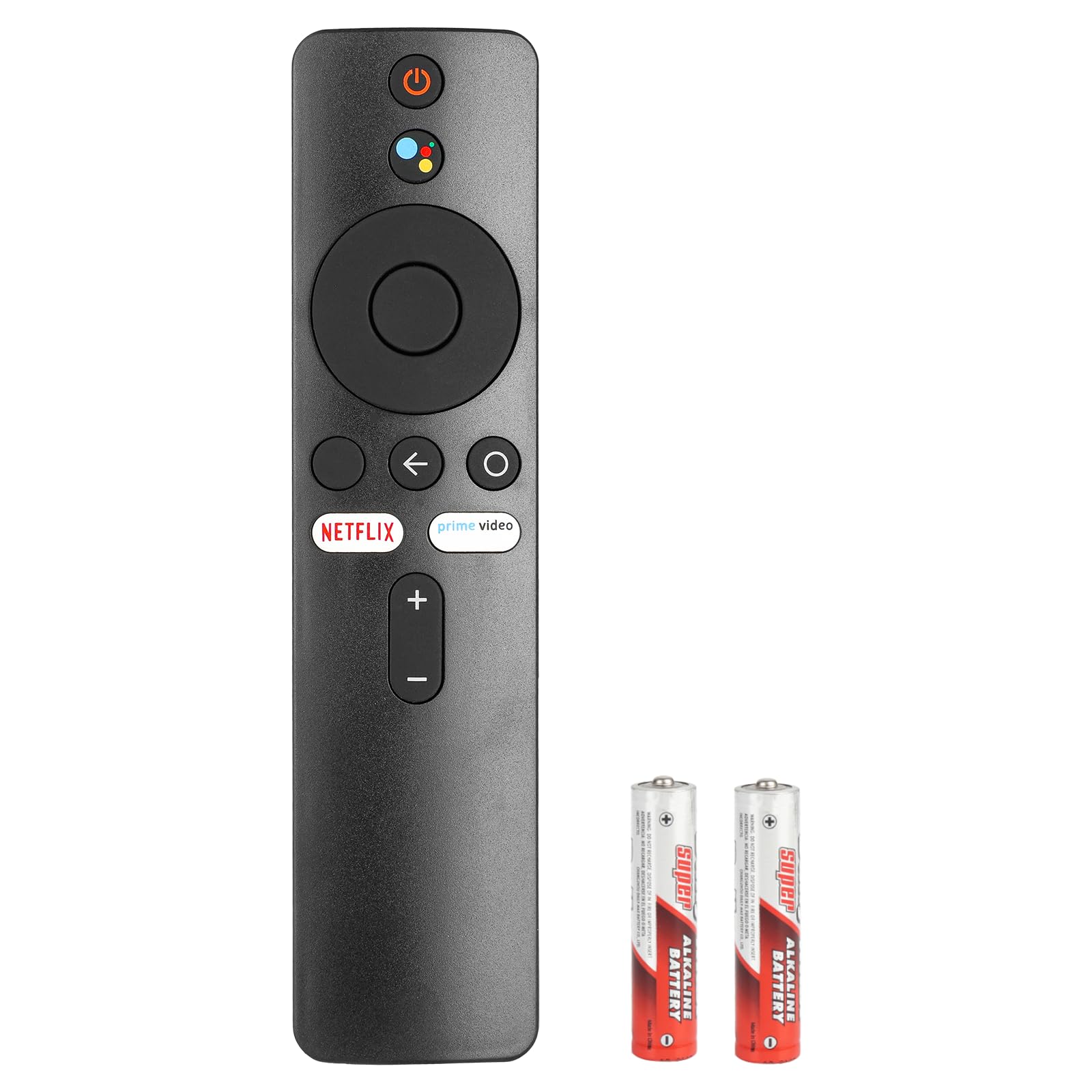
Figure 3: Using the voice control feature.
Dedicated Shortcut Buttons
The remote includes dedicated buttons for quick access to popular streaming applications:
- Netflix Button: Launches the Netflix application directly.
- Prime Video Button: Launches the Amazon Prime Video application directly.
Maintenance
Battery Replacement
Replace batteries when the remote's response becomes sluggish or it stops functioning. Always replace both AAA batteries simultaneously with new ones.
Cleaning
To clean the remote, gently wipe it with a soft, dry cloth. For stubborn dirt, slightly dampen the cloth with water. Avoid using harsh chemicals, abrasive cleaners, or excessive moisture, as these can damage the remote's electronics or finish.
Storage
Store the remote in a cool, dry place away from direct sunlight and extreme temperatures. If the remote will not be used for an extended period, it is recommended to remove the batteries to prevent leakage.
Troubleshooting
- Remote is not responding:
- Check if the batteries are correctly installed and have sufficient charge. Replace with new batteries if necessary.
- Ensure the remote is paired with your Xiaomi device. If not, follow the pairing instructions in the Setup section.
- Confirm there are no obstructions between the remote and the device.
- Restart your Xiaomi MI TV Stick Box S/4S/4K device.
- Voice control is not working:
- Ensure the remote is properly paired via Bluetooth, as voice functionality relies on Bluetooth.
- Speak clearly and hold the remote close to your mouth when pressing the Voice Assistant button.
- Check your device's settings to ensure the voice assistant feature is enabled.
- Verify that your device has an active internet connection, as some voice commands require online processing.
- “Netflix” or “Prime Video” buttons do not launch the app:
- Ensure the respective applications are installed on your Xiaomi device.
- Check if the applications are updated to their latest versions.
- Verify your device's internet connection.
Specifications
| Model Number | XMRM-006 |
| Compatible Devices | Xiaomi MI TV Stick Box S, 4S, 4K (MDZ-22-AB, MDZ-24-AA) |
| Special Feature | Voice Search |
| Color | Black |
| Batteries | 2 x AAA batteries (included) |
| Item Weight | 2.08 ounces |
| Package Dimensions | 6.22 x 1.54 x 0.67 inches |
| Max Number of Supported Devices | 1 |
| Manufacturer | CTRLBETTER |
Warranty and Support
For warranty information, please refer to the terms and conditions provided at the point of purchase or contact your retailer. CTRLBETTER is committed to customer satisfaction.
If you encounter any issues not covered in this manual, or if you are unsure about the compatibility of this remote with your specific device model, please contact CTRLBETTER customer support. Providing a picture of your original remote control can assist our support team in identifying the correct solution or confirming compatibility.
Contact information for support can typically be found on the product packaging or the retailer's website.