
Andoer 0226b5d0-9fdc-46fa-87a1-023ef5ed8edc
Andoer 4K Digital Camera User Manual
Model: 0226b5d0-9fdc-46fa-87a1-023ef5ed8edc
Introduction
This manual provides detailed instructions for the safe and effective use of your Andoer 4K Digital Camera. Please read this manual thoroughly before operating the camera and retain it for future reference. This camera is designed for capturing high-quality photos at 48MP and videos at 4K resolution, featuring a 2.8-inch screen, 16X digital zoom, auto-focus, anti-shake technology, and a built-in flash.
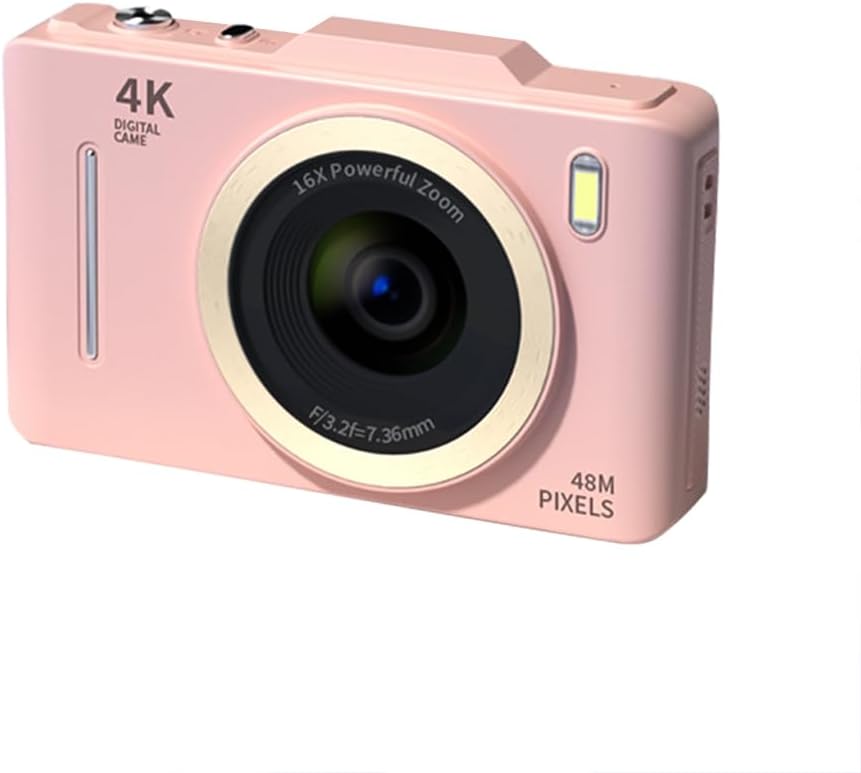
Image: Front view of the Andoer 4K Digital Camera in pink, showcasing its lens, flash, and 4K Digital Camera branding.
Important Safety Information
Warning:
- Not suitable for children. Please read the product instructions and applicable age range carefully before purchase and use.
- Do not expose the camera to water or excessive moisture.
- Avoid dropping the camera or subjecting it to strong impacts.
- Use only specified batteries and charging methods.
- Do not attempt to disassemble or modify the camera.

Image: A warning label indicating that the product is not suitable for children, with the warning translated into multiple languages.
Package Contents
Please check that all items are present in the package:
- Andoer 4K Digital Camera
- USB Cable
- Rechargeable Lithium Battery
- User Manual
- Wrist Strap (may vary by package)
Product Overview
Familiarize yourself with the camera's components:
- Lens: Main optical component for capturing images.
- Flash: Provides additional light in low-light conditions.
- 2.8-inch LCD Screen: For viewing live feed, reviewing photos/videos, and navigating menus.
- Control Buttons: Power, Shutter, Zoom (W/T), Menu, OK, Display, Delete.
- USB Port: For charging and data transfer.
- Battery Compartment: Houses the rechargeable battery.
- Memory Card Slot: For inserting an SD card (not included).

Image: Rear view of the camera highlighting the 2.8-inch display screen and various control buttons for navigation and operation.
Setup
1. Battery Installation and Charging
- Open the battery compartment cover located on the bottom of the camera.
- Insert the provided lithium battery, ensuring the correct polarity.
- Close the battery compartment cover securely.
- Connect the camera to a power source using the USB cable for charging. The charging indicator light will illuminate.
- Charging is complete when the indicator light turns off.
2. Memory Card Installation
A memory card (SD card, not included) is required to store photos and videos.
- Locate the memory card slot, usually near the battery compartment.
- Insert the SD card with the metal contacts facing the front of the camera until it clicks into place.
- To remove, gently press the card until it springs out.
Operating Instructions
Power On/Off
- Press and hold the Power button to turn the camera on or off.
Taking Photos
- Turn on the camera.
- Frame your shot using the 2.8-inch LCD screen.
- Press the Shutter button halfway down to activate auto-focus (AF).
- Once focused, press the Shutter button fully to capture the photo.
Recording Videos
- Turn on the camera.
- Switch to video mode (refer to the on-screen icons or menu for mode selection).
- Press the Shutter button to start recording.
- Press the Shutter button again to stop recording.
Zoom Function
- Use the W (Wide) and T (Telephoto) buttons to adjust the 16X digital zoom.

Image: A visual comparison demonstrating the effect of 1x digital zoom versus 16x digital zoom, showing how the camera can magnify distant subjects.
Using the Flash
- The built-in flash can be activated in low-light conditions. Access flash settings via the menu to select modes like Auto Flash, Fill-in Flash, or Flash Off.

Image: Illustrates the effect of the built-in flash, showing a scene with and without flash to demonstrate improved lighting in dark environments.
Anti-Shake Feature
- The camera features digital anti-shake technology to reduce blur caused by camera movement. This feature is typically active by default or can be enabled in the settings menu.

Image: Demonstrates the effectiveness of the anti-shake feature by comparing a clear image taken with anti-shake mode to a blurry image without it, both showing people in motion.
Beauty Filters
- Access the menu to apply various beauty filters (e.g., Original, Cool colors, Retro, Black and white) to your photos for creative effects.

Image: Displays different beauty filter options available on the camera, including Original, Cool colors, Retro, and Black and white, applied to a portrait.
Motion Detection Video
- Enable motion detection in the video settings. The camera will automatically start recording when movement is detected within the frame.

Image: Illustrates the motion detection feature, showing a dog in motion with a white square indicating the detection area.
Playback and Review
- Press the Playback button (often labeled with a play icon) to view captured photos and videos.
- Use the navigation buttons to scroll through your media.
- Press the Delete button to remove unwanted files.
Connecting to a Computer
- Connect the camera to your computer using the provided USB cable.
- The camera will appear as a removable disk drive, allowing you to transfer files.
Maintenance
- Cleaning the Lens: Use a soft, lint-free cloth specifically designed for camera lenses. Do not use abrasive materials or harsh chemicals.
- Cleaning the Screen: Wipe the LCD screen gently with a soft, dry cloth.
- Storage: When not in use for extended periods, remove the battery and store the camera in a cool, dry place away from direct sunlight.
- Battery Care: Fully charge the battery before first use. Avoid completely draining the battery frequently to prolong its lifespan.
Troubleshooting
| Problem | Possible Solution |
|---|---|
| Camera does not turn on. | Ensure the battery is correctly installed and fully charged. |
| Cannot take photos/record videos. | Check if a memory card is inserted and has sufficient free space. Ensure the camera is in the correct mode (photo/video). |
| Images are blurry. | Ensure the lens is clean. Check lighting conditions. Enable anti-shake feature. Hold the camera steady. |
| Flash is not working. | Check flash settings in the menu; ensure it's not set to 'Flash Off'. |
| Camera not recognized by computer. | Ensure the USB cable is securely connected. Try a different USB port or cable. Restart both camera and computer. |
Specifications
| Feature | Detail |
|---|---|
| Brand | Andoer |
| Model Number | 0226b5d0-9fdc-46fa-87a1-023ef5ed8edc |
| Effective Still Resolution | 48 MP |
| Video Resolution | 4K (2160p) |
| Screen Size | 2.8 Inches |
| Digital Zoom | 16X |
| Auto Focus | Yes (Contrast Detection) |
| Image Stabilization | Digital Anti-Shake |
| Built-in Flash | Yes |
| Battery Type | Lithium Ion |
| Photo Format | JPEG |
| Video Format | MP4 |
| External Interface | USB |
| Sensor Type | CMOS |
| Color | Pink (variant) |
| Water Resistance Level | Not Water Resistant |
Warranty and Support
For warranty information and technical support, please refer to the documentation included with your purchase or visit the official Andoer website. Keep your proof of purchase for warranty claims.
Andoer Official Store: Visit Andoer Store on Amazon
Ask a question about this manual
Ask about setup, troubleshooting, compatibility, parts, safety, or missing instructions. Manuals+ will review the question and use this page’s manual context to help answer it.