
Camnoon Camnoon 4K Dual Screen Sports Camera
Camnoon 4K Dual Screen Sports Camera
User Instruction Manual
Product Overview
The Camnoon 4K Dual Screen Sports Camera is a high-performance action camera designed for capturing immersive videos and photos in various environments, including underwater. It features 4K/30fps video recording, 48MP photo capabilities, dual color screens (including a touch-controlled rear screen), and 6-axis anti-shake technology for stable footage.
Equipped with built-in WiFi, the camera supports seamless connectivity with a mobile application for remote control, live viewing, and content sharing. Its robust design, coupled with a waterproof housing, allows for underwater use up to 30 meters, making it ideal for activities like surfing, swimming, and diving. The camera also includes a unique video pre-recording function to ensure no critical moments are missed.

Image: Front and rear views of the Camnoon 4K Dual Screen Sports Camera, showcasing its compact design and dual display screens.
What's in the Box
Upon unboxing your Camnoon Sports Camera, please verify that all the following components are included:
- 1 x Sports Camera
- 1 x Waterproof Housing
- 1 x Charging Cable
- 1 x User Manual (English)

Image: Detailed diagram illustrating the key functions and components of the Camnoon Sports Camera, including lens, screens, buttons, and ports.
Refer to the diagram above for identification of camera parts:
- 1. Mi Tou Kong: Microphone port.
- 2. Lens: Camera lens for capturing images and videos.
- 3. Front high-definition screen: Display on the front of the camera.
- 4. Power on/screen switch button: Used to power on/off the camera and switch between screens.
- 5. Front indicator light: Indicates camera status.
- 6. Reset hole: For resetting the device.
- 7. TF card holder: Slot for inserting a TF (microSD) card.
- 8. Type-C interface: USB Type-C port for charging and data transfer.
- 9. Rear touch screen: Main display with touch control.
- 10. Rear indicator light: Indicates camera status.
- 11. Video recording/menu key/up key: Multi-function button for recording, menu navigation, and moving up.
- 12. Photo/WiFi key/Down key: Multi-function button for taking photos, activating WiFi, and moving down.
- 13. Horn hole: Speaker output.
- 14. 1/4 copper gong female interface: Standard tripod mount thread.
Setup
1. Charging the Battery
The camera comes with a built-in 1300mAh polymer lithium battery. Before first use, ensure the camera is fully charged.
- Connect the provided Type-C charging cable to the camera's Type-C interface (8).
- Connect the other end of the cable to a DC 5V, 1000-2000mA power source (e.g., USB wall adapter, computer USB port).
- The camera's indicator light will show charging status. Once fully charged, the light will change or turn off.
- A full charge allows for approximately 3 hours of continuous 4K video recording (without WiFi and screen active). The camera supports recording while charging.
2. Inserting a TF (MicroSD) Card
A TF card (not included) is required to store photos and videos. The camera supports TF cards from 8GB to 512GB.
- Locate the TF card holder (7) on the camera.
- Gently insert the TF card into the slot with the contacts facing the correct direction until it clicks into place.
- To remove the TF card, gently push it in until it springs out.
- Important: Format the TF card in the camera's settings before first use to ensure compatibility and optimal performance.
3. Powering On/Off
- To Power On: Press and hold the Power on/screen switch button (4) for a few seconds until the screen illuminates.
- To Power Off: Press and hold the Power on/screen switch button (4) again until the screen turns off.
Operating Instructions
Basic Camera Operation
- Screen Control: The rear screen (9) is a touch screen, allowing for intuitive navigation through menus and settings. The front screen (3) provides a clear view for selfies or vlogging. Use the Power on/screen switch button (4) to toggle between the front and rear screens.
- Video Recording: From the main interface, press the Video recording/menu key/up key (11) to start recording. Press it again to stop recording. The camera supports various resolutions including 4K/30fps, 2K 60/30fps, 1080P 120/60/30fps, and 720P 120/60/30fps. Vertical screen recording (1080P 30fps, 720P 30fps) is also supported.
- Photo Capture: Press the Photo/WiFi key/Down key (12) to switch to photo mode. Press it again to take a photo. Photo resolutions range from 48M (8000x6000) down to 2M (1600x1200).
- 6-Axis Anti-Shake: This technology is automatically enabled to stabilize your footage, reducing blur and shakiness, especially during dynamic activities.
- Video Pre-Recording: This feature allows the camera to continuously buffer video without saving it. If you wish to capture a moment that just occurred, press the record button, and the camera will save the preceding 30 seconds of footage. This function needs to be set up in advance within the camera's settings.
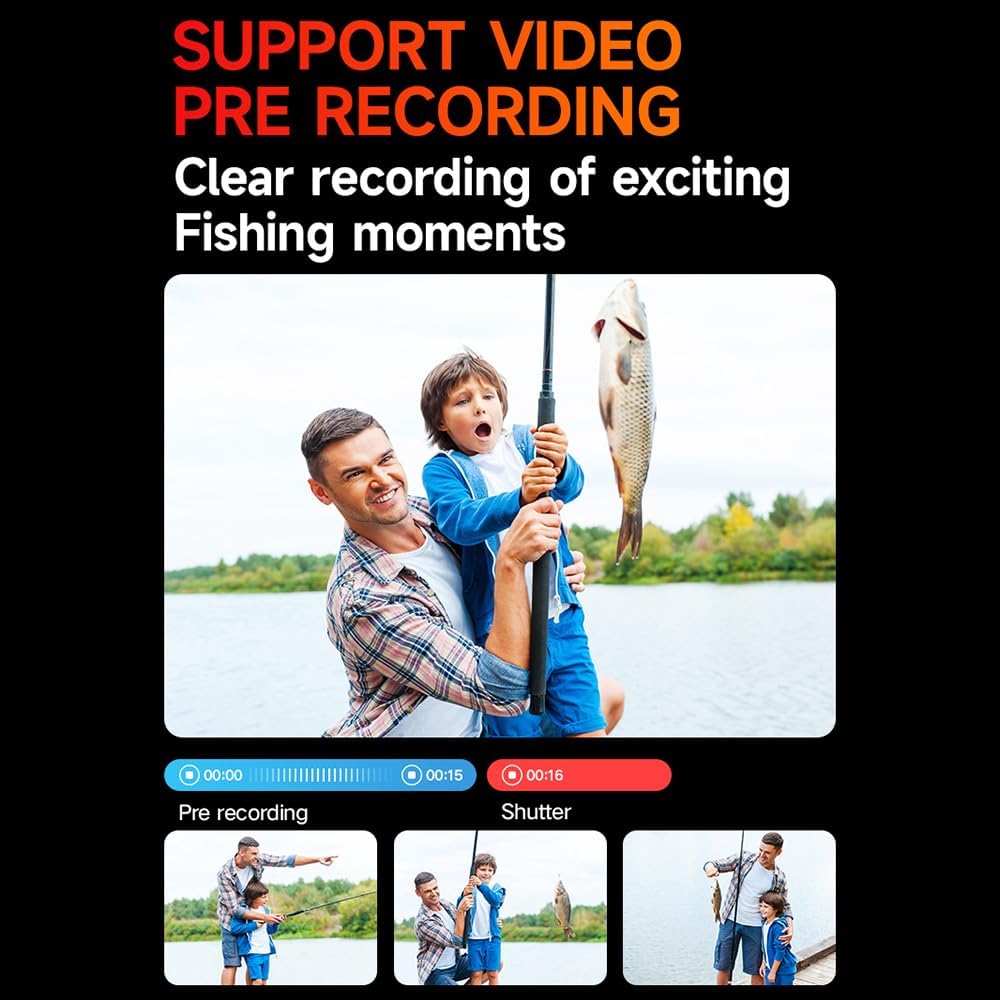
Image: Illustration demonstrating the video pre-recording function, showing how it captures moments from the past, useful for activities like fishing.
WiFi Connectivity and APP Control
The camera features built-in WiFi for remote control and content management via a dedicated mobile application.
- Download the APP: Search for the official Camnoon APP on your smartphone's app store (iOS/Android).
- Activate WiFi on Camera: Press the Photo/WiFi key/Down key (12) to activate the camera's WiFi. The WiFi indicator will illuminate.
- Connect via Smartphone: On your smartphone, go to WiFi settings and connect to the camera's WiFi network (SSID will typically be "Camnoon_XXXX"). Enter the default password if prompted (refer to camera screen or manual for default password).
- APP Functions: Once connected, use the APP for:
- Wireless recording and photography.
- Live preview of the camera's view.
- Video and photo playback and sharing.
- Kwai video live broadcast support with horizontal and vertical screen settings.

Image: Visual representation of the camera's wireless WiFi high-speed transmission feature, showing connectivity with a smartphone for remote control and content transfer.

Image: Icons illustrating wireless remote control capabilities: turning WiFi on/off, remote photography, and starting/saving recordings.
Using the Waterproof Housing
The included waterproof housing allows the camera to be used underwater up to a depth of 30 meters (approximately 98 feet).
- Ensure the camera is securely placed inside the waterproof housing.
- Before each use, inspect the housing for any damage, cracks, or debris on the O-ring seal.
- Close the housing latch firmly to ensure a watertight seal.
- Important: Always perform a dry test of the waterproof housing without the camera inside before taking it underwater for the first time or after any maintenance.

Image: The Camnoon Sports Camera enclosed in its transparent waterproof housing, submerged in water, demonstrating its 30M deep waterproofing capability for activities like swimming, surfing, and diving.
Various Installation Ways
The camera is compatible with various mounting accessories (not included) to facilitate multi-purpose and multi-angle video recording for outdoor sports enthusiasts.
- Bicycle Stand: Mount the camera on a bicycle for cycling adventures.
- Helmet Stand: Attach to a helmet for point-of-view footage during activities like parachuting or motorcycling.
- Triangle Stand (Tripod): Use for stable shots or time-lapses.
- Handheld Stand: For stable handheld recording.
- The camera features a standard 1/4 copper gong female interface (14) for universal compatibility with mounting accessories.

Image: Montage showing the Camnoon Sports Camera mounted in various scenarios for outdoor sports, including on a motorcycle, helmet, tripod, and handheld, highlighting its versatility.
Maintenance
- Cleaning: Use a soft, lint-free cloth to clean the camera body and lens. For stubborn smudges on the lens, use a specialized lens cleaning solution. Do not use harsh chemicals.
- Waterproof Housing Care: After using the waterproof housing in saltwater, rinse it thoroughly with fresh water and allow it to air dry. Regularly check and clean the O-ring seal to prevent leaks. Apply silicone grease to the O-ring periodically to maintain its elasticity.
- Storage: Store the camera in a cool, dry place away from direct sunlight and extreme temperatures. If storing for extended periods, ensure the battery is partially charged (around 50%) to prolong its lifespan.
- Battery Care: Avoid fully discharging the battery frequently. Recharge the battery before it is completely depleted. If the camera will not be used for a long time, charge it every 3-6 months to prevent deep discharge.
- TF Card: Regularly back up your data from the TF card to a computer or cloud storage. Format the TF card periodically to maintain optimal performance and prevent data corruption.
Troubleshooting
This section addresses common issues you might encounter with your Camnoon Sports Camera. If you experience problems not listed here, please refer to the warranty and support section.
| Problem | Possible Cause | Solution |
|---|---|---|
| Camera does not power on. | Battery is depleted or not charged. | Charge the camera fully using the provided Type-C cable. |
| Camera freezes or becomes unresponsive. | Software glitch or temporary error. | Insert a thin object (like a paperclip) into the reset hole (6) to perform a soft reset. |
| Cannot connect to WiFi via APP. | WiFi not activated on camera; incorrect password; APP issue. | Ensure camera WiFi is on. Verify WiFi password. Restart camera and smartphone. Reinstall APP if necessary. |
| "TF Card Error" or cannot record. | TF card full, corrupted, or incompatible. | Format the TF card in camera settings. Try a different, compatible TF card (8-512GB). Ensure card is inserted correctly. |
| Poor video/photo quality. | Lens dirty; incorrect resolution settings; low light conditions. | Clean the lens. Check camera settings for desired resolution. Ensure adequate lighting. |
Specifications
| Feature | Detail |
|---|---|
| Video Format | MP4, H.264, H.265 protocol |
| Image Format | JPG |
| Video Resolution | 4K/30fps (3840x2160), 2K 60/30fps (2560x1440), 1080P 120/60/30fps (1920x1080), 720P 120/60/30fps (1280x720), 1080P 30fps (1080x1920P) Vertical screen, 720P 30fps (720x1280) Vertical screen |
| Photo Resolution | 48M (8000x6000), 32M (6560x4920), 20M (5184x3888), 16M (4608x3456), 14M (4320x3240), 12M (4032x3024), 10M (3648x2736), 8M (3264x2448), 5M (2592x1944), 3M (2048x1536), 2M (1600X1200) |
| Supportive System | Windows; Mac OSX10.4 or above; Linux |
| Battery Capacity | 1300mAh polymer lithium battery |
| Working Hours | Approx. 3 hours (without WiFi and screen active) |
| Storage Support | Supports 8-512GB TF card |
| Charging Voltage | DC 5V, 1000-2000mA |
| Interface | Type-C |
| Camera Size | 7 * 3.8 * 2.8cm (2.8 * 1.5 * 1.1in) |
| Camera Weight | 70g (2.5oz) |
| Item Weight (Package) | 8.9 ounces |
| Package Dimensions | 3.94 x 2.76 x 1.97 inches |
| Manufacturer | Camnoon |
Warranty and Support
For warranty information, technical support, or service inquiries, please refer to the documentation included with your purchase or contact the seller directly. You may also visit the official Camnoon brand store for additional resources and contact details:
Visit the Camnoon Store on Amazon
Please note that this manual provides general operating instructions. Specific warranty terms and conditions may vary by region and retailer.
Important Safety Information
- Do not attempt to disassemble or modify the camera. This could void the warranty and cause damage.
- Keep the camera and accessories out of reach of small children.
- Avoid exposing the camera to extreme temperatures, direct sunlight for prolonged periods, or corrosive liquids.
- Use only the specified charging cable and power sources.
- Ensure the waterproof housing is properly sealed before any underwater use.
Video Information
No official product videos from the seller were available for embedding in this manual.
Ask a question about this manual
Ask about setup, troubleshooting, compatibility, parts, safety, or missing instructions. Manuals+ will review the question and use this page’s manual context to help answer it.