
1. Introduction
The YOUNICE GF08 Mini Magnetic GPS Tracker is a versatile real-time tracking device designed for vehicles, pets, children, and personal assets. It offers precise location tracking, geo-fencing capabilities, and various alarm functions to ensure the safety and security of your valuable items and loved ones. This manual provides detailed instructions on how to set up, operate, and maintain your GF08 GPS Tracker.
2. Safety Information
- Do not disassemble or modify the device. Unauthorized modifications can void the warranty and pose safety risks.
- Keep the device away from extreme temperatures, direct sunlight, and moisture.
- Use only the provided charging cable and a compatible power adapter.
- Ensure the device is securely placed when used in vehicles to prevent interference with driving.
- Dispose of the device and its battery responsibly according to local regulations.
3. Product Overview
3.1 Key Features
- Real-time Tracking: Accurately track movement and view location through the mobile application.
- Lifetime Free Platform: Access the tracking APP and Web platform without any subscription fees.
- Electronic Fencing System: Set virtual boundaries and receive alerts when the tracker enters or exits the defined area.
- Long Battery Life: Equipped with a 400mAh lithium battery for extended use and standby time.
- Multiple Alarms: Includes vibration alarm, low power alarm, off-line alarm, and overspeed alarm.
- Magnetic Adsorption: Built-in strong magnets allow for easy and secure attachment to metal surfaces.
- Historical Path Tracking: Review past routes, time, and speed data on the APP.
- Multi-device Management: Option to manage multiple trackers from a single group account.
3.2 Package Contents
Please check the package for the following items:
- 1 x YOUNICE GF08 GPS Tracker
- 1 x Power Cord (USB Data Cable)
- 1 x Instruction Manual (English)
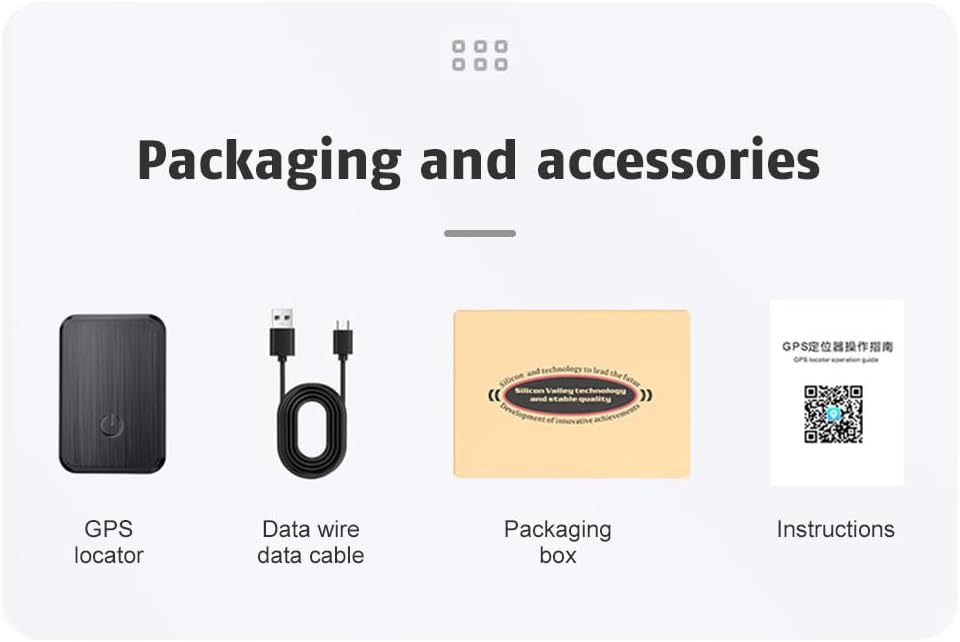
Figure 3.2.1: Packaging and accessories included with the GF08 GPS Tracker.
3.3 Product Dimensions
The GF08 GPS Tracker has compact dimensions for discreet placement:
- Length: 35 mm (1.38 in)
- Width: 24 mm (0.94 in)
- Thickness: 15.5 mm (0.6 in)

Figure 3.3.1: Dimensions of the GF08 GPS Tracker.
4. Setup Guide
4.1 SIM Card Installation
The GF08 GPS Tracker requires a SIM card for network communication. A SIM card is NOT included in the package.
- SIM Card Requirements: Ensure your chosen SIM card supports a 2G network (GSM/GPRS 850/900/1800/1900 MHz). The device is not compatible with 3G, 4G, or 5G networks for data transmission.
- Insert SIM Card: Locate the SIM card slot on the device. Carefully insert the SIM card into the slot in the correct orientation.
- Power On Confirmation: After inserting the SIM card, the red LED indicator should blink twice, indicating successful SIM card detection and network registration.
Note: The device number for login is the barcode on the side of the machine. The default password is 123456.
4.2 Initial Charging
Before first use, fully charge the device.
- Connect the provided power cord to the charging port on the GF08 tracker.
- Connect the other end of the power cord to a USB power adapter (not included) or a computer USB port.
- The charging indicator will show the charging status. A full charge typically takes a few hours.
4.3 App Download and Web Access
The YOUNICE GPS Tracker utilizes a free platform for tracking.
- Download APP: Search for the official tracking application on your smartphone's app store (e.g., Google Play Store for Android, Apple App Store for iOS).
- Web Platform: Alternatively, you can access the tracking platform via a web browser.
- Login: Use the device number (barcode on the device) and the default password (123456) to log in. You can click "VISIT" to try the platform before logging in.
5. Operating Instructions
5.1 Real-time Tracking
Once the device is powered on and connected to the network, you can view its real-time location.
- Open the tracking application or access the web platform.
- The current location of your GF08 tracker will be displayed on the map.
- The system uses both LBS (Location Based Service) and GPS for more accurate and precise real-time location tracking.

Figure 5.1.1: Real-time tracking with LBS and GPS modes.
5.2 Geo-fencing (Electronic Fencing System)
Set up virtual boundaries to receive alerts when the tracker enters or exits a specific area.
- Navigate to the Geo-fence or Electronic Fence section within the APP/Web platform.
- Draw a virtual fence on the map around the desired area.
- Configure alert settings (e.g., notification type, entry/exit alerts).
- Your mobile phone will receive reminders when the tracker moves in or out of the set range.
5.3 Historical Path Tracking
Review the past movements of your tracker.
- Access the "History" function in the APP/Web platform.
- Select a date and time range to view the tracking device's historical path.
- The platform will display the time, speed, and track of the device during the selected period.
5.4 Multi-device Management
For users managing multiple trackers (e.g., fleet management), a group account can be created.
- Contact customer support to request a free group account setup.
- Once set up, you can view all registered vehicles/trackers simultaneously on a single APP/Web interface.

Figure 5.4.1: Multi-scene applications of the GF08 tracker.
5.5 Alarm Functions
The GF08 tracker provides several alarm types to keep you informed:
- Vibration Alarm: Automatic alarm when abnormal vibration occurs.
- Low Power Alarm: Sent automatically to your host when the battery level drops below 20%.
- Off-line Alarm: Automatic alarm if the equipment disconnects from the network and goes offline.
- Overspeed Alarm: Triggers an alarm when the tracked object exceeds a preset speed limit.

Figure 5.5.1: Overview of GF08 alarm functions.
6. Maintenance
6.1 Charging
To ensure continuous operation, regularly charge your GF08 tracker. The device will send a low power alarm when the battery level is below 20% to remind you to charge.
6.2 Cleaning and Storage
- Wipe the device with a soft, dry cloth. Do not use liquid cleaners or aerosols.
- Store the device in a cool, dry place when not in use for extended periods.
7. Troubleshooting
Common Issues and Solutions
| Problem | Possible Cause | Solution |
|---|---|---|
| Device not connecting to network / Red light not blinking twice | SIM card not inserted correctly or not 2G compatible. | Ensure SIM card is fully inserted. Verify SIM card supports 2G network (GSM/GPRS 850/900/1800/1900 MHz). |
| No real-time location updates | Device is offline, out of network coverage, or battery is low. | Check device's power status. Move to an area with better network coverage. Charge the device. |
| Low power alarm frequently triggered | Battery needs charging. | Charge the device fully using the provided power cord. |
| Cannot log in to APP/Web platform | Incorrect device number or password. | Verify the device number (barcode on device). The default password is 123456. |
8. Specifications
| Feature | Description |
|---|---|
| Model | GF08 |
| Channel | 2G |
| GPS Antenna | Built-in passive antenna |
| Communication Mode | GPS/LBS |
| Battery Capacity | 400mA (Milliamp Hours) |
| Dimensions (L*W*H) | 35mm * 24mm * 15.5mm |
| LED Indicator | 3 (Power, GSM, GPS) |
| Voltage Range | 3.7-4.2V |
| Accuracy | <5m |
| Working Ambient Temperature | -30℃ to +80℃ |
| GSM Band | GSM/GPRS 850/900/1800/1900 MHz |
| Compatible Devices | Smartphone, Tablet |
| Connector Type | Cellular |
9. Warranty and Support
9.1 Warranty Information
Specific warranty details for the YOUNICE GF08 GPS Tracker are not provided in this manual. Please refer to the product packaging or contact the seller/manufacturer directly for warranty terms and conditions.
9.2 Customer Support
For technical support, questions, or assistance with your GF08 GPS Tracker, please utilize the free APP and Web platform. For further inquiries, contact the seller or manufacturer through their official channels.