1. Important Safety Information
Please read all safety instructions carefully before using your television. Keep this manual for future reference.
Electrical Safety
- Do not overload wall outlets or extension cords. This can result in fire or electric shock.
- Ensure the power cord is securely plugged into the wall outlet. A loose connection can cause fire or electric shock.
- Do not touch the power cord with wet hands.
- Unplug the TV during lightning storms or when unused for long periods.
Placement and Ventilation
- Place the TV on a stable, level surface to prevent it from falling.
- Ensure adequate ventilation by leaving space around the TV. Do not block ventilation openings.
- Avoid placing the TV near heat sources (radiators, heat registers, stoves) or in direct sunlight.
- Do not expose the TV to dripping or splashing liquids.
Cleaning
- Always unplug the TV before cleaning.
- Use a soft, dry cloth to clean the screen and cabinet. Do not use liquid cleaners or aerosol cleaners.
2. Setup Guide
2.1 Unpacking and Contents
Carefully remove the TV and all components from the packaging. Verify that all items are present:
- Samsung Smart TV
- SolarCell Remote Control
- Power Cable
- Stand Components (if applicable)
- User Manual (this document)

Image: Front view of the Samsung 50-inch 4K Crystal UHD Smart TV, showcasing its slim bezel and Crystal UHD display.
2.2 Attaching the Stand
If you are not wall-mounting the TV, follow these steps to attach the included stand:
- Place a soft cloth or cushion on a flat surface to protect the screen.
- Carefully place the TV face-down on the protected surface.
- Align the stand components with the corresponding slots on the bottom of the TV.
- Secure the stand using the provided screws. Ensure they are tightened firmly.

Image: Side view of the Samsung 50-inch 4K Crystal UHD Smart TV, illustrating the TV's profile and stand attachment points.
2.3 Wall Mounting (Optional)
This TV is compatible with VESA wall mounts. For wall mounting, refer to the instructions provided with your specific wall mount kit. Ensure the wall mount is suitable for the TV's weight and size. The TV's dimensions are 13 x 125 x 76 cm and it weighs 16 kg.
2.4 Connecting External Devices
Connect your external devices such as cable boxes, Blu-ray players, gaming consoles, and sound systems to the TV's ports.
- HDMI Ports: For high-definition video and audio. The TV features multiple HDMI inputs.
- USB Ports: For connecting USB storage devices (e.g., flash drives) to play media files. The TV has 2 USB ports.
- Antenna/Cable Input: For connecting an antenna or cable TV signal.
- Ethernet Port: For a wired network connection.
- Optical Digital Audio Out: For connecting to a soundbar or home theater system.
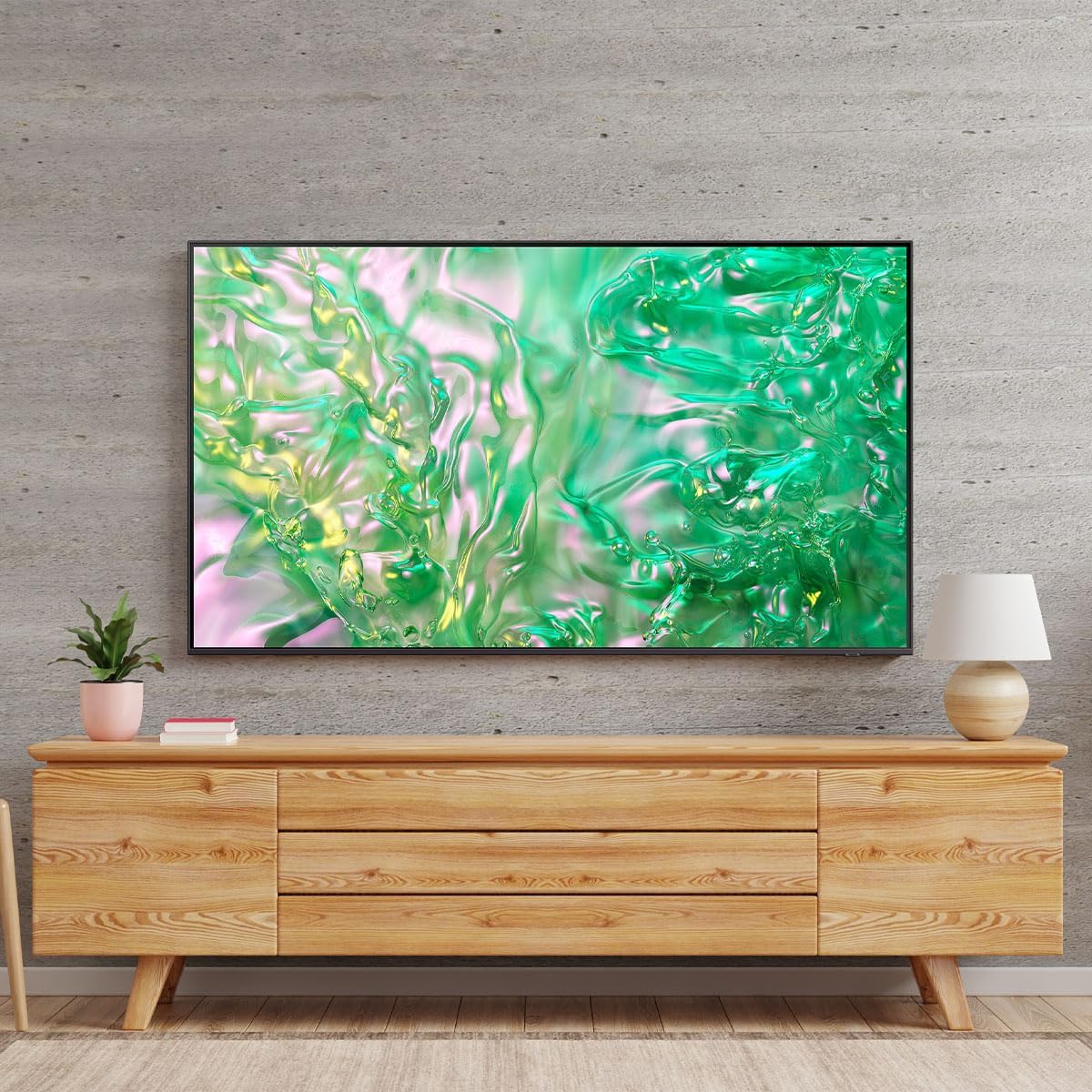
Image: Rear view of the Samsung 50-inch 4K Crystal UHD Smart TV, highlighting the various input and output ports for connectivity.
2.5 Initial Setup Wizard
After connecting the power cable and turning on the TV, the Initial Setup Wizard will guide you through the basic configuration:
- Language Selection: Choose your preferred language.
- Network Connection: Connect to your home Wi-Fi network or use a wired Ethernet connection.
- Channel Scan: Scan for available broadcast channels (if using an antenna).
- Smart Hub Setup: Agree to terms and conditions, and sign in to your Samsung account or create a new one to access Smart TV features.
- Device Connection: The TV may detect and configure connected devices automatically.
3. Operating the TV
3.1 SolarCell Remote Control
The included SolarCell Remote Control is designed for convenience and environmental sustainability. It charges via indoor lighting, eliminating the need for disposable batteries.
- Power Button: Turns the TV on or off.
- Volume Buttons: Adjusts the sound level.
- Channel Buttons: Changes TV channels.
- Smart Hub Button: Accesses the Smart Hub for apps and streaming services.
- Directional Pad and Select Button: Navigates menus and confirms selections.

Image: The Samsung SolarCell Remote Control, featuring a minimalist design and a solar panel for charging.
3.2 Smart Hub and Tizen OS
Your Samsung Smart TV runs on the Tizen operating system, providing access to a wide range of apps, streaming services, and smart features through the Smart Hub interface.
- Press the Smart Hub button on your remote to open the Smart Hub.
- Navigate through the app bar to select your desired streaming service (e.g., Netflix, YouTube) or other applications.
- The Smart Hub also provides access to connected devices, ambient mode, and settings.
3.3 Picture and Sound Enhancements
The TV incorporates advanced technologies to optimize your viewing and listening experience:
- Crystal Processor 4K: This powerful processor upscales content to near 4K resolution, enhancing details and color accuracy for a more immersive picture.

Image: A graphic illustrating the Samsung Crystal Processor 4K, emphasizing its role in enhancing picture quality.
- Dynamic Crystal Color: Experience a billion shades of color with Dynamic Crystal Color, delivering realistic variations and subtle details in every scene.

Image: A visual representation of Dynamic Crystal Color, showing vibrant and detailed color reproduction on the screen.
- Q-Symphony: When paired with a compatible Samsung soundbar, Q-Symphony allows the TV's speakers and the soundbar to operate simultaneously, creating a richer and more harmonious audio experience.

Image: A graphic depicting Q-Symphony technology, showing sound waves emanating from both the TV and a connected soundbar.
- HDR (High Dynamic Range): Enhances the range of light levels on your TV, so you can enjoy an immense spectrum of colors and all the visual details, even in the darkest scenes.
3.4 Gaming Features
- Gaming Hub: Access your favorite cloud gaming services and console games directly from the TV.
- Motion Xcelerator: Provides clear picture with smooth motion by automatically estimating and compensating frames for the source of content.
- Auto Low Latency Mode (ALLM): Automatically optimizes the screen for gaming, reducing input lag for a smoother gaming experience.
3.5 AI Energy Mode
The AI Energy Mode helps reduce power consumption by automatically adjusting screen brightness based on ambient light and content. This feature can be enabled in the TV's settings menu.
4. Maintenance
4.1 Cleaning Your TV
- Screen: Gently wipe the screen with a soft, dry microfiber cloth. For stubborn smudges, slightly dampen the cloth with distilled water. Do not spray liquid directly onto the screen.
- Cabinet: Use a soft, dry cloth to wipe the TV cabinet. Avoid using abrasive cleaners or solvents.
- Remote Control: Wipe with a soft, dry cloth.
4.2 Software Updates
Regularly update your TV's software to ensure optimal performance and access to the latest features and security enhancements.
- Automatic Updates: Enable automatic updates in the TV's settings menu (Settings > Support > Software Update > Auto Update).
- Manual Check: You can manually check for updates (Settings > Support > Software Update > Update Now).
4.3 SolarCell Remote Charging
Ensure your SolarCell Remote Control is exposed to indoor light regularly to maintain its charge. If the remote's battery is low, it may become unresponsive. Place it face-up in a well-lit area to charge.
5. Troubleshooting
If you encounter issues with your TV, try the following basic troubleshooting steps before contacting support.
| Problem | Possible Solution |
|---|---|
| TV does not turn on. | Check if the power cable is securely plugged into the TV and the wall outlet. Try a different outlet. Ensure the remote control has sufficient charge. |
| No picture or distorted picture. | Check the input source (HDMI, Antenna) is correctly selected. Verify all cables are securely connected. Try restarting the TV by unplugging it for 30 seconds. |
| No sound or low sound. | Check the volume level and ensure mute is not activated. Verify external audio devices (soundbar, receiver) are properly connected and powered on. Check audio output settings in the TV menu. |
| Remote control not working. | Ensure the SolarCell Remote is charged by exposing it to light. Point the remote directly at the TV. Remove any obstructions between the remote and the TV. |
| Cannot connect to Wi-Fi. | Check if your router is on and functioning. Restart your router and modem. Re-enter the Wi-Fi password carefully. Move the TV closer to the router or use a wired connection. |
6. Specifications
Key technical specifications for the Samsung Smart TV 50" 4K Crystal UHD (UN50DU8000FXZX):
| Feature | Detail |
|---|---|
| Model Name | UN50DU8000FXZX |
| Screen Size | 50 Inches (127 cm) |
| Display Technology | LED |
| Resolution | 4K (3840 x 2160) |
| Refresh Rate | 60 Hz |
| Operating System | Tizen |
| Connectivity | HDMI, USB (2 ports), Wi-Fi, Bluetooth |
| Audio Input | Bluetooth, HDMI |
| Special Features | Built-in Speaker, Crystal Processor 4K, Dynamic Crystal Color, Q-Symphony, Air Slim Design, SolarCell Remote Control, AI Energy Mode, Gaming Hub |
| Dimensions (with stand) | 13 x 125 x 76 cm |
| Weight | 16 kg |
7. Warranty and Support
Your Samsung Smart TV comes with a manufacturer's warranty. Please refer to the warranty card included with your product for specific terms and conditions, including coverage period and what is covered.
For technical support, service, or warranty claims, please contact Samsung customer service through their official website or support channels. Have your TV's model number (UN50DU8000FXZX) and serial number ready when contacting support.
Note: Video embedding was not possible as the necessary video metadata (e.g., creator_type, specific URLs) was not provided in the input data.