
1. Introduction
The Dealark K62 Smart Watch is designed to support an active lifestyle, offering a range of features for communication, fitness tracking, and health monitoring. This manual provides detailed instructions for the proper setup, operation, and maintenance of your device.
Key features include a 1.43-inch AMOLED touchscreen, Bluetooth calling capabilities, comprehensive fitness tracking with over 100 sports modes, continuous heart rate and sleep monitoring, and an IP68 water resistance rating. The watch is built with durable aluminum alloy and plastic, ensuring longevity while remaining lightweight.

Image 1.1: The Dealark K62 Smart Watch, showcasing its round display with various data points and a rugged design.

Image 1.2: The Dealark K62 Smart Watch is designed to meet military standards for durability, offering resistance against impacts, corrosion, extreme temperatures, and dust.
2. Package Contents
Please verify that all items are present in the package:
- 1 x Dealark K62 Smart Watch
- 1 x Watch Band
- 1 x Magnetic Charging Cable
- 1 x User Manual (this document)
- 1 x Gift Box
3. Specifications
| Feature | Detail |
|---|---|
| Model Name | K62 Smart Watch |
| Screen Size | 1.43 inches |
| Screen Type | AMOLED, 466*466 pixels |
| Battery Capacity | 400 mAh Lithium Ion |
| Working Hours | Approximately 5-10 days (typical use) |
| Charging Time | Approximately 2 hours |
| Charging Type | Magnetic charging |
| Water Resistance | IP68 |
| Bluetooth Version | BLE 5.0 |
| Compatible App | FitCloudPro |
| System Compatibility | Android 4.4 and above, iOS 8.0 and above |
| Memory Storage Capacity | 128 MB |
| Item Weight | 430 Grams (15.2 ounces) |

Image 3.1: Dimensional specifications of the Dealark K62 Smart Watch.
4. Setup
4.1 Initial Charging
Upon receiving your Dealark K62 Smart Watch, it is recommended to fully charge it for 2-3 hours before first use. Use the provided magnetic charging cable. Align the magnetic pins of the charger with the charging contacts on the back of the watch. The watch display will indicate charging status. A full charge typically takes about 2 hours and provides 5-10 days of typical use.

Image 4.1: The watch charging process and battery life indicators.
4.2 App Installation and Pairing
- Download the App: Search for and download the 'FitCloudPro' application from your smartphone's app store (available for iOS and Android).
- Create Account: Open the FitCloudPro app and follow the on-screen instructions to create an account or log in.
- Enable Bluetooth: Ensure Bluetooth is enabled on your smartphone.
- Pair the Watch: In the FitCloudPro app, navigate to the device section and select 'Add Device'. The app will search for available devices. Select 'K62' from the list to pair. Confirm the pairing request on both your phone and the watch if prompted.
- Grant Permissions: Authorize the FitCloudPro app to access necessary phone functions (e.g., notifications, location, contacts) to ensure full functionality. Keep the app running in the background for continuous data synchronization and notifications.
5. Operating Instructions
5.1 Basic Navigation
- Touchscreen: Swipe left/right, up/down, and tap to navigate menus and select options.
- Side Buttons: The watch features physical buttons for quick access to functions or returning to the home screen. Refer to the watch's on-screen prompts for specific button functionalities.

Image 5.1: The 1.43-inch HD AMOLED display offers clear visuals and a selection of over 200 customizable watch faces.
5.2 Bluetooth Calling
Once paired with your smartphone, the K62 Smart Watch allows you to make and receive phone calls directly from your wrist.
- Making Calls: Access the dial pad or contact list on the watch to initiate a call.
- Answering Calls: When a call comes in, the watch will display the caller ID. Tap the green icon to answer or the red icon to reject.
- Notifications: Receive call, text, and app notifications directly on your watch.

Image 5.2: Bluetooth calling feature, enabling hands-free communication directly from the watch.

Image 5.3: The Bluetooth calling function allows users to dial, answer, and manage contacts and call records directly from the watch.

Image 5.4: The message reminder feature ensures you receive notifications from your connected apps directly on your watch.
5.3 Health Monitoring
The K62 Smart Watch provides continuous monitoring of various health metrics. Note: This device is not a professional medical device. Data is for reference only and should not be used for medical diagnosis or treatment.
- Heart Rate Monitoring: Tracks your heart rate throughout the day.
- Blood Oxygen (SpO2) Monitoring: Measures your blood oxygen levels.
- Sleep Monitoring: Analyzes your sleep patterns, including deep sleep, light sleep, and awake times.
- Activity Tracking: Records steps, distance, and calories burned.

Image 5.5: Overview of the 24-hour health tracking features, including sleep, SpO2, and heart rate data.

Image 5.6: The watch monitors heart rate and blood oxygen levels, providing real-time data during activities.

Image 5.7: The sleep monitor tracks and analyzes your sleep quality, providing insights into your rest patterns.
5.4 Sports Modes
The K62 Smart Watch supports over 100 sports modes, allowing you to track specific activities and monitor your performance.
- Accessing Sports Modes: Navigate to the 'Sports' menu on your watch.
- Selecting an Activity: Choose your desired sport (e.g., running, cycling, walking).
- Tracking: The watch will record data such as duration, heart rate, calories burned, and distance for the selected activity.
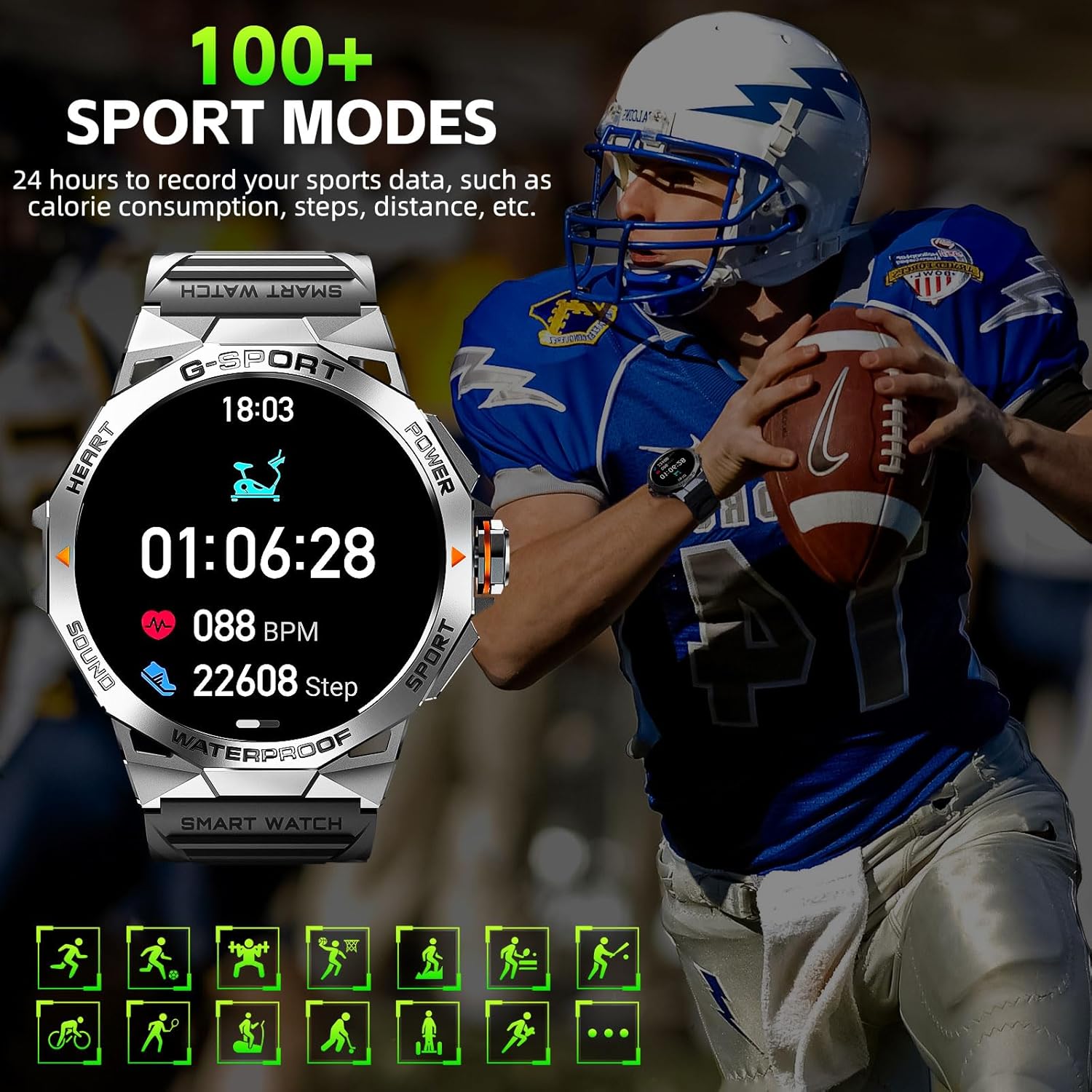
Image 5.8: The watch offers over 100 sports modes to record and track various physical activities.

Image 5.9: A visual representation of the diverse range of sports modes available on the watch.
5.5 Other Practical Functions
The K62 Smart Watch includes additional features to enhance daily convenience:
- Messages: View incoming messages and app alerts.
- Weather: Get real-time weather updates.
- Music Control: Control music playback on your smartphone.
- Breath Training: Guided breathing exercises for relaxation.
- Stopwatch & Timer: For precise timing.
- Alarm Clock: Set alarms directly from your wrist.
- Find Phone: Locate your paired smartphone.
- Calculator: Basic arithmetic functions.
- Calendar: View dates and schedules.
- Remote Camera: Control your phone's camera remotely.
- Compass: For navigation.
- Menu Style: Customize the watch's menu display.
- Raise to Wake: Automatically activate the screen when you raise your wrist.
- Built-in Flashlight: A convenient light source.

Image 5.10: An overview of additional practical functions available on the watch, including reminders and utility tools.

Image 5.11: The built-in flashlight feature, capable of operating for up to 5 hours.
6. Maintenance
6.1 Water Resistance (IP68)
The Dealark K62 Smart Watch has an IP68 water resistance rating, meaning it is protected against dust ingress and can withstand immersion in water up to 1.5 meters for up to 30 minutes. This makes it suitable for daily use, including exposure to sweat, rain, and accidental splashes.
- Do Not Use in Hot Water: Avoid using the watch in hot showers, saunas, or steam rooms, as steam and hot water can compromise the seals.
- Avoid Chemical Exposure: Do not expose the watch to soaps, detergents, or other chemicals, which can damage the water-resistant seals.
- Dry Thoroughly: After exposure to water, wipe the watch dry with a soft cloth before charging or operating buttons.
6.2 Battery Care
- Regular Charging: Charge the watch regularly to maintain battery health. Avoid letting the battery completely drain frequently.
- Use Original Charger: Always use the provided magnetic charging cable to prevent damage to the battery or watch.
- Storage: If storing the watch for an extended period, charge it to about 50% and store it in a cool, dry place.
7. Troubleshooting
If you encounter issues with your Dealark K62 Smart Watch, please refer to the following common solutions:
- Watch Not Turning On: Ensure the watch is fully charged. Connect it to the charger for at least 30 minutes.
- Unable to Pair with Phone:
- Ensure Bluetooth is enabled on your phone and the watch.
- Make sure the watch is within range of your phone.
- Restart both your phone and the watch.
- Clear the Bluetooth cache on your phone (if applicable) and try pairing again.
- Notifications Not Received:
- Verify that the FitCloudPro app has all necessary permissions enabled in your phone's settings.
- Ensure the FitCloudPro app is running in the background and not being closed by your phone's power-saving features.
- Check notification settings within the FitCloudPro app to ensure desired apps are enabled.
- Inaccurate Health Data:
- Ensure the watch is worn snugly on your wrist, but not too tight.
- Clean the sensors on the back of the watch regularly.
- Remember that data is for reference and not for medical purposes.
- Short Battery Life:
- Reduce screen brightness.
- Disable continuous heart rate monitoring if not needed.
- Limit the number of apps sending notifications to the watch.
- Ensure the watch is fully charged each time.
If these steps do not resolve the issue, please contact Dealark customer support.
8. Warranty and Support
Dealark provides a 1-year after-sales guarantee for the K62 Smart Watch. This warranty covers manufacturing defects and issues arising from normal use.
For any questions, technical assistance, or warranty claims, please contact Dealark customer support through the platform where you purchased the product or via the contact information provided in your purchase documentation. We are committed to helping you resolve any issues promptly.