Introduction
The TechGlow L40 is a versatile 3-in-1 device designed to enhance your mobile experience. It functions as a foldable cellphone stand, a Bluetooth speaker, and a portable power bank. This manual provides detailed instructions for setup, operation, and maintenance to ensure optimal performance of your device.

Image: The TechGlow L40 device highlighting its three core functions: cellphone stand, Bluetooth speaker, and power bank.
What's in the Box
Please check the package contents upon unboxing:
- Rotatable phone stand with speaker and power bank (TechGlow L40)
- Data charging cable (USB-A to USB-C)
- User manual
Product Overview
Familiarize yourself with the components and controls of your TechGlow L40 device.
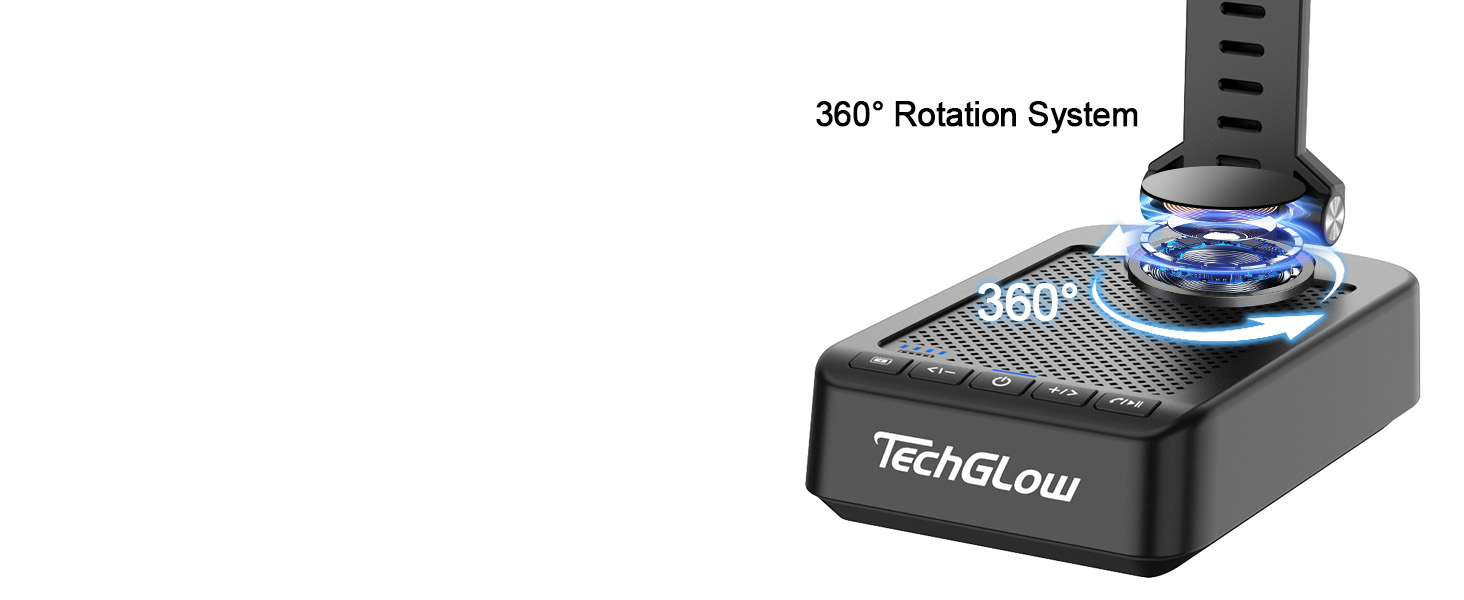
Image: Detailed diagram showing the control buttons and physical dimensions of the TechGlow L40.
- Battery Capacity Display: Indicates remaining power.
- Volume Up / Next Track Button: Short press for volume up, long press for next track.
- Power On/Off Button: Press and hold to power on or off.
- Volume Down / Previous Track Button: Short press for volume down, long press for previous track.
- Play/Pause / Answer/Hang Off Button: Controls media playback and call functions.
- AUX Input: For wired audio connection.
- USB-A Output: For charging external devices (power bank function).
- USB-C Input: For charging the TechGlow L40 device.

Image: Illustration demonstrating the 360-degree rotation capability of the phone stand for flexible viewing angles.
Setup
1. Charging the TechGlow L40
Before first use, fully charge your device. Connect the provided USB-A to USB-C charging cable to the USB-C input port on the TechGlow L40 and the other end to a USB power adapter (not included).
- The battery capacity display will show charging progress.
- A full charge typically takes several hours.
2. Bluetooth Pairing
To connect your smartphone or tablet to the TechGlow L40 via Bluetooth:
- Power on the TechGlow L40 by pressing and holding the Power On/Off button.
- The device will enter Bluetooth pairing mode, indicated by a flashing light or audio prompt.
- On your mobile device, go to Bluetooth settings and search for available devices.
- Select "TechGlow L40" from the list to pair.
- Once paired, you will hear a confirmation sound, and the indicator light will become solid.

Image: A smartphone displaying its Bluetooth settings, ready to connect to the "TechGlow L40" device.
3. Adjusting the Stand
The stand offers multiple adjustment options for optimal viewing:
- Height Adjustment: Gently pull the extendable arm upwards to increase the height.
- Angle Adjustment: Tilt the phone holder up or down to achieve your desired viewing angle.
- 360° Rotation: The base of the phone holder can rotate 360 degrees, allowing for both portrait and landscape orientations.
- Foldable Design: For portability, the stand can be folded compactly.

Image: The TechGlow L40 stand demonstrating its adjustable height, angle, and 360-degree rotation features.
Operating Instructions
1. Using as a Phone/Tablet Stand
Place your smartphone or tablet (4-13 inches) securely onto the adjustable holder. Adjust the height and angle as needed for comfortable viewing.

Image: The TechGlow L40 stand supporting both a smartphone and a tablet, illustrating its broad compatibility.
2. Using the Bluetooth Speaker
Once paired with your device:
- Play/Pause: Press the Play/Pause button (5) to start or stop audio playback.
- Volume Control: Short press the Volume Up (2) or Volume Down (4) buttons to adjust the volume.
- Track Navigation: Long press the Volume Up (2) button for the next track, and long press the Volume Down (4) button for the previous track.
3. Hands-Free Calling
When connected via Bluetooth, you can manage calls directly from the device:
- Answer Call: Press the Play/Pause/Answer/Hang Off button (5) once to answer an incoming call.
- End Call: Press the Play/Pause/Answer/Hang Off button (5) once to end an active call.
- Reject Call: Press and hold the Play/Pause/Answer/Hang Off button (5) to reject an incoming call.

Image: A user engaged in a hands-free video call, with their phone mounted on the TechGlow L40 stand, illustrating its convenience for communication.
4. Using the Power Bank Function
The TechGlow L40 features a built-in 5000mAh power bank to charge your external devices.
- Connect your device's charging cable to the USB-A output port (7) on the TechGlow L40.
- Connect the other end of the cable to your smartphone, tablet, or other compatible USB-powered device.
- Charging will begin automatically.
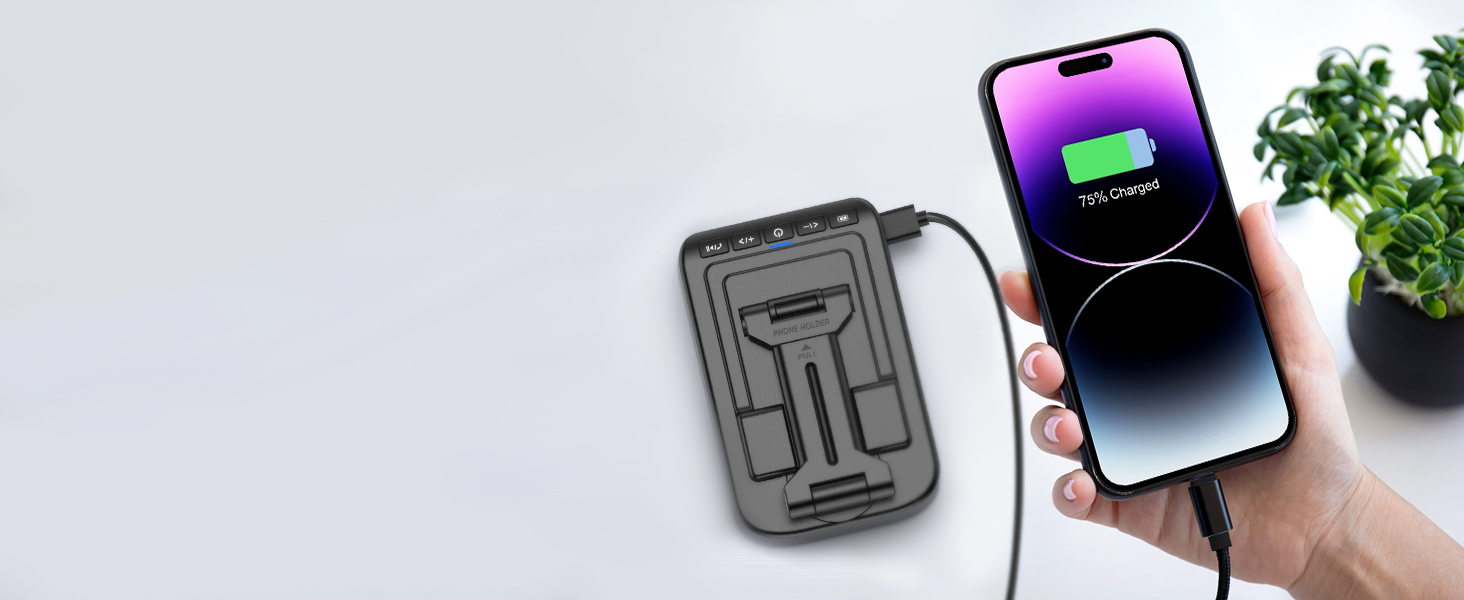
Image: A smartphone connected to the TechGlow L40, demonstrating its power bank functionality to charge external devices.

Image: The TechGlow L40 in an outdoor setting, charging a smartphone, emphasizing its utility as a portable power bank.
5. AUX Connection
For devices without Bluetooth or for a wired audio connection, use the AUX input port (6).
- Connect a 3.5mm audio cable (not included) from your audio source to the AUX input port on the TechGlow L40.
- The device will automatically switch to AUX mode.
Maintenance
To ensure the longevity and optimal performance of your TechGlow L40:
- Keep the device dry and away from moisture.
- Clean with a soft, dry cloth. Avoid abrasive cleaners or solvents.
- Do not expose to extreme temperatures.
- Store in a cool, dry place when not in use.
- Avoid dropping or subjecting the device to strong impacts.
Troubleshooting
| Problem | Possible Cause | Solution |
|---|---|---|
| Device does not power on. | Low battery. | Charge the device fully using the provided USB-C cable. |
| Cannot pair via Bluetooth. | Bluetooth not enabled on mobile device; device too far; already paired to another device. | Ensure Bluetooth is on and the device is within range (approx. 10 meters). Disconnect from other devices. Restart both devices. |
| No sound from speaker. | Volume too low; device not paired; AUX cable not connected properly. | Increase volume on both the TechGlow L40 and your connected device. Ensure successful Bluetooth pairing or proper AUX connection. |
| Power bank not charging external device. | Low battery on TechGlow L40; incorrect cable/port. | Ensure the TechGlow L40 is sufficiently charged. Use the correct USB-A output port and a functional charging cable for your external device. |
Specifications
| Feature | Detail |
|---|---|
| Model Number | L40 |
| Product Dimensions | 6.1 x 3.86 x 2.17 inches |
| Item Weight | 14 ounces |
| Battery Type | 1 Lithium Ion battery (included) |
| Power Bank Capacity | 5000mAh |
| Bluetooth Range | Up to 10 meters (33 feet) |
| Playback Time | Up to 40 hours (at 50% volume) |
| Compatible Devices | Smartphones (4-13"), Tablets, Laptops, Desktops (via AUX) |
| Connectivity | Bluetooth, AUX |
Warranty and Support
TechGlow products are designed and manufactured to the highest quality standards. For warranty information, technical support, or customer service inquiries, please refer to the contact information provided on the product packaging or visit the official TechGlow website.
Please retain your proof of purchase for warranty claims.