
1. Product Overview
This manual provides essential instructions for the installation, operation, and maintenance of the Cijprinter Domino A320 A420 i-tech Keyboard Display. This component is designed as a replacement or spare part for Domino A320 and A420 Continuous Inkjet (CIJ) printers.
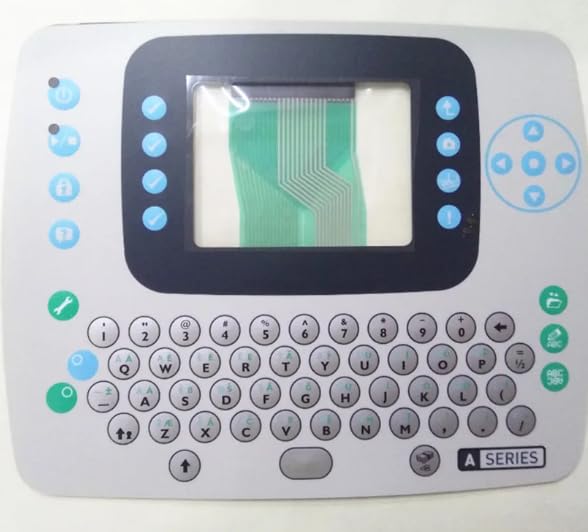
Figure 1: The Cijprinter Domino A320 A420 i-tech Keyboard Display unit. This white unit features a central rectangular display area, a full QWERTY keyboard layout below, and various function buttons on the left, right, and top-right sections. The display area shows a flexible flat cable, indicating it is a component for installation.
Key Features:
- Compatibility: Specifically designed for Domino A320 and A420 CIJ printers.
- Integrated Display: Features a dedicated display area for printer status and menu navigation.
- Full QWERTY Keyboard: Enables efficient data entry and command input.
- Dedicated Function Keys: Includes keys for power, navigation, and specific printer functions.
- Durable Construction: Constructed with steel components for longevity.
2. Setup and Installation
This keyboard display is a replacement component. Installation should be performed by qualified personnel familiar with Domino CIJ printer systems. Ensure the printer is powered off and disconnected from the main power supply before beginning any installation procedures.
Installation Steps:
- Power Off: Turn off the Domino A320/A420 printer and unplug it from the power source.
- Access Panel: Carefully open the printer's housing or access panel to expose the existing keyboard display unit.
- Disconnect Old Unit: Disconnect all ribbon cables and mounting hardware securing the old keyboard display. Note the orientation of all connections.
- Install New Unit: Position the new Cijprinter A320 keyboard display into place. Secure it with the appropriate mounting hardware.
- Connect Cables: Reconnect all ribbon cables to the new unit, ensuring they are seated correctly and securely. Refer to the printer's service manual for specific wiring diagrams if necessary.
- Close Panel: Carefully close and secure the printer's housing or access panel.
- Power On: Reconnect the printer to the power source and power it on. Verify proper function of the display and keyboard.
3. Operation
The keyboard display provides the primary interface for interacting with your Domino A320 or A420 CIJ printer. Familiarize yourself with the key layout for efficient operation.
Keyboard Layout and Functions:
| Section | Description | Key Functions |
|---|---|---|
| Left Side Function Keys | Vertical column of blue and green buttons on the left of the display. | Power On/Off, Run/Pause, Lock/Unlock, File/Menu Access, Service/Tool Menu. |
| Right Side Display Keys | Vertical column of blue checkmark and info buttons to the right of the display. | Context-sensitive selections, confirmation, information display. |
| Navigation Cluster | Circular arrangement of blue arrow keys and a central button on the top-right. | Menu navigation (Up, Down, Left, Right), Enter/Select. |
| Alphanumeric Keyboard | Standard QWERTY layout with number and symbol keys below the display. | Text and numerical data input, message creation. |
| Special Function Keys | Green circular buttons on the left and right of the QWERTY keyboard. | Printer-specific functions, character set switching (ABC/123). |
Refer to your Domino A320/A420 printer's main operating manual for detailed instructions on specific menu functions and operational procedures.
4. Maintenance
Proper maintenance ensures the longevity and reliable performance of your keyboard display unit.
General Maintenance Tips:
- Cleaning: Gently wipe the display and keyboard surface with a soft, lint-free cloth dampened with a mild, non-abrasive cleaning solution. Avoid excessive moisture.
- Avoid Harsh Chemicals: Do not use strong solvents, alcohol, or abrasive cleaners, as these can damage the surface and key legends.
- Dust Removal: Use compressed air to remove dust and debris from around the keys and display edges.
- Environmental Conditions: Operate the printer and keyboard display within the recommended environmental specifications to prevent damage from extreme temperatures or humidity.
5. Troubleshooting
This section addresses common issues you might encounter with the keyboard display.
| Problem | Possible Cause | Solution |
|---|---|---|
| Display is blank or flickering. | Loose ribbon cable connection, power issue, faulty unit. | Check all cable connections. Ensure printer has stable power. If issue persists, contact support. |
| Keys are unresponsive. | Debris under keys, loose ribbon cable, faulty membrane. | Clean around keys. Check ribbon cable connections. If multiple keys are unresponsive, the unit may require replacement. |
| Incorrect characters appear. | Software setting, faulty key matrix. | Verify printer language and keyboard settings. If random characters appear, the unit may be faulty. |
For complex issues or if troubleshooting steps do not resolve the problem, consult your Domino A320/A420 printer's service manual or contact technical support.
6. Specifications
- Model Number: A320 keyboard
- Product Dimensions: 16 x 16 x 16 inches
- Item Weight: 2 pounds
- Material: Steel
- Color: White
- Compatible Devices: Domino A320, Domino A420 CIJ Printers
- Manufacturer: Cijprinter
- Connectivity Technology: USB (internal connection to printer system)
- Switch Type: Membrane
7. Warranty and Support
For specific warranty information regarding this Cijprinter Domino A320 A420 i-tech Keyboard Display, please refer to the documentation provided at the time of purchase or contact the seller directly. Warranty terms may vary depending on the retailer and region.
For technical assistance, installation guidance, or to report a defective unit, please contact the seller, Global CIJ parts supermarket, or the manufacturer, Cijprinter, through their official support channels. Provide your product model number (A320 keyboard) and ASIN (B0D42523DD) when seeking support.