
1. Introduction
This manual provides detailed instructions for the installation, operation, and maintenance of your Hikity 2+64G Android 15 Car Stereo. Please read this manual thoroughly before using the product to ensure proper function and safety. This car stereo is specifically designed for Toyota Vios and Yaris models manufactured between 2013 and 2016.
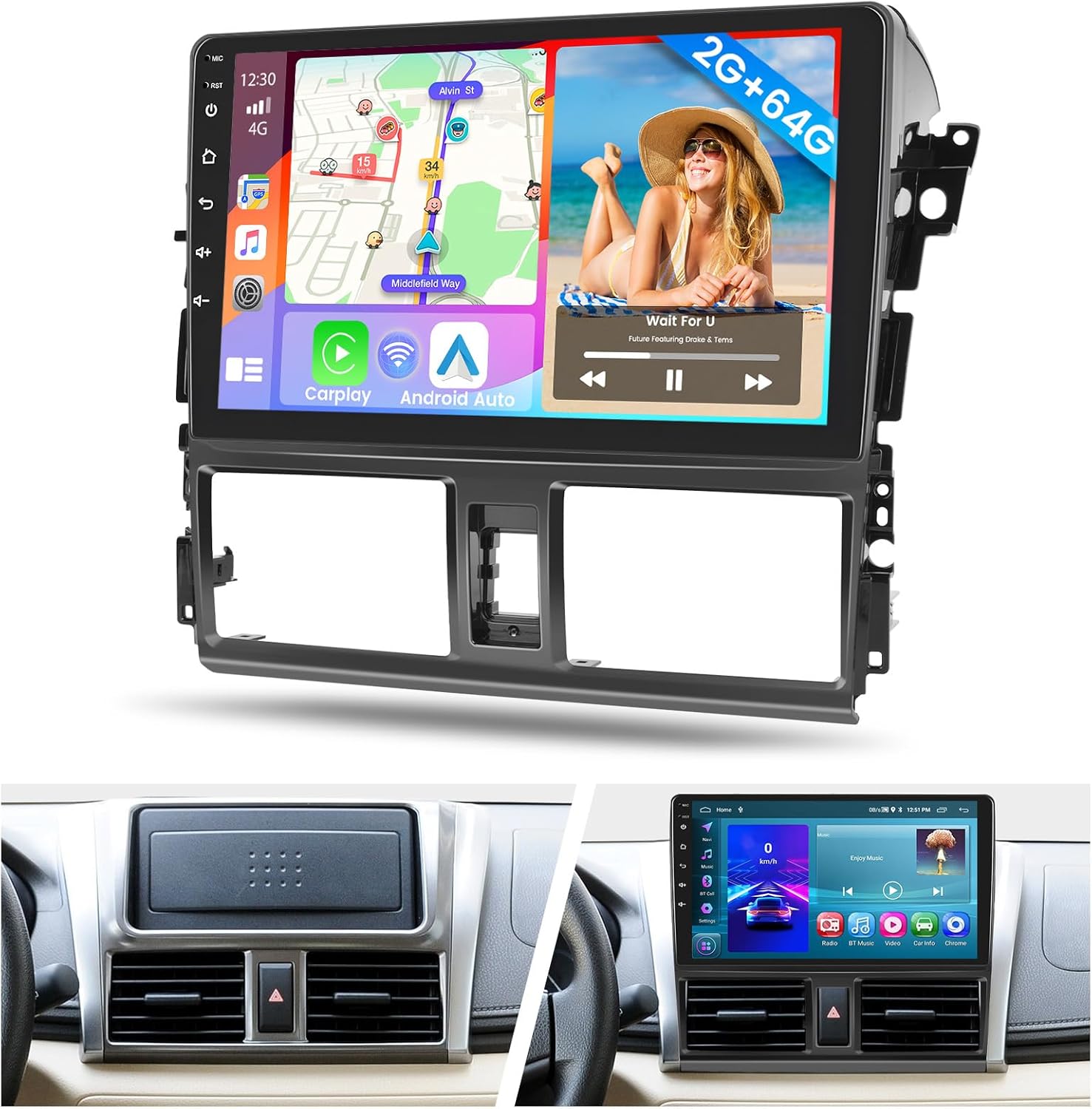
Image 1.1: Hikity 2+64G Android 15 Car Stereo main unit.
2. Product Overview
2.1 Key Features
- Operating System: Android 15
- Memory: 2GB RAM + 64GB ROM for smooth operation and ample storage.
- Display: 10.1-inch HD IPS Touch Screen with 1024x600 resolution.
- Connectivity: Wireless Apple CarPlay and Android Auto, Mirror Link (USB/WiFi), Bluetooth 4.0, 5G WiFi, 4G (via hotspot).
- Navigation: Dual GPS with support for online and offline maps.
- Audio: FM RDS Radio with 18 preset stations, EQ Audio, 4*45W Amplifier, Subwoofer Output.
- Camera Support: AHD Backup Camera with 170° wide-angle, waterproof, and night vision capabilities.
- Control: Steering Wheel Control (SWC) support.
- Additional: Dual USB Input, Internal and External Microphone, 1080P HD Video Playback, Split Screen function.
2.2 Package Contents
Verify that all items listed below are included in your package:
- Android Car Stereo Unit
- GPS Antenna
- Microphone
- Backup Camera
- Power Cable
- RCA Cable
- USB Cable
- Reversing Video Input Cable
- User Manual
- Installation Tool

Image 2.1: Product dimensions and included accessories.
3. Setup and Installation
The Hikity car stereo is designed for a plug-and-play installation in compatible Toyota Vios and Yaris models (2013-2016). No modification or splicing of the factory dashboard is typically required.
3.1 Compatibility Check
Ensure your vehicle's dashboard matches the compatible configurations. Refer to the images below for visual guidance.

Image 3.1: Dashboard compatibility for Toyota Vios Yaris (2013-2016).
3.2 Wiring Diagram
Proper wiring is crucial for the correct functionality of all features, including the backup camera and steering wheel controls. Consult the interface information diagram for detailed connections.

Image 3.2: Interface wiring information.
3.3 Installation Steps (General)
- Carefully remove the factory radio unit from your vehicle's dashboard.
- Connect the provided power cable, RCA cables, USB cables, GPS antenna, and microphone to the corresponding ports on the new Hikity car stereo.
- If installing the backup camera, route the camera cable to the rear of the vehicle and connect it to the 'Reversing Video Input Cable' on the stereo.
- Securely mount the new car stereo into the dashboard opening.
- Reconnect the vehicle's battery and test all functions before fully reassembling the dashboard.
4. Operating Instructions
4.1 Power On/Off
Press and hold the power button on the unit or use the vehicle's ignition to turn the stereo on or off.
4.2 Wireless Apple CarPlay / Android Auto
Connect your iOS or Android device wirelessly to access navigation, messaging, calls, and music directly on the stereo screen. Ensure Bluetooth and Wi-Fi are enabled on your smartphone.

Image 4.1: Apple CarPlay and Android Auto interfaces.
4.3 Mirror Link Function
Mirror your smartphone screen to the car stereo via USB or Wi-Fi. This allows you to view apps, videos, and navigation from your phone directly on the stereo's display.

Image 4.2: Mirror Link functionality.
4.4 GPS Navigation
The unit supports both online and offline navigation. Connect to Wi-Fi or a mobile hotspot for online maps and real-time traffic updates. Pre-installed apps or downloadable map applications can be used.

Image 4.3: GPS Navigation interface.
4.5 Steering Wheel Control (SWC)
After correct wiring and protocol selection, you can program your vehicle's steering wheel buttons to control stereo functions such as answering calls, adjusting volume, and changing tracks.

Image 4.4: Steering Wheel Control setup.
4.6 Bluetooth Functions
Pair your smartphone via Bluetooth for hands-free calling and audio streaming. Access your phonebook, call history, and dial numbers directly from the stereo screen.
4.7 FM RDS Radio
Tune into FM radio stations. The RDS (Radio Data System) feature displays station information where available. You can save up to 18 preset stations.
4.8 Backup Camera
When the vehicle is shifted into reverse, the stereo automatically displays the feed from the connected AHD backup camera, providing a 170° wide-angle view with night vision for safer parking.

Image 4.5: Backup Camera view.
4.9 EQ Audio Settings
Adjust the audio equalizer settings to customize the sound output according to your preferences. Various preset modes are available, along with manual adjustment options.
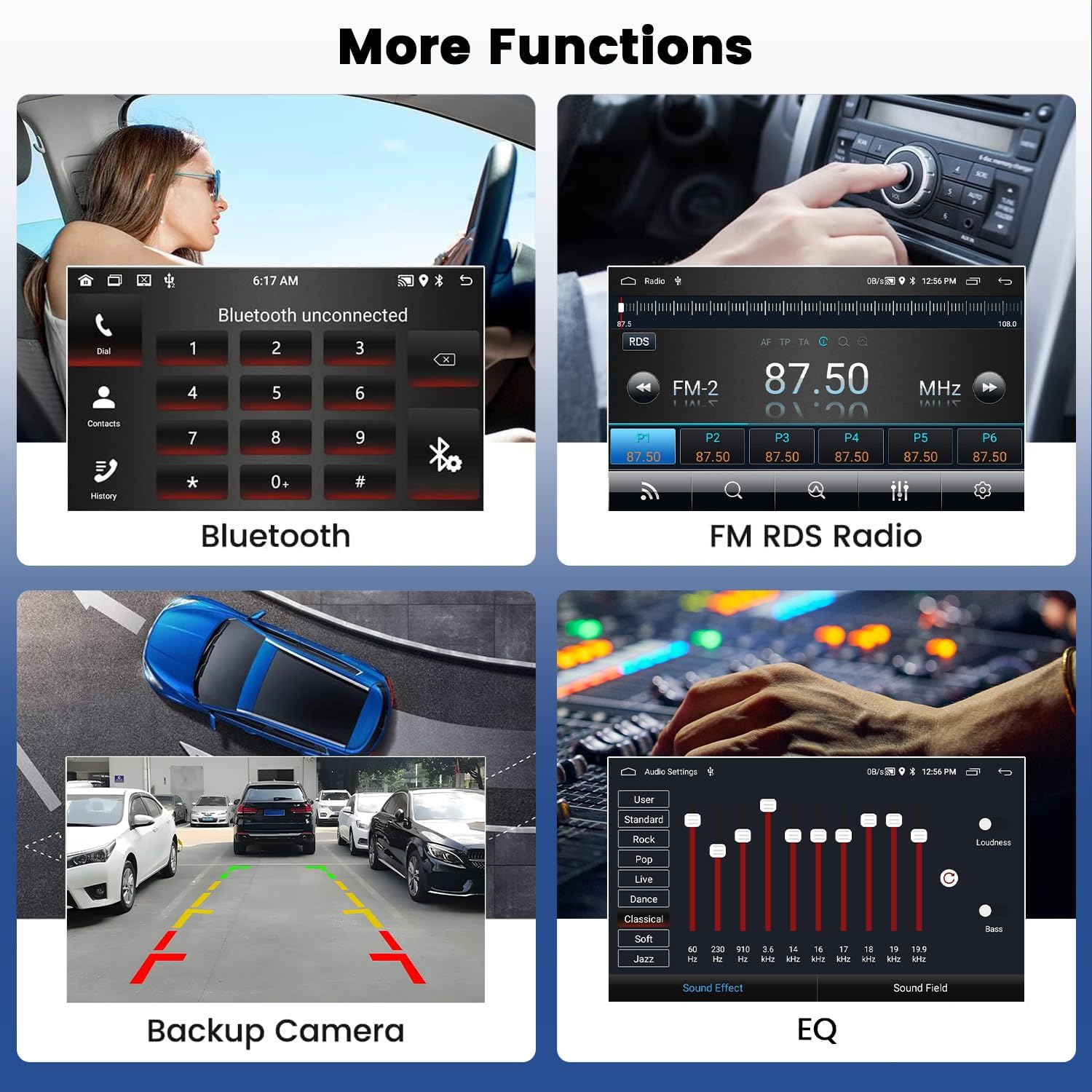
Image 4.6: Multi-function display including EQ settings.
5. Maintenance
- Screen Cleaning: Use a soft, lint-free cloth to clean the touch screen. Avoid abrasive cleaners or solvents.
- Software Updates: Periodically check for available software updates to ensure optimal performance and access to new features. Updates can typically be performed via Wi-Fi.
- General Care: Keep the unit free from dust and extreme temperatures. Ensure all connections are secure.
6. Troubleshooting
| Problem | Possible Cause | Solution |
|---|---|---|
| Unit does not power on | Incorrect wiring; Blown fuse; Vehicle battery issue | Check power cable connections; Inspect vehicle fuses; Verify vehicle battery charge. |
| No sound | Volume too low; Mute activated; Speaker wiring issue; Incorrect audio output settings | Increase volume; Check mute status; Verify speaker connections; Adjust audio settings. |
| GPS signal lost or inaccurate | GPS antenna obstructed or disconnected; Poor satellite coverage | Ensure GPS antenna is properly installed and has a clear view of the sky; Move to an open area. |
| CarPlay/Android Auto not connecting | Bluetooth/Wi-Fi off on phone; Incorrect pairing; Software glitch | Ensure phone's Bluetooth/Wi-Fi is on; Re-pair device; Restart both phone and stereo. |
| Backup camera not displaying | Camera wiring issue; Incorrect input selected; Camera malfunction | Check camera power and video signal connections; Ensure correct video input is selected in settings. |
7. Specifications
| Feature | Specification |
|---|---|
| System | Android 15 |
| Memory | 2GB RAM + 64GB ROM |
| Display Size | 10.1 Inches |
| Screen Resolution | 1024 x 600 |
| Bluetooth Version | 4.0 |
| Power Output | 4*45W |
| Radio Band | FM/RDS |
| Connectivity Technology | Bluetooth/USB/WiFi/Mirroring Wireless/Wired (Carplay+Android Auto) |
| Map Type | Offline Maps/Online Maps |
| Mounting Type | Dashboard Mount |
| Item Weight | 3.65 pounds |
| Product Dimensions | 10 x 3 x 6 inches |
| Factory Setting Code | 1234 |

Image 7.1: Detailed product specifications.
8. Warranty and Support
Your Hikity 2+64G Android 15 Car Stereo comes with a 1-Year Warranty from the date of purchase, covering manufacturing defects. For technical assistance, troubleshooting, or warranty claims, please contact Hikity customer support. Online replies are typically provided within 24 hours.
For further information or support, please visit the official Hikity store or contact their customer service channels.


