
1. Introduction
This manual provides detailed instructions for the installation, operation, and maintenance of your Rimoody 4G+128G Android 15 Car Radio. Please read this manual thoroughly before using the product to ensure proper function and safety. This car stereo is designed for specific vehicle models, including Dodge Grand Caravan (2008-2020), Chrysler Grand Voyager (2013-2016), and Chrysler Town & Country (2013-2016).
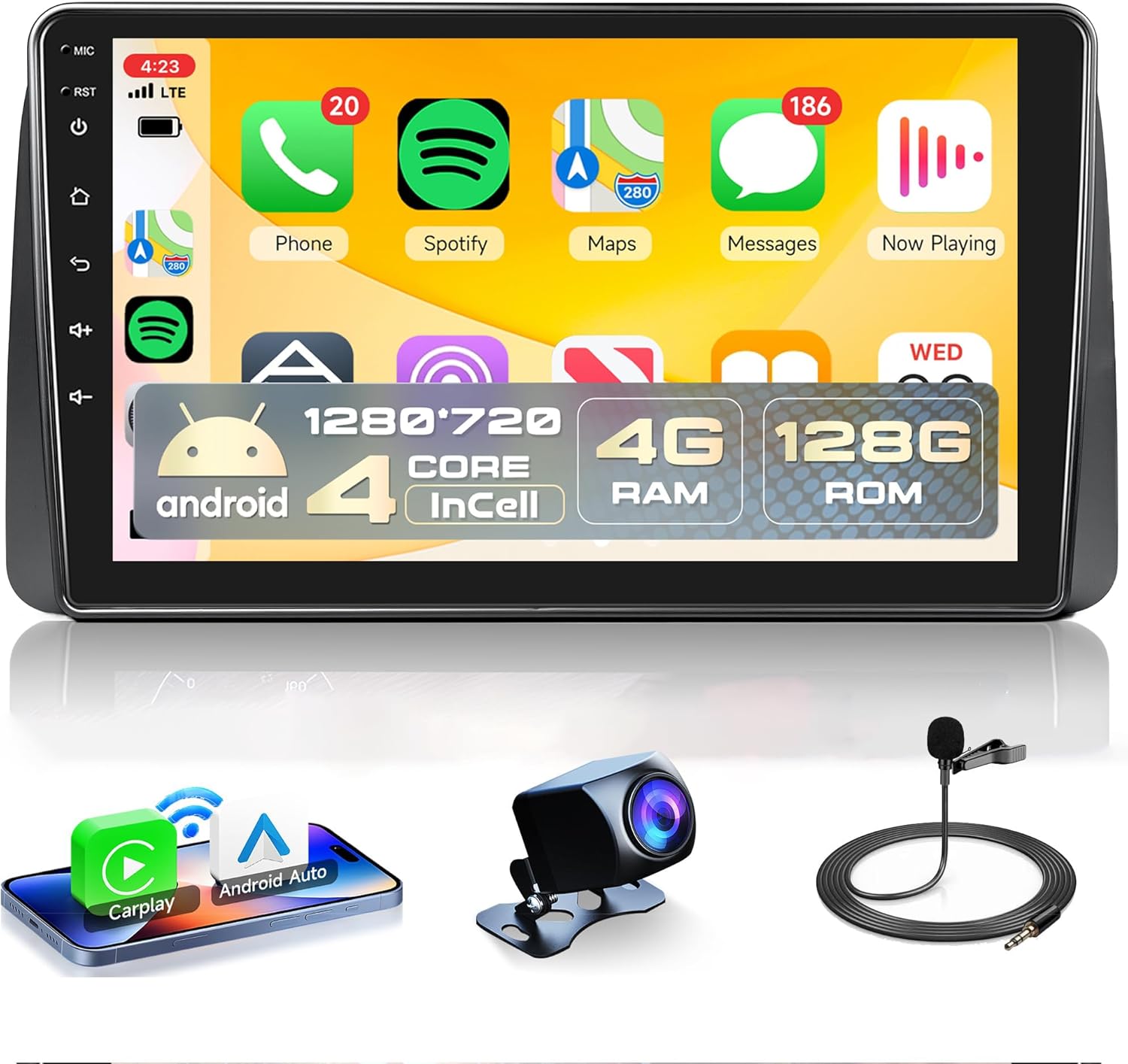
Image 1.1: Rimoody 4G+128G Android 15 Car Radio and accessories.
2. Product Features
- Operating System: Android 15
- Processor: 4 Core CPU
- Memory: 4GB RAM + 128GB ROM
- Display: 9-inch INCELL HD Touch Screen (1280 x 720 resolution)
- Connectivity: Wireless CarPlay, Wireless Android Auto, Mirror Link, Built-in WiFi, Bluetooth 5.0
- Navigation: Built-in GPS module (supports online and offline maps)
- Audio: FM/RDS Radio, EQ-32 sound adjustment
- Vehicle Integration: Reversing camera input, Steering Wheel Control (SWC) support

Image 2.1: Detail of the 9-inch INCELL HD Touch Screen.
3. Setup and Installation
3.1. Vehicle Compatibility
This car radio is compatible with:
- Dodge Grand Caravan (2008-2020)
- Chrysler Grand Voyager (2013-2016)
- Chrysler Town & Country (2013-2016)
Please confirm your original car center console before purchase. This product supports Model A configurations. If your vehicle has a Model B console, please contact customer service for recommendations.
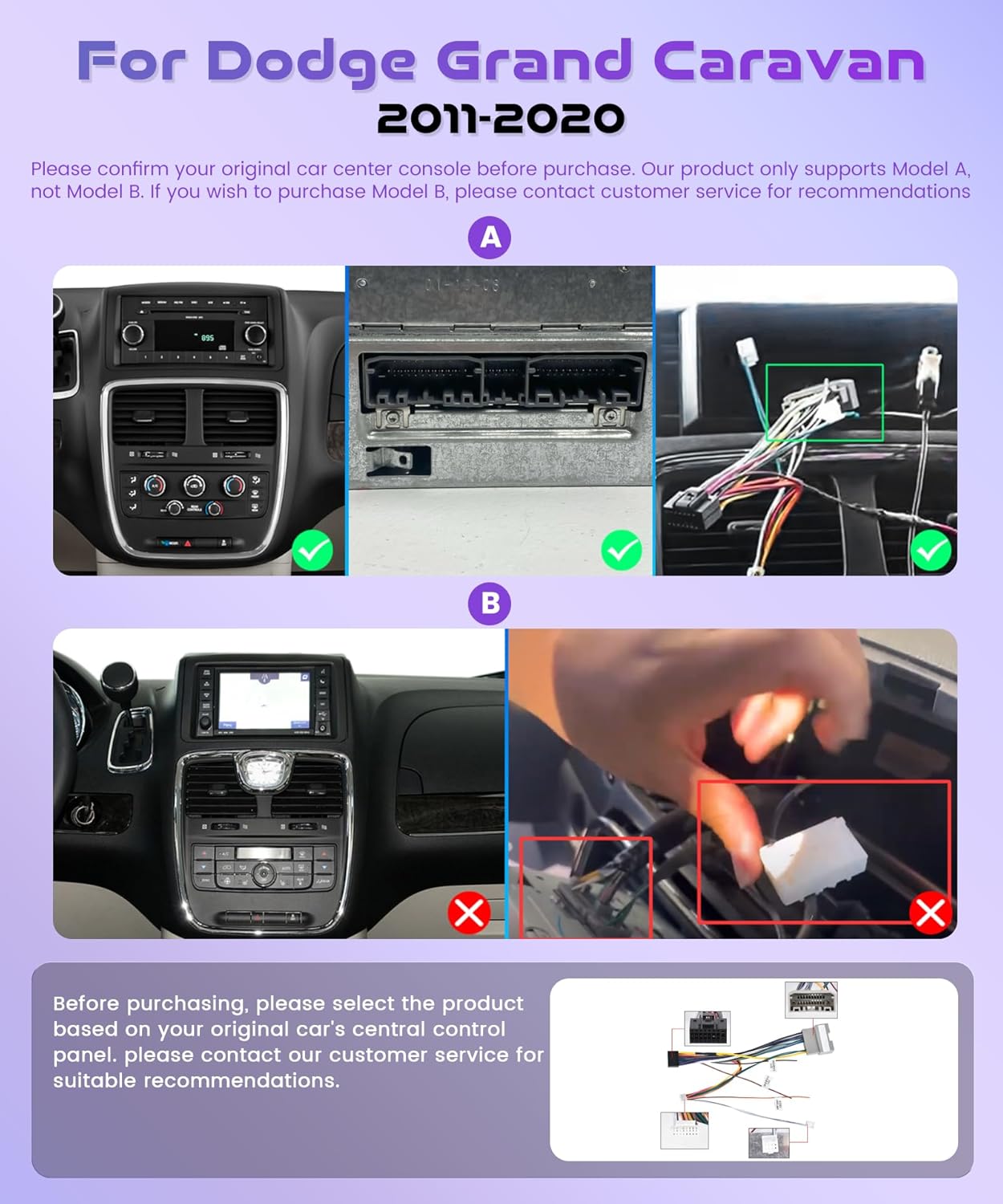
Image 3.1: Compatible (Model A) and Incompatible (Model B) Console Types.
3.2. What's in the Box
The package includes the following components:
- Car Radio Unit
- Backup Camera
- Power Cable
- USB Adapter Cable
- Original USB Cable
- Radio Antenna
- Canbus Decoder
- GPS Antenna
- RCA Cable
- Rear Camera Input Cable
- Microphone (MIC)
- Installation Tool
- User Manual

Image 3.2: Product Dimensions and Included Components.
3.3. Wiring Diagram
Refer to the following diagram for proper wiring connections. Ensure all connections are secure before powering on the device.
- The connector labeled for Canbus (16-pin or 20-pin) should not be plugged into the radio directly, as this may prevent the radio from starting.

Image 3.3: Wiring Diagram and Canbus Connection Warning.
4. Operating Instructions
4.1. General Overview of Features
This video provides a general overview of the car radio's main features, including Wireless CarPlay, Android Auto, Mirror Link, GPS Navigation, Wi-Fi, FM/RDS Radio, Bluetooth, Reverse Assist, Steering Wheel Controls, and EQ Adjustment.
Video 4.1: Overview of Rimoody Car Radio Features. This video demonstrates the various functionalities of the car radio, from smartphone integration to navigation and audio settings.
4.2. Wireless CarPlay Connection
To connect your iPhone wirelessly via CarPlay:
- Open the 'S-Play' application on the car radio.
- On your iPhone, go to Settings > Bluetooth and ensure Bluetooth is enabled.
- Pair your iPhone with the car radio's Bluetooth device (e.g., 'BLINK_UNW2652'). Confirm the pairing request on both devices.
- Once paired, a prompt will appear on your iPhone to 'Connect to CarPlay'. Tap 'Turn on WLAN & Connect'.
- The CarPlay interface will then display on the car radio screen.
Video 4.2: Wireless CarPlay and Android Auto Connection Guide. This video demonstrates the step-by-step process for connecting both Apple CarPlay and Android Auto wirelessly to the car radio.
4.3. Wireless Android Auto Connection
To connect your Android phone wirelessly via Android Auto:
- Open the 'S-Play' application on the car radio.
- On your Android phone, go to Settings > Connected devices > Bluetooth and ensure Bluetooth is enabled.
- Pair your Android phone with the car radio's Bluetooth device (e.g., 'BLINK_UNW2652'). Confirm the pairing request on both devices.
- Once paired, the Android Auto interface will then display on the car radio screen.
4.4. Mirror Link (Jlink) Connection
To use Mirror Link (Jlink) for screen casting:
- Open the 'Jlink' application on the car radio.
- Connect the car radio to your mobile phone's hotspot via Wi-Fi. Go to Settings > Wi-Fi on the radio, find your phone's hotspot, enter the password, and connect.
- For the first-time connection, you may need to click the provided link in the Jlink app on the radio to download the Jlink client app on your mobile phone by scanning a QR code.
- On your mobile phone, open the Jlink app and initiate screen casting.
4.5. GPS Navigation
The car radio features a built-in GPS module. It supports both online and offline maps. You can use voice guidance and real-time traffic information. Connect to the internet via Wi-Fi to download map updates or use online navigation services.

Image 4.3: GPS Navigation and Wi-Fi Connectivity.
4.6. Bluetooth Functionality
Pair your phone or other devices with the car radio via Bluetooth to stream music, make hands-free calls, and transfer files wirelessly. Ensure Bluetooth is enabled on both devices and follow the pairing instructions.
4.7. FM/RDS Radio
The radio supports FM and RDS (Radio Data System) signals, providing clear sound and quality. You can listen to music, news, and traffic information. Use the scan function to find available stations or manually tune to a specific frequency.
4.8. Steering Wheel Control (SWC)
The device supports the original car's steering wheel button learning function. This allows you to control various functions of the car radio directly from your steering wheel, enhancing convenience and safety.
4.9. EQ Adjustment
Customize your audio experience with the 32-band equalizer. Adjust frequency divisions to achieve your preferred sound profile, with various preset options available (e.g., Pop, Rock, Jazz, Classical).
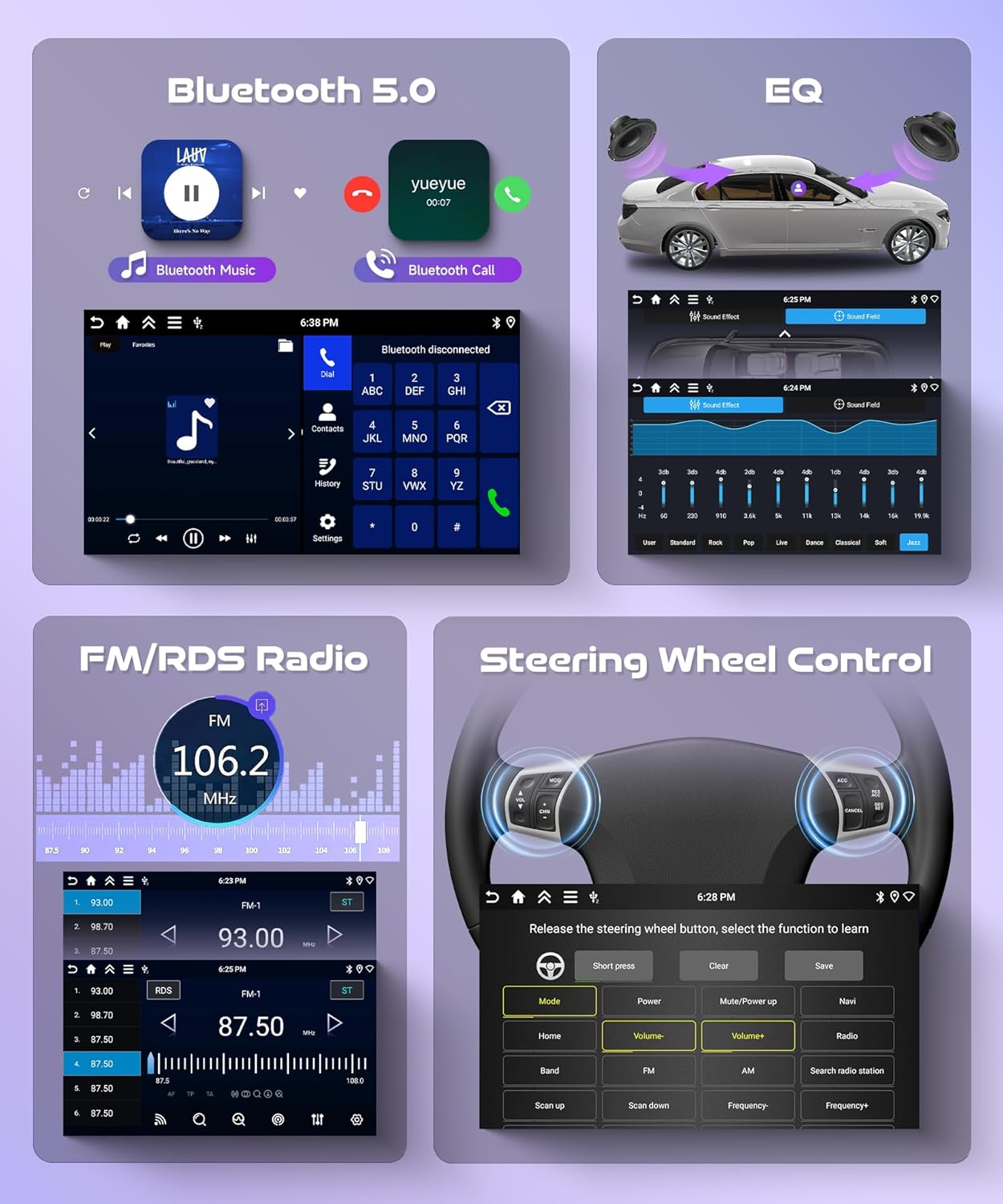
Image 4.4: Bluetooth, EQ, FM/RDS Radio, and Steering Wheel Control.
4.10. Reversing Camera
Connect a reversing camera to the device via the video input port. The rear view of your car will be displayed on the screen when you shift into reverse gear, assisting with safe parking and obstacle avoidance.
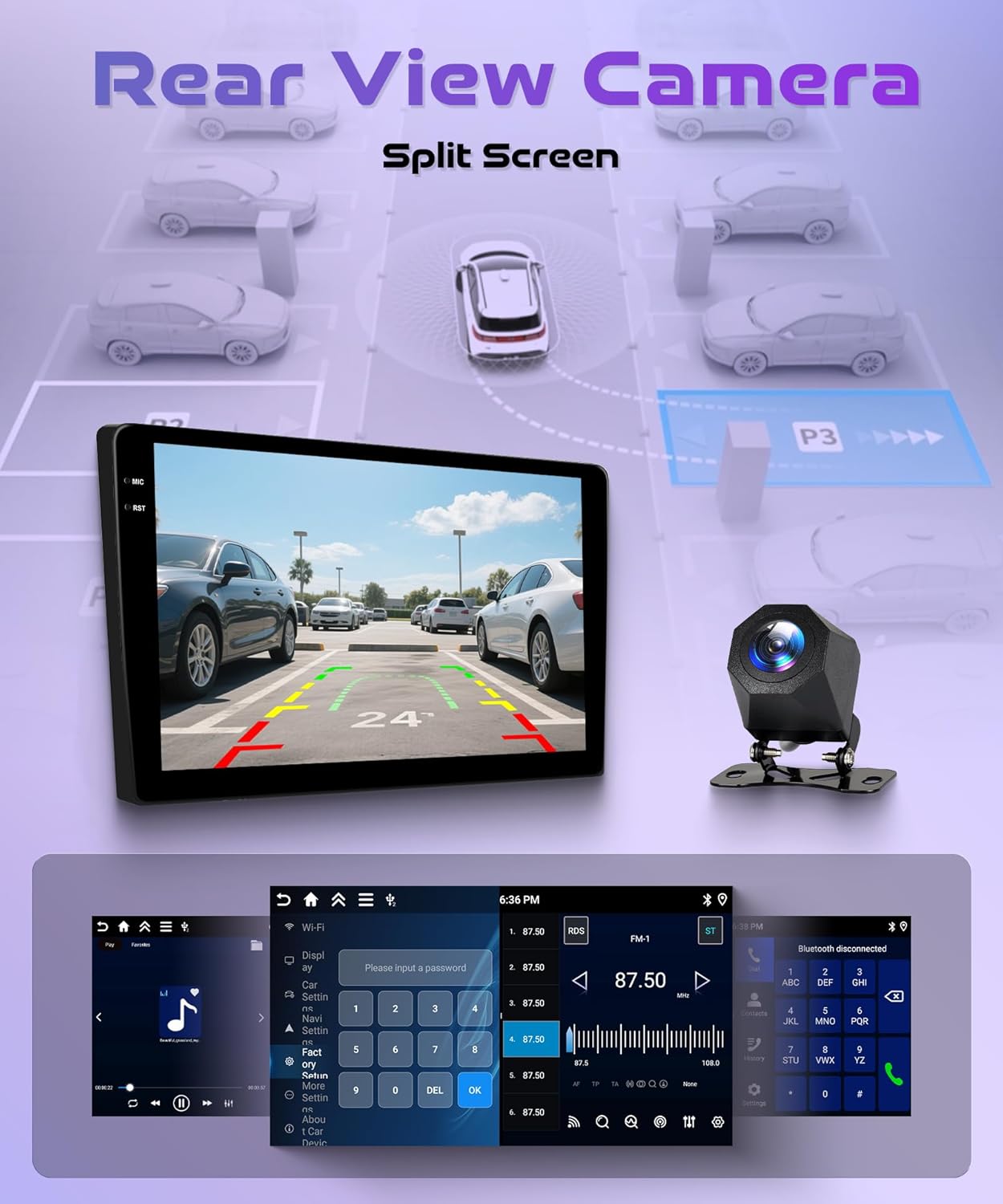
Image 4.5: Rear View Camera Display and Functionality.
5. Maintenance
To ensure the longevity and optimal performance of your car radio, follow these maintenance guidelines:
- Cleaning: Use a soft, dry cloth to clean the screen and exterior. Avoid abrasive cleaners or solvents.
- Software Updates: Periodically check for software updates to improve performance and add new features. Updates can typically be found in the system settings or on the manufacturer's website.
- Environmental Conditions: Avoid exposing the unit to extreme temperatures, direct sunlight for prolonged periods, or excessive moisture.
6. Troubleshooting
If you encounter issues with your car radio, refer to the following common troubleshooting steps:
- No Power: Check all power connections and fuses. Ensure the Canbus connector is correctly installed and not directly plugged into the radio if it's meant for the decoder.
- No Sound: Verify speaker connections, check volume levels, and ensure the audio output mode is set correctly.
- Touch Screen Unresponsive: Try restarting the unit. If the issue persists, a factory reset might be necessary (note: this will erase all user data).
- Bluetooth/CarPlay/Android Auto Connection Issues: Ensure Bluetooth and Wi-Fi are enabled on both the phone and the radio. Delete previous pairings and try reconnecting. Check for any software updates for the radio or your phone's operating system.
- GPS Inaccuracy: Ensure the GPS antenna is properly installed and has a clear view of the sky. Update map data if available.
- Steering Wheel Controls Not Working: Re-learn the steering wheel buttons through the radio's settings menu.
For persistent issues, please contact Rimoody customer support.
7. Specifications
| Feature | Specification |
|---|---|
| Item Weight | 1.8 pounds |
| Product Dimensions | 9 x 9 x 9 inches |
| Display Size | 9 Inches |
| Resolution | 1280 x 720 (as per feature bullets) / 1024 x 600 (as per specifications) |
| Operating System | Android 15 |
| Memory | 4GB RAM + 128GB ROM |
| Connectivity Technology | Bluetooth, Wi-Fi |
| Special Feature | Touchscreen, Wireless CarPlay, Android Auto, GPS, Mirror Link |
| Map Type | North America |
| Audio Output Mode | Stereo |
| Mounting Type | Dashboard Mount, Panel Mount |
| Vehicle Service Type | Minivan |
8. Warranty and Support
This product comes with a 2-year manufacturer's warranty.
For technical assistance, warranty claims, or further inquiries, please contact Rimoody customer support. The manufacturer offers lifetime technical support.
- Support Response: Quick response within 24 hours.
- Returns: 90 days free return for refund or exchange.