
CZSWCH DQ-RAM
CZSWCH DQ-RAM 12-inch Android Car Radio Stereo User Manual
For Dodge Ram 1500/2500/3500/4500/5500 New Body Style (2019-2025)
1. Introduction
This manual provides detailed instructions for the installation, operation, and maintenance of your CZSWCH DQ-RAM 12-inch Android Car Radio Stereo. Please read this manual thoroughly before installation and use to ensure proper functionality and to maximize your experience with the product.

Front view of the CZSWCH 12-inch Android Car Radio Stereo, showcasing its large touchscreen display with various application icons and climate control interface at the bottom.
2. Compatibility
The CZSWCH DQ-RAM 12-inch Car Radio Stereo is designed for specific Dodge RAM Truck models and years:
- Applicable Models: Dodge RAM Truck 1500, 2500, 3500, 4500, 5500
- Applicable Years: 2019, 2020, 2021, 2022, 2023, 2024, 2025 (New body style)
- Compatible with: OEM 5-inch and 8-inch factory radio models.
Important Compatibility Notes:
- Not suitable for classic car body styles.
- Not compatible if your original car radio screen is 12 inches.
- Not compatible if your vehicle has a factory 360-degree camera system.

A composite image showing the original 5-inch and 8-inch factory radio setups in a Dodge Ram dashboard (Before) and the upgraded CZSWCH 12-inch Android Car Radio Stereo seamlessly integrated into the dashboard (After), demonstrating the larger screen and modern interface.
3. Key Features
The CZSWCH DQ-RAM Car Radio Stereo offers advanced features for an enhanced in-car experience:
- Operating System: Android 13
- Processor: Qualcomm QCM6125 (Snapdragon 665) 8-Core ARM-Cortex 1.8GHz
- Memory: 4GB RAM + 64GB ROM (as per current model)
- Display: 12-inch 2K (1920*1080) IPS Capacitive Touch Screen, supports 4K video
- Connectivity: Built-in Wireless Carplay & Android Auto, Bluetooth 5.0, Wi-Fi, 4G network support
- Navigation: Integrated GPS with support for various map applications
- Vehicle Integration: Supports original steering wheel controls and factory backup camera. Integrates with original vehicle front and rear air conditioning controls.
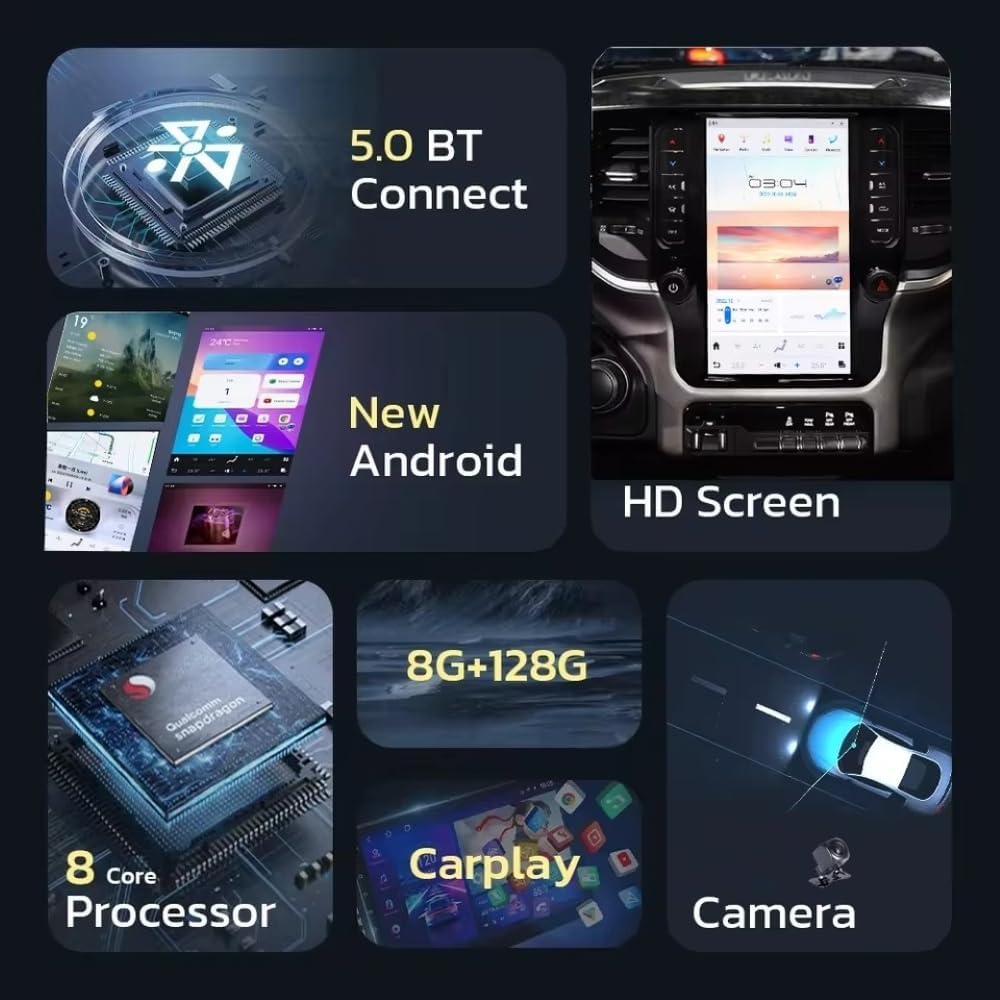
An infographic highlighting key features: Bluetooth 5.0 connectivity, the new Android operating system, a high-definition screen, an 8-core processor, Carplay functionality, and support for external cameras.

A close-up image of the Qualcomm Snapdragon 8-core ARM-Cortex 1.8GHz processor chip, emphasizing its role in providing high performance and efficient operation for the car radio.
4. Setup and Installation
Installation of the CZSWCH DQ-RAM unit requires technical knowledge and may involve disassembling parts of your vehicle's dashboard. It is recommended that installation be performed by a qualified professional.
4.1. Pre-Installation Checks
- Verify vehicle compatibility (refer to Section 2).
- Ensure all components listed in the 'What's in the Box' section are present.
- Disconnect the vehicle's battery before starting installation.
4.2. General Installation Steps (Consult a professional for detailed steps)
- Carefully remove the existing factory radio and dashboard trim.
- Connect the provided wiring harness to the vehicle's factory harness. Ensure all connections are secure.
- Connect the antenna, GPS antenna, and any external camera inputs.
- Mount the CZSWCH 12-inch unit into the dashboard opening.
- Reconnect the vehicle's battery and test the unit's functionality before fully reassembling the dashboard.
- Reassemble the dashboard trim.
Note: Some users have reported minor adjustments (e.g., grinding guide dowel pins) may be necessary for a perfect fit in certain vehicle models. Proceed with caution or consult an installer.
5. Operating Instructions
5.1. Basic Operation
- Power On/Off: The unit typically powers on with the vehicle's ignition. A power button may also be present on the unit for manual control.
- Volume Control: Adjust volume using the physical knobs on the unit or via the touchscreen interface. Steering wheel controls can also be used.
- Touchscreen Navigation: The 12-inch IPS capacitive touchscreen responds to touch gestures similar to a smartphone or tablet.
5.2. Wireless Carplay and Android Auto
The unit supports both wireless Carplay and Android Auto for seamless smartphone integration.
- Ensure your smartphone's Bluetooth and Wi-Fi are enabled.
- On the car radio, navigate to the Carplay/Android Auto application.
- Follow the on-screen prompts to pair your device. For Android Auto, a USB cable connection may be required for initial setup or for certain functions.
- Once connected, you can access compatible apps like Maps, Music, and make calls directly from the car radio display.

The car radio display showing the Carplay interface, with an iPhone icon and a Wi-Fi symbol, illustrating the built-in wireless Carplay and Android Auto features for seamless smartphone integration.
5.3. GPS Navigation
The unit comes with integrated GPS and supports various navigation applications.
- Access navigation apps from the main menu.
- Ensure the GPS antenna is properly installed for optimal signal reception.
- Download offline maps if desired, especially for areas with limited network coverage.

The CZSWCH 12-inch car radio display showing a full-screen GPS navigation map, with icons for popular navigation applications like Google Maps and Here WeGo, indicating integrated navigation capabilities.
5.4. Bluetooth Connectivity
Connect your smartphone via Bluetooth for hands-free calling and audio streaming.
- Go to the Bluetooth settings on the car radio.
- Enable Bluetooth on your smartphone and search for available devices.
- Select the car radio from the list and confirm the pairing code if prompted.
5.5. Steering Wheel Controls
The unit retains the functionality of your original steering wheel controls.
- After installation, verify that all steering wheel buttons (volume, track skip, mode, etc.) function correctly.
- If controls are not working, check wiring connections or consult the unit's settings for steering wheel control configuration.
5.6. Air Conditioning Control
The unit integrates with and allows control of your vehicle's original air conditioning system.
- Access the climate control interface directly from the main screen or a dedicated button.
- Adjust temperature, fan speed, and air distribution settings using the touchscreen.

The car radio display showing the integrated climate control interface, demonstrating its ability to support and control the original vehicle's front and rear air conditioning systems.
6. Maintenance
- Screen Cleaning: Use a soft, lint-free cloth to clean the touchscreen. Avoid abrasive cleaners or solvents.
- Software Updates: Periodically check for software updates to ensure optimal performance and access to new features. Follow instructions provided by the manufacturer for updates.
- Environmental Conditions: Avoid exposing the unit to extreme temperatures or direct sunlight for prolonged periods.
7. Troubleshooting
This section addresses common issues you might encounter.
- Unit Does Not Power On:
- Check all power connections and fuses.
- Ensure the vehicle's battery is properly connected and charged.
- No Sound:
- Verify speaker connections.
- Check volume levels on the unit and ensure mute is not activated.
- Backup Camera Not Working:
- Ensure the backup camera input cable is securely connected to the unit.
- Verify the camera itself is receiving power and is functional.
- Check the unit's settings for camera input configuration.

The car radio display showing a reverse camera feed with parking guidelines, indicating support for a backup camera system to assist with parking and maneuvering.
- Steering Wheel Controls Not Responding:
- Confirm the wiring for steering wheel controls is correctly connected.
- Access the unit's settings to re-map or calibrate the steering wheel controls if necessary.
- GPS Signal Issues:
- Ensure the GPS antenna is installed in a location with a clear view of the sky.
- Check the antenna connection to the unit.
For persistent issues, please contact customer support.
8. Specifications
| Feature | Specification |
|---|---|
| Model Number | DQ-RAM |
| Operating System | Android 13 |
| Processor | Qualcomm QCM6125 (Snapdragon 665) 8-Core ARM-Cortex 1.8GHz |
| RAM | 4GB |
| ROM | 64GB |
| Display Size | 12 Inches |
| Display Resolution | 2K (1920*1080) IPS |
| Connectivity | Bluetooth 5.0, Wi-Fi, 4G Network |
| Special Features | Android Auto, Apple Carplay, GPS Navigation, Steering Wheel Control Support, Factory Backup Camera Support |
| Included Components | Car Stereo + Cable |
| Mounting Type | Dashboard Mount |
9. Warranty and Support
This CZSWCH Android radio is covered by a one-year warranty from the date of purchase.
For technical support, warranty claims, or any questions regarding your product, please contact CZSWCH customer service through the Amazon messaging system. Provide your order details and a clear description of the issue for prompt assistance.
Ask a question about this manual
Ask about setup, troubleshooting, compatibility, parts, safety, or missing instructions. Manuals+ will review the question and use this page’s manual context to help answer it.