1. Introduction
This manual provides comprehensive instructions for the installation, operation, and maintenance of your podofo 2G+64G Car Stereo. This system is designed for specific Ford models, including the Ford Transit (2009-2016) and Ford Focus (2005-2008). It features a 9-inch 1080P IPS touchscreen, Wireless Carplay, Android Auto, GPS navigation, Bluetooth, FM/RDS radio, and supports a backup camera.
2. Setup and Installation
2.1 Package Contents
Before beginning installation, verify that all components are present in the package:
- Car Stereo Unit
- Power Cable
- User Manual
- RCA Cable
- Rear Camera Input Cable
- Installation Tool
- GPS Antenna
- USB Cable (Dual USB input)
- Antenna Adapter
- External Microphone
- AHD Backup Camera
- CANBUS Decoder
2.2 Wiring Diagram
Refer to the following diagram for proper wiring connections. Ensure all connections are secure before powering on the unit.

Image: Detailed wiring diagram for the podofo car stereo, illustrating the various connectors and their corresponding functions for integration into Ford Transit and Focus vehicles. This includes power, speaker, and accessory connections.

Image: Backup camera wiring diagram, showing how to connect the camera to the car stereo and the vehicle's reverse light for automatic activation.
2.3 Installation Steps
- Preparation: Disconnect the vehicle's battery before starting any electrical work.
- Remove Old Unit: Carefully remove the existing car radio from the dashboard. Use the provided installation tool if necessary.
- Connect Wiring: Match the wiring harness from the new stereo to your vehicle's wiring. Refer to the wiring diagram. Connect the CANBUS decoder if your vehicle requires it for steering wheel controls or other integrated functions.
- GPS Antenna: Mount the GPS antenna in a location with a clear view of the sky, typically on the dashboard or under the windshield.
- Backup Camera: Install the AHD backup camera at the rear of the vehicle. Route the camera cable to the stereo unit and connect it to the "Rear Camera Input" cable. Connect the camera's power wire to the vehicle's reverse light power source.
- External Microphone: Connect the external microphone and route it to a suitable location, such as near the sun visor, for optimal call quality.
- Test Connections: Before fully reassembling the dashboard, temporarily reconnect the battery and power on the stereo to test basic functions (power, audio, display).
- Secure Unit: Once tested, carefully slide the new stereo into the dashboard opening and secure it. Reassemble any removed trim pieces.
- Final Check: Reconnect the battery and perform a full system check, including all features like Carplay, Android Auto, GPS, Bluetooth, and the backup camera.
Note: This unit is designed for non-destructive installation, meaning it should integrate with your original car cables without modification. If you encounter difficulties, consult a professional installer.
3. Operating Instructions
3.1 Power On/Off and Basic Interface
Press the power button to turn the unit on or off. The 9-inch 1080P IPS touchscreen provides a clear and responsive interface. Navigate through menus by tapping and swiping.

Image: Overview of the car stereo's main features, including Wireless Carplay, Android Auto, Bluetooth connectivity, GPS navigation, AHD 1080P backup camera support, and the 9-inch IPS touchscreen display.
3.2 Wireless Carplay & Android Auto
Connect your smartphone via Bluetooth or USB cable to access Wireless Carplay or Android Auto. This allows you to use compatible smartphone applications directly on the car stereo screen, including navigation, music, and messaging. Voice commands are supported for hands-free operation.

Image: Display of Wireless Carplay and Android Auto interfaces on the car stereo, demonstrating seamless smartphone integration for navigation, music, and other apps.

Image: The Carplay interface displayed on the car stereo, featuring common applications such as Spotify, Maps, and Messages, accessible directly from the touchscreen.
3.3 Mirror Link & Split Screen
Mirror Link allows you to synchronize your smartphone's display to the car stereo, enabling video playback and other content. The split-screen function allows you to run two applications simultaneously on the 9-inch display, such as navigation and music.

Image: Demonstration of Mirror Link, where a smartphone screen is mirrored onto the car stereo, and the split-screen feature, showing two applications (e.g., radio and music) running concurrently.

Image: The Mirror Link function in action, displaying a smartphone's video content directly on the car stereo's screen.

Image: An example of the split-screen feature, allowing multiple applications like radio, music, and a web browser to be viewed simultaneously on the car stereo display.
3.4 Bluetooth Connectivity
Pair your phone via Bluetooth for hands-free calling and wireless music streaming. Access your phone's contacts and call history directly from the stereo interface.
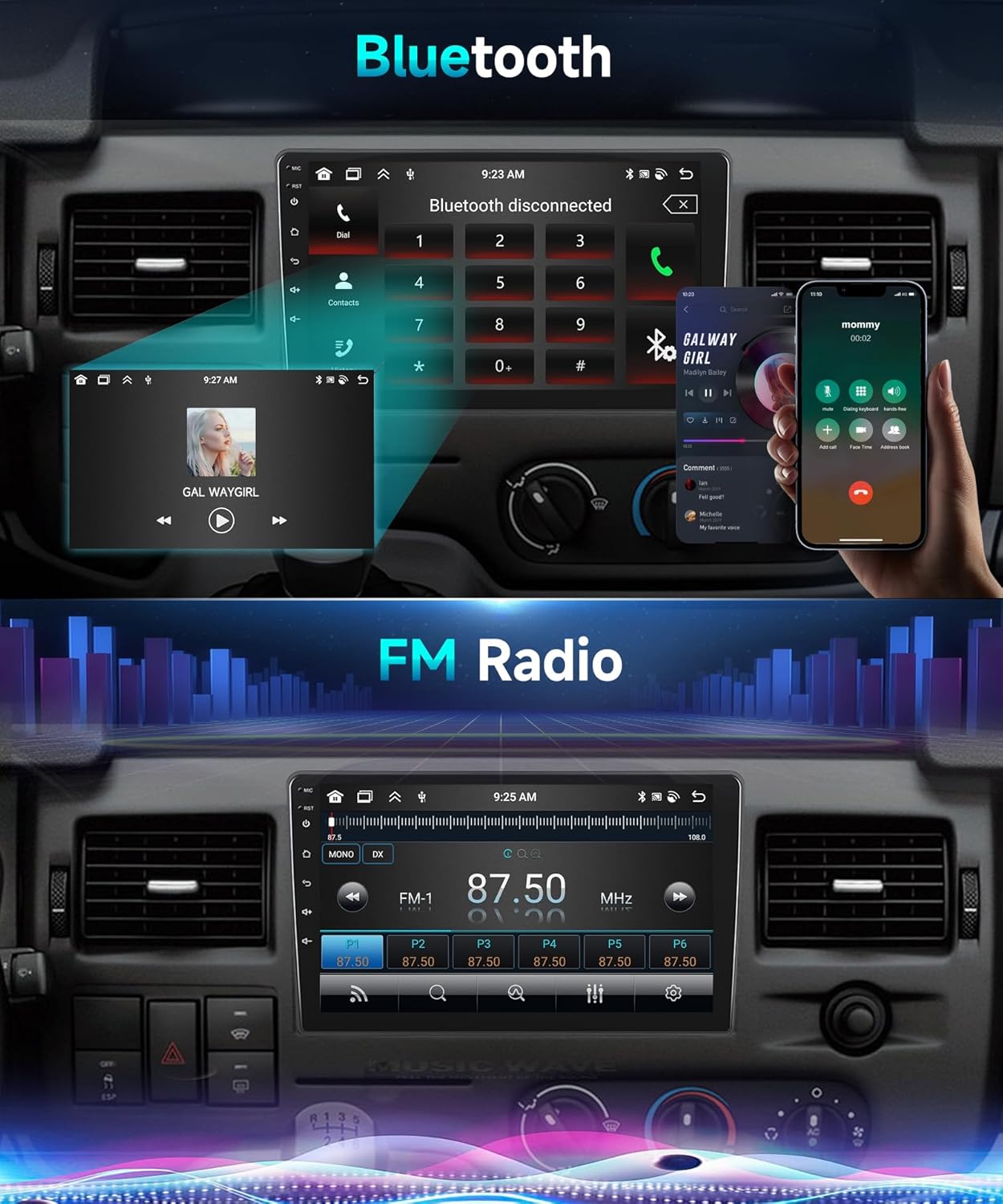
Image: The Bluetooth interface of the car stereo, showing options for hands-free calling and displaying currently playing music from a connected device.
3.5 FM/RDS Radio
Tune into your favorite FM radio stations. The RDS (Radio Data System) function displays station information, song titles, and other broadcast data where available.

Image: The FM Radio interface on the car stereo, displaying the current frequency, station presets, and controls for tuning.
3.6 GPS Navigation
The built-in GPS module supports offline and online maps. Use pre-installed navigation software or download your preferred navigation apps via Wi-Fi. Ensure the GPS antenna is properly installed for optimal signal reception.

Image: The GPS navigation screen on the car stereo, displaying a map with a highlighted route and estimated travel time.
3.7 Steering Wheel Control (SWC)
If your vehicle supports it and the CANBUS decoder is correctly installed, you can program the stereo to respond to your vehicle's steering wheel controls. This allows for safe operation of volume, track changes, and calls without taking your hands off the wheel.

Image: The Steering Wheel Control (SWC) learning interface on the car stereo, allowing users to assign functions to their vehicle's steering wheel buttons.
3.8 Backup Camera
When the vehicle is shifted into reverse, the stereo automatically displays the feed from the AHD backup camera. The camera provides a 1080P high-definition, 170° ultra-wide viewing angle with reversing assist lines for safer parking.

Image: The view from the backup camera displayed on the car stereo, showing parking assist lines for guidance.
3.9 Customizing User Interfaces (UIs)
The system offers 28 different UI themes and customizable wallpapers to personalize your stereo's appearance. Navigate to the settings menu to change themes and layouts.
Image: A visual representation of the customizable user interfaces (UIs) available on the car stereo, showcasing different themes and application arrangements.
3.10 Wi-Fi / Hotspot
Connect the stereo to a Wi-Fi network or your phone's hotspot to access online features, download apps, stream content, and update maps.

Image: The Wi-Fi and Hotspot connectivity screen, demonstrating the ability to browse the internet and access online services directly from the car stereo.
4. Maintenance
4.1 Screen Cleaning
To clean the touchscreen, power off the unit. Use a soft, lint-free cloth slightly dampened with water or a screen-cleaning solution. Avoid harsh chemicals or abrasive materials that could damage the screen.
4.2 Software Updates
Periodically check for software updates via the system settings menu. Updates can provide new features, performance improvements, and bug fixes. Ensure a stable internet connection during updates.
4.3 General Care
Avoid exposing the unit to extreme temperatures, direct sunlight for prolonged periods, or excessive moisture. Ensure proper ventilation around the unit to prevent overheating.
5. Troubleshooting
| Problem | Possible Cause | Solution |
|---|---|---|
| No Power | Loose power connection, blown fuse. | Check power cables and vehicle fuses. Ensure battery is connected. |
| No Sound | Volume too low, incorrect audio source, loose speaker wires. | Increase volume. Select correct audio source. Check speaker connections. |
| Carplay/Android Auto Not Connecting | Bluetooth/USB issue, phone settings, incompatible phone. | Ensure Bluetooth is on and paired. Try a different USB cable. Check phone settings for Carplay/Android Auto permissions. Restart phone and stereo. |
| GPS Signal Lost | GPS antenna obstruction or faulty connection. | Ensure GPS antenna has a clear view of the sky. Check antenna connection to the stereo. |
| Backup Camera Not Displaying | Incorrect wiring, camera power issue, faulty camera. | Verify camera wiring, especially the reverse trigger wire. Check camera power supply. |
| Touchscreen Unresponsive | Temporary software glitch, screen damage. | Restart the stereo unit. If issue persists, contact support. |
6. Specifications
| Feature | Detail |
|---|---|
| Model Compatibility | Ford Transit (2009-2016), Ford Focus (2005-2008) |
| RAM | 2GB |
| ROM | 64GB |
| Display Size | 9 Inches |
| Resolution | 1080p |
| Operating System | Android |
| Connectivity | Wireless Carplay, Android Auto, Bluetooth, USB, Wi-Fi |
| Special Features | GPS Navigation, Touchscreen, FM/RDS Radio, Hi-Fi function, EQ Audio, MirrorLink, Split Screen, AHD Backup Camera Support, Steering Wheel Control (SWC) |
| Included Components | AHD backup camera, Canbus, external mic, wiring harness |
| Item Weight | 3.03 pounds |
| Product Dimensions | 9 x 9 x 9 inches |
7. Warranty and Support
7.1 Warranty Information
This podofo car stereo comes with a 2-year warranty on labor and parts. Additionally, the manufacturer offers 30 days money back and 24 months replacement for eligible issues.
7.2 Technical Support
For any questions, technical assistance, or warranty claims, please contact Podofo Tech customer service. They offer lifetime technical support and aim to provide a quick reply within 18 hours.
Contact information can typically be found on the product packaging or the official Podofo website.


