
1. Introduction
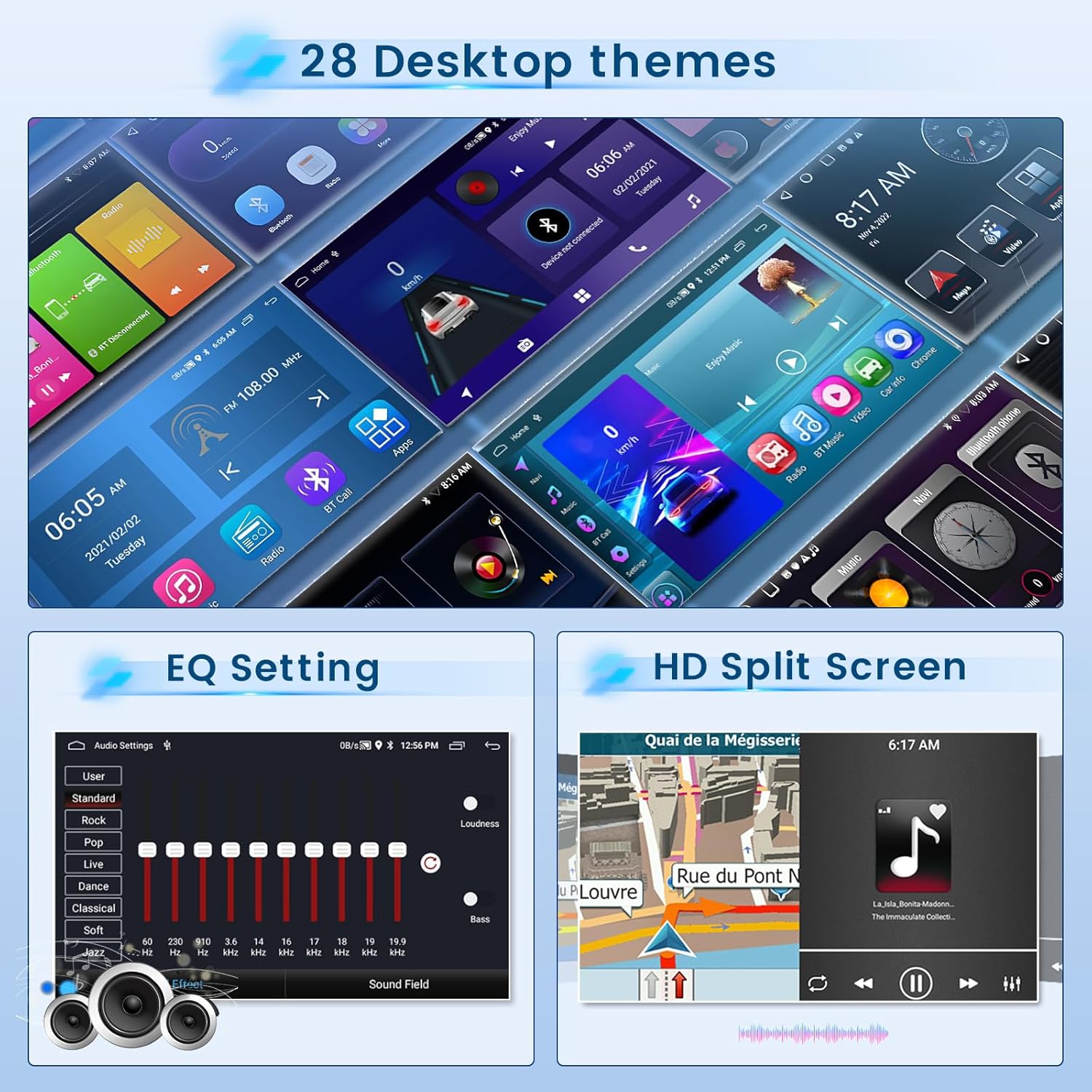
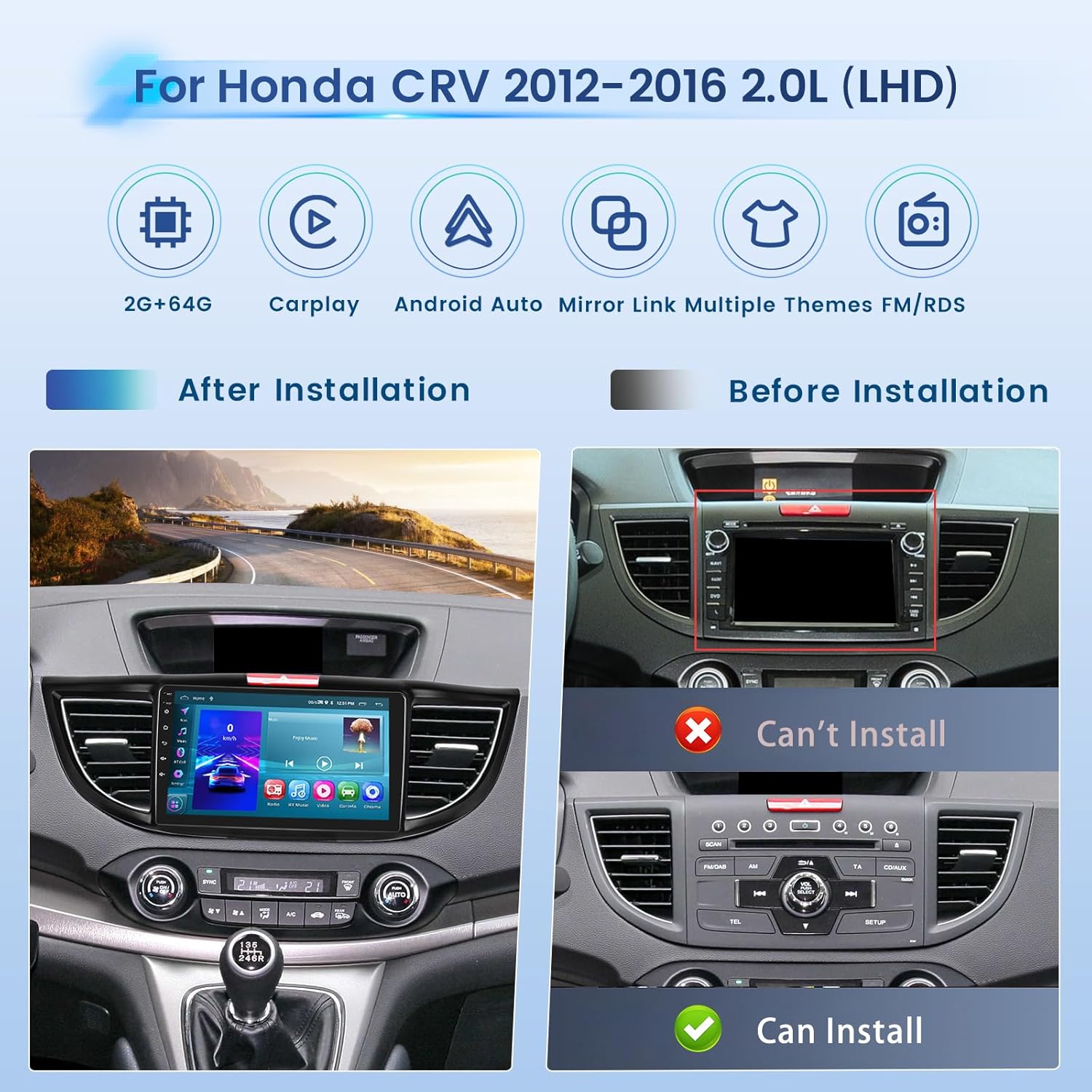
This manual provides detailed instructions for the installation, operation, and maintenance of your Inefala 2+64G Android 15 CarPlay Car Stereo. Please read this manual thoroughly before using the product to ensure proper function and safety. This unit is specifically designed for Honda CRV 2.0L models manufactured between 2012 and 2016, with left-hand drive, and is not compatible with vehicles equipped with an original navigation system.
2. Product Features
- 9-inch touch screen with 1024 x 600 resolution, supporting 1080P video playback.
- Android 15 operating system with 2GB RAM and 64GB internal storage.
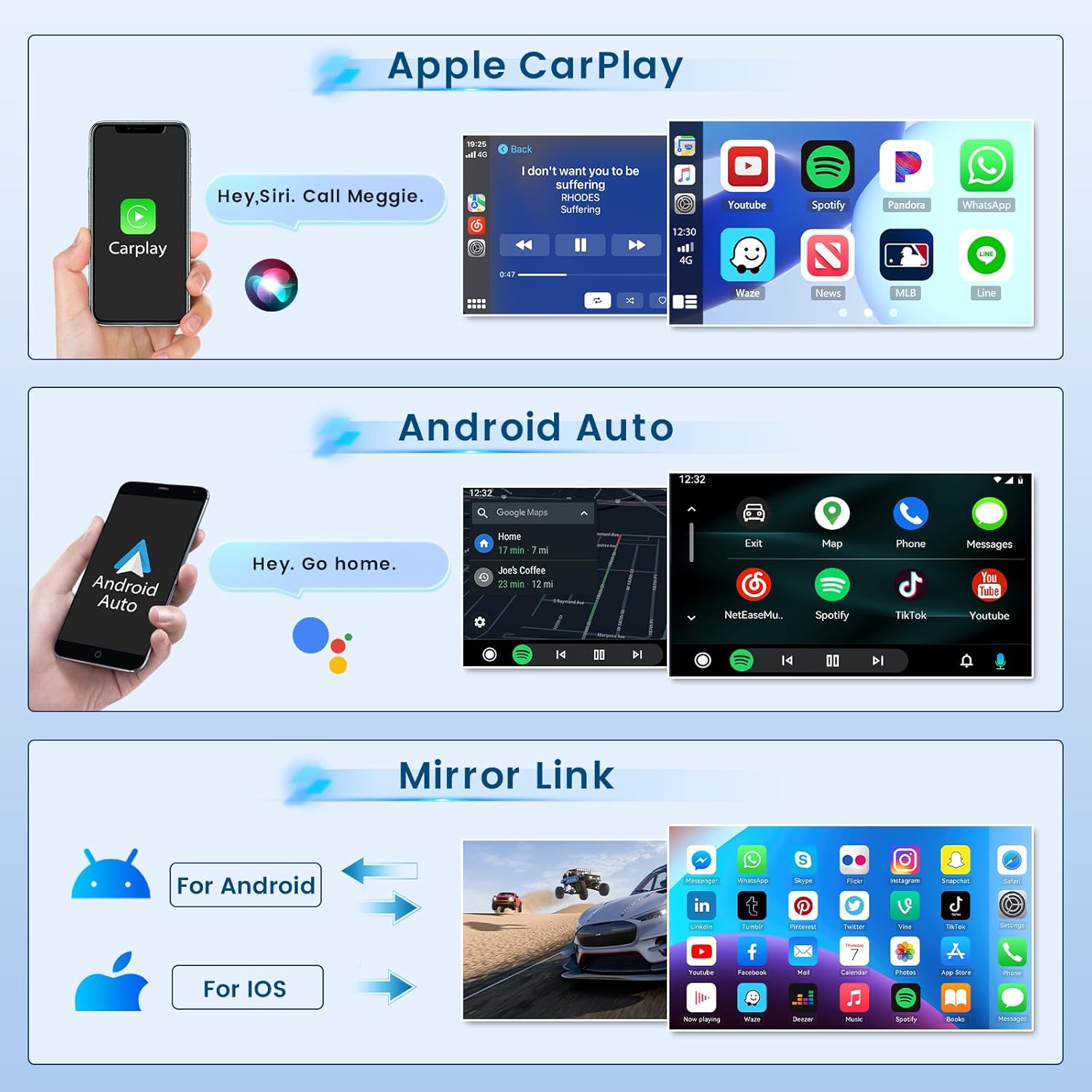
- Built-in wireless and wired Apple CarPlay and Android Auto functionality.
- Mirror Link function for iOS (one-way control) and Android (two-way control) devices.
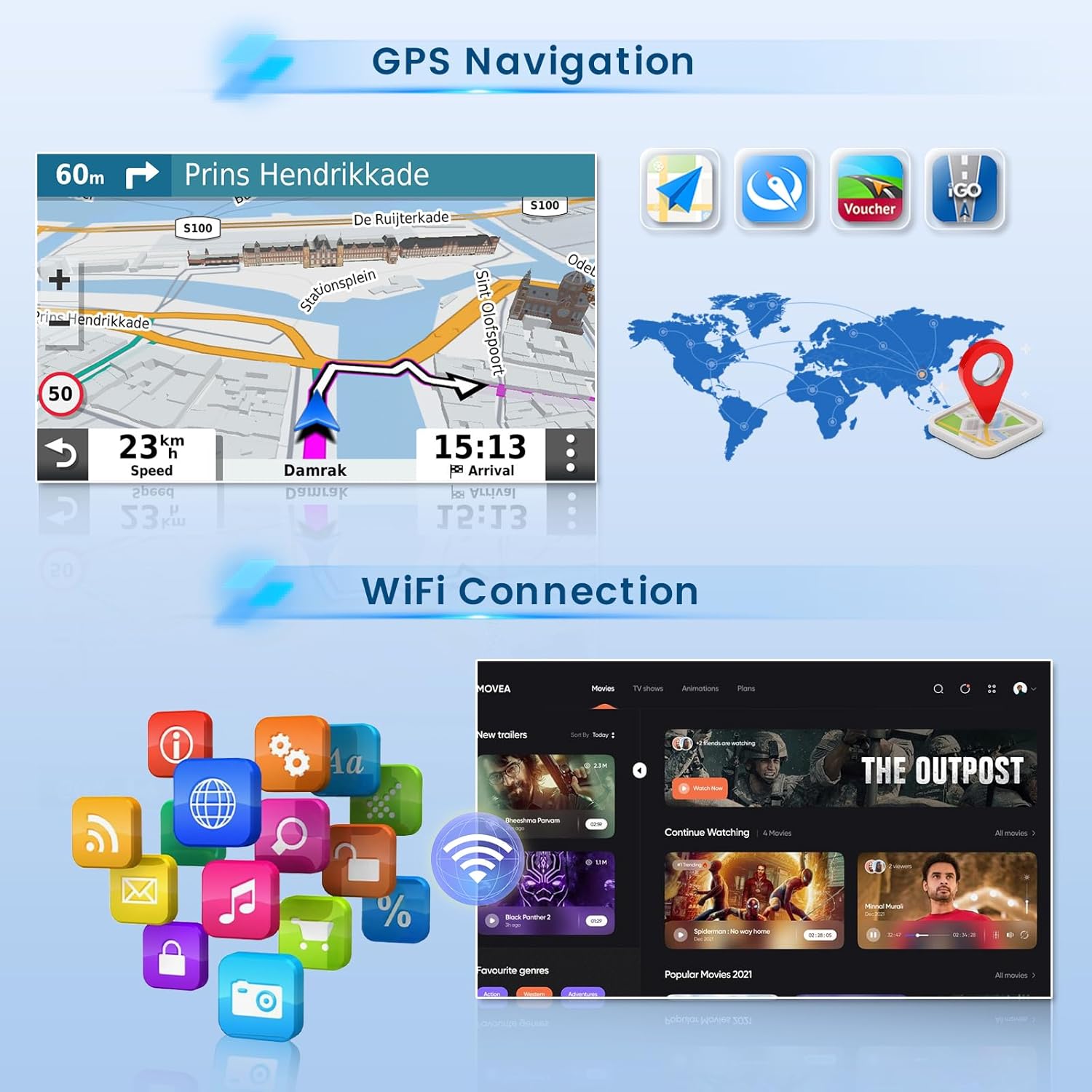
- Integrated GPS navigation with support for offline and online maps.
- Wi-Fi connectivity for app downloads and internet access.
- Bluetooth 4.2 for hands-free calling, music streaming, and phonebook synchronization.
- FM/RDS radio with 18 savable stations.
- Supports AHD backup camera input with automatic display when reversing.
- Steering wheel control compatibility (requires CANBUS decoder, included).
- Adjustable EQ sound effects (Pop, Rock, Jazz, Classical, etc.) and 28 desktop themes.
- Split-screen function for simultaneous display of multiple applications.
3. Package Contents
Verify that all items are present in the package:
- Inefala Android Radio Unit
- Power Cable
- Original USB Cable
- CANBUS Decoder
- RCA Harness
- GPS Antenna
- AHD Backup Camera
- External Microphone
- Rear Camera Input Cable
- 2 x USB Cables
- Installation Tool


4. Installation Guide
Professional installation is recommended. Ensure the vehicle's power is disconnected before beginning installation. This unit is compatible with Honda CRV 2012-2016 2.0L Left-Hand Drive models that do NOT have an original navigation system.
4.1 Pre-Installation Check
4.2 Power Connection
- If no sound is present after installation, connect the AMP control wire from the original car plug to the ACC wire of the stereo's power cable.
- If the car consumes battery when switched off, disconnect the yellow "normal flame" wire at the end of the 20-pin interface of the CANBUS box. Connect the yellow wire near the CANBUS box to the ACC (Accessory) wire of the original car.
4.3 Backup Camera Wiring
The reversing input must be plugged in even if the reversing camera is not used.
- Connect Cable 1 and Cable 5 (from the camera wiring diagram) to the positive pole of the car's reversing light cable.
- Connect Cable 2 to the negative pole of the car's reversing light cable.
- Cable 3 and Cable 4 need to be connected as shown in the diagram.

4.4 Port Details
Refer to the diagram for identification of various ports and connections on the back of the unit and the wiring harnesses.

After physical installation, navigate to Settings > Factory Setup (Password: 1234) > Can Settings to match the CANBUS decoder to your vehicle model.
5. Initial Setup
5.1 Wi-Fi Connection
- Go to Settings > Network.
- Turn on Wi-Fi.
- Select your desired Wi-Fi network and enter the password to connect.
5.2 Bluetooth Pairing
- On the car stereo, go to Settings > Bluetooth or open the "BT Call" application.
- Ensure Bluetooth is enabled on both the stereo and your mobile device.
- On your mobile device, search for available Bluetooth devices and select "Car BTo" (or similar name displayed on the stereo).
- Enter the PIN code (default is 1234) if prompted.
- Allow all necessary permissions on your phone for contacts and media sync.
6. Operating Instructions
6.1 Interface Overview and Feature Demonstration
The following video provides a comprehensive demonstration of the car stereo's user interface, various functions, and connectivity options, including desktop themes, music playback, EQ settings, Bluetooth, video playback, navigation, and CarPlay/Android Auto connections.
6.2 User Interface and Themes
The unit features a blue main UI and offers 28 desktop themes for customization. Navigate through themes by swiping left or right on the home screen or accessing theme settings.
6.3 Apple CarPlay & Android Auto
Connect your iPhone or Android phone via Wi-Fi hotspot or the original USB cable to access CarPlay or Android Auto. This allows voice control and access to phone functions like music, navigation, calls, and messages directly from the stereo's touchscreen.
6.4 Mirror Link
Use the phone's original USB cable to synchronize content (videos, navigation) from your mobile device to the car stereo screen. iOS devices support one-way control, while Android devices support two-way control.
6.5 GPS Navigation
The unit supports both offline and online GPS navigation. Download free offline maps (e.g., Waze) or use online maps via Wi-Fi. The split-screen function allows navigation to be displayed alongside other applications like FM radio.
6.6 FM/RDS Radio
Access FM radio stations and RDS information. You can save up to 18 favorite radio stations for quick access.

6.7 Steering Wheel Control
The unit supports learning steering wheel controls. Go to the "SteeringWheelKey" application to program buttons for quick access to functions like volume, track change, and mode selection.

6.8 Backup Camera Display
When the vehicle is shifted into reverse gear, the waterproof AHD backup camera automatically displays the rear view on the screen, providing a clear image for parking and maneuvering.
7. Troubleshooting
- No Sound: Check the AMP control wire connection. Ensure it's connected from the original car plug to the ACC wire of the stereo's power cable.
- Battery Drain: If the car consumes battery when off, disconnect the yellow "normal flame" wire at the 20-pin CANBUS interface and connect the yellow wire near the CANBUS box to the original car's ACC.
- Steering Wheel Controls Not Working: Ensure the CANBUS decoder is correctly installed and configured in Settings > Factory Setup (Password: 1234) > Can Settings. Then, use the "SteeringWheelKey" app to learn the controls.
- CarPlay/Android Auto Connection Issues: Verify Wi-Fi hotspot or USB cable connection. Ensure all permissions are granted on your mobile device. Restart both the stereo and your phone.
- GPS Signal Issues: Ensure the GPS antenna is properly installed and has a clear view of the sky. Check network connection for online maps.
- Unit Not Powering On: Check all power connections and fuses. Ensure the power cable is securely connected.
8. Specifications
| Feature | Detail |
|---|---|
| Model Number | 093fee84-4586-470a-9c29-222041d5ec76 |
| Operating System | Android 15 |
| RAM + Storage | 2GB RAM + 64GB ROM |
| Screen Size | 9 inches |
| Screen Resolution | 1024 x 600 |
| Video Playback | 1080P supported |
| Connectivity | Bluetooth 4.2, USB, Wi-Fi, Wireless CarPlay/Android Auto |
| GPS | Built-in, supports offline/online maps |
| Radio | FM/RDS |
| Backup Camera | AHD (included) |
| Product Dimensions | 16.93 x 6.5 x 1.97 inches |
| Item Weight | 3.3 pounds |
| Compatible Vehicles | Honda CRV 2.0L (2012-2016), Left-Hand Drive, without original navigation |
| Compatible Devices | Smartphone |
| Controller Type | Android |
| Audio Output Mode | Stereo |
| Surround Sound Channel Configuration | 4 |
| Video Encoding | MKV/RMVB/AVI/MP4/MDV etc. |
| Color | Matte Black |
| Manufacturer | Inefala |
9. Warranty and Support
For any questions, technical assistance, or warranty claims, please contact Inefala customer support.
Email: inefalaservices@163.com
