
Introduction
This manual provides essential instructions for the installation, operation, maintenance, and troubleshooting of your new Generic Laptop Backlit Keyboard. This keyboard is designed for specific CLEVO laptop models, including NH55EKQ, NH55HHQ, NH55HJQ, NH55HKQ, NH55HPQ, NH55JNNQ, NH55JNPY, and NH55JNRQ series. Please read this manual carefully before proceeding with installation or use.
Setup and Installation
Replacing a laptop keyboard requires careful handling of internal components. If you are not comfortable performing this procedure, it is recommended to seek professional assistance.
Safety Precautions:
- Always disconnect the laptop from its power source and remove the battery before beginning any installation.
- Discharge any static electricity from your body by touching a grounded metal object.
- Use appropriate tools to avoid damaging laptop components.
- Keep small screws and parts organized to prevent loss.
General Installation Steps:
- Preparation: Power off your laptop completely and disconnect all cables. Remove the battery.
- Access the Keyboard: Depending on your specific CLEVO model, you may need to remove the top case, a keyboard bezel, or access screws from the bottom of the laptop. Refer to your laptop's service manual for precise disassembly instructions.
- Disconnect Old Keyboard: Carefully detach the ribbon cable(s) connecting the old keyboard to the motherboard. Note the orientation of the cable and the locking mechanism of the connector.
- Remove Old Keyboard: Unscrew any retaining screws and gently lift out the old keyboard.
- Install New Keyboard: Position the new Generic keyboard into the laptop's keyboard tray. Ensure it sits flush.
- Connect New Keyboard: Carefully connect the ribbon cable(s) of the new keyboard to the motherboard, ensuring proper alignment and securing the connector's locking mechanism.
- Reassembly: Reattach any screws, bezels, or top cases that were removed. Reinstall the battery and reconnect the power adapter.
- Test: Power on the laptop and test all keys, including the backlight functionality, to ensure proper installation.
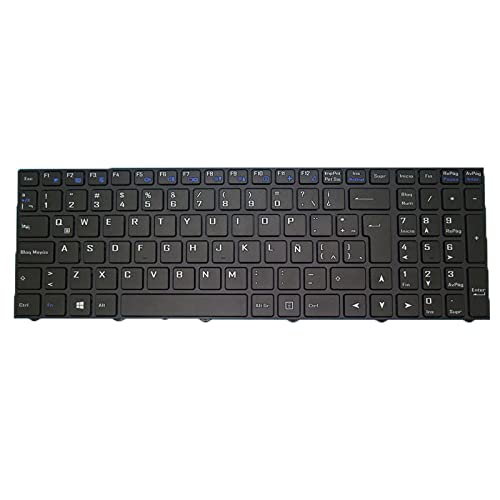
Image: Underside view of the keyboard, showing mounting points and internal structure. This illustrates the typical layout of screw holes and cable connections.
Operating the Keyboard
This keyboard functions as a standard laptop keyboard with additional backlit features.
Basic Functionality:
- All standard alphanumeric keys, function keys (F1-F12), and special keys (e.g., Ctrl, Alt, Shift) operate as expected.
- The keyboard features a Latin America (LA) layout.
Backlight Control:
The backlight feature allows for typing in low-light conditions. The control for the backlight is typically integrated with the laptop's function keys.
- To turn the backlight on/off or adjust its brightness, look for a key with a keyboard icon or a sun icon, usually combined with the Fn key. Common combinations include Fn + F3, Fn + F4, or Fn + Spacebar.
- Refer to your specific CLEVO laptop's user manual for the exact key combination to control the keyboard backlight.
Maintenance
Proper maintenance can extend the lifespan of your keyboard.
Cleaning:
- Dust and Debris: Use a can of compressed air to remove dust and debris from between the keys. Hold the can upright and spray in short bursts.
- Surface Cleaning: Gently wipe the keycaps and keyboard surface with a soft, lint-free cloth lightly dampened with water or a mild, non-abrasive cleaning solution specifically designed for electronics. Avoid excessive moisture.
- Avoid: Do not use harsh chemicals, abrasive cleaners, or spray liquids directly onto the keyboard.
Storage:
If storing the keyboard separately, keep it in a dry, cool environment, away from direct sunlight and extreme temperatures. Protect it from dust and physical impact.
Troubleshooting
If you encounter issues with your keyboard, try the following troubleshooting steps:
- Keyboard Not Responding:
- Ensure the keyboard ribbon cable is securely connected to the motherboard.
- Restart your laptop.
- Check Device Manager (Windows) or System Information (macOS) to see if the keyboard is recognized and if there are any driver issues.
- Backlight Not Working:
- Verify that the backlight is enabled using the appropriate Fn key combination (e.g., Fn + F3/F4).
- Ensure the backlight ribbon cable (if separate) is properly connected.
- Check your laptop's power settings; some power-saving modes may disable the backlight.
- Specific Keys Not Functioning:
- Clean around the affected keys to remove any debris that might be obstructing their movement.
- If multiple keys in a specific area are not working, it might indicate a connection issue with the ribbon cable.
- Incorrect Key Output:
- Check your operating system's keyboard language settings to ensure the correct layout (Latin America LA) is selected.
If these steps do not resolve the issue, contact customer support or a qualified technician.
Specifications
| Feature | Detail |
|---|---|
| Product Type | Laptop Backlit Keyboard |
| Model Number | Laptop Parts-24-1-22-111 |
| Compatible Laptop Series | CLEVO NH55EKQ, NH55HHQ, NH55HJQ, NH55HKQ, NH55HPQ, NH55JNNQ, NH55JNPY, NH55JNRQ |
| Layout | Latin America (LA) |
| Color | Black Frame |
| Product Dimensions | 11.81 x 7.87 x 3.94 inches |
| Item Weight | 2.2 pounds |
| Manufacturer | Generic |
| ASIN | B0D3T1X787 |
Warranty
This product comes with a 90-day warranty from the date of purchase. This warranty covers manufacturing defects. It does not cover damage caused by improper installation, misuse, accidents, or unauthorized modifications. Please retain your proof of purchase for warranty claims.
Support
For further assistance, technical support, or warranty claims, please contact the seller directly through your purchase platform. Ensure you have your order details readily available.
As per the product information, please check your registered email after payment for important details regarding your order and support.