
1. Introduction
Welcome to your new MAXLEGEN Alder Lake N95 15.6-inch laptop. This manual provides essential information for setting up, operating, and maintaining your device. Please read this manual thoroughly to ensure proper use and to maximize the performance and longevity of your laptop.
2. Package Contents
Please check the package contents upon unboxing to ensure all items are present:
- 1 x MAXLEGEN 15.6-inch Notebook Laptop (pre-installed with Windows 11 Professional)
- 1 x Wired Mouse
- 1 x Power Adapter
- 1 x User Manual
3. Product Overview
Familiarize yourself with the key components and ports of your laptop.
3.1 Front View
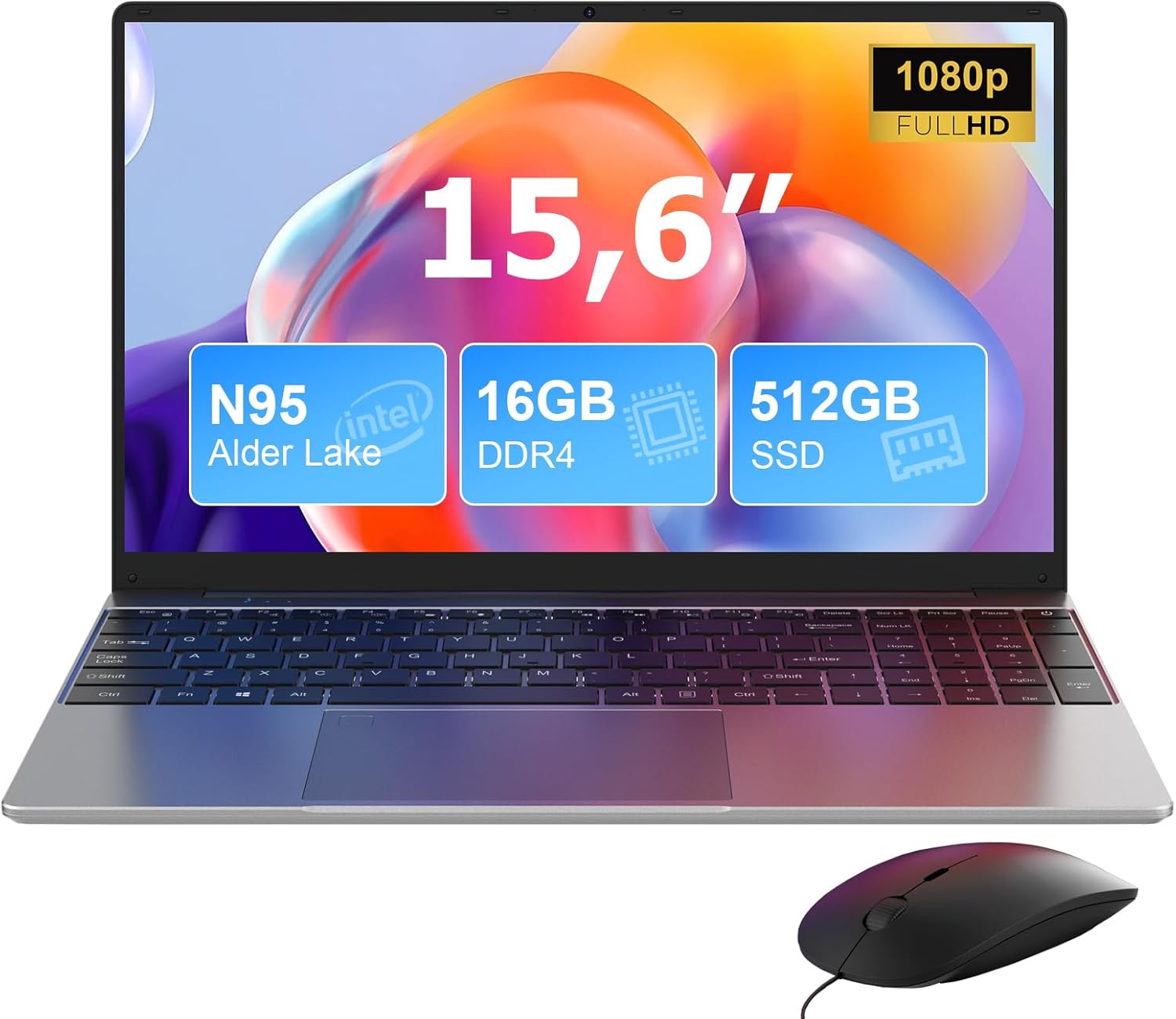
This image shows the MAXLEGEN 15.6-inch laptop from the front, highlighting its display and keyboard. Key specifications like N95 Intel Alder Lake processor, 16GB DDR4 RAM, and 512GB SSD are overlaid on the screen.
3.2 Processor and Performance

This diagram illustrates the Intel N95 Alder Lake processor, detailing its 3.4 GHz Turbo Boost, 4 cores, 4 threads, and 6MB L3 cache. A performance comparison chart shows its multi-core and single-core performance against other Intel processors.
3.3 Multitasking Capabilities

The image displays the laptop screen running multiple applications simultaneously, demonstrating its multitasking capabilities with Windows 11, 16GB DDR4 RAM, and 512GB SSD.
3.4 Display Features

This image highlights the 15.6-inch 1920x1080 Full HD IPS display, emphasizing features like bright view, eye protection, 180-degree elevation angle, and a backlit keyboard. A numeric keypad is also visible.
3.5 Ports and Connectors

This image provides a detailed view of the laptop's side ports, including a 3.5mm earphone jack, Micro SD card slot, USB 3.0 ports, charging port, Micro HDMI, and Type-C port. It also illustrates the built-in fan technology for optimal thermal management.
3.6 Keyboard Layout

The image shows the QWERTY keyboard of the laptop, indicating its support for multi-language input. The laptop is placed on a stand, connected to a wired mouse.
4. Setup
4.1 Initial Power On
Connect the power adapter to the laptop's DC-in port and then to a working power outlet. Press the power button located on the keyboard. The laptop will automatically boot into Windows 11 Professional.
4.2 Windows 11 Setup
Follow the on-screen instructions to complete the initial Windows 11 setup. This typically includes selecting your language, connecting to a Wi-Fi network, accepting the license agreement, and creating a user account.
5. Operating Instructions
5.1 Power On/Off
- To Power On: Press the power button.
- To Shut Down: Click the Start button, then Power, and select "Shut down".
- To Restart: Click the Start button, then Power, and select "Restart".
- To Sleep: Close the lid or click the Start button, then Power, and select "Sleep".
5.2 Keyboard Backlight Activation
The keyboard features a 3-level adjustable backlight:
- Press Fn + F5 simultaneously to enable the keyboard backlight.
- Press Fn + F5 successively to cycle through brightness levels (low, medium, high, off).
5.3 Battery and Charging Indicator
The LED indicator near the DC power port provides charging status:
- Red LED: The laptop is currently charging.
- Blue LED: The battery is fully charged.
5.4 Wireless Connectivity
5.4.1 Wi-Fi
Your laptop supports dual-band Wi-Fi (2.4GHz and 5GHz). To connect:
- Click the Wi-Fi icon in the taskbar.
- Select your desired network from the list.
- Enter the network password if prompted and click "Connect".
5.4.2 Bluetooth
The laptop is equipped with Bluetooth 5.0. To connect a Bluetooth device:
- Go to Settings > Bluetooth & devices.
- Ensure Bluetooth is turned On.
- Click Add device and follow the on-screen instructions to pair your device.
5.5 Using the Wired Mouse
The included wired mouse connects via a USB port. Simply plug the mouse's USB connector into an available USB port on the laptop. The system will automatically detect and install the necessary drivers.

This image shows the laptop in use with the included wired mouse. Information about the 7.7V/5000mAh battery capacity and approximately 3 hours for a full charge is also presented.
6. Maintenance
Proper maintenance helps extend the life of your laptop:
- Keep the laptop clean by wiping surfaces with a soft, dry cloth. Avoid abrasive cleaners.
- Avoid exposing the laptop to extreme temperatures, direct sunlight, or high humidity.
- Do not block the ventilation openings to ensure proper cooling and prevent overheating.
- Regularly back up your important data to an external drive or cloud storage.
- Keep the operating system and software updated for optimal performance and security.
7. Troubleshooting
This section addresses common issues you might encounter:
7.1 Laptop does not power on
- Ensure the power adapter is securely connected to both the laptop and a working power outlet.
- Check if the power outlet is functional by plugging in another device.
- Allow the laptop to charge for at least 30 minutes before attempting to power on again.
7.2 Keyboard backlight not working
- Press Fn + F5 to activate or adjust the backlight brightness.
7.3 Wi-Fi connection issues
- Ensure Wi-Fi is enabled in Windows settings.
- Restart your router and modem.
- Try connecting to a different Wi-Fi network to determine if the issue is with your laptop or the network.
7.4 Slow performance
- Close unnecessary applications running in the background.
- Check for and install any pending Windows updates.
- Ensure there is sufficient free space on the SSD.
- Run a system scan for malware or viruses.
8. Technical Specifications
| Feature | Specification |
|---|---|
| Brand | MAXLEGEN |
| Model Name | ML156 / Alder Lake N95 |
| Processor | Intel Alder Lake N95 Quad-Core (up to 3.4GHz) |
| Operating System | Windows 11 Pro |
| RAM | 16GB DDR4 |
| Storage | 256GB SSD (expandable via TF card up to 128GB) |
| Screen Size | 15.6 Inches |
| Resolution | 1920 x 1080 (Full HD IPS) |
| Graphics | Integrated Intel Graphics |
| Wireless | Wi-Fi 5G/2.4GHz, Bluetooth 5.0 |
| Front Camera | 2MP |
| Battery | 7.7V 5000mAh |
| Ports | 2x USB 3.0, 1x HDMI, 1x Type-C (data), 1x Power DC in, 1x Headphone jack, 1x TF card slot |
| Dimensions | 35.8 x 23 x 1.6 cm |
| Weight | 1.5 kg |
| Special Features | Backlit Keyboard (3-level), Numeric Keypad, 180-degree opening |
9. Warranty and Support
MAXLEGEN provides a 1-year warranty and lifetime technical service support for your laptop.
If you have any questions or require assistance, please contact our customer service. We aim to reply within 12 hours.
For further assistance, please refer to the contact information provided with your purchase or visit the official MAXLEGEN website.