
Introduction
This manual provides comprehensive instructions for the HITIME XVX M61 Pro 60% Wireless Mechanical Gaming Keyboard. It covers setup, operation, maintenance, and troubleshooting to ensure optimal performance and user experience. Please read this manual thoroughly before using your new keyboard.
Package Contents
Verify that all items are present in the package:
- HITIME XVX M61 Pro Keyboard
- USB-C Cable for wired connection and charging
- 2.4GHz Wireless Receiver
- Keycap Puller
- Switch Puller
- User Manual (this document)
Product Overview
The XVX M61 Pro is a 60% mechanical keyboard featuring a topographic theme, designed for both aesthetics and functionality. It offers versatile connectivity options and customizable features.
Key Features:
- Topographic Theme Style: Features cherry profile side-printed PBT keycaps and south-facing LEDs for enhanced RGB lighting.
- Triple Mode Connectivity: Supports Bluetooth 5.0, 2.4GHz wireless, and USB-C wired connections.
- Hot-Swappable Switches: PCB allows easy replacement of 3-pin/5-pin switches without soldering. Equipped with pre-lubed linear switches and customized stabilizers.
- Dazzling RGB Backlight: 18 built-in backlight modes and 9 lighting colors, with adjustable brightness and flow rate.
- Pro Software Customization: All keys support macro customization, macro recording, editing, custom key functions, and 16.8 million light colors. Compatible with Windows systems for advanced settings.
- High Performance Design: Double shot PBT keycaps for durability and clear characters. Double layers of silencer foam reduce cavity noise and provide a solid feel.
Visual Guide:

Image: Overview of the M61 Pro keyboard highlighting its main features such as triple-mode connectivity, hot-swappable sockets, noise reduction, software support, topographic keycaps, full RGB backlighting, 60% layout, and music rhythm lighting.
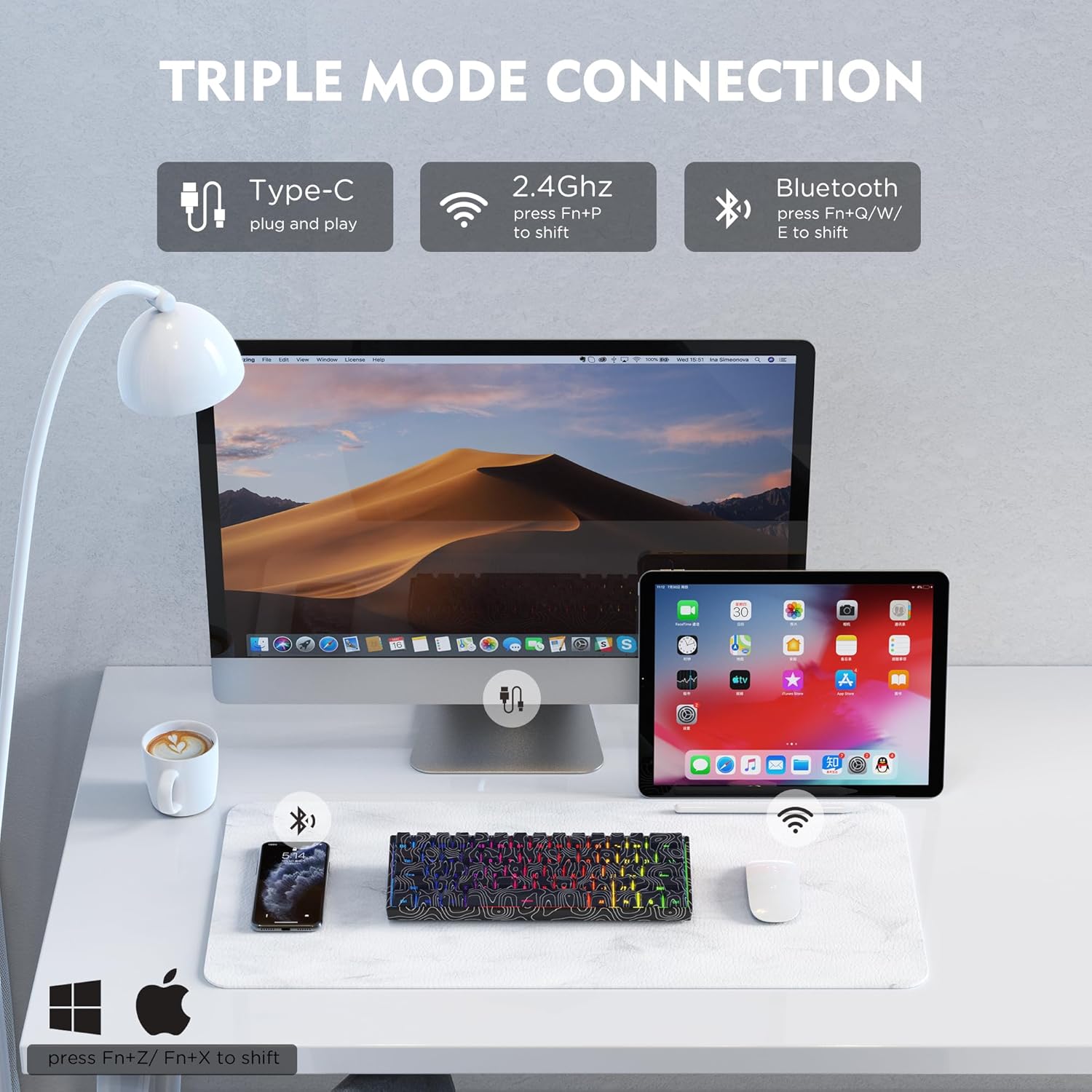
Image: Illustration of the keyboard's triple-mode connectivity, showing it connected via USB-C, 2.4GHz wireless, and Bluetooth to various devices like a PC, tablet, and smartphone.

Image: Detailed view of the M61 Pro keyboard, emphasizing its topographic design and core functionalities.

Image: Visual representation of the keyboard's versatile connection options, including Bluetooth 5.0, 2.4GHz wireless, and USB-C wired, supporting multiple devices and operating systems.

Image: Diagram illustrating the hot-swappable PCB sockets, compatible with both 3-pin and 5-pin mechanical switches, along with switch specifications.

Image: Detailed view of the hot-swappable PCB, showcasing the pre-lubed linear switches, plate-mounted stabilizers, and south-facing LEDs for optimal lighting.

Image: Close-up of the topographic theme design on the side-printed PBT keycaps, illustrating their aesthetic appeal and functional Cherry profile.

Image: Another perspective of the keyboard's theme design and side-printed PBT keycaps, emphasizing the blend of aesthetics and functionality.

Image: Screenshot of the keyboard's software interface, demonstrating options for macro customization, RGB backlighting (16.8 million colors), and musical rhythm lighting effects.

Image: Details on the 16.8 million RGB backlight, including FN key combinations for switching modes, colors, dynamic direction, and adjusting speed and brightness.
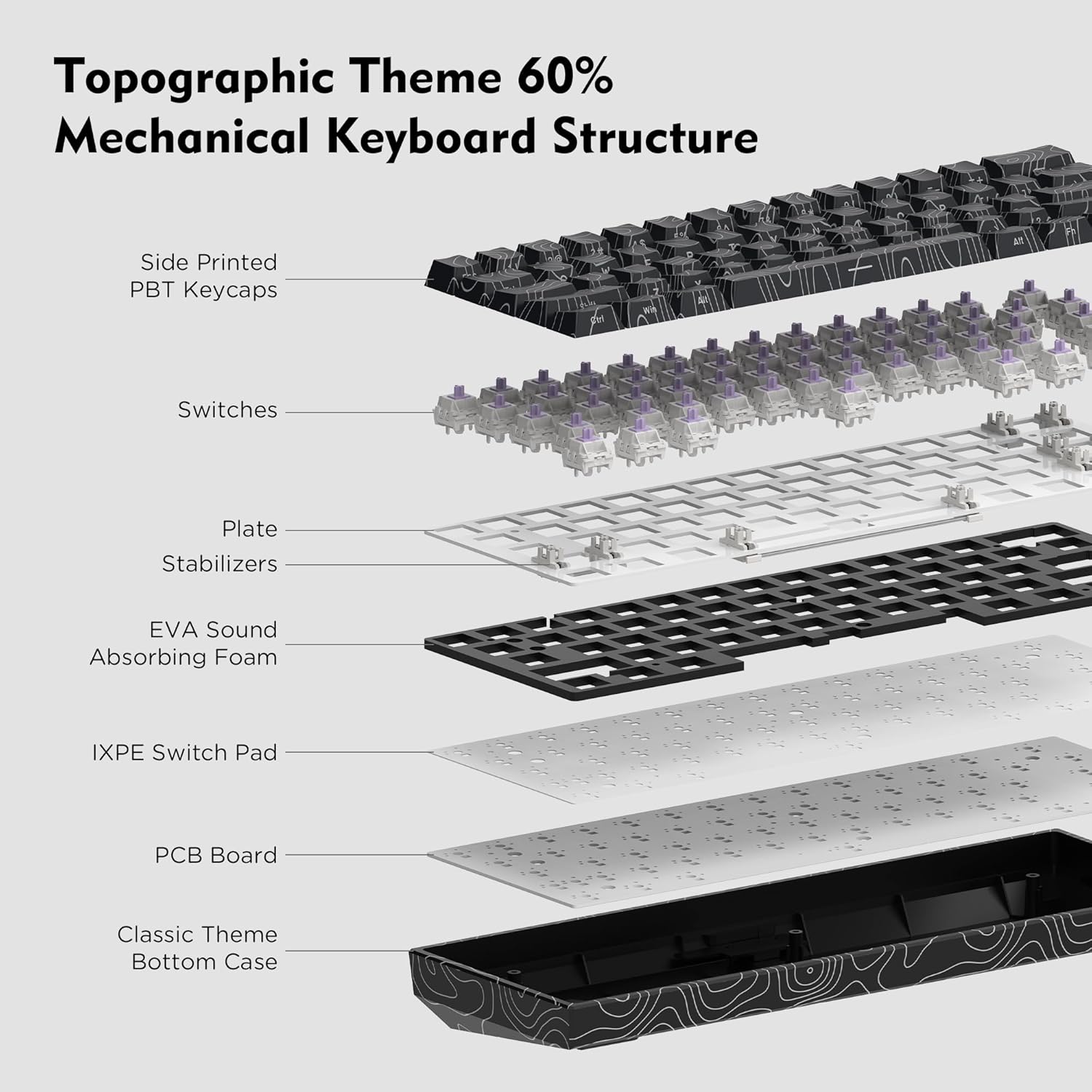
Image: Exploded diagram illustrating the internal structure of the keyboard, detailing layers such as PBT keycaps, switches, plate, stabilizers, sound-absorbing foam, IXPE switch pad, PCB, and bottom case.

Image: Highlights the pre-installed sound-absorbing foam, which contributes to a natural and clear typing feedback by reducing hollow sounds and overall noise.

Image: Shows the compact 60% layout of the keyboard with dimensions, indicating its space-saving design.

Image: Details the 1850mAh battery, emphasizing fast charging, durability, and long-lasting performance.

Image: Shows the convenient storage location for the 2.4GHz wireless receiver within the keyboard's bottom case.

Image: Close-up of the USB-C port and the power switch, indicating wired connection and power control.
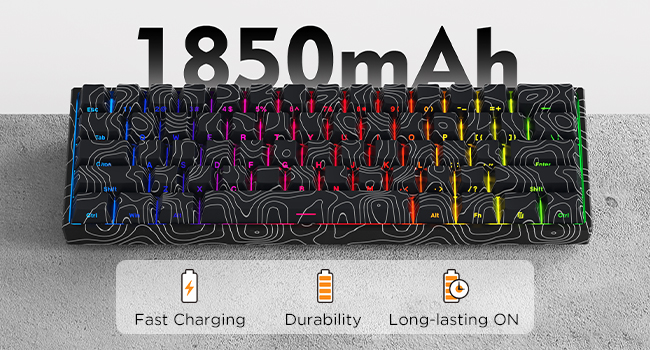
Image: The keyboard neatly stored in a protective sleeve, highlighting its portability.
Product Video:
Video: An unboxing and demonstration of the XVX M61 Pro mechanical keyboard, showcasing its design, hot-swappable switches, and RGB lighting effects. This video is provided by the seller, HITIME Shop.
Setup Instructions
1. Initial Connection:
The M61 Pro keyboard supports three connection modes: USB-C wired, 2.4GHz wireless, and Bluetooth 5.0.
- USB-C Wired Mode:
- Connect the provided USB-C cable to the keyboard's port and the other end to your computer's USB port.
- Ensure the power switch on the back of the keyboard is in the "OFF" position or the correct wired mode (if applicable). The keyboard will be recognized automatically.
- 2.4GHz Wireless Mode:
- Locate the 2.4GHz wireless receiver, usually stored in a compartment on the back of the keyboard.
- Plug the receiver into an available USB port on your computer.
- Turn the keyboard's power switch to the 2.4GHz wireless mode. The keyboard should connect automatically. Press Fn+P to shift to 2.4GHz mode if needed.
- Bluetooth 5.0 Mode:
- Turn the keyboard's power switch to the Bluetooth mode.
- On your device (computer, tablet, smartphone), enable Bluetooth and search for new devices.
- Select "XVX M61 Pro" or a similar name from the list of available devices to pair.
- The keyboard can store up to five Bluetooth connections. Use Fn+Q/W/E to switch between paired Bluetooth devices.
2. Hot-Swappable Switch Replacement:
The M61 Pro allows for easy replacement of mechanical switches without soldering.
- Use the provided keycap puller to carefully remove the desired keycap.
- Use the provided switch puller to gently grip the switch from its top and bottom clips. Pull straight up to remove the switch.
- Align the pins of the new 3-pin or 5-pin switch with the holes on the PCB. Ensure the pins are straight to avoid bending.
- Press the new switch firmly into place until it clicks. Replace the keycap.
3. RGB Backlight Setup:
Upon connection, the keyboard's RGB backlight will illuminate. You can customize it using the onboard controls or the dedicated software.
Operating Instructions
1. Connectivity Switching:
- To switch to 2.4GHz wireless mode: Press Fn+P.
- To switch between Bluetooth devices (up to 5): Press Fn+Q, Fn+W, or Fn+E.
- To switch to USB-C wired mode: Connect the cable and ensure the keyboard is set to wired mode via its physical switch or software.
2. RGB Backlight Control:
The keyboard offers various RGB lighting effects and adjustments:
- Switch Backlight Mode: Press Fn + \| (backslash key). There are 18 built-in modes.
- Switch Backlight Color: Press Fn + < (comma key). There are 9 lighting colors.
- Increase Speed: Press Fn + " (apostrophe key).
- Decrease Speed: Press Fn + ; (semicolon key).
- Turn Backlight On/Off: Press Fn + Enter.
- Change Light Dynamic Direction: Press Fn + > (period key).
- Increase Brightness: Press Fn + ]} (right bracket key).
- Decrease Brightness: Press Fn + [{ (left bracket key).
3. Software Customization:
For advanced customization, including macro programming, key remapping, and detailed RGB effects, download the dedicated software from the HITIME website. This software is compatible with Windows systems only.
- Macro customization and recording.
- Editing custom key functions.
- Access to 16.8 million light colors.
- Cool music rhythm lighting effects.
Maintenance
Proper maintenance ensures the longevity and performance of your keyboard.
- Cleaning: Regularly clean the keycaps and keyboard body with a soft, dry cloth. For deeper cleaning, remove keycaps using the provided keycap puller and use compressed air to clear debris from between switches.
- Switch Care: If replacing switches, handle them carefully to avoid bending pins. Ensure switches are fully seated to prevent inconsistent key presses.
- Battery: Charge the keyboard using the provided USB-C cable when the battery is low. Avoid overcharging or completely draining the battery for extended periods.
- Storage: Store the keyboard in a dry, dust-free environment when not in use.
Troubleshooting
If you encounter issues with your keyboard, refer to the following common solutions:
| Problem | Possible Cause | Solution |
|---|---|---|
| Keyboard not responding (wired) | Loose USB-C cable connection; incorrect mode selected. | Ensure the USB-C cable is securely connected to both the keyboard and the computer. Check the physical switch on the keyboard for wired mode. Try a different USB port or cable. |
| Keyboard not responding (wireless) | Low battery; receiver not plugged in; incorrect mode; pairing issue. | Charge the keyboard. Ensure the 2.4GHz receiver is properly inserted or Bluetooth is paired. Switch to the correct wireless mode (Fn+P for 2.4GHz, Fn+Q/W/E for Bluetooth). Re-pair Bluetooth if necessary. |
| RGB lighting not working or inconsistent | Backlight turned off; brightness too low; software conflict. | Press Fn+Enter to toggle backlight. Increase brightness using Fn+]}. If using software, ensure settings are applied correctly. Perform a factory reset (hold Space and Fn key) if LEDs mess up. |
| Keys not registering or double-typing | Loose or faulty switch; debris under keycap. | Remove the keycap and switch. Clean any debris. Re-insert the switch firmly or replace it with a new one. |
| Software not detecting keyboard | Keyboard not in wired mode; software not installed correctly. | Ensure the keyboard is connected via USB-C cable. Reinstall the software. Verify your operating system is Windows. |
Specifications
| Feature | Detail |
|---|---|
| Model Number | xh-hxt-M61PRO |
| Connectivity | Bluetooth 5.0, 2.4GHz Wireless, USB-C Wired |
| Keyboard Layout | 60% Percent |
| Keycaps | Double Shot PBT, Side-Printed, Cherry Profile |
| Switches | Hot-Swappable (3-pin/5-pin), Pre-lubed Linear Switches |
| Backlighting | RGB (18 modes, 9 colors, 16.8 million via software) |
| Battery | 1 Lithium Polymer (included), 1850mAh |
| Compatible Devices | PC (Windows for software customization) |
| Item Weight | 1.57 pounds |
| Package Dimensions | 12.13 x 5.24 x 1.85 inches |
| Material | Polybutylene Terephthalate (Keycaps) |
Warranty and Support
For warranty information and technical support, please refer to the official HITIME website or contact their customer service. Keep your purchase receipt for warranty claims.
Online Support: Visit the HITIME Store on Amazon