
Samsung QN77S90DAFXZA
Samsung QN77S90DAFXZA 77-Inch 4K OLED Smart TV User Manual
Model: QN77S90DAFXZA | Brand: Samsung
1. Introduction
This manual provides essential information for the safe and efficient operation of your Samsung QN77S90DAFXZA 77-inch 4K OLED Smart TV. Please read these instructions thoroughly before using the product and retain them for future reference.
2. Safety Information
Always follow basic safety precautions when using this television to reduce the risk of fire, electric shock, and injury.
- Do not expose this apparatus to rain or moisture.
- Do not block any ventilation openings. Install in accordance with the manufacturer's instructions.
- Do not install near any heat sources such as radiators, heat registers, stoves, or other apparatus (including amplifiers) that produce heat.
- Protect the power cord from being walked on or pinched, particularly at plugs, convenience receptacles, and the point where they exit from the apparatus.
- Only use attachments/accessories specified by the manufacturer.
- Refer all servicing to qualified service personnel. Servicing is required when the apparatus has been damaged in any way.
3. What's in the Box
Verify that all components are present upon unboxing:
- Samsung QN77S90DAFXZA 77-inch 4K OLED Smart TV
- Stand
- Remote Control
- Power Cable
- User Manual (this document)

Image: Samsung QN77S90DAFXZA 77-inch 4K OLED Smart TV with its stand and remote control.
4. Setup
4.1 Physical Setup (Stand/Wall Mount)
Your TV can be placed on a stand or wall-mounted. Ensure the TV is placed on a stable, level surface or securely mounted to a wall using a VESA-compatible mount (400 x 300 VESA).
- Stand Installation: Attach the provided stand to the TV according to the instructions in the separate quick setup guide. Ensure all screws are tightened securely.
- Wall Mounting: For wall mounting, use a compatible VESA mount. Consult a professional for installation to ensure safety and proper alignment.

Image: The Samsung QN77S90DAFXZA TV displayed on its included stand.
4.2 Connecting Devices
Connect your external devices to the TV's ports. The TV features multiple connectivity options:
- HDMI: 4 HDMI ports are available, including one with eARC support for enhanced audio return channel functionality.
- USB: Multiple USB ports (5V 0.5A and HDD 5V 1A) for connecting storage devices or other peripherals.
- LAN: Ethernet port for wired network connection.
- Optical: Digital audio output for connecting to sound systems.
- Wi-Fi & Bluetooth: Built-in wireless connectivity for internet and device pairing.
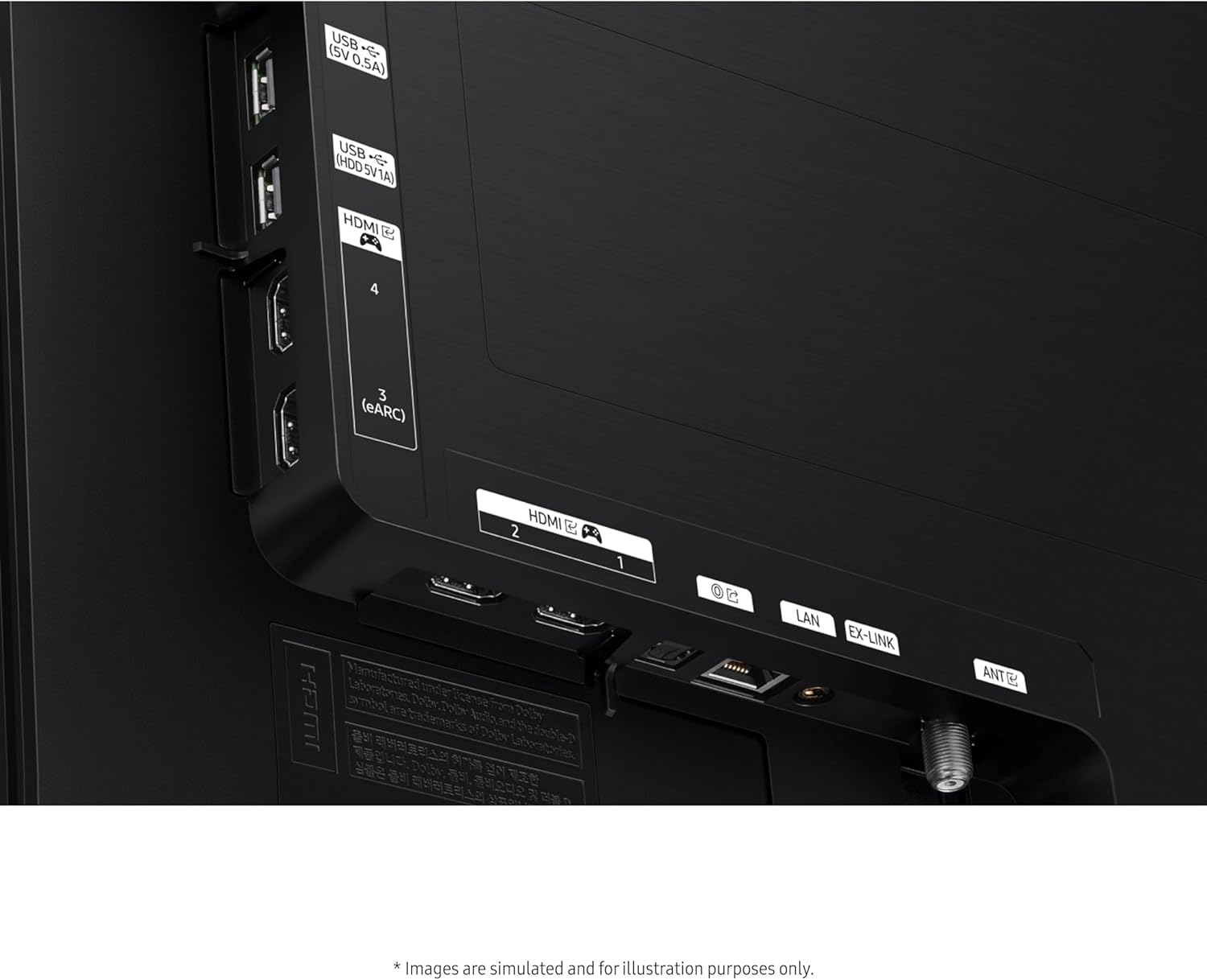
Image: A close-up of the rear panel of the Samsung QN77S90DAFXZA, highlighting the HDMI, USB, LAN, and optical ports.
4.3 Initial Power On & Basic Settings
After connecting all necessary cables, plug the power cord into an electrical outlet. The TV will guide you through the initial setup process, including network connection, channel scanning, and basic picture/sound settings.
5. Operating the TV
5.1 Remote Control
The included remote control allows you to navigate the TV's interface, adjust settings, and access smart features. It features a solar-powered design, eliminating the need for disposable batteries.
5.2 Smart Hub / Tizen OS
Your Samsung Smart TV runs on the Tizen OS, providing access to a wide range of applications and features:
- Pre-loaded Apps: Access popular streaming services and other applications directly from the Smart Hub.
- Samsung Gaming Hub: Enjoy cloud gaming without a console (requires compatible gaming PC for 4K resolution).
- Ambient Mode+: Display decorative content, photos, or useful information when the TV is off.
- Built-in Voice Assistant: Control your TV with voice commands.
- SmartThings Compatible: Integrate your TV with other smart home devices.
- Multi-View: Watch multiple content sources simultaneously.
5.3 Picture Settings
The Samsung QN77S90DAFXZA features advanced picture technologies:
- OLED Technology: Experience pure blacks, bright whites, and Pantone-validated colors for exceptional detail and brightness.
- OLED HDR+: Boosts brightness and contrast by analyzing each scene.
- Motion Xcelerator 144Hz: Ensures smooth motion and reduced blur, ideal for gaming and fast-paced content.
- Real Depth Enhancer: Enhances foreground contrast to create a sense of depth.

Image: The Samsung QN77S90DAFXZA showcasing its bold contrast and OLED HDR+ capabilities.

Image: The Samsung QN77S90DAFXZA demonstrating smooth motion with Motion Xcelerator 144Hz during a racing scene.
5.4 Sound Settings
The TV offers an immersive audio experience:
- Dolby Atmos: Delivers multi-dimensional sound that moves around you.
- Object Tracking Sound Lite: Sound follows the action on screen.
- Q-Symphony: Synchronizes TV speakers with compatible Samsung soundbars for a richer soundstage.
- Active Voice Amplifier Pro: Enhances dialogue clarity in noisy environments.
- Adaptive Sound Pro: Optimizes sound based on content and room acoustics.
5.5 Connectivity
Utilize the built-in Wi-Fi and Bluetooth for seamless integration with your home network and other devices.
6. Maintenance
6.1 Screen Cleaning
To maintain optimal display brightness and clarity, regularly clean the screen using a soft, lint-free cloth. For stubborn marks, use a non-ammonia and alcohol-free screen cleaning solution, such as the Walts HDTV Screen Cleaner Kit, which cleans without dripping and leaves no streaks or residue.

Image: Walts HDTV Screen Cleaner Kit, suitable for cleaning TV screens.
6.2 Software Updates
Ensure your TV's software is up-to-date for the best performance and latest features. You can usually find software update options in the TV's settings menu under 'Support' or 'Software Update'.
7. Troubleshooting
If you encounter issues with your TV, try the following basic troubleshooting steps:
- No Power: Check if the power cord is securely plugged into both the TV and the wall outlet. Try a different outlet.
- No Picture/Sound: Verify that the correct input source is selected. Check all cable connections (HDMI, optical, etc.).
- Remote Control Not Working: Ensure the remote is charged (if solar-powered) or has fresh batteries. Point the remote directly at the TV.
- Network Connectivity Issues: Restart your router and modem. Check network settings on the TV. Try a wired LAN connection if Wi-Fi is unstable.
- Picture Quality Issues: Adjust picture settings (brightness, contrast, sharpness). Ensure the content source is high quality.
8. Specifications
| Feature | Specification |
|---|---|
| Brand | Samsung |
| Model Number | QN77S90DAFXZA |
| Screen Size | 77 Inches |
| Display Technology | OLED |
| Resolution | 4K (3840 x 2160) |
| Refresh Rate | 120 Hz (Motion Xcelerator 144Hz) |
| Operating System | Samsung Tizen OS |
| Audio Technology | Dolby Atmos, Object Tracking Sound Lite, Q-Symphony |
| Connectivity | 4 HDMI (1 eARC), 3 USB, LAN, Wi-Fi, Bluetooth, Optical |
| Dimensions (with stand) | 14.1"D x 67.7"W x 41.7"H |
| Item Weight | 80.7 Pounds |
| VESA Compatibility | 400 x 300 |
9. Warranty and Support
Your Samsung QN77S90DAFXZA 77-inch 4K OLED Smart TV comes with a full 1-year manufacturer warranty. Additionally, this bundle includes a 2-year Amber Protection Plan, extending coverage beyond the manufacturer's warranty. For detailed terms and conditions of the Amber Protection Plan, please refer to the documentation provided with your purchase.

Image: Details of the Extended Protection Features & Benefits, including mechanical & electrical failures and power surge protection.
For technical support, product registration, or warranty claims, please visit the official Samsung support website or contact their customer service. For support related to the Amber Protection Plan, please refer to the contact information provided with your plan documentation.
10. Official Product Videos
10.1 Samsung S90DA Series TV Product Review
Video: An official product review highlighting features of the Samsung S90DA Series TV, including picture quality and smart features.
10.2 Samsung S95DA Series TV Product Review
Video: An official product review showcasing the advanced features and visual performance of the Samsung S95DA Series TV.
10.3 Samsung S90F Series TV Product Review
Video: An official product review detailing the features and benefits of the Samsung S90F Series TV.
10.4 Samsung S85D TV Product Overview
Video: An official product overview presenting the key features of the Samsung S85D TV.
Ask a question about this manual
Ask about setup, troubleshooting, compatibility, parts, safety, or missing instructions. Manuals+ will review the question and use this page’s manual context to help answer it.