
1. Introduction
This manual provides comprehensive instructions for the setup, operation, maintenance, and troubleshooting of your QUASIO Wireless Keyboard (Model CK211W). Please read this manual carefully before using the product to ensure optimal performance and longevity.

Image 1.1: The QUASIO Wireless Keyboard (Model CK211W) with its 2.4G USB receiver.
2. Package Contents
Please verify that all items are present in your package:
- 1 x QUASIO Wireless Keyboard (Model CK211W)
- 1 x 2.4G USB Receiver (located in the keyboard's battery compartment)
- 1 x User Manual (this document)
3. Setup Instructions
3.1 Battery Installation
- Locate the battery compartment cover on the underside of the keyboard.
- Slide the cover open.
- Insert one (1) AA battery (not included) into the compartment, ensuring correct polarity (+/-).
- Close the battery compartment cover securely.

Image 3.1: The 2.4G USB receiver is stored inside the battery compartment of the keyboard. An AA battery is required for operation.
3.2 Connecting the USB Receiver
- Remove the 2.4G USB receiver from the keyboard's battery compartment.
- Plug the USB receiver into an available USB port on your computer (desktop, laptop, PC, Chromebook, etc.).
- The keyboard is plug-and-play; no additional drivers or software installation is required. Your computer should automatically detect and configure the keyboard.

Image 3.2: The 2.4G USB receiver provides a stable wireless connection up to 10 meters (33 feet).
4. Operating Instructions
4.1 Basic Typing and Layout
The QUASIO Wireless Keyboard features a full-sized 104-key layout, including a dedicated number pad for efficient data entry. The ergonomic design with an integrated wrist rest and foldable stands provides comfort during extended typing sessions.
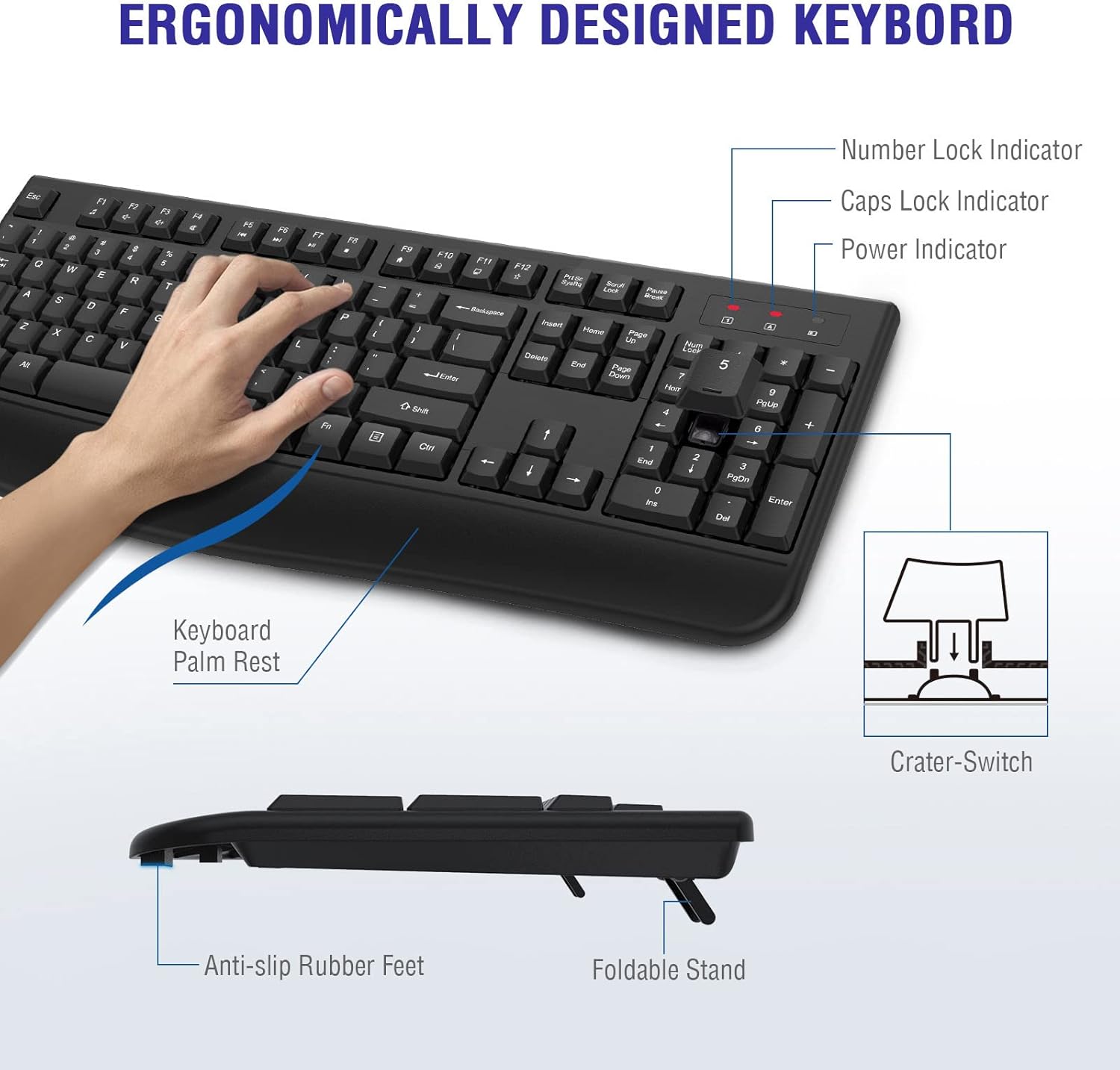
Image 4.1: Ergonomic features include a palm rest, anti-slip rubber feet, and a foldable stand for adjustable typing angle.
4.2 Smart LED Indicators
The keyboard is equipped with three LED indicators located in the upper right corner:
- Number Lock Indicator: Illuminates when the number pad is active.
- Caps Lock Indicator: Illuminates when Caps Lock is active.
- Power Indicator: Indicates battery status or power activity.

Image 4.2: The three LED indicators provide visual feedback on keyboard status.
4.3 Multimedia Keys
The keyboard includes 12 combined multimedia keys (F1-F12) that can be accessed by pressing the Fn key simultaneously with the desired function key. These keys provide quick access to media controls and other common functions.
- Fn + F1: Media Player
- Fn + F2: Volume Down
- Fn + F3: Volume Up
- Fn + F4: Mute
- Fn + F5: Previous Track
- Fn + F6: Next Track
- Fn + F7: Play / Pause
- Fn + F8: Stop
- Fn + F9: Homepage
- Fn + F10: Email
- Fn + F11: Computer
- Fn + F12: Favorites

Image 4.3: The keyboard features 12 combined multimedia keys for enhanced productivity.
4.4 Smart Power Saving Function
To conserve battery life, the keyboard is designed with an automatic power-saving function. If the keyboard is inactive for more than 30 minutes, it will enter sleep mode. To reactivate the keyboard, simply press any key.

Image 4.4: The keyboard enters sleep mode after 30 minutes of inactivity to extend battery life.
5. Features
5.1 Ergonomic Design
The keyboard is ergonomically designed with a comfortable palm rest and adjustable folding holders. This design helps maintain an optimal typing posture, reducing wrist strain during prolonged use. Anti-slide pads on the base ensure stability.
5.2 Splash-Proof Design
The keyboard features a splash-proof design, allowing for easy cleaning after accidental liquid spills. This design helps protect the internal components from minor splashes.

Image 5.1: The splash-proof design allows for easy cleaning of accidental water splashes.
5.3 Quiet Operation
The keyboard is engineered for quiet typing, reducing noise by up to 95% compared to standard keyboards. This feature contributes to a more focused and less disruptive work environment.

Image 5.2: Enjoy a quieter typing experience with reduced key noise.
6. Compatibility
The QUASIO Wireless Keyboard is compatible with a wide range of operating systems, including:
- Windows XP / Vista / 7 / 8 / 10 / X
- Mac OS
- Linux
- Chrome OS
It works effectively with desktops, laptops, PCs, Chromebooks, and other compatible devices.

Image 6.1: The keyboard is compatible with Windows, Mac OS, and other operating systems.
7. Maintenance
7.1 Cleaning
To clean your keyboard, gently wipe the surface with a soft, damp cloth. Avoid using harsh chemicals or abrasive materials that could damage the finish. Ensure the keyboard is dry before continued use.
7.2 Battery Replacement
When the keyboard's performance diminishes or the power indicator light signals low battery, replace the AA battery following the instructions in Section 3.1.
8. Troubleshooting
- Keyboard not responding:
- Ensure the USB receiver is securely plugged into a working USB port on your computer.
- Check if the battery is correctly installed and has sufficient charge. Replace the battery if necessary.
- Move the keyboard closer to the USB receiver to ensure it is within the 10-meter (33-foot) wireless range.
- Try plugging the USB receiver into a different USB port on your computer.
- Restart your computer.
- Lag or delayed input:
- Ensure there are no strong wireless interference sources nearby (e.g., other 2.4GHz devices).
- Reduce the distance between the keyboard and the USB receiver.
- Keyboard enters sleep mode too quickly:
- This is a normal power-saving feature. Press any key to wake the keyboard.
9. Specifications
| Model Number | CK211W |
| Connectivity Technology | 2.4Ghz Wireless |
| Wireless Range | Up to 10 meters (33 feet) |
| Keyboard Layout | Full-sized 104 keys with number pad |
| Power Source | 1 x AA Battery (not included) |
| Power Saving | Automatic sleep mode after 30 minutes of inactivity |
| Compatible Devices | Laptop, Notebook, Personal Computer, Chromebook, PC, Smart TV |
| Compatible OS | Windows XP/Vista/7/8/10/X, Mac OS, Linux, Chrome OS |
| Dimensions (L x W x H) | 44.5 cm x 18.68 cm x 3 cm (17.92 x 7.35 x 1.18 inches) |
| Item Weight | 1.39 pounds |
| Material | Plastic |

Image 9.1: Physical dimensions of the QUASIO Wireless Keyboard.
10. Warranty and Support
QUASIO provides 12 months of after-sales service for this product. If you encounter any issues or have questions regarding your QUASIO Wireless Keyboard, please contact our customer support team directly via email. We are committed to providing assistance and resolving any concerns you may have.

Image 10.1: For product issues, please contact the seller directly for support.