
Introduction
This manual provides detailed instructions for the Yoidesu Smart Ring Bluetooth Remote Control. This device is designed to enhance your digital experience by offering convenient remote control functionalities for various applications, including page turning for e-books, media control, and remote camera activation. Please read this manual thoroughly before using the product to ensure proper operation and maintenance.
Product Features
- Scrolling Ring & Page Turner: Effortlessly scroll through content or turn pages in e-books and documents.
- Magnetic Charging: Convenient and secure magnetic charging mechanism.
- Waterproof Design: Suitable for use in various environments, including while washing hands or swimming.
- Long Lasting Battery: Extended usage time on a single charge.
- Wide Compatibility: Compatible with most iOS and Android smartphones and tablets.
- Remote Camera Control: Activate your smartphone camera remotely for selfies or group photos.

Figure 1: Product Features Diagram. This image illustrates the key components of the Yoidesu Smart Ring, including the Upper Key, Down Button, Scratcher Touch Operation Interface, 0 Key, Magnetic Charging Port, and Metal Dock.

Figure 2: Electronic Book Page Turning. The smart ring allows for hands-free page turning on electronic books and other digital content displayed on a smartphone.
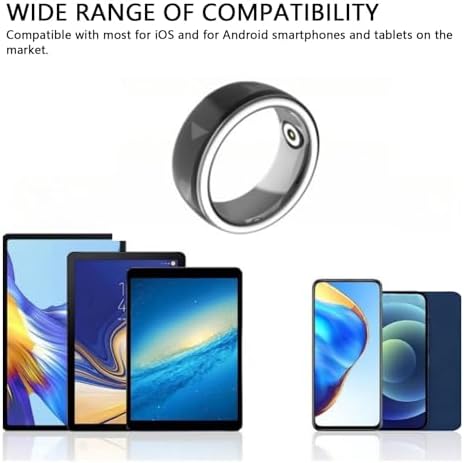
Figure 3: Wide Range of Compatibility. The Yoidesu Smart Ring is compatible with a broad selection of iOS and Android smartphones and tablets.

Figure 4: Waterproof Design. The ring's waterproof construction allows it to be worn during activities such as washing hands, showering, and swimming.
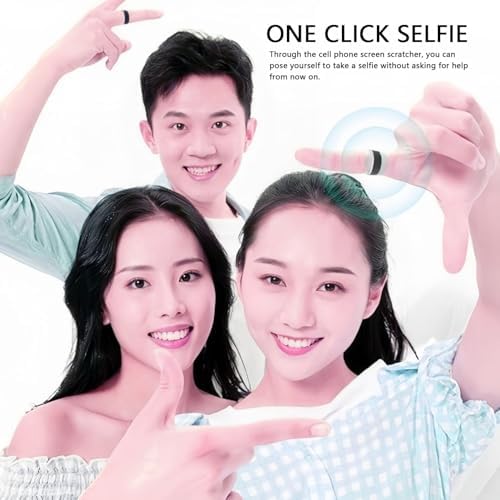
Figure 5: One-Click Selfie Function. The smart ring enables users to take selfies remotely with a single click, eliminating the need for assistance.
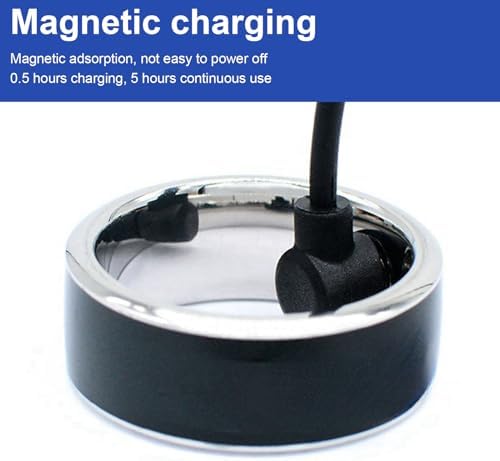
Figure 6: Magnetic Charging. The ring features magnetic adsorption for charging, ensuring a secure connection. A 0.5-hour charge provides approximately 5 hours of continuous use.
Setup Instructions
- Charge the Smart Ring: Before first use, fully charge the smart ring using the provided magnetic charging cable. Connect the magnetic end to the charging port on the ring (refer to Figure 1) and the USB end to a compatible power source. The charging indicator (if present) will show charging status. A full charge typically takes 0.5 hours.
- Power On: The ring typically powers on automatically when removed from the charger or when a button is pressed. Refer to the device's specific indicator for power status.
- Enable Bluetooth on Your Device: On your smartphone or tablet, go to the Settings menu and enable Bluetooth.
- Pair the Smart Ring:
- The smart ring should automatically enter pairing mode when powered on.
- On your smartphone or tablet, search for available Bluetooth devices.
- Select "Yoidesu Smart Ring" or a similar name from the list of found devices.
- Confirm the pairing request if prompted. Once paired, your device will indicate a successful connection.
- App Configuration (if applicable): For certain advanced features or specific applications (e.g., Kindle page turning), you may need to adjust settings within the respective app to recognize the smart ring as a remote control. Consult the app's help section for details.
Operating Instructions
The Yoidesu Smart Ring offers intuitive controls for various functions. Familiarize yourself with the button layout (refer to Figure 1).
- Page Turning / Scrolling:
- Press the Upper Key (up arrow) to scroll up or turn to the previous page.
- Press the Down Button (down arrow) to scroll down or turn to the next page.
- These functions are typically compatible with e-reading apps, web browsers, and social media feeds.
- Remote Camera Control (Selfie):
- Open your smartphone's camera application.
- Press the 0 Key (or a designated button, refer to Figure 1) on the smart ring to trigger the camera shutter.
- Media Playback Control:
- In some media players, the Upper Key and Down Button may control volume or track skipping.
- The 0 Key may function as play/pause.
- Scratcher Touch Operation Interface: This interface may offer additional gesture-based controls depending on the application. Experiment with light swipes or taps for specific functionalities.
Maintenance
- Cleaning: Wipe the smart ring with a soft, damp cloth. Avoid using harsh chemicals or abrasive materials, as these can damage the finish or internal components.
- Storage: Store the smart ring in a cool, dry place away from direct sunlight and extreme temperatures when not in use.
- Charging: Use only the provided magnetic charging cable. Ensure the charging contacts on the ring and cable are clean and free of debris for optimal charging.
- Water Exposure: While the ring is waterproof, prolonged exposure to saltwater or chlorinated water should be followed by rinsing with fresh water and drying thoroughly to prevent corrosion.
Troubleshooting
| Problem | Possible Cause | Solution |
|---|---|---|
| Ring does not power on. | Low battery. | Charge the smart ring fully using the magnetic charging cable. |
| Cannot pair with smartphone/tablet. | Bluetooth is off on the device; ring is out of range; ring is already paired to another device; pairing mode not active. |
|
| Page turning/scrolling not working. | Not connected via Bluetooth; app not compatible; app settings not configured. |
|
| Remote camera shutter not working. | Not connected via Bluetooth; camera app not open; app settings. |
|
Specifications
| Brand | Yoidesu |
| Model Number | Yoidesu4fhy7sqkcr-11 |
| Material | Stainless Steel |
| Special Features | Scrolling Ring, Page Turner, Magnetic Charging, Waterproof, Long Lasting Battery |
| Item Weight | 54 Grams |
| Mounting Type | Non adhesive |
| Grip Type | Ring Grip |
| ASIN | B0D3HW39WY |

Figure 7: Available Ring Sizes. This image displays the various sizes available for the Yoidesu Smart Ring, including inner diameters in millimeters and inches.
Warranty and Support
Information regarding product warranty and customer support is typically provided with your purchase documentation or on the manufacturer's official website. Please refer to those resources for details on warranty coverage, return policies, and how to contact customer service for technical assistance or inquiries.