
1. Introduction
This manual provides comprehensive instructions for the installation, operation, and maintenance of your ANJIELO SMART Wired Video Doorbell Intercom System. Please read this manual thoroughly before installation and use to ensure proper functionality and safety.
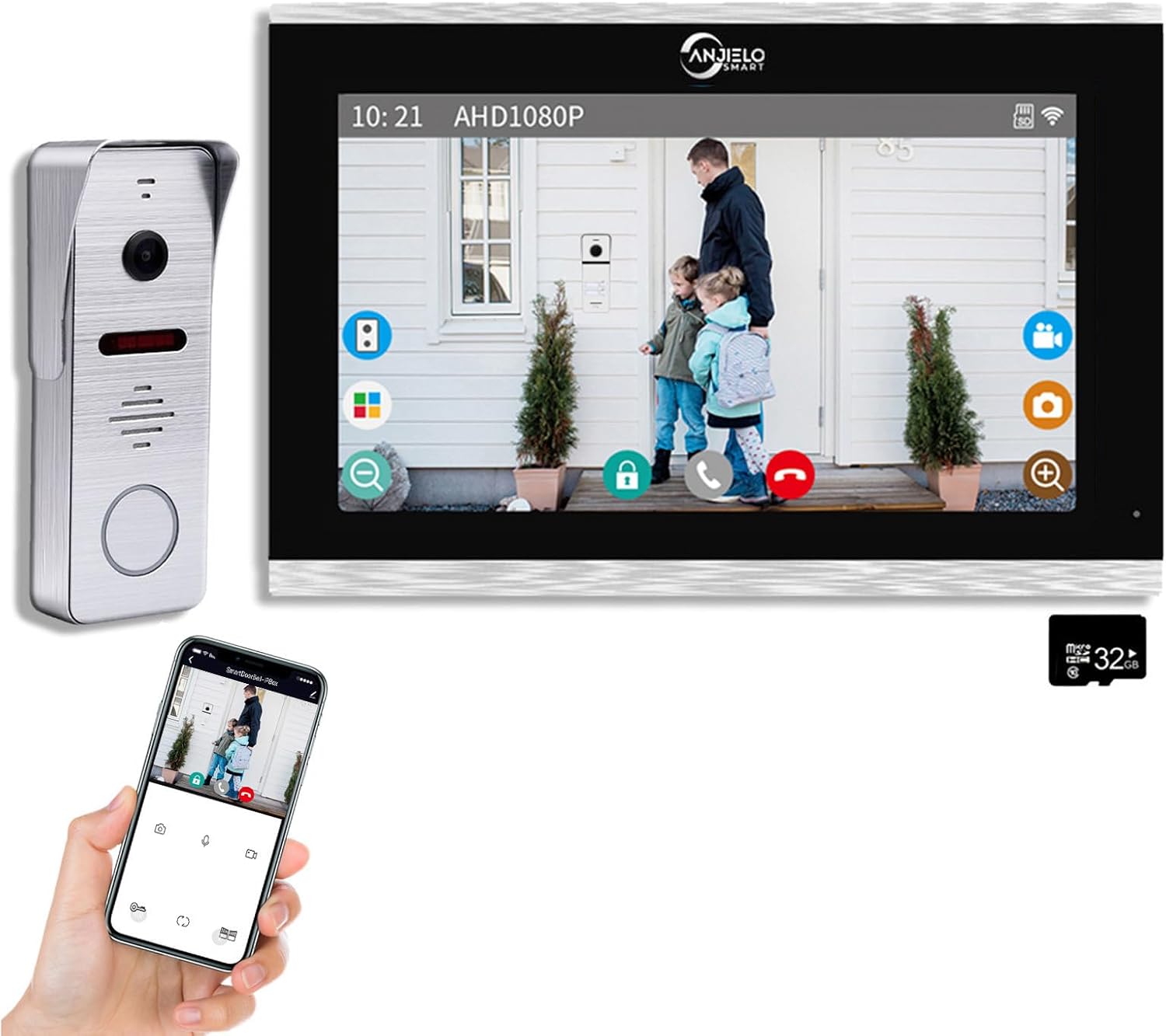
Figure 1.1: ANJIELO SMART Wired Video Doorbell Intercom System components. The image shows the 10-inch indoor monitor, the outdoor doorbell unit, and a smartphone displaying the Tuya app interface for remote control.
1.1. Product Overview
The ANJIELO SMART Wired Video Doorbell Intercom System is designed to enhance home security and communication. It features a 10-inch TFT-LCD touch monitor for indoor use and a 1080P outdoor doorbell camera. The system supports remote access and control via the TUYA app, motion detection, and automatic recording.
1.2. What's in the Box
- 1 x 10-inch Indoor Monitor
- 1 x Outdoor Doorbell Unit
- Necessary mounting hardware and cables (RVV4 cable or network cable required for connection between monitor and doorbell)
- 1 x 32GB Micro SD Card (included with monitor)
- Power Adapter for Indoor Monitor
- User Manual (this document)
2. Safety Information
Please observe the following safety precautions to prevent damage to the product and ensure user safety:
- Power Supply: Use only the provided power adapter. Ensure the input voltage matches the specified requirements (AC 100-240V 50/60Hz).
- Wiring: All wiring should be performed by a qualified professional if you are unsure. Ensure power is disconnected before performing any wiring.
- Placement: Install the outdoor doorbell in a location protected from direct heavy rain and extreme weather, despite its IP65 rating. Ensure the indoor monitor is placed in a dry, stable environment.
- Cleaning: Disconnect power before cleaning. Use a soft, dry cloth. Do not use liquid cleaners or aerosols.
- Temperature: Operate the outdoor doorbell within the specified temperature range of -40℃ to 50℃.
- Disassembly: Do not attempt to disassemble or repair the device yourself. Contact customer support for assistance.
3. Setup and Installation
3.1. Wiring Requirements
This system requires a 4-wire cable (RVV4 cable or network cable) to connect the indoor monitor and the outdoor doorbell. Ensure the cable length is appropriate for your installation distance to maintain signal integrity.

Figure 3.1: Illustration of the 4-wire connection between the outdoor doorbell and the indoor monitor. This diagram emphasizes the wired connection for stable operation.
3.2. Outdoor Doorbell Installation
The outdoor doorbell supports both surface and flush mounting. Choose a location near your entrance that provides a clear view of visitors and is within reach of the wiring.
- Prepare the Location: Mark the drilling points for the mounting bracket.
- Drill Holes: Drill holes according to the marked points and insert wall anchors if necessary.
- Route Wiring: Pass the 4-wire cable through the wall or conduit to the doorbell unit.
- Connect Wires: Connect the 4-wire cable to the designated terminals on the outdoor doorbell unit. Ensure correct polarity.
- Mount Doorbell: Secure the doorbell unit to the wall using screws.
- Install Rain Cover: Attach the metal rain cover (if applicable) for added protection.
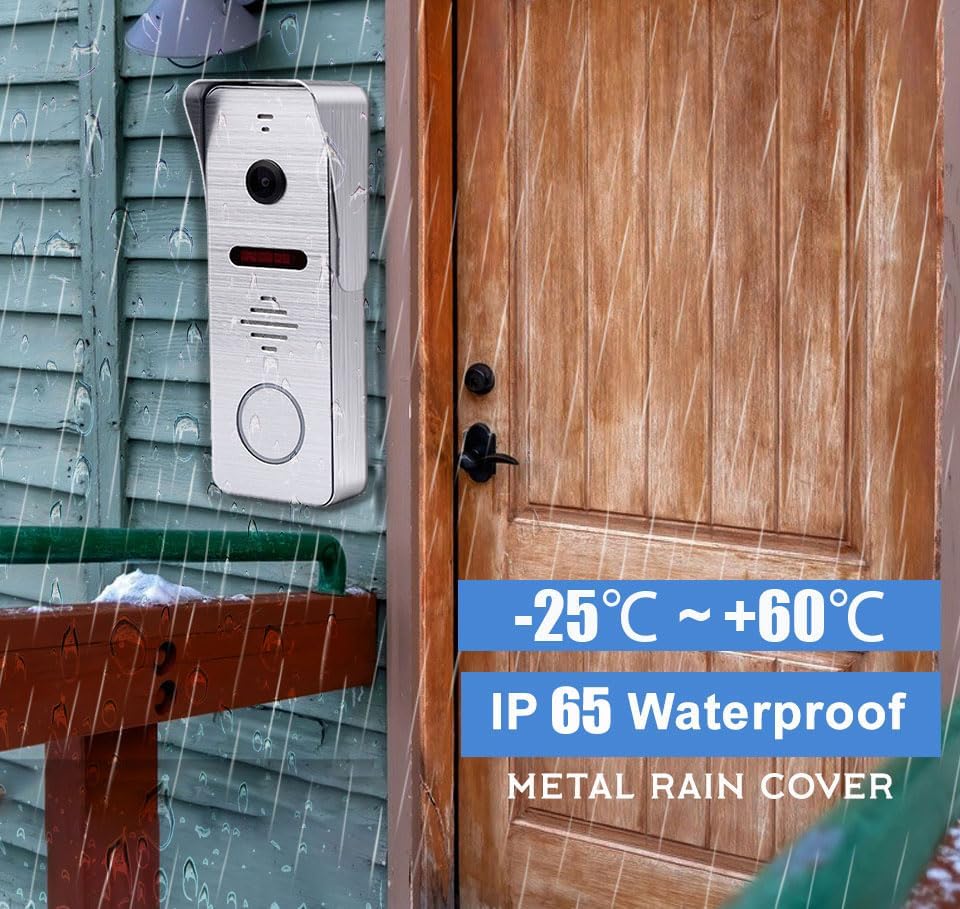
Figure 3.2: Outdoor doorbell unit with its IP65 waterproof rating and metal rain cover, indicating suitability for outdoor installation.
3.3. Indoor Monitor Installation
The indoor monitor is designed for surface mounting.
- Choose Location: Select a convenient location inside your home, such as a hallway or living room, where the monitor can be easily accessed.
- Mount Bracket: Secure the monitor's mounting bracket to the wall using screws.
- Connect Wires: Connect the 4-wire cable from the outdoor doorbell to the indoor monitor's terminals. Connect the power adapter to the monitor and a power outlet.
- Mount Monitor: Carefully attach the indoor monitor to the mounted bracket.
3.4. TUYA App Setup (for Wi-Fi Connectivity)
The indoor monitor supports Wi-Fi connectivity for remote access via the TuyaSmart app. Ensure your Wi-Fi router operates on a 2.4GHz frequency.
- Download App: Download the "TuyaSmart" app from your smartphone's app store (iOS or Android).
- Register/Login: Open the app and register a new account or log in if you already have one.
- Add Device: In the app, tap "+" to add a new device. Select "Video Surveillance" then "Smart Doorbell" or search for the device type.
- Connect to Wi-Fi: Follow the on-screen instructions in the app to connect the indoor monitor to your home's 2.4GHz Wi-Fi network. This typically involves putting the monitor into pairing mode.
- Complete Setup: Once connected, name your device and complete the setup process.
4. Operating Instructions
4.1. Answering Calls and Unlocking
When a visitor presses the doorbell button, the indoor monitor will ring, and your smartphone (if connected to the Tuya app) will receive a call notification.
- From Indoor Monitor: Tap the "Answer" icon on the touch screen to communicate with the visitor. Tap the "Unlock" icon to remotely open a connected 12V electronic lock.
- From Tuya App: Accept the call notification on your smartphone. You can see, hear, and talk to the visitor. Tap the "Unlock" icon within the app to remotely open the lock from anywhere.

Figure 4.1: Remote unlock functionality via the Tuya app. This image shows a smartphone screen with the app open, highlighting the "Remote Unlock" feature.

Figure 4.2: Integrated view of the indoor monitor and smartphone app, demonstrating how both can be used to view visitors and unlock the door.
4.2. Motion Detection and Recording
The outdoor doorbell features smart PIR motion detection. When movement is detected, the camera will automatically capture snapshots or record video and save them to the included 32GB Micro SD card in the monitor.
- Viewing Recordings: You can review recorded events directly on the indoor monitor or remotely via the Tuya app on your smartphone.
- Adjusting Sensitivity: Motion detection sensitivity can typically be adjusted within the monitor settings or the Tuya app to minimize false alarms.

Figure 4.3: Motion detection alerts displayed on a smartphone, showing a log of detected movements and associated images.
4.3. Call Forwarding
If you have multiple indoor monitors connected, the system supports call forwarding. When a visitor presses the doorbell, if the initial monitor is not answered, the call can be transferred to another indoor monitor.

Figure 4.4: Call forwarding feature, showing how a call from the doorbell can be transferred between different indoor monitors within a multi-monitor setup.
4.4. Night Vision
The outdoor doorbell is equipped with an infrared sensor and IR night vision, ensuring clear visibility even in low-light conditions or complete darkness. The IR Cut filter prevents color deviation during the day, providing true-color images.
5. Maintenance
- Cleaning: Regularly wipe the indoor monitor screen and outdoor doorbell lens with a soft, dry, lint-free cloth. Do not use abrasive cleaners, solvents, or spray directly onto the devices.
- Firmware Updates: Check the TuyaSmart app periodically for any available firmware updates for your device. Keeping the firmware updated ensures optimal performance and security.
- SD Card Management: Periodically review and manage recordings on the 32GB Micro SD card. If the card becomes full, older recordings may be overwritten. Back up important footage as needed.
6. Troubleshooting
| Problem | Possible Cause | Solution |
|---|---|---|
| No image on indoor monitor. | Power disconnected; loose wiring; faulty cable. | Check power connection. Ensure 4-wire cable is securely connected at both ends. Inspect cable for damage. |
| No audio during intercom. | Microphone/speaker issues; wiring problem. | Check wiring connections. Ensure volume is not muted or set too low on the monitor. |
| Tuya App cannot connect to monitor. | Incorrect Wi-Fi password; 5GHz Wi-Fi network; monitor not in pairing mode; network interference. | Ensure correct 2.4GHz Wi-Fi network is selected. Re-enter Wi-Fi password. Put monitor into pairing mode again. Move router closer or reduce interference. |
| Motion detection not working or too sensitive. | Incorrect settings; environmental factors. | Adjust motion detection sensitivity in monitor settings or Tuya app. Ensure camera view is clear of obstructions. |
| Cannot unlock door remotely. | Electronic lock not connected or powered; wiring issue. | Verify the 12V electronic lock is correctly wired and powered. Test the lock manually. |
7. Specifications
7.1. Indoor Monitor (10-inch TFT-LCD Touch Screen)
- Screen: 10 inch TFT-LCD touch screen
- Resolution: 1024 x 680
- Rings: 7-chord melody rings
- Adjustable: Volume, Color
- Connection: 4-wires, WIFI Tuya solution
- Panel Material: Acrylic/ABS cover
- Installation: Surface mounting
- Input Voltage: AC 100-240V 50/60Hz
- Working Voltage: DC 12V, 2A
- Size: 7.8 × 5.1 × 0.8 inch / 272 x 180 x 21 mm
- Compatible Devices: Personal Computer, Smartphone
- Controller Type: Tuya
- Wireless Communication Technology: Wi-Fi (2.4GHz only)
- Control Method: App
- Room Type: Hallway, Living Room, Study Room possibility room
7.2. Outdoor Doorbell (1080P Camera)
- Horizontal Resolution: 2MP 1080P
- Definition: 800TVL/AHD720P/960P/1080P
- Image Sensor: CCD/Colorful CMOS sensor
- Sensor Size: 1/3 inch
- Visual Angle: 140 degrees
- Night Vision: IR Cut (No color Deviation), B/W Night Vision
- Panel Material: Metal
- Installation: Surface/Flush mount
- Connection: Simple 4-wire connection
- Size: 5.7 x 3.6 x 1.5 inch / 135 x 47 x 33 mm
- Operation Temperature: -40℃ ~ 50℃
- IP Rating: IP65 Waterproof
- Video Capture Resolution: 1080p
- Video Capture Format: MJPEG
- Alert Type: Audio and Motion
- Recommended Uses: Indoor Security, Outdoor Security
8. Warranty and Support
For warranty information and technical support, please contact ANJIELO SMART customer service. Refer to your purchase documentation for specific warranty terms and conditions.
For further assistance, you may visit the ANJIELO SMART Store on Amazon.