
Yolansin A16
Yolansin 4K60FPS Action Camera A16 User Manual
Model: A16 | Brand: Yolansin
1. Introduction
This manual provides detailed instructions for the proper use and maintenance of your Yolansin 4K60FPS Action Camera A16. Please read this manual thoroughly before operating the device to ensure optimal performance and longevity.
2. What's in the Box
The standard package includes the following items:
- 1x Yolansin 4K Action Camera
- 1x 64GB SD Card
- 2x 1350mAh Batteries
- 1x Battery Charger
- 1x Waterproof Case
- 1x 2.4G Remote Control
- Various attachments and tethers (e.g., helmet mount, bicycle mount)

Image: The Yolansin 4K Action Camera A16 shown with its included accessories, including the waterproof case, remote control, 64GB SD card, and batteries.
3. Product Overview
The Yolansin A16 is a compact 4K action camera designed for capturing high-quality video and photos in various environments, including underwater. It features Electronic Image Stabilization (EIS) for smooth footage and a wide 170° angle lens.
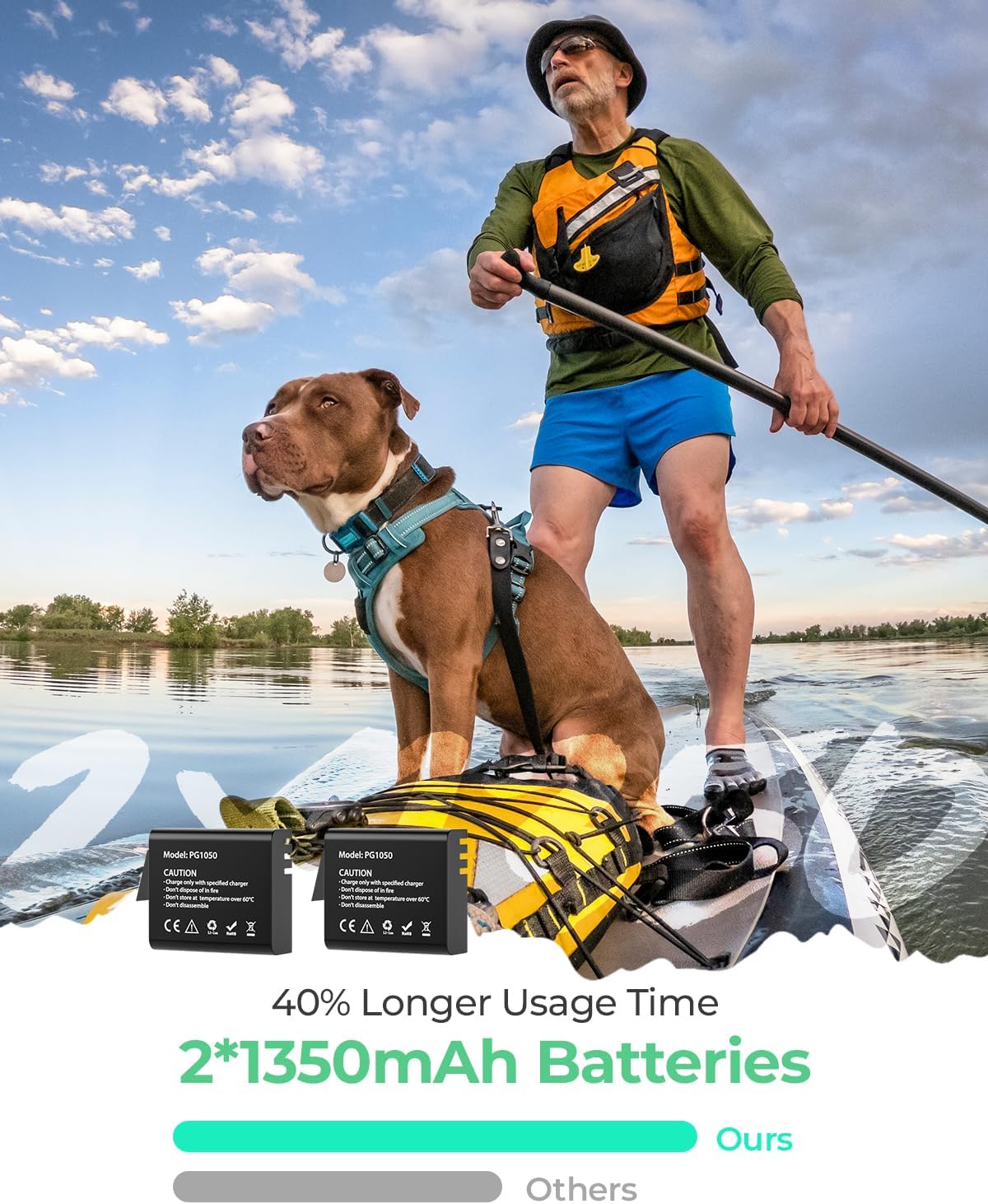
Image: Front view of the Yolansin 4K Action Camera A16, highlighting its lens and "Action cam" branding.
4. Setup
4.1. Battery Installation and Charging
The camera uses 1350mAh Lithium Ion batteries. Ensure batteries are fully charged before first use. Use the provided battery charger.
- Open the battery compartment cover.
- Insert the battery with the correct orientation.
- Close the battery compartment cover securely.
- Connect the battery charger to a power source and insert the battery for charging. The indicator light will show charging status.

Image: Two 1350mAh batteries for the Yolansin Action Camera A16, indicating longer usage time.
4.2. SD Card Installation
A 64GB SD card is included. Ensure the card is inserted correctly before use.
- Locate the SD card slot on the camera.
- Insert the SD card gently until it clicks into place.
- To remove, press the card inward until it springs out.
4.3. Using the Waterproof Case
The camera comes with a waterproof case, allowing for underwater use up to 40 meters. Always ensure the case is properly sealed before submerging.
- Place the camera inside the waterproof case.
- Close the latch securely. Perform a dry test without the camera first to ensure no leaks.
- The remote control is not waterproof and should not be submerged.

Image: The Yolansin Action Camera A16 shown in its waterproof case, capturing underwater footage.
5. Operating Instructions
5.1. Power On/Off
- To power on, press and hold the Power/Mode button for a few seconds.
- To power off, press and hold the Power/Mode button again until the screen turns off.
5.2. Mode Switching
Press the Power/Mode button repeatedly to cycle through different modes: Video, Photo, and Playback.
5.3. Video Recording
- In Video Mode, press the Shutter/OK button to start recording.
- Press the Shutter/OK button again to stop recording.
5.4. Photo Capture
- In Photo Mode, press the Shutter/OK button to take a photo.
5.5. Playback (Videos and Photos)
To review your captured content:
Video: Instructions on how to view or delete videos and photos directly on the camera.
5.6. Connecting to Wi-Fi
The camera can connect to your smartphone via Wi-Fi for remote control and file transfer. Ensure Wi-Fi is enabled on the camera and your smartphone.
Video: Guide on how to connect the camera to Wi-Fi using the companion app on a smartphone.
Note: Wi-Fi can only be turned on in video mode. The remote control has a range of up to 10 meters and is not waterproof.

Image: The Yolansin Action Camera A16 mounted on a bicycle handlebar, with a smartphone displaying the camera's live view, illustrating Wi-Fi connectivity.
5.7. Electronic Image Stabilization (EIS)
The camera features EIS to enhance video stability, especially during fast-moving activities. This helps in producing smoother footage.

Image: A motorcyclist performing a jump, with a split image demonstrating the effect of Super EIS on the footage, showing a clearer image on the left and a blurred image on the right without EIS.
5.8. Advanced Recording Modes
The camera supports various specialized recording functions:
- Loop Recording: Records video continuously, overwriting the oldest files when the memory card is full.
- Time Lapse: Captures a series of photos at set intervals and stitches them into a video.
- Slow Motion: Records video at a higher frame rate for slow-motion playback.
- Continuous Shooting: Takes multiple photos in quick succession.
- Pre-record: Captures footage before the shutter button is pressed.
5.9. Setting Video Resolution
Adjust the video resolution to suit your needs. Higher resolutions provide more detail but consume more storage space.
Video: Demonstration of how to navigate the camera menu to set the desired video resolution.
5.10. Setting Photo Resolution
Adjust the photo resolution for still images. The camera supports up to 48MP photos.
Video: Demonstration of how to navigate the camera menu to set the desired photo resolution.
6. Maintenance
6.1. Formatting the SD Card
Regularly formatting your SD card can help maintain optimal performance and prevent data corruption. This will erase all data on the card, so back up important files first.
Video: Instructions on how to format the SD card through the camera's system settings.
6.2. General Care
- Keep the camera and accessories clean and dry.
- Avoid exposing the camera to extreme temperatures or direct sunlight for extended periods.
- Clean the lens with a soft, lint-free cloth.
- When using the waterproof case, rinse it with fresh water after saltwater use and allow it to air dry.
7. Troubleshooting
- Camera does not power on:
Ensure the battery is fully charged and correctly inserted. Try using the second battery provided.
- Video/Photo quality is poor:
Check the selected resolution settings (refer to sections 5.9 and 5.10). Ensure the lens is clean and free from smudges. Verify lighting conditions are adequate.
- Wi-Fi connection issues:
Ensure Wi-Fi is enabled on the camera (only in video mode). Verify the correct SSID and password are used. Check your smartphone's app permissions for local network access and location services.
- Camera freezes or becomes unresponsive:
Remove and reinsert the battery to perform a hard reset. If the issue persists, try resetting the camera to factory settings via the System Settings menu (refer to section 6.1 for menu navigation).
- SD card error:
Ensure the SD card is properly inserted. Try formatting the SD card (refer to section 6.1). If the error persists, the SD card may be faulty and require replacement.
8. Specifications
| Feature | Detail |
|---|---|
| Brand | Yolansin |
| Model Number | A16 |
| Video Capture Resolution | 4K (4K60FPS) |
| Photo Resolution | 48MP |
| Waterproof Depth | 40 meters |
| Lens Angle | 170° Wide Angle |
| Stabilization | EIS (Electronic Image Stabilization) |
| Remote Control | 2.4G (Not waterproof) |
| Connectivity | Wi-Fi |
| Batteries | 2x 1350mAh Lithium Ion (included) |
| Storage | 64GB SD Card (included) |
| Item Weight | 1.06 pounds |
| Package Dimensions | 8.35 x 4.41 x 2.91 inches |
| Screen Size | 2 inches |
| Video Capture Format | MOV |
| Supported Audio Format | AAC, PCM |
9. Warranty and Support
Yolansin provides lifetime after-sales service for this product. If you have any questions, require assistance, or encounter any issues, please contact our customer support team via the after-sales email address provided with your purchase or on the official Yolansin website.