
GK GAMAKAY TK68 HE
GK GAMAKAY TK68 HE Rapid Trigger Mechanical Keyboard User Manual
Model: TK68 HE
Brand: GK GAMAKAY
1. Introduction
Thank you for choosing the GK GAMAKAY TK68 HE Rapid Trigger Mechanical Keyboard. This 65% layout keyboard features 68 keys, Hall Effect magnetic switches, and offers versatile connectivity options including Bluetooth, 2.4GHz wireless, and wired USB-C. Designed for both gaming and productivity, it incorporates advanced features such as Rapid Trigger, Dynamic Keystroke (DKS), and adjustable travel distance for a highly customizable and responsive experience.
This manual provides detailed instructions on setting up, operating, maintaining, and troubleshooting your keyboard to ensure optimal performance and longevity.
2. Package Contents
- GK GAMAKAY TK68 HE Mechanical Keyboard
- USB-A to USB-C Cable
- Keycap Puller
- Switch Puller (if included, often with keycap puller)
- 2.4GHz Wireless Dongle (located in the keyboard's storage slot)

Image: Top view of the GK GAMAKAY TK68 HE keyboard packaging box.

Image: Side view of the GK GAMAKAY TK68 HE keyboard packaging box, highlighting features like Magnetic Switch, RGB Backlight, Multi-platform compatibility, Rapid Trigger, and Tri-mode connectivity.
3. Setup
3.1 Connectivity Modes
The TK68 HE supports three connection modes: Wired, 2.4GHz Wireless, and Bluetooth. You can switch between modes using the physical switches located on the side of the keyboard.

Image: Side view of the keyboard, illustrating the USB-C port, power switch (ON/OFF), and the connectivity mode switch (2.4G/Bluetooth).
3.1.1 Wired Connection
- Ensure the keyboard's power switch is in the "OFF" position.
- Connect the provided USB-C cable to the keyboard's USB-C port and the other end to your computer's USB port.
- The keyboard will automatically be recognized by your system.
- To ensure wired mode is active, press Fn + 5 on the keyboard while plugged in. Note: The keyboard may not charge in wireless mode; ensure the power switch is off for charging via wired connection.
3.1.2 2.4GHz Wireless Connection
- Locate the 2.4GHz wireless dongle, usually stored in a dedicated slot on the keyboard.
- Plug the dongle into an available USB port on your computer.
- Slide the keyboard's mode switch to the "2.4G" position.
- The keyboard should automatically connect. If not, press Fn + 4 to initiate pairing.
3.1.3 Bluetooth Connection
The keyboard supports connection to up to 5 devices via Bluetooth.
- Slide the keyboard's mode switch to the "Bluetooth" position.
- On your device (PC, Mac, mobile), open Bluetooth settings.
- To enter pairing mode, press and hold Fn + 1, Fn + 2, or Fn + 3 for 3-5 seconds until the indicator light flashes rapidly. Each number corresponds to a different Bluetooth profile.
- Select "GAMAKAY TK68 HE" (or similar name) from the list of available Bluetooth devices on your computer/device.
- Once paired, the indicator light will stop flashing. You can switch between paired Bluetooth devices by pressing Fn + 1/2/3.
3.2 Initial Charge
Before first use, it is recommended to fully charge the keyboard. Connect the USB-C cable to the keyboard and a power source (e.g., computer USB port or USB wall adapter). The charging port is located on the side of the keyboard. An indicator light will show charging status and turn off when fully charged.
4. Operating Instructions
The GK GAMAKAY TK68 HE keyboard is equipped with advanced features to enhance your typing and gaming experience. Familiarize yourself with the key functionalities below.

Image: The TK68 HE keyboard positioned on a desk, accompanied by icons indicating its compatibility with Mac and Windows operating systems, and highlighting features such as Rapid Trigger, Dynamic Keystroke (DKS), and Magnetic Switches.

Image: A graphic displaying key features of the TK68 HE keyboard, including its 65% layout with 68 keys, Rapid Trigger, Dynamic Keystroke (DKS), adjustable Travel Distance Setting, Magnetic Switches, PBT Cherry Keycaps, RGB Backlight with Dynamic Music Rhythm, and Tri-mode connectivity (2.4G Wireless / Bluetooth / Wired).
4.1 Hall Effect Magnetic Switches
The TK68 HE utilizes Hall Effect magnetic switches, which detect key presses based on magnetic fields rather than physical contact. This allows for highly precise and customizable actuation points.

Image: An exploded diagram illustrating the components of a Hall Effect magnetic switch, detailing the start force, end force, actuation range (0.2mm-3.7mm), magnetic flux range, and switch options (Linear Mercury or Silent Phoenix).
The keyboard is available with Gamakay's custom Linear Mercury or Silent Phoenix magnetic switches. These switches offer a unique and responsive typing experience. The software allows for customization of each key's keystroke settings.
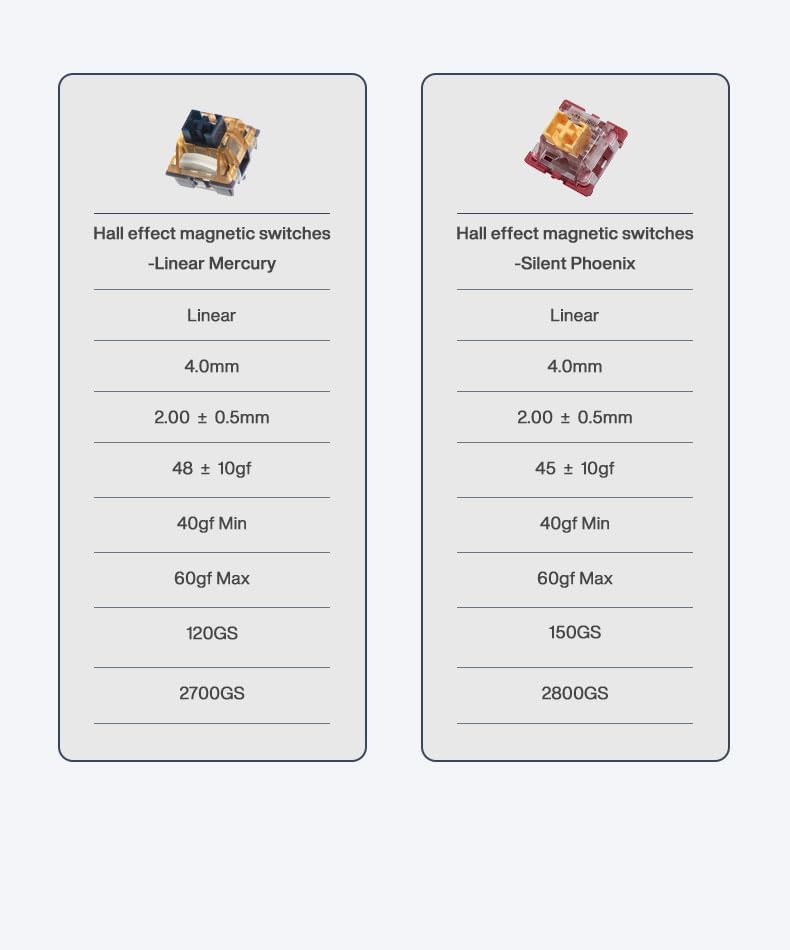
Image: A table comparing specifications of Hall Effect magnetic switches, specifically Linear Mercury and Silent Phoenix variants, including force, travel distance, and magnetic flux values.
4.2 Rapid Trigger
Rapid Trigger allows keys to be activated or deactivated based on their travel distance rather than a fixed point. This provides more responsive and precise control, especially beneficial in games requiring quick and precise keystrokes.
- Customizable Trigger Points: Each key's trigger point can be customized to meet your specific needs.
- Automatic Calibration: The keyboard is equipped with an automatic calibration function to ensure precision.
To adjust Rapid Trigger settings, use the dedicated software. Some firmware versions may allow on-the-fly adjustments via Fn key combinations; refer to the latest software documentation for specific key commands.
4.3 Dynamic Keystroke (DKS)
DKS allows you to incorporate up to four different actions within a single keystroke. This functions similarly to a macro but without automation, providing enhanced customization and control for gameplay and productivity.
Configure DKS settings using the keyboard's software.
4.4 Travel Distance Setting
You can adjust the travel distance of keys from 0.2mm to 3.7mm. This customization allows you to fine-tune the keyboard to your preferred typing style and responsiveness.
Adjust travel distance settings via the keyboard's software.
4.5 Gamakay Snap Tap
Using the software settings, Snap Tap prioritizes the latest input between two selected keys without requiring you to release the previous one. This feature provides more responsive inputs for near-instant directional changes, particularly useful in FPS games. Requires the latest TK68/75HE firmware update.
4.6 RGB Backlighting
The TK68 HE features vibrant RGB backlighting with various effects and customization options. You can adjust lighting modes, brightness, and colors using the keyboard's software or built-in Fn key combinations.
- Brightness Adjustment: Typically Fn + ↑ (increase) / Fn + ↓ (decrease).
- Mode Switching: Use Fn + \ | to cycle through different RGB lighting effects.
- Color Adjustment: Specific Fn key combinations or software control for color changes.
- Turning RGB Off: Some advanced features like 0.2mm actuation may recommend turning RGB off to prevent interference with magnetic sensors.
4.7 Key Layout and Functions
The TK68 HE features a compact 65% layout with 68 keys, optimizing space while retaining essential functionality. It supports N-key rollover, ensuring all keystrokes are registered accurately, even when multiple keys are pressed simultaneously.

Image: A clear top-down view of the GK GAMAKAY TK68 HE mechanical keyboard, showcasing its 65% layout with 68 keys, including the main alphanumeric keys, modifiers, and a compact navigation cluster.

Image: A close-up perspective of the right-hand side of the TK68 HE keyboard, highlighting the arrow keys, Enter key, and other navigation cluster keys.

Image: A detailed close-up of the left-hand side of the TK68 HE keyboard, focusing on the Tab, Caps Lock, and Shift keys, along with the surrounding alphanumeric keys.
Many functions are accessed via the Fn key combined with other keys. Refer to the keyboard's software or the official GK GAMAKAY website for a comprehensive list of Fn key combinations and their functions, as these may vary with firmware updates.
5. Maintenance
5.1 Cleaning the Keyboard
- Disconnect the keyboard from your computer before cleaning.
- Use a soft, lint-free cloth slightly dampened with water or a mild cleaning solution to wipe down the keycaps and casing.
- For dust and debris between keycaps, use compressed air.
- To deep clean, use the provided keycap puller to remove keycaps and clean the switch area. Be gentle when removing keycaps to avoid damage.
- Do not use harsh chemicals, abrasives, or solvents.
5.2 Switch and Keycap Replacement
The TK68 HE features hot-swappable magnetic switches, allowing for easy replacement without soldering. Use the provided switch puller to carefully remove switches. Ensure replacement switches are compatible Hall Effect magnetic switches.
When replacing keycaps, ensure they are compatible with Cherry profile stems for optimal fit and feel.
6. Troubleshooting
| Problem | Possible Cause / Solution |
|---|---|
| Keyboard not responding (Wired) |
|
| Keyboard not responding (Wireless/Bluetooth) |
|
| Keys not registering or inconsistent Rapid Trigger |
|
| RGB lighting not working or incorrect colors |
|
| Keyboard not charging |
|
| Software issues / Firmware update problems |
|
7. Specifications
| Feature | Detail |
|---|---|
| Model | TK68 HE |
| Layout | 65% (68 Keys) |
| Switch Type | Hall Effect Magnetic Switches (Linear Mercury / Silent Phoenix options) |
| Actuation Range | 0.2mm - 3.7mm |
| Keycaps | PBT Keycaps |
| Connectivity | Wired (USB-C), 2.4GHz Wireless, Bluetooth (up to 5 devices) |
| Backlighting | RGB (16.8 million colors) |
| N-Key Rollover | Supported |
| Compatible OS | Windows, Mac OS |
| Item Weight | 1.81 pounds (approx. 0.82 kg) |
| Package Dimensions | 14.29 x 5.87 x 1.89 inches (approx. 36.3 x 14.9 x 4.8 cm) |
| Manufacturer | GK GAMAKAY |
| Country of Origin | China |
8. Warranty and Support
8.1 Warranty Information
GK GAMAKAY products typically come with a limited manufacturer's warranty. Please refer to the warranty card included with your product or visit the official GK GAMAKAY website for specific warranty terms and conditions. The warranty generally covers defects in materials and workmanship under normal use.
8.2 Customer Support
For technical assistance, troubleshooting, or warranty claims, please contact GK GAMAKAY customer support. You can usually find contact information (email, support portal) on the official GK GAMAKAY website.
When contacting support, please have your product model (TK68 HE) and purchase details ready to expedite the process.
Official GK GAMAKAY Store: Visit Store
For the latest software and firmware updates, please visit the official GK GAMAKAY support page.