
Introduction
Thank you for choosing the Vmotal 4K Digital Camcorder EU-Vmotal0073. This manual provides essential information for the safe and efficient use of your new device. Please read it thoroughly before operation and keep it for future reference.
This camcorder is designed for capturing high-quality 4K video and 36MP still images, featuring a 3-inch rotatable LCD screen, 16X digital zoom, and an external microphone for enhanced audio. It is suitable for beginners, students, and general family use.
Package Contents
Please check that all items are present:
- Vmotal 4K Digital Camcorder
- External Microphone
- SD Card
- Rechargeable Lithium-ion Battery
- USB Cable
- Carrying Bag
- User Manual (this document)
Setup
1. Battery Installation
- Open the battery compartment cover on the bottom of the camcorder.
- Insert the provided Lithium-ion battery, ensuring the correct polarity.
- Close the battery compartment cover securely.
2. SD Card Installation
- Locate the SD card slot, usually on the side of the camcorder.
- Insert the SD card with the metal contacts facing the front of the camcorder until it clicks into place.
- To remove, press the card gently until it pops out.
3. External Microphone Connection
- Attach the external microphone to the hot shoe mount on top of the camcorder.
- Connect the microphone's 3.5mm audio jack into the microphone input port on the camcorder.
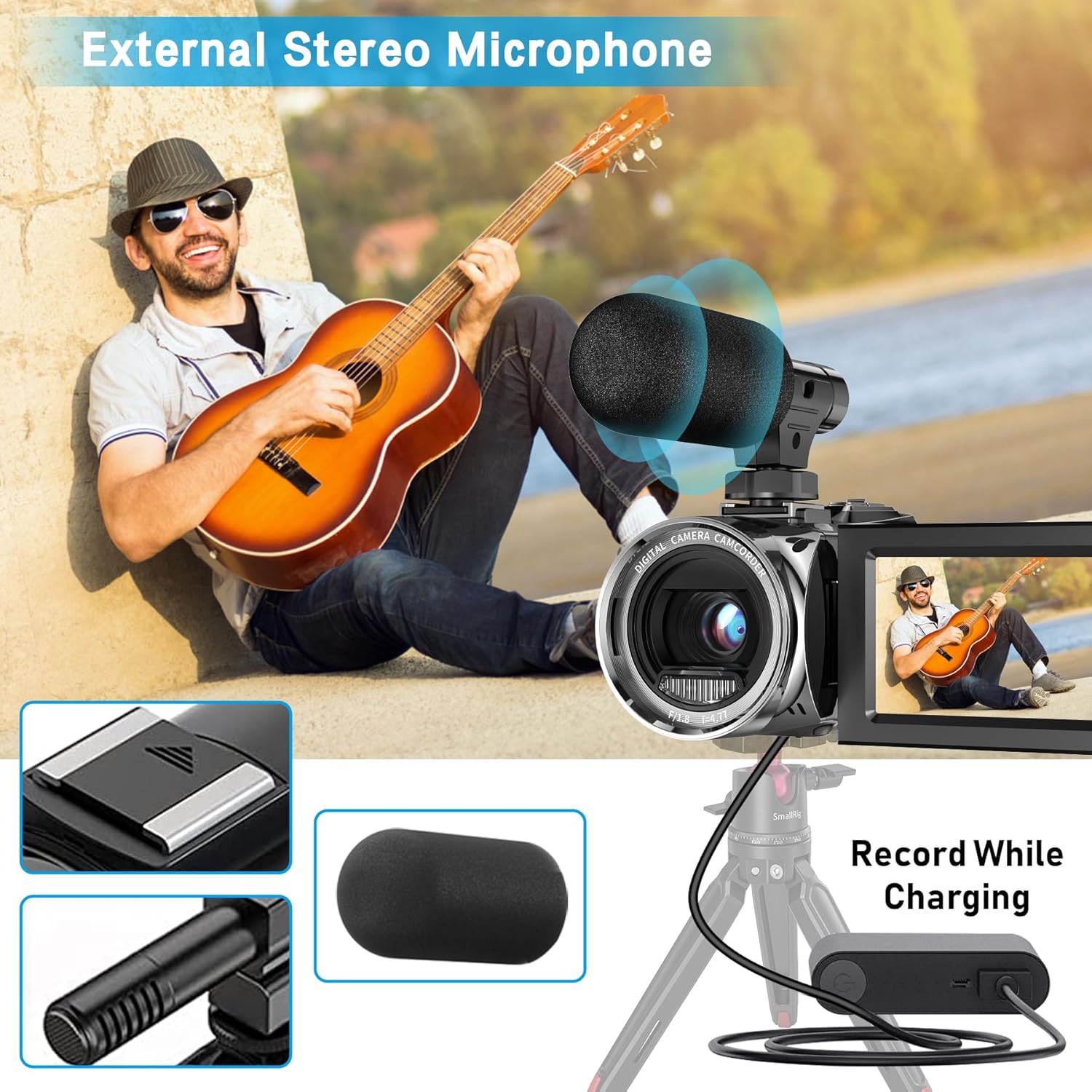
Image: The camcorder with the external stereo microphone attached and a USB cable connected for charging. This setup allows for improved audio recording and continuous operation while charging.
4. Charging the Battery
Connect the camcorder to a power source using the provided USB cable. The charging indicator will illuminate. The camcorder supports recording while charging.
Operating Instructions
1. Power On/Off
Press and hold the Power button to turn the camcorder on or off.
2. Video Recording
To record video, switch the camcorder to video mode. Press the Record button to start recording, and press it again to stop. The camcorder supports 4K video resolution.

Image: The camcorder in use, demonstrating its 4K video recording capability. The screen shows a family, and a visual comparison highlights the clarity of 4K resolution over 2.7K.
3. Photo Capture
To take photos, switch the camcorder to photo mode. Press the Shutter button to capture a still image. The camcorder supports up to 36MP photo resolution.
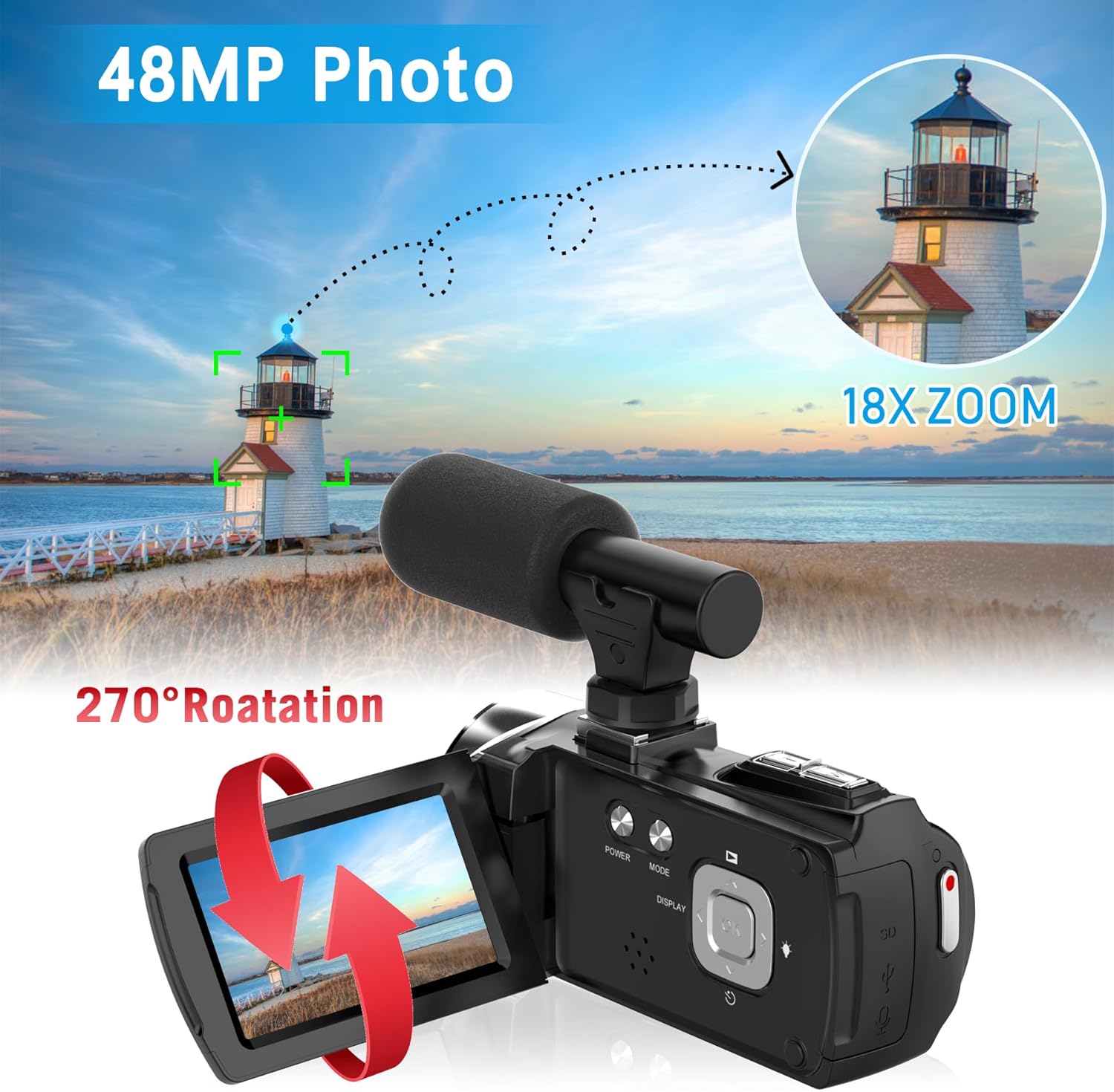
Image: The camcorder capturing a high-resolution 48MP photo of a lighthouse, demonstrating its 18X digital zoom feature. The screen is shown rotated 270 degrees, indicating its flexibility.
4. Digital Zoom
Use the zoom lever (usually located near the top of the camcorder) to digitally zoom in or out up to 16X during recording or photo capture.
5. LCD Screen
The 3-inch HD LCD screen can be rotated up to 270 degrees for various viewing angles, including self-recording.
6. Special Features and Shooting Modes
The camcorder offers several modes to enhance your recording experience:
- Slow Motion: Records video at a higher frame rate for slow-motion playback.
- Time-lapse: Captures a series of photos over time and stitches them into a video.
- Continuous Photo: Takes multiple photos in quick succession.
- Auto Photo: Automatically takes photos at set intervals.
- Timer Shooting: Sets a delay before taking a photo (e.g., 2s, 5s, 10s).
- Face Detect: Automatically detects and focuses on faces in the frame.
- Anti-shake: Helps stabilize footage to reduce blur from camera movement.
- Pause Function: Allows pausing and resuming video recording within the same file.
- Flash Light: Provides illumination for photos and videos in low-light conditions.

Image: Illustrations of the camcorder's special features including Face Detect for optimal focus, Anti-shake for stable footage, a Pause Function for video, and a Flash Light for low-light conditions.

Image: A collage demonstrating the camcorder's diverse shooting modes, including Continuous Pic for rapid shots, Time-lapse for capturing changes over time, Slow Motion for dramatic effects, Auto Photo, and Timer shooting with 2s, 5s, and 10s options.
7. Webcam Function
Connect the camcorder to your computer via the USB cable. Select 'Webcam Mode' on the camcorder's screen (if prompted) to use it as a webcam for video calls or live streaming.

Image: The camcorder in two scenarios: connected to a laptop for vlogging on social media platforms and set up as a webcam for a video conference, highlighting its versatility.
8. Connecting to a Computer
Use the USB cable to connect the camcorder to a computer. You can transfer files (videos and photos) or use the camcorder as a webcam.
Maintenance
1. Cleaning
- Use a soft, dry cloth to clean the camcorder body.
- For the lens and LCD screen, use a specialized lens cleaning cloth and solution to avoid scratches.
- Do not use harsh chemicals or abrasive materials.
2. Battery Care
- Charge the battery fully before first use.
- Remove the battery if the camcorder will not be used for an extended period.
- Store batteries in a cool, dry place.
3. Storage
Store the camcorder in its carrying bag in a dry, dust-free environment away from direct sunlight and extreme temperatures.
Troubleshooting
| Problem | Possible Cause | Solution |
|---|---|---|
| Camcorder does not power on. | Battery is low or not inserted correctly. | Charge the battery or re-insert it correctly. |
| Cannot record video/take photos. | SD card is full, not inserted, or corrupted. | Insert/re-insert SD card, format it, or use a new one. Delete unnecessary files. |
| Poor audio quality. | External microphone not connected properly or settings incorrect. | Ensure microphone is securely connected. Check audio settings in the menu. |
| Images/videos are blurry. | Lens is dirty, insufficient lighting, or Anti-shake is off. | Clean the lens. Ensure adequate lighting. Activate Anti-shake feature. |
| Camcorder not recognized by computer. | USB cable issue or incorrect mode selected. | Try a different USB port/cable. Ensure 'PC Mode' or 'Webcam Mode' is selected on the camcorder. |
Specifications
| Feature | Detail |
|---|---|
| Brand | Vmotal |
| Model Number | EU-Vmotal0073 |
| Product Type | Handheld Camcorder |
| Screen | 3-inch LCD |
| Image Stabilization | Dynamic |
| Special Features | Microphone input, Time-lapse, Lightweight |
| Aperture | f/5.3 |
| Connectivity Technology | USB |
| Digital Zoom | 16X |
| Battery Composition | Lithium-ion |
| Video Resolution | 4K |
| Compatible Devices | Personal computer, laptop, desktop computer |
| Waterproof Level | Not waterproof |
| Focus Type | Fixed focus |
| Effective Still Resolution | 36 Megapixels |
| Photo Sensor Technology | CMOS |
| Flash Memory Type | SD |
| Video Capture Format | MP4 |
| Supported Audio Format | AAC, MP3, PCM |
Warranty Information
For detailed warranty information, please refer to the documentation included with your purchase or visit the official Vmotal website. Keep your proof of purchase for warranty claims.
Customer Support
If you encounter any issues not covered in this manual or require further assistance, please contact Vmotal customer support through their official website or the contact information provided with your product.