
Introduction
This manual provides comprehensive instructions for the setup, operation, maintenance, and troubleshooting of your Yealink WH64 DECT & Bluetooth Mono UC Zoom Wireless Headset. Please read this manual carefully before using the device to ensure optimal performance and longevity.
What's in the Box
Your Yealink WH64 headset package includes the following components:
- Dual or Mono Headset (WH64-Mono-UC in this case)
- WHB640 Base
- Power Adapter
- Drawstring Bag & User Manual
- 1* 1.2m USB C to USB A cable
- 1* 0.8m Micro USB to USB A cable

Figure 1: Contents of the Yealink WH64 package. This image illustrates the headset (mono or dual), the WHB640 base, power adapter, USB-C to USB-A cable, Micro USB to USB-A cable, drawstring bag, and a quick start guide.
Setup
Powering On/Off the Headset
To turn on the headset, slide the power switch to the 'on' position. The LED indicator will show a green light for 2 seconds. To turn off the headset, slide the power switch to the 'off' position. The LED indicator will show a red light for 2 seconds.
Connecting the Base
Connect the power adapter to the WHB640 base. Ensure the base is powered on before proceeding with headset connections.

Figure 2: The Yealink WH64 Mono UC headset docked on its WHB640 base, illustrating the power connection.
Headset Connections
The Yealink WH64 supports multiple connection types for versatile use:
- Bluetooth Connection (to Mobile):
- Turn on your mobile device's Bluetooth.
- Toggle the power button on the headset to the Bluetooth side and hold for 3 seconds to enter pairing mode.
- On your mobile device, select "Yealink WH64" from the list of available Bluetooth devices to pair. A headset can only be paired with one Bluetooth device at a time.
- DECT Connection (to PC and Phone via Base):
- Dock the headset to the base. The LED indicator on the headset will show a blue light for 5 seconds after successful pairing.
- Use the provided USB cable to connect the base to your PC.
- To connect to a desk phone, use a telephone cable (optional) or EHS62 adapter (optional) to connect the base to your phone.
- Direct PC Connection (via USB Cable):
You can also use the USB cable to connect the headset directly to your PC, bypassing the base for audio and call control.

Figure 3: Application diagram illustrating the headset's connectivity options with mobile, PC, and desk phone through the base.

Figure 4: Seamless compatibility of the Yealink WH64 headset with leading Unified Communications (UC) platforms.
Wearing the Headset
For optimal comfort and call quality, adjust the headset as follows:
- Headband Adjustment: Adjust the headband to fit comfortably on your head.
- Microphone Positioning: Pull down the microphone boom arm and adjust its position near your mouth for optimal call quality. The boom arm has 280° adjustment.
- Side Wearing: The headset supports both left and right side wearing. The boom arm is free to rotate, allowing you to place the earpiece on your preferred side.
- Mono Headset Specific: For the mono headset, place the headband over your head, with the headset positioned against your preferred ear and the T-bar positioned just above the opposite ear. The T-bar should be placed high on the head.
Operating the Headset
Call Control (Headset Buttons)
- Incoming Call:
- Click the MFB (Multi-Function Button) or pull down the microphone arm to answer the call.
- Double-click the MFB button to reject the call.
- In the Call:
- Click the mute button to mute/unmute the microphone.
- Lift the microphone arm to mute; lower it to unmute.
- Click MFB to hang up.
Call Control (Base Buttons)
- Incoming Call (Phone Calls): Click the Phone button on the base to answer. Double-click to reject.
- Incoming Call (PC Calls): Click the PC button on the base to answer. Double-click to reject.
- In the Call: To hang up, click the Phone button or the PC button depending on the active connection.
Busylight
The headset features a busylight that activates automatically while in a call, signaling to others that you are occupied. For fewer interruptions when not in a call, you can manually activate the busylight by pressing the Volume Up + Volume Down buttons simultaneously.
An optional external busylight (BLT60) is available, which can clearly show your work status and prevent interruptions.
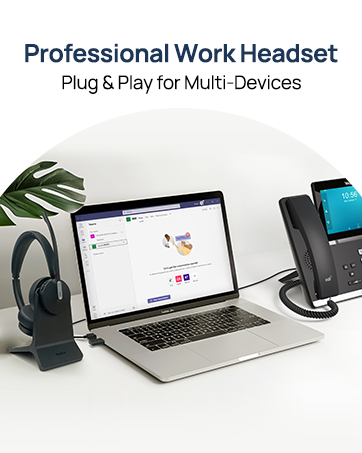
Figure 5: The Yealink WH64 headset with the optional BLT60 external busylight, indicating active call status.
Maintenance
Replacing Ear Cushions
To replace the ear cushions:
- Detach the old ear cushion by rotating it counterclockwise.
- Align the replacement ear cushion with the earcup.
- Rotate the replacement ear cushion clockwise until you hear a click, securing it in place.
Charging
To charge your Yealink WH64 headset:
- Using the Base: Dock the headset to the WHB640 base. Ensure the base is connected to a power source.
- Direct Connection: Alternatively, connect a Type-C cable directly to the headset to charge it.
The headset offers a talk time of 26 hours (Bluetooth mono) and charges fully in approximately 1.5 hours.
Specifications
| Feature | Detail |
|---|---|
| Model Name | WH64 Mono-UC |
| Connectivity Technology | Wireless (DECT & Bluetooth) |
| Wireless Range (DECT) | Up to 606 ft (185m) |
| Bluetooth Version | 5.2 |
| Bluetooth Range | 50 Meters |
| Noise Control | Active Noise Cancellation (3x noise cancelling mic, Acoustic Shield Tech 2.0) |
| Talk Time (Bluetooth Mono) | 26 Hours |
| Charging Time | 1.5 Hours |
| Ear Placement | On Ear |
| Material | Leather |
| Item Weight | 1.63 pounds |
Troubleshooting
If you encounter any issues with your Yealink WH64 headset, please try the following basic troubleshooting steps:
- No Audio/Poor Audio Quality:
- Ensure the headset is properly connected to your device (Bluetooth, PC, or phone).
- Check the volume levels on both the headset and your connected device.
- Verify that the headset is selected as the default audio device in your computer's sound settings or communication application.
- Ensure the microphone boom arm is correctly positioned near your mouth and not muted.
- Connection Issues:
- For Bluetooth, ensure Bluetooth is enabled on your device and the headset is in pairing mode. Try unpairing and re-pairing the headset.
- For DECT, ensure the base is powered on and the headset is properly docked for pairing. Check USB and phone cable connections to the base.
- Move closer to the base or connected device to rule out range issues.
- Headset Not Responding:
- Ensure the headset is charged.
- Try turning the headset off and then on again.
If these steps do not resolve the issue, please refer to the official Yealink support resources.
Warranty and Support
Yealink offers a 2-year warranty for this product, backed by professional customer service and a technical team dedicated to providing excellent support.
For further assistance, technical support, or warranty claims, please visit the official Yealink website or contact their customer service directly. You can also find more information and resources on the Yealink Store on Amazon.
Official Product Video Guide
This video, titled "Yealink WH64 with DECT Base HOW TO USE" from the official Yealink Direct Store, provides a visual guide on setting up and using your Yealink WH64 headset with its DECT base. It covers various aspects of functionality and connectivity.