
SolarPlay Q2501
SolarPlay Portable Power Station Q2501 User Manual
Model: Q2501
1. Introduction
Thank you for choosing the SolarPlay Portable Power Station Q2501. This high-performance solar generator provides a large capacity of 2160Wh and a high output of 2400W (4800W Peak), making it an ideal emergency power solution for home, camping, and outdoor activities. This manual provides essential information for safe and efficient operation, maintenance, and troubleshooting.
The Q2501 features a durable LiFePO4 battery, multiple charging options including solar and AC, and a comprehensive battery management system (BMS) for enhanced safety and longevity.
2. What's in the Box
Upon unpacking, please verify that all the following items are included:
- Q2501 Portable Solar Power Station
- 2 x 200W Solar Panels
- AC Charging Cable
- MC4 XT90 Solar Charging Cable
- User Manual (this document)
Note: Due to the heavy weight of the product, the power station and solar panels may be delivered in separate packages.

Image: The SolarPlay Q2501 Portable Power Station shown alongside two foldable solar panels, illustrating the complete package contents.
3. Product Overview
The SolarPlay Q2501 is designed for versatility and high performance. It features multiple output ports and advanced battery technology.
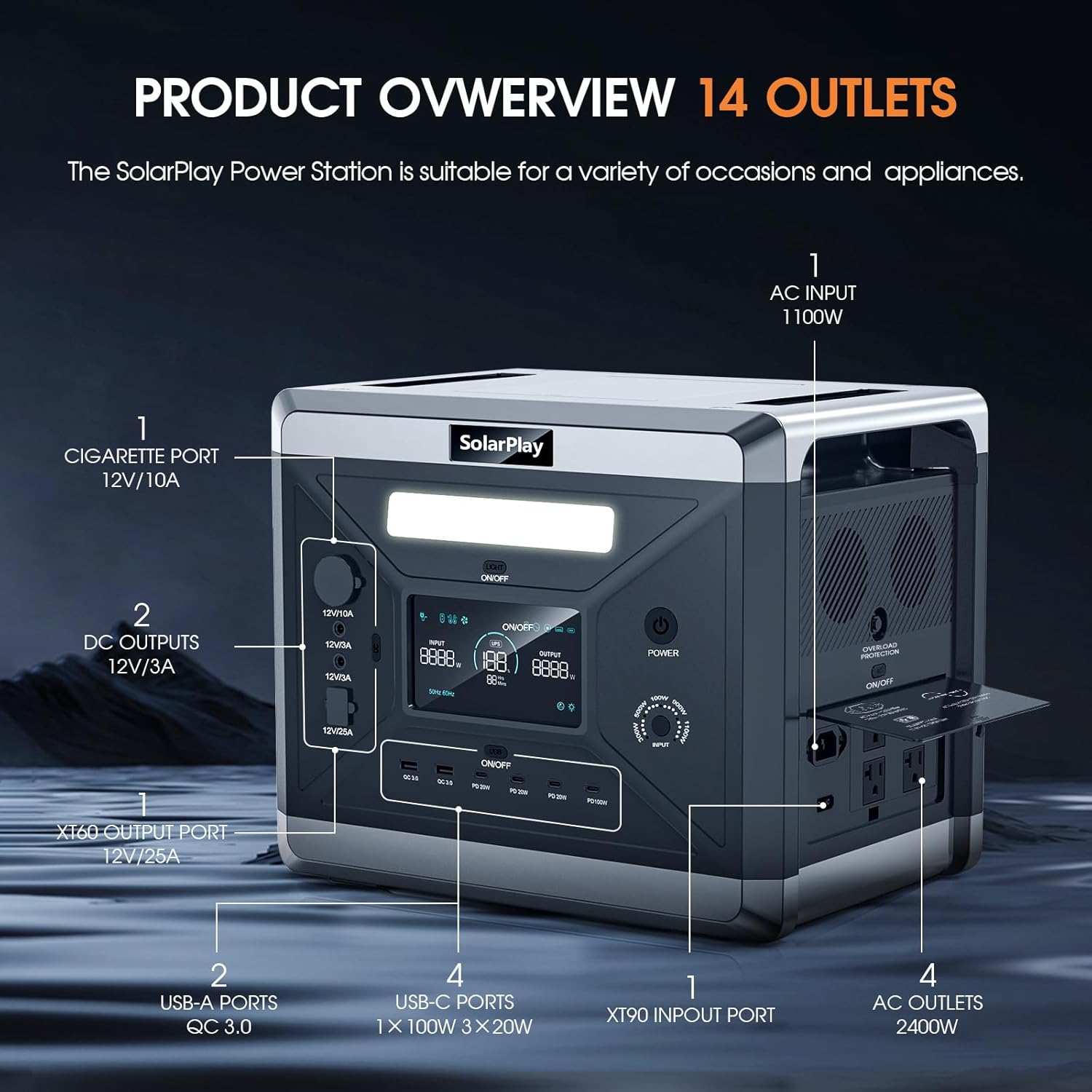
Image: Detailed diagram highlighting the 14 output ports of the SolarPlay Q2501, including AC outlets, USB-A, USB-C, DC5521, cigarette lighter, and XT60 ports.
3.1 Key Features
- Large Capacity & High Output: 2160Wh capacity with 2400W (4800W Peak) AC output, suitable for most home appliances.
- LiFePO4 Battery: Built-in lithium iron phosphate battery with over 3500 charge/discharge cycles, offering a lifespan of up to 15 years.
- Fast Dual Charging: Fully charged in approximately 1.5 hours using combined AC and solar input.
- Adjustable Input Power: Five levels of input power (300W, 500W, 700W, 900W, 1100W) for flexible charging.
- 14 Output Ports: Includes 4 AC, 2 USB-A (QC3.0), 3 USB-C (PD 20W), 1 USB-C (PD 100W), 1 cigarette lighter, 2 DC5521, and 1 XT60 port.
- Uninterruptible Power Supply (UPS): Switches to battery power in 0.08 seconds during a power outage.
- Quiet Operation: Operates at approximately 25 dB, ideal for overnight use.

Image: Visual representation of the Q2501 powering common appliances like laptops, refrigerators, and microwaves, with estimated usage times.
4. Setup and Initial Use
4.1 Unboxing and Inspection
Carefully remove the power station and accessories from the packaging. Inspect all components for any signs of damage. If any items are missing or damaged, please contact SolarPlay customer support immediately.
Video: An unboxing video demonstrating the contents and initial setup of the SolarPlay 2400W/2160Wh Portable Power Station.
4.2 Initial Charging
Before first use, it is recommended to fully charge the power station. The Q2501 supports multiple charging methods:
- AC Wall Outlet: Connect the AC charging cable to the power station's AC input port and then to a standard wall outlet. The power station can be fully charged in approximately 2 hours at 1100W.
- Solar Panels: Connect the MC4 XT90 solar charging cable to your solar panels (11.5V to 48V, max. 500W) and then to the XT90 input port on the power station. Charging time varies based on sunlight intensity and panel wattage.
- Car Cigarette Socket: Use a 12V/24V car cigarette socket for charging on the go.
- Dual Charging (AC + Solar): For the fastest charging, combine AC and solar input. The power station can be fully charged in about 1.5 hours with max 1100W AC + 500W solar input.

Image: Illustration of the various fast charging methods available for the SolarPlay Q2501, including AC, solar, and car charging.
4.3 Adjustable Input Power
You can adjust the input power to optimize charging speed and extend battery life. Select from 300W, 500W, 700W, 900W, or 1100W based on your needs and environment.

Image: A visual guide to adjusting the input power on the Q2501, showing different wattage settings and their corresponding charging times.
5. Operating Instructions
5.1 Powering On/Off
To power on the unit, press and hold the main power button until the display illuminates. To power off, press and hold the main power button again until the display turns off.
5.2 Using Output Ports
The Q2501 offers a variety of output ports to power different devices:
- AC Outlets: Press the "AC ON/OFF" button to enable AC output. Connect your AC-powered devices (e.g., laptops, small appliances) to the 4 AC ports. Ensure the total wattage does not exceed 2400W.
- USB Ports: The USB-A (QC3.0) and USB-C (PD 20W, PD 100W) ports are always active when the unit is on. Connect your smartphones, tablets, and other USB-powered devices.
- DC Outputs: Press the "DC ON/OFF" button to enable DC output. Use the 12V/10A cigarette lighter port or the 12V/3A DC5521 ports for compatible devices.
- XT60 Output: The 12V/25A XT60 output port is suitable for high-power DC devices.
5.3 LCD Display
The integrated LCD display provides real-time information about the power station's status, including input power, output power, battery status, and remaining charge/discharge time.
5.4 LED Lighting
The power station includes an LED light for illumination. Press the "LIGHT ON/OFF" button to cycle through different lighting modes: steady on, SOS, and flash.

Image: Examples of the SolarPlay Q2501 in various use scenarios, including outdoor camping, powering tools for outdoor work, and providing home backup power.
6. Maintenance and Care
- Storage: Store the power station in a cool, dry place away from direct sunlight and extreme temperatures. For long-term storage, charge the unit to 50-80% every 3-6 months to maintain battery health.
- Cleaning: Use a soft, dry cloth to clean the exterior of the unit. Do not use abrasive cleaners or solvents.
- Battery Health: The built-in Battery Management System (BMS) and Control Unit (MCU) manage battery cell voltage and temperature to ensure optimal performance and safety. Avoid fully discharging the battery frequently to prolong its lifespan.
- Ventilation: Ensure the ventilation vents are clear of obstructions during operation to prevent overheating.

Image: An X-ray view of the SolarPlay Q2501, illustrating the internal LiFePO4 battery cells and the Battery Management System (BMS) for safety and efficiency.
7. Troubleshooting
| Problem | Possible Cause | Solution |
|---|---|---|
| Unit does not power on | Battery is completely discharged; Power button not held long enough. | Charge the unit using AC power; Press and hold the power button for 3-5 seconds. |
| AC output not working | AC output not enabled; Device wattage exceeds 2400W; Overload protection activated. | Press the "AC ON/OFF" button; Reduce connected load; Disconnect devices, turn off AC, then turn on again. |
| Slow charging via solar | Insufficient sunlight; Panels not optimally angled; Dirty panels; Incorrect cable connection. | Ensure direct sunlight; Adjust panel angle; Clean panels; Check cable connections. |
| Display not showing correct info | Temporary software glitch. | Restart the power station. If issue persists, contact support. |
For further assistance, please refer to the contact information in the Warranty & Support section.
8. Specifications
| Feature | Detail |
|---|---|
| Brand | SolarPlay |
| Model Name | Q2501 Power Station |
| Capacity | 2160Wh |
| AC Output | 2400W (4800W Peak) |
| Battery Type | LiFePO4 (Lithium Iron Phosphate) |
| AC Input Wattage | 1100W Max |
| Solar Input | 11.5V to 48V, 500W Max |
| Product Dimensions | 15.39"L x 11.22"W x 12.56"H |
| Item Weight | 47.4 Pounds (21.5 kg) |
| Total Power Outlets | 14 |
| UPS Function | 0.08s switchover time |
9. Warranty and Support
SolarPlay offers a 5-Year Warranty for the Q2501 Portable Power Station. If your product malfunctions within this period, please contact SolarPlay customer support for assistance with returns or refunds.
For technical support, troubleshooting, or warranty claims, please contact SolarPlay-US directly. You can often find contact information on the product packaging, the official SolarPlay website, or through your purchase platform.
We are committed to providing reliable products and excellent customer service.
Ask a question about this manual
Ask about setup, troubleshooting, compatibility, parts, safety, or missing instructions. Manuals+ will review the question and use this page’s manual context to help answer it.