
1. Introduction
This manual provides comprehensive instructions for the setup, operation, and maintenance of your Generic Y2 M98 Smart Android TV Stick. Please read this manual carefully before using the device to ensure proper functionality and to maximize your viewing experience. Keep this manual for future reference.
2. Product Overview
The Generic Y2 M98 Smart Android TV Stick is a compact streaming media player designed to transform your television into a smart TV. It operates on Android 13.0, offering access to a wide range of applications and streaming services.
2.1 Key Features
- Operating System: Android 13.0
- Processor: Rockchip RK3228a quad-core CPU
- Memory: 2GB RAM, 16GB ROM
- Output Resolution: Up to 4K Ultra HD (supports 8K Ultra HD streaming media player functionality)
- Wireless Connectivity: 2.4GHz + 5GHz dual-band WiFi, Bluetooth 5.0
- Audio: Supports 5.1 Surround Sound Output
- Smart Features: Google Assistant, Voice Search, Chromecast built-in
- Pre-installed Content: Google Play, Netflix, YouTube, Prime Video
- Interface: HDMI
- Power Consumption: 5W (5V Digital Power Supply)
2.2 Package Contents
- Generic Y2 M98 Smart Android TV Stick
- Remote Control
- Power Adapter (typically USB cable and wall adapter)
- User Manual (this document)
2.3 Product Dimensions

Image: Dimensions of the Y2 M98 Smart Android TV Stick, showing a length of 9.5 cm and a width of 3.4 cm.
3. Setup Guide
Follow these steps to set up your Generic Y2 M98 Smart Android TV Stick:
- Connect the TV Stick: Insert the Y2 M98 TV Stick directly into an available HDMI port on your television.
- Connect Power: Connect the provided power adapter to the TV Stick's power input port, then plug the adapter into a wall outlet. The device will power on automatically.
- Select HDMI Input: Turn on your television and use your TV remote to select the correct HDMI input source to which the TV Stick is connected.
- Initial Setup Screen: The TV Stick will boot up and display the initial setup screen. Follow the on-screen prompts.
- Pair Remote Control: If your remote control is not automatically paired, follow the on-screen instructions to pair it. This usually involves holding down specific buttons on the remote near the TV Stick.
- Language Selection: Choose your preferred language.
- Connect to Wi-Fi: Select your Wi-Fi network from the list and enter the password. The device supports both 2.4GHz and 5GHz networks.
- Google Account Sign-in: Sign in with your Google account. This is necessary to access Google Play Store, YouTube, and other Google services. If you do not have a Google account, you can create one during this step or later.
- Complete Setup: Follow any remaining prompts to complete the initial setup, including accepting terms of service and installing recommended apps.

Image: Front view of the Generic Y2 M98 Smart Android TV Stick retail packaging, showing the TV stick and remote control, indicating the product you are setting up.
4. Operating Instructions
4.1 Navigating the Interface
Use the directional pad (up, down, left, right) and the 'OK' button on your remote control to navigate through the Android TV interface. The 'Back' button returns to the previous screen, and the 'Home' button takes you to the main home screen.
4.2 Using Google Assistant
The Y2 M98 TV Stick supports Google Assistant. Press the dedicated microphone button on your remote control and speak clearly into the remote. You can ask it to:
- Search for movies or TV shows.
- Open applications (e.g., "Open Netflix").
- Control smart home devices (if configured).
- Get information (e.g., "What's the weather?").
4.3 Streaming Content
Access pre-installed applications like Netflix, YouTube, and Prime Video directly from the home screen. You can download additional applications from the Google Play Store.
- Netflix: A subscription may be required to access content.
- Chromecast Built-in: Use the Chromecast feature to cast content from compatible apps on your smartphone, tablet, or computer directly to your TV via the TV Stick. Look for the Cast icon within apps.
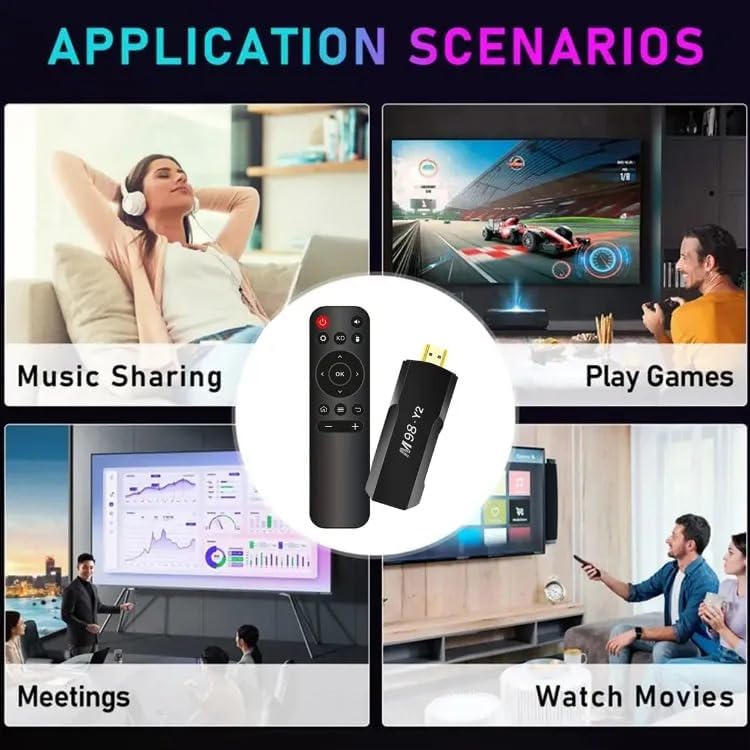
Image: Diagram illustrating various application scenarios for the Y2 M98 Smart Android TV Stick, including music sharing, gaming, meetings, and watching movies, demonstrating its versatility.
5. Maintenance
- Cleaning: Use a soft, dry cloth to clean the device. Do not use liquid cleaners or aerosols.
- Ventilation: Ensure the TV Stick has adequate ventilation to prevent overheating. Do not cover it or place it in enclosed spaces.
- Storage: Store the device in a cool, dry place away from direct sunlight and extreme temperatures.
- Software Updates: Periodically check for system updates in the device settings to ensure optimal performance and security.
6. Troubleshooting
| Problem | Possible Cause | Solution |
|---|---|---|
| No power/Device not turning on | Power adapter not connected or faulty. | Ensure the power adapter is securely connected to the TV Stick and a working power outlet. Try a different outlet. |
| No signal on TV screen | Incorrect HDMI input selected on TV. TV Stick not properly inserted. | Verify the TV is set to the correct HDMI input. Re-insert the TV Stick firmly into the HDMI port. Try a different HDMI port. |
| Remote control not responding | Batteries are low or depleted. Remote not paired. | Replace the batteries in the remote control. Re-pair the remote control according to the initial setup instructions. |
| Wi-Fi connection issues | Incorrect Wi-Fi password. Router too far or signal interference. | Double-check the Wi-Fi password. Move the TV Stick closer to the router or reduce interference. Restart your router and the TV Stick. |
| App crashes or slow performance | Too many apps running in the background. Insufficient storage. Outdated app/system software. | Close unused applications. Clear cache for problematic apps. Check for system and app updates. Consider a factory reset if issues persist (data will be lost). |
7. Specifications
| Feature | Detail |
|---|---|
| Model Name | M98 (Y2) |
| Operating System | Android 13.0 |
| CPU | Rockchip RK3228a Quad-core |
| Memory (RAM) | 2GB |
| Storage (ROM) | 16GB |
| Output Resolution | 4K Ultra HD (supports 8K streaming) |
| Wi-Fi | 2.4GHz + 5GHz Dual-band |
| Bluetooth | 5.0 |
| Interface | HDMI |
| Special Features | Google Assistant, Chromecast built-in |
| Supported Internet Services | Netflix, YouTube, Prime Video, Google Play |
| Power Input | 5V (Digital Power Supply) |
| Power Consumption | 5W |
| Item Weight | 10 Grams |
| Dimensions (approx.) | 9.5 cm (Length) x 3.4 cm (Width) |
8. Warranty and Support
This product is sold by a third-party seller. For specific warranty information, please refer to the documentation provided with your purchase or contact the retailer directly. For technical support, please reach out to the seller or manufacturer as indicated on your product packaging or purchase receipt.
Always ensure you are purchasing from authorized channels to guarantee valid warranty and support services.


