
UN UNITEDTIME TS1 Grey
Unitedtime Projector TS1 Grey User Manual
Native 1080p Support 4K with Integrated Stand, WiFi, and Bluetooth
1. Product Overview
The Unitedtime Projector TS1 Grey is a versatile and portable home theater projector designed for a wide range of uses, from home entertainment to office presentations. It features native 1080P Full HD resolution with 4K support, ensuring sharp and vibrant images. Its unique integrated tilt stand allows for adjustable projection heights, making it suitable for various environments. Equipped with 5GHz Wi-Fi and Bluetooth 5.1, it offers seamless wireless connectivity for screen mirroring and external audio devices. The projector also includes electric focus and auto keystone correction for easy setup and optimal image alignment.
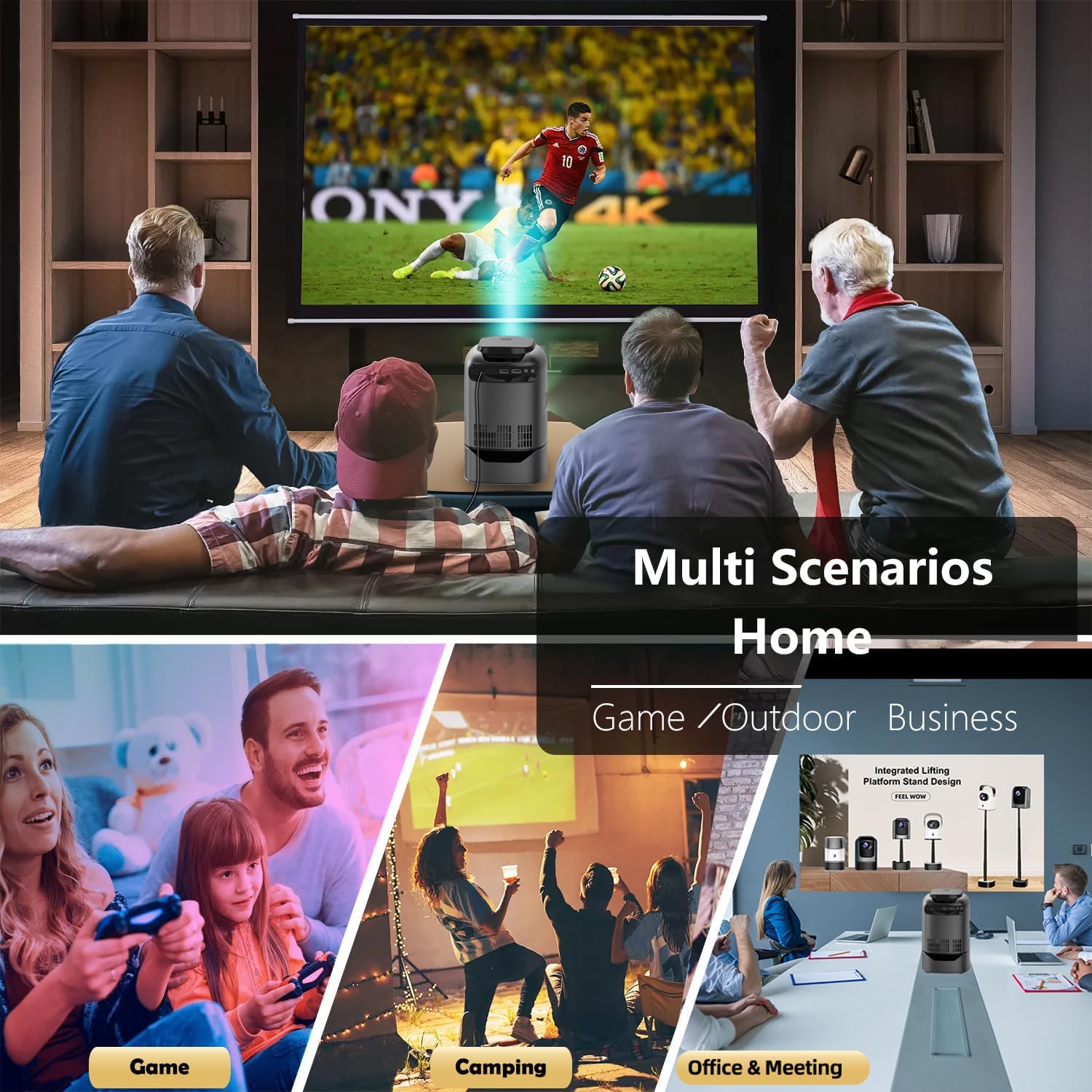
Figure 1.1: The Unitedtime Projector TS1 Grey in various usage scenarios, demonstrating its adaptability for home, outdoor, and business environments.
2. What's in the Box
Upon opening the package, please ensure all the following items are present:
- Unitedtime Projector TS1 Grey (with integrated stand)
- Remote Control
- Power Adapter
- User Manual (this document)
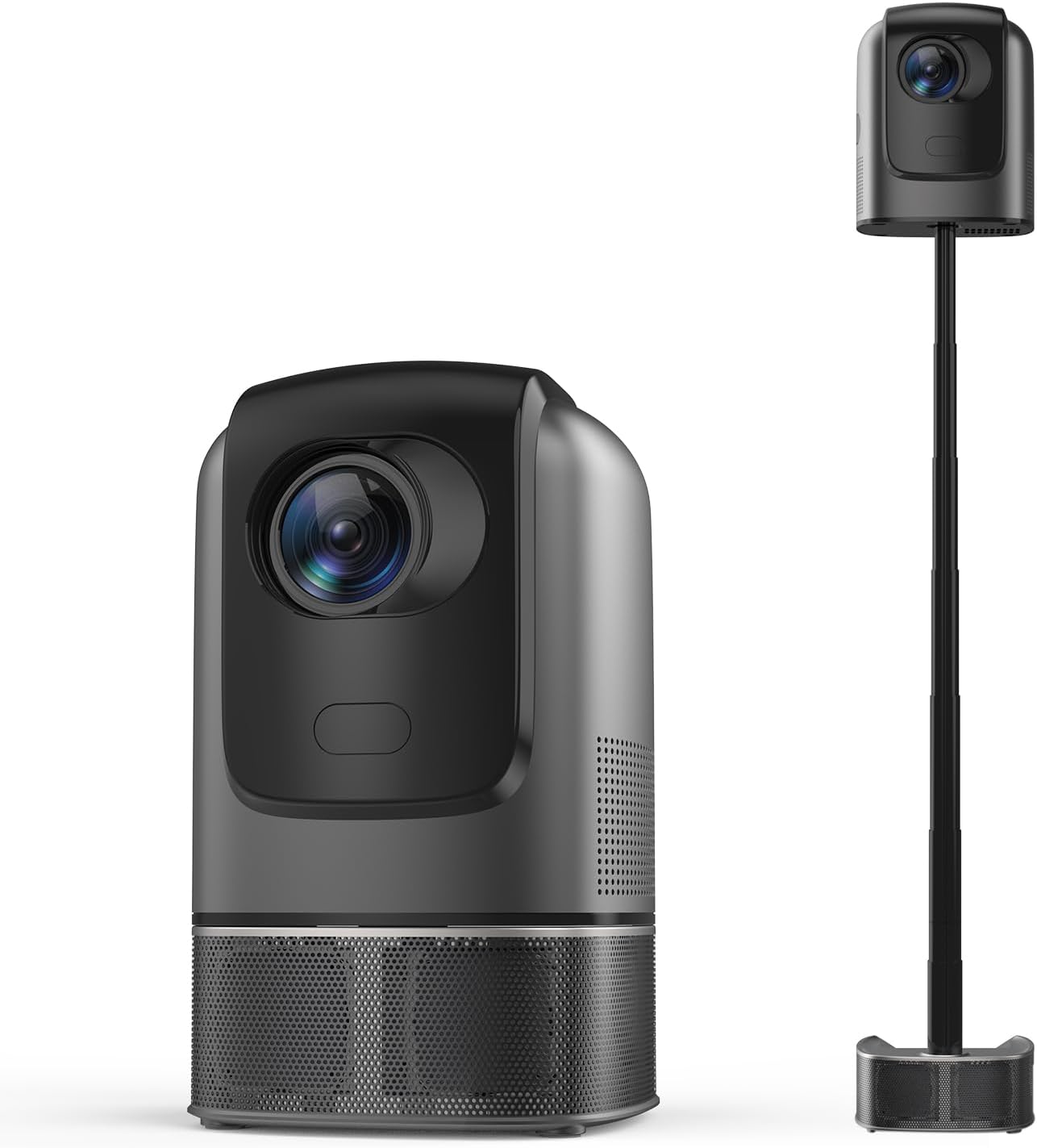
Figure 2.1: The Unitedtime Projector TS1 Grey, illustrating its integrated stand in both compact and extended positions.
3. Product Components
Familiarize yourself with the main components of your Unitedtime Projector:
- Projector Lens: The optical component that projects the image onto the screen.
- Integrated Tilt Stand: A unique folding stand built into the projector, allowing for adjustable height from 9 inches to 29 inches. This provides flexibility for various projection angles and surfaces.
- Control Panel/Buttons: Buttons on the projector for basic control if the remote is not available.
- Input Ports: Includes USB port, HDMI port, and AV port for connecting various external devices.
- Power Input: Port for connecting the power adapter.
- Speaker Grille: Area covering the built-in speaker, which features Dolby sound.

Figure 3.1: The "All-in-one Telescopic Smart Projector" demonstrating its adjustable height capabilities with the integrated stand.
4. Setup Guide
4.1 Initial Placement and Power Connection
- Choose a Location: Place the projector on a stable, flat surface. Consider the desired screen size and projection distance (refer to Section 5.3).
- Adjust Stand Height: Utilize the integrated tilt stand to adjust the projector's height from 9 inches to 29 inches as needed for optimal projection angle.
- Connect Power: Plug the power adapter into the projector's power input port, then connect the other end to a power outlet.
- Power On: Press the power button on the projector or the remote control to turn on the device.
4.2 Connecting External Devices
The projector supports various wired connections:
- HDMI Port: Connect TV boxes, Amazon Fire TV Stick, PCs, Laptops, Xbox, DVD players, etc., using an HDMI cable.
- USB Port: Connect USB sticks, external hard drives, or other USB media players.
- AV Port: Connect older devices using an AV cable.

Figure 4.1: Wireless screening setup, illustrating connectivity options for iOS, Android, and Windows devices via 2.4G and 5G Wi-Fi.
4.3 Wireless Connectivity (Wi-Fi & Bluetooth)
The projector supports 5GHz Wi-Fi for screen mirroring and Bluetooth 5.1 for audio.
4.3.1 Wi-Fi Screen Mirroring
- Ensure your projector and mobile device (iOS, Android, Windows) are connected to the same Wi-Fi network.
- On the projector's main menu, select the "Screen Mirroring" or "Wireless Projection" option.
- On your mobile device, enable screen mirroring (e.g., "Screen Mirroring" for iOS, "Smart View" for Android, "Project" for Windows).
- Select the projector's name from the list of available devices.
- Note: Due to copyright protections, streaming services like Netflix, Amazon Prime Video, and Hulu do not support direct screen mirroring. Use an HDMI connection with a compatible streaming device for these services.
4.3.2 Bluetooth Audio Connection
- On the projector's menu, navigate to Bluetooth settings.
- Enable Bluetooth and put your external speaker or headphones into pairing mode.
- Select your audio device from the list of discovered devices to pair.
5. Operation
5.1 Basic Navigation
Use the included remote control to navigate the projector's interface. The remote allows you to select input sources, adjust settings, and control media playback.
5.2 Image Adjustment (Focus & Keystone)
- Electric Focus: The projector features electric focus. Use the dedicated focus buttons on the remote control to sharpen the image until it is clear.
- Auto Keystone Correction: The projector automatically corrects trapezoidal distortion (keystone effect) to ensure a rectangular image, even if the projector is not perfectly aligned with the screen. This feature makes setup quick and easy.
5.3 Projection Distance and Screen Size
The Unitedtime Projector provides a projection display ranging from 49 inches to 140 inches, with a recommended projection distance of 6.3 to 12.8 feet (approximately 4.9 to 13.7 feet as per image). Adjust the distance between the projector and the screen to achieve your desired image size.
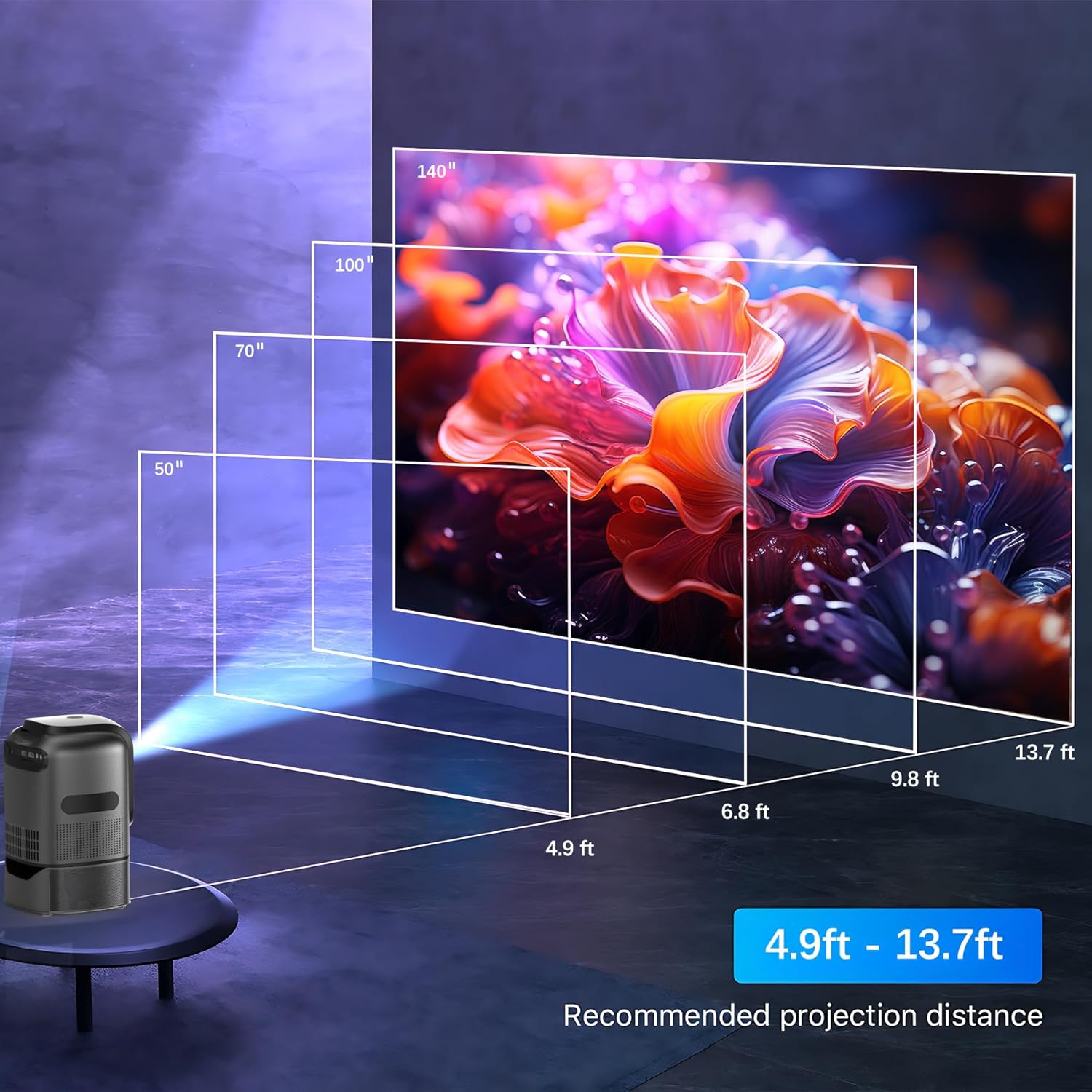
Figure 5.1: Recommended projection distances for optimal screen sizes, ranging from 4.9 ft for a 50-inch screen to 13.7 ft for a 140-inch screen.
6. Maintenance
Proper maintenance ensures the longevity and optimal performance of your projector.
- Cleaning the Lens: Use a soft, lint-free cloth specifically designed for optical lenses. Do not use abrasive cleaners or cloths that could scratch the lens.
- Cleaning the Exterior: Wipe the projector's exterior with a soft, dry cloth. For stubborn marks, slightly dampen the cloth with water. Avoid using harsh chemicals.
- Ventilation: Ensure the projector's ventilation openings are not blocked to prevent overheating. Keep the projector in a well-ventilated area during operation.
- Storage: When not in use for extended periods, store the projector in a cool, dry place, away from direct sunlight and excessive dust.
7. Troubleshooting
This section addresses common issues you might encounter with your projector.
| Problem | Possible Cause | Solution |
|---|---|---|
| No Power | Power cable not connected; Power outlet faulty; Projector off. | Ensure power cable is securely connected. Try a different power outlet. Press the power button. |
| No Image / "No Signal" | Incorrect input source selected; Device not connected properly; Device not powered on. | Select the correct input source (HDMI, USB, AV). Check cable connections. Ensure the connected device is powered on. |
| Image is Blurry | Focus not adjusted; Projector too far/close; Lens dirty. | Use the electric focus function on the remote to adjust. Adjust projection distance. Clean the projector lens. |
| Cannot Connect to Wi-Fi | Incorrect Wi-Fi password; Projector too far from router; Router issue. | Double-check Wi-Fi password. Move projector closer to the router. Restart your router. |
| Screen Mirroring Not Working (Netflix, Hulu, etc.) | Copyright protection. | These apps do not support screen mirroring. Use an HDMI cable to connect a streaming device (e.g., Fire TV Stick) to the projector. |
| No Audio | Volume too low; Muted; External audio device not connected/paired. | Increase volume. Check if muted. Ensure Bluetooth audio device is correctly paired or external speakers are connected via cable. |
8. Specifications
| Brand | UN UNITEDTIME |
| Model | TS1 Grey |
| Native Resolution | 1920 x 1080 (Full HD), 4K Supported |
| Brightness | 12000 Lumens |
| Projection Size | 49-140 inches |
| Projection Distance | 6.3-12.8 feet (approx. 4.9-13.7 feet) |
| Connectivity Technology | Bluetooth 5.1, HDMI, IR, Wi-Fi (2.4G + 5G) |
| Input Ports | USB, HDMI, AV |
| Special Features | Auto Focus, Built-In Speaker (Dolby Sound), Built-In Wi-Fi, Portable, Integrated Tilt Stand |
| Item Weight | 3.5 pounds |
| Product Dimensions | 6 x 5 x 8 inches |
9. Warranty and Support
For any questions, technical assistance, or warranty inquiries regarding your Unitedtime Projector TS1 Grey, please contact UN UNITEDTIME customer support. Refer to the contact information provided on the product packaging or the official UN UNITEDTIME website.
Please retain your proof of purchase for warranty claims.