
Fanvil CA400
Fanvil CA400 All-in-One Video Conference Solution User Manual
Model: CA400
1. Introduction
This user manual provides detailed instructions for the setup, operation, and maintenance of your Fanvil CA400 All-in-One Video Conference Solution. Please read this manual thoroughly before using the device to ensure proper functionality and to prevent damage.
2. Safety Information
Please observe the following safety precautions to prevent damage to the device or injury to yourself:
- Do not expose the device to water or moisture.
- Do not disassemble or modify the device. Refer all servicing to qualified personnel.
- Use only the power adapter supplied with the device.
- Keep the device away from heat sources and direct sunlight.
- Ensure proper ventilation around the device during operation.
3. Package Contents
Verify that all items are present in your package:
- Fanvil CA400 All-in-One Video Conference Solution (CM70 Camera, MS10 Speakerphone, RC10 Receiver Hub)
- USB Cable
- Power Adapter
- Quick Start Guide
4. Product Overview
Familiarize yourself with the components of the Fanvil CA400 system.

Figure 4.1: Overview of the Fanvil CA400 system, showing the CM70 4K UHD camera, MS10 screen-sharing speakerphone, and RC10 receiver hub.
4.1 CM70 4K UHD Camera

Figure 4.2: The CM70 4K UHD camera, featuring a 1/2.8-inch 4K Sony sensor for high-resolution video capture.
- Lens: High-quality optical lens for clear video.
- Mounting Clip: Adjustable clip for secure placement on monitors or flat surfaces.
- Status Indicator: LED light indicating camera activity.
4.2 MS10 Screen-Sharing Speakerphone

Figure 4.3: The MS10 screen-sharing speakerphone, equipped with 8 array microphones and a 3W vocal enhanced speaker.
- Microphone Array: 8 array mics for 360-degree voice pickup.
- Speaker: Integrated 3W vocal enhanced speaker for clear audio output.
- Control Buttons: Buttons for volume, mute, and screen sharing.
- USB Port: For connection to the RC10 Receiver Hub or a computer.
4.3 RC10 Receiver Hub
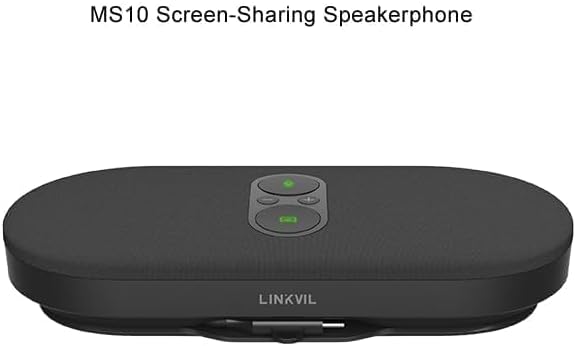
Figure 4.4: The RC10 receiver hub, facilitating wireless 4K UHD screen sharing and BYOD device connectivity.
- USB Ports: For connecting the CM70 camera and MS10 speakerphone.
- HDMI Output: For connecting to a display.
- Power Port: For connecting the power adapter.
- Status Indicator: LED light indicating connection status.
5. Setup
Follow these steps to set up your Fanvil CA400 system:
- Connect the RC10 Receiver Hub:
- Connect the power adapter to the RC10 Receiver Hub and plug it into a power outlet.
- Connect the RC10 Receiver Hub to your display (monitor, TV, or projector) using an HDMI cable (not included).
- Connect the CM70 Camera:
- Mount the CM70 camera on top of your display or a stable surface.
- Connect the CM70 camera to one of the USB ports on the RC10 Receiver Hub using the provided USB cable.
- Connect the MS10 Speakerphone:
- Place the MS10 speakerphone on a flat surface in the center of your meeting area.
- Connect the MS10 speakerphone to another USB port on the RC10 Receiver Hub using the provided USB cable.
- Power On:
- Ensure all connections are secure. The system will power on automatically.
- The status indicators on the devices will light up, indicating they are ready for use.
6. Operating Instructions
6.1 Basic Operation
- Power On/Off: The system powers on automatically when connected to power. Disconnect power to turn off.
- Volume Control: Use the volume buttons on the MS10 speakerphone to adjust audio output.
- Mute Microphone: Press the mute button on the MS10 speakerphone to mute/unmute the microphones.
6.2 Wireless Screen Sharing (4K UHD)
The Fanvil CA400 supports wireless 4K UHD screen sharing via the RC10 Receiver Hub.
- Ensure your device (laptop, tablet) is connected to the same network as the Fanvil CA400 system.
- On your device, select the screen sharing option (e.g., Miracast, AirPlay, or a dedicated application if provided by Fanvil).
- Select the Fanvil CA400 system from the list of available devices.
- Your screen will now be mirrored on the connected display.
6.3 Video Conferencing (BYOD)
The Fanvil CA400 acts as a BYOD (Bring Your Own Device) solution, allowing you to use your preferred video conferencing software.
- Connect your laptop or computer to the RC10 Receiver Hub via a USB cable (if not already connected for screen sharing). The system will be recognized as a USB camera and speakerphone.
- Open your desired video conferencing application (e.g., Zoom, Microsoft Teams, Google Meet).
- In the application's audio and video settings, select the "Fanvil CA400 Camera" or "UVC Camera" as your video input.
- Select the "Fanvil CA400 Speakerphone" or "USB Audio Device" as your microphone and speaker.
- Start or join your video conference.
7. Maintenance
To ensure the longevity and optimal performance of your Fanvil CA400 system, follow these maintenance guidelines:
- Cleaning: Use a soft, dry cloth to clean the surfaces of the devices. Do not use liquid cleaners or aerosols.
- Storage: When not in use for extended periods, store the device in a cool, dry place away from direct sunlight.
- Cable Management: Ensure cables are not kinked or pinched to prevent damage.
8. Troubleshooting
If you encounter issues with your Fanvil CA400, refer to the following common problems and solutions:
| Problem | Possible Cause | Solution |
|---|---|---|
| No video output on display. | Loose HDMI cable, incorrect input source on display, camera not connected. | Check HDMI connection. Select correct HDMI input on your display. Ensure CM70 camera is securely connected to RC10. |
| No audio from speakerphone. | Volume too low, speakerphone muted, incorrect audio output selected in software. | Increase volume on MS10. Unmute speakerphone. In your conferencing software, select "Fanvil CA400 Speakerphone" as audio output. |
| Microphone not picking up sound. | Microphone muted, incorrect audio input selected in software. | Unmute microphone on MS10. In your conferencing software, select "Fanvil CA400 Speakerphone" as audio input. |
| Wireless screen sharing not working. | Device not on same network, network interference, software issue. | Ensure both devices are on the same Wi-Fi network. Restart RC10 and your sharing device. Check for software updates. |
9. Specifications
Technical specifications for the Fanvil CA400 All-in-One Video Conference Solution:
- Brand: Fanvil
- Model: CA400
- Camera Sensor: 1/2.8-inch 4K Sony sensor (IMX 415)
- Video Capture Resolution: 4K, 1080p, 720p
- Maximum Focal Length: 118.5 Millimeters
- Maximum Aperture: 2.5 f
- Flash Memory Type: Internal flash memory
- Video Capture Format: MJPEG
- Supported Audio Format: MP3
- Screen Size (Speakerphone): 1 Inches (referring to a small display or indicator, not main screen)
- Connectivity Technology: USB
- Microphones: 8 array mics (on MS10 Speakerphone)
- Speaker: 3W vocal enhanced speaker (on MS10 Speakerphone)
- Screen Sharing: Wireless 4K UHD
- Device Type: BYOD (Bring Your Own Device)
10. Warranty and Support
For warranty information and technical support, please refer to the warranty card included with your product or visit the official Fanvil website. Keep your proof of purchase for warranty claims.
Online Resources: For the latest drivers, firmware updates, and additional support resources, please visit www.fanvil.com.
Ask a question about this manual
Ask about setup, troubleshooting, compatibility, parts, safety, or missing instructions. Manuals+ will review the question and use this page’s manual context to help answer it.