
Philips TV 40PFS6009/12
Philips 40PFS6009 Smart LED FHD TV User Manual
Model: 40PFS6009/12
1. Introduction
This manual provides essential information for setting up, operating, and maintaining your Philips 40PFS6009 Smart LED FHD TV. This television offers a superior viewing experience with Pixel Plus HD technology, vibrant colors, and sharp images. It features the intuitive TITAN OS smart platform for easy access to streaming services and supports Dolby Audio for enhanced sound quality. Designed with sustainability in mind, it includes a remote made from recycled plastic and eco-friendly packaging. Voice control compatibility with Amazon Alexa and Google Assistant adds convenience to your entertainment.

Figure 1.1: Front view of the Philips 40PFS6009 Smart LED FHD TV.
2. Setup
2.1 Unpacking
Carefully remove the TV and all components from the packaging. Retain the packaging for future transport or storage. The packaging is made from FSC-certified recycled cardboard, and inserts are printed on recycled paper.

Figure 2.1: The Philips 40PFS6009 TV comes in eco-friendly packaging.
2.2 Attaching the Stand
Place the TV screen-down on a soft, flat surface to prevent scratches. Attach the included table stand to the designated slots on the bottom of the TV using the provided screws. Ensure the stand is securely fastened.
2.3 Connecting Devices
Connect your external devices such as set-top boxes, gaming consoles, or Blu-ray players to the TV's ports. The TV features multiple HDMI and USB ports, as well as Ethernet for wired network connection.

Figure 2.2: Overview of TV dimensions, remote control, and available connection ports (USB, HDMI, Antenna, Satellite, Digital Audio Out, Ethernet).
2.4 Power Connection and Initial Setup
Plug the power cord into the TV and then into a wall outlet. Insert the 2x AAA alkaline batteries into the remote control. Press the power button on the remote to turn on the TV. Follow the on-screen instructions for initial setup, including language selection, network connection (Wi-Fi or Ethernet), and channel scanning.
3. Operating the TV
3.1 Basic Controls
Use the remote control to navigate the TV. The remote allows you to power on/off, adjust volume, change channels, and access the smart TV features. The remote control is made from recycled plastic.
3.2 Smart TV Features (TITAN OS)
The Philips 40PFS6009 runs on the TITAN OS platform, providing a user-friendly interface for accessing various applications and streaming services. From the home screen, you can easily launch popular apps like Netflix, Amazon Prime Video, YouTube, and more. The platform allows you to continue watching series directly from the home screen and browse categories from top streaming services in one place.
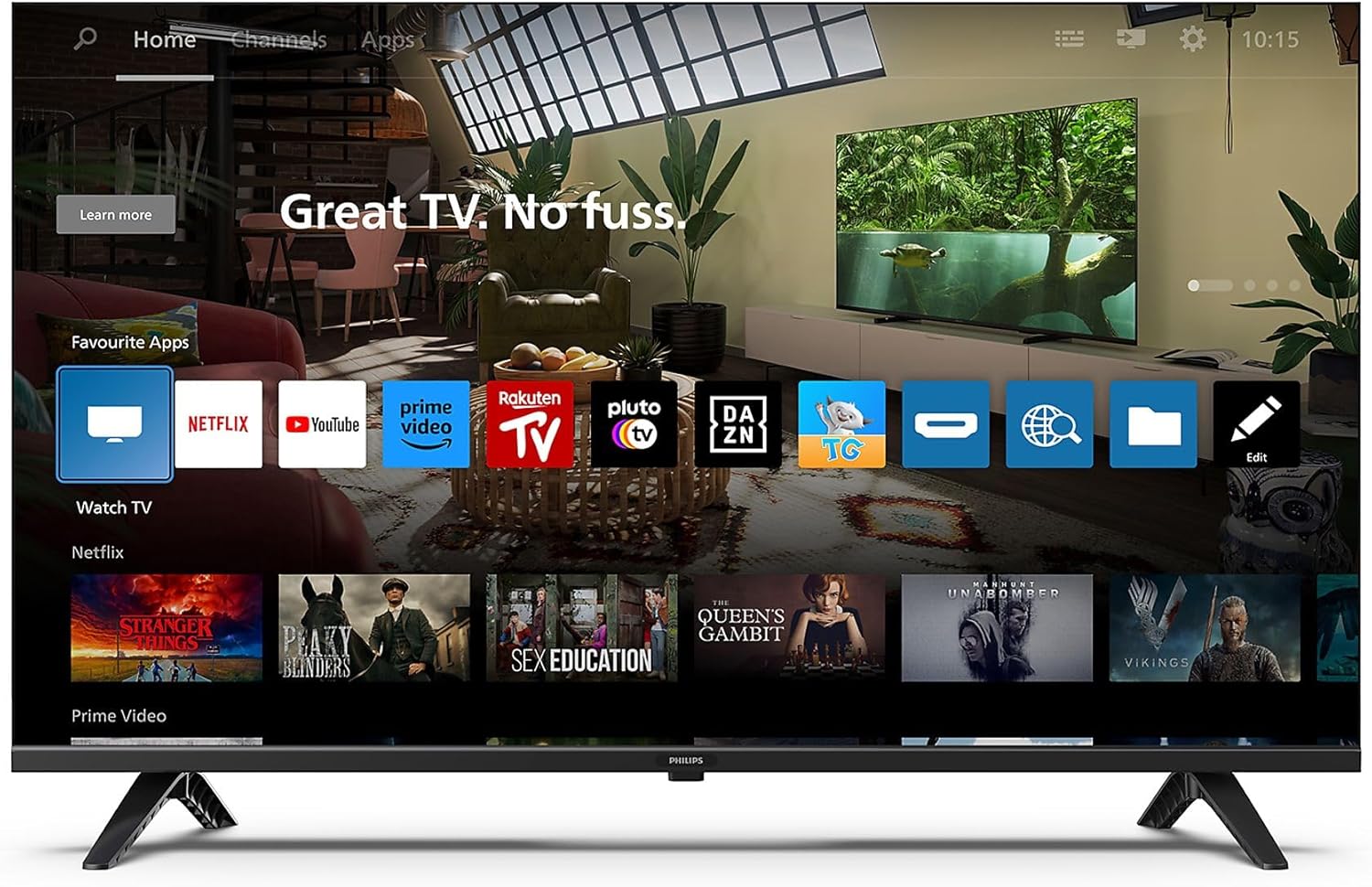
Figure 3.1: The TITAN OS Smart TV home screen, displaying various streaming applications and content recommendations.
3.3 Voice Control (AI Voice Control)
This TV supports AI voice control, allowing hands-free operation. You can use Google Assistant (via a connected Google speaker) or Amazon Alexa (with a compatible device) to search for shows, movies, and control TV functions.
3.4 Picture and Sound Settings
Access the TV settings menu to customize picture and sound. The Pixel Plus HD engine optimizes image quality for sharpness, rich colors, and fluid motion. Dolby Audio support ensures clearer and richer sound for an immersive experience.
4. Maintenance
4.1 Cleaning the TV
To clean the screen, gently wipe it with a soft, lint-free cloth. For stubborn marks, dampen the cloth with a small amount of water or a screen cleaner specifically designed for TVs. Do not use alcohol, solvents, or ammonia-based cleaners. For the TV frame and stand, use a soft, damp cloth.
4.2 Software Updates
Ensure your TV's software is up to date for optimal performance and new features. The TV can typically update automatically when connected to the internet. Check the settings menu for manual update options.
5. Troubleshooting
If you encounter issues with your Philips TV, refer to the common problems and solutions below:
- No Power: Ensure the power cord is securely plugged into both the TV and the wall outlet. Check if the power outlet is working.
- No Picture/Sound: Verify that the correct input source is selected. Check all cable connections (HDMI, antenna, etc.) are secure. Try restarting the TV by unplugging it for a few minutes and plugging it back in.
- No Internet Connection: For Wi-Fi, ensure the network password is correct and the router is working. For Ethernet, check the cable connection to the router. Try restarting your router.
- Remote Control Not Working: Check the batteries in the remote control and replace them if necessary. Ensure there are no obstructions between the remote and the TV's IR sensor.
- Voice Control Issues: Ensure your voice assistant device (e.g., Google Home, Amazon Echo) is properly set up and linked to your TV. Check internet connection.
If the problem persists, consult the Philips support website or contact customer service for further assistance.
6. Specifications
| Feature | Specification |
|---|---|
| Brand | Philips TV |
| Model Number | 40PFS6009/12 |
| Color | Matte Black Frame |
| Display Technology | LED |
| Resolution | 1080p (FHD) |
| Refresh Rate | 60 Hz |
| Operating System | TITAN OS |
| Connectivity Technology | Wi-Fi, USB, Ethernet, HDMI, Bluetooth |
| Total USB Ports | 1 |
| Aspect Ratio | 16:9 |
| Product Dimensions (DxWxH) | 22.6D x 89.2W x 56.4H centimeters |
| Supported Internet Services | Netflix, Amazon Prime Video, YouTube, etc. |
| Special Features | Ambient light sensor, Smart voice recognition, Eco mode, Integrated speaker, Automatic shut-off timer |
| Included Components | Television, Power cord, Remote control with 2x AAA alkaline batteries, Table stand, Quick start guide, legal and safety brochure |
| Batteries | 2 AAA (included) |
| Manufacturer | Philips |
7. Warranty and Support
Your Philips 40PFS6009 TV comes with a standard manufacturer's warranty. Please refer to the legal and safety brochure included in the packaging for detailed warranty terms and conditions. For technical support, product registration, or to find service centers, please visit the official Philips TV support website or contact their customer service line. Keep your purchase receipt as proof of purchase for warranty claims.
Ask a question about this manual
Ask about setup, troubleshooting, compatibility, parts, safety, or missing instructions. Manuals+ will review the question and use this page’s manual context to help answer it.