
1. Introduction and Overview
The Cedar C3 4G/5G Network Bonding Router is designed to provide robust and reliable network connectivity by aggregating multiple network connections into a single data pipeline. This device is particularly suited for applications requiring stable and high-bandwidth communication, such as outdoor broadcasting, emergency response, and port communications. It integrates advanced features including multiple 4G/5G modem modules, Wi-Fi 6, and Gigabit Ethernet ports to ensure comprehensive network coverage and performance.

Figure 1.1: Front view of the Cedar Router C3 with antennas extended.
2. Product Features
- Supports wired, Wi-Fi, and 4G/5G cellular network aggregation and network backup functionality.
- Compatible with 5G NR-NA/SA high-speed networks and 4G high-speed networks for comprehensive network coverage.
- Supports wireless Wi-Fi 6 (802.11ax) with speeds of up to 1800Mbps.
- Equipped with four Gigabit Ethernet RJ45 ports.
- Offers various VPN functionalities.
- Supports wired and wireless backup options.
- Enables efficient remote management via the web for centralized network management.
- Facilitates efficient large-scale device network deployments.
- Enhanced with hardware watchdog for ensuring stable system upgrades and operation.
3. Package Contents
Please verify that all items listed below are included in your package. If any items are missing or damaged, please contact customer support.
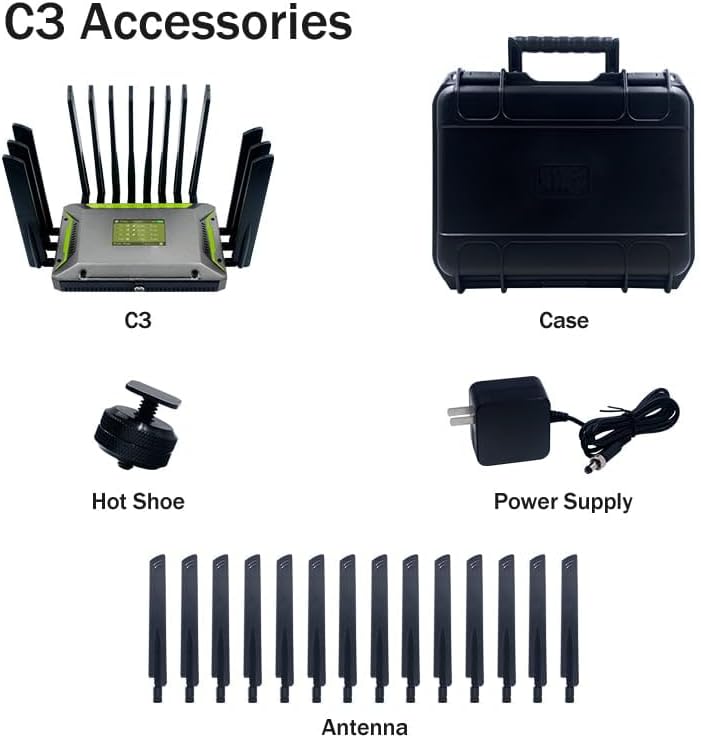
Figure 3.1: Cedar Router C3 and its accessories.
- Cedar Router C3 Unit
- Power Supply Adapter (12VDC)
- Antennas (Quantity: Multiple, for 4G/5G and Wi-Fi)
- Carrying Case
- Hot Shoe Mount (for specific applications)
4. Setup Guide
4.1 Unpacking and Initial Inspection
Carefully remove the Cedar Router C3 and all accessories from the packaging. Inspect for any visible damage. Keep the original packaging for future transport or storage.
4.2 Antenna Installation
Attach all provided antennas to their respective connectors on the router. Ensure they are securely tightened but do not overtighten. The router typically has multiple antenna ports for cellular and Wi-Fi connectivity.

Figure 4.1: Rear view of the Cedar Router C3, highlighting antenna connections and ports.
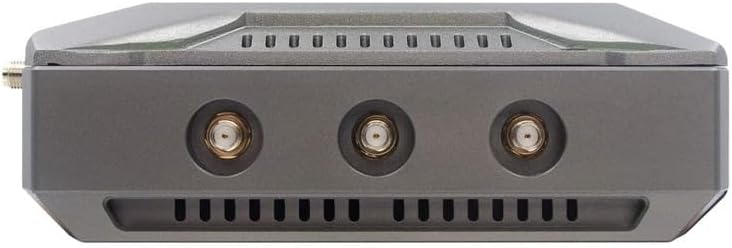
Figure 4.2: Side view showing additional antenna connectors.
4.3 SIM Card Insertion
The Cedar C3 supports multiple 4G/5G modem modules. Locate the SIM card slots, typically on the rear or side of the device. Insert your activated Nano-SIM cards into the designated slots, ensuring correct orientation. Refer to the markings near the slots for proper insertion.

Figure 4.3: Detailed view of the rear panel, including SIM card slots.
4.4 Powering On
Connect the provided 12VDC power adapter to the router's power input port. If using the internal battery, ensure it is charged. Press the power button located on the front of the device to turn it on. The LCD screen will illuminate, and indicator lights will show the boot-up progress.

Figure 4.4: Front view showing the power button.
4.5 Initial Network Connection
Once powered on, the router will attempt to establish cellular connections via the inserted SIM cards. You can connect to the router via Wi-Fi using the default SSID and password printed on a label on the device, or via an Ethernet cable connected to one of the LAN ports.

Figure 4.5: Top view showing the LCD display and status indicators.
To access the web management interface, open a web browser and enter the default IP address (usually 192.168.1.1 or similar, refer to the device label or quick start guide). Log in with the default username and password to configure network settings, VPNs, and other advanced features.
5. Operating Instructions
5.1 Understanding the LCD Display
The 3.5" LCD display provides real-time information about the router's status, including battery level, network speed (upload/download), Wi-Fi status, and IP address. Monitor this display for quick status checks.
5.2 Network Bonding and Aggregation
The Cedar C3's primary function is network bonding, which combines the bandwidth of multiple cellular connections (and potentially wired WAN) into a single, more robust data stream. This feature is managed through the web interface, where you can prioritize connections and monitor their performance.
5.3 Wi-Fi Connectivity
The router broadcasts dual-band Wi-Fi 6 (2.4GHz and 5GHz). Connect your wireless devices using the configured Wi-Fi SSID and password. For optimal performance, ensure devices are within range and on the appropriate frequency band.
5.4 Ethernet Connectivity
Utilize the four Gigabit Ethernet RJ45 ports to connect wired devices such as computers, cameras, or other network equipment. The WAN port can be used for an external wired internet connection, which can also be bonded or used as a backup.
5.5 VPN Functionality
The router supports various VPN protocols. Configure VPN settings via the web management interface to establish secure connections for remote access or secure data transmission.
5.6 Remote Management
The Cedar C3 can be managed remotely via its web interface. Ensure proper security measures are in place when enabling remote access, such as strong passwords and firewall rules.
6. Maintenance
6.1 Firmware Updates
Regularly check for and install firmware updates to ensure optimal performance, security, and access to new features. Firmware updates are typically available through the manufacturer's website or directly via the router's web interface.
6.2 Cleaning
Keep the router clean by wiping it with a soft, dry cloth. Avoid using liquid cleaners or abrasive materials. Ensure ventilation slots are free from dust and obstructions to prevent overheating.
6.3 Battery Care (if applicable)
If your Cedar C3 model includes an internal battery, avoid fully discharging it frequently. For long-term storage, charge the battery to approximately 50-60% and store in a cool, dry place.
6.4 Hardware Watchdog
The integrated hardware watchdog enhances system stability by automatically restarting the device in case of critical errors, ensuring continuous operation and reliable system upgrades.
7. Troubleshooting
7.1 No Internet Connection
- Check SIM card insertion and activation status.
- Verify antenna connections.
- Check cellular signal strength on the LCD display.
- Ensure your cellular plan is active and has data allowance.
- Restart the router.
- Check WAN cable connection if using wired internet.
7.2 Wi-Fi Connectivity Issues
- Ensure Wi-Fi is enabled on the router and your device.
- Verify the Wi-Fi password.
- Move closer to the router to improve signal strength.
- Try connecting to the other Wi-Fi band (2.4GHz or 5GHz).
- Restart the router and your Wi-Fi device.
7.3 Slow Network Speed
- Check the signal strength of all active cellular modules.
- Ensure network bonding is configured correctly.
- Reduce the number of connected devices or active applications.
- Perform a speed test to verify actual throughput.
- Contact your cellular provider if speeds are consistently low.
7.4 Router Unresponsive
- Unplug the power adapter, wait 10 seconds, and plug it back in.
- If the hardware watchdog is enabled, it may automatically restart the device.
- If issues persist, consider performing a factory reset (refer to the web interface for instructions, as this will erase all configurations).
8. Specifications
| Feature | Description |
|---|---|
| Model Name | Cedar Router C3 |
| Model Number | Cedar Router C3 1x5G |
| Brand | Generic |
| Manufacturer | Cedar Router |
| Connectivity Technology | LTE, 4G, 5G, Wi-Fi, Ethernet |
| Wireless Standard | 802.11ax (Wi-Fi 6) |
| Data Transfer Rate | Up to 1800 Mbps (Wi-Fi) |
| Ethernet Ports | 4 x Gigabit Ethernet RJ45 |
| Cellular Modules | Supports three channels of 4G/5G modem modules |
| Display | 3.5" LCD |
| Operating System | RouterOS |
| Power Source | 12VDC Adapter, Internal Battery (6-8 hours) |
| Special Features | Network Aggregation, Network Backup, VPN, Access Point Mode, Hardware Watchdog |
9. Warranty and Support
This product comes with a standard manufacturer's warranty. For specific warranty terms and conditions, please refer to the warranty card included with your product or visit the manufacturer's official website.
For technical support, troubleshooting assistance, or warranty claims, please contact the manufacturer directly:
- Manufacturer: Cedar Router (MiNE Media)
- Contact Information: +86 755 83271813
- Email: info@minemedia.tv
- Address: Floor 6th, Building C, Minle Industrial Park, Meiban Ave, Minzhi Street, Longhua District, Shenzhen City, Guangdong Province, China.
Please have your product model number (Cedar Router C3 1x5G) and purchase information ready when contacting support.