
Introduction
This manual provides instructions for the MILA FINDER 6 Foot 3-in-1 Light Up Charging Cable. It covers setup, operation, maintenance, and troubleshooting to ensure optimal performance and longevity of your device.
Product Features
Key Features
- 3-in-1 Connectivity: Equipped with USB-C, Lightning, and Micro USB connectors for broad device compatibility.
- LED Light-Up Design: Features glowing gradual lights that illuminate the cable during charging.
- Fast Charging: Supports up to 6A maximum current load for efficient power delivery.
- Data Transfer: Capable of data transfer speeds up to 480Mbps.
- Extended Length: Measures 6 feet 3 inches (approximately 1.9 meters) for flexible use.
- Durable Construction: Designed to withstand over 30,000 bending tests.

This image displays the MILA FINDER 6 Foot 3-in-1 Light Up Charging Cable in its coiled state, highlighting the USB-A input and the three output connectors: Lightning, USB-C, and Micro USB. The cable's green color and light-up feature are visible.
Setup
Initial Setup
- Unpack: Carefully remove the charging cable from its packaging.
- Inspect: Check the cable and connectors for any visible damage. Do not use if damaged.
- Connect to Power Source: Insert the USB-A end of the cable into a compatible USB power adapter (not included) or a computer's USB port.
- Connect to Device: Select the appropriate connector (Lightning, USB-C, or Micro USB) for your device and plug it into the device's charging port.
The LED lights on the cable will activate upon successful connection to a power source and a device, indicating charging or data transfer activity.

This image provides a detailed view of the USB-A input and the three distinct output connectors (Lightning, USB-C, and Micro USB) of the MILA FINDER charging cable. The green LED lights within the cable are visible, indicating its light-up feature.
Operating Instructions
Charging Your Devices
This cable supports charging for a wide range of devices including smartphones, tablets, and smartwatches.
- Ensure the cable is securely connected to a power source.
- Connect your device using the correct connector type.
- The LED lights will flow to indicate charging is in progress.
- Disconnect the cable from your device once charging is complete.
Data Transfer
To transfer data between your device and a computer:
- Connect the USB-A end of the cable to a computer's USB port.
- Connect your device to the appropriate connector on the cable.
- Follow your device's instructions for initiating data transfer.

This image shows the MILA FINDER 3-in-1 charging cable in use, simultaneously connected to a laptop and a smartphone. The cable's green light-up feature is active, illustrating its multi-device charging capability.
Maintenance
Care and Storage
- Cleaning: Use a soft, dry cloth to clean the cable. Avoid liquid cleaners.
- Storage: Store the cable in a cool, dry place away from direct sunlight and extreme temperatures.
- Handling: Avoid sharp bends, twists, or excessive pulling on the cable, especially near the connectors, to prevent internal damage.
- Disconnection: Always grasp the connector head, not the cable itself, when plugging or unplugging.
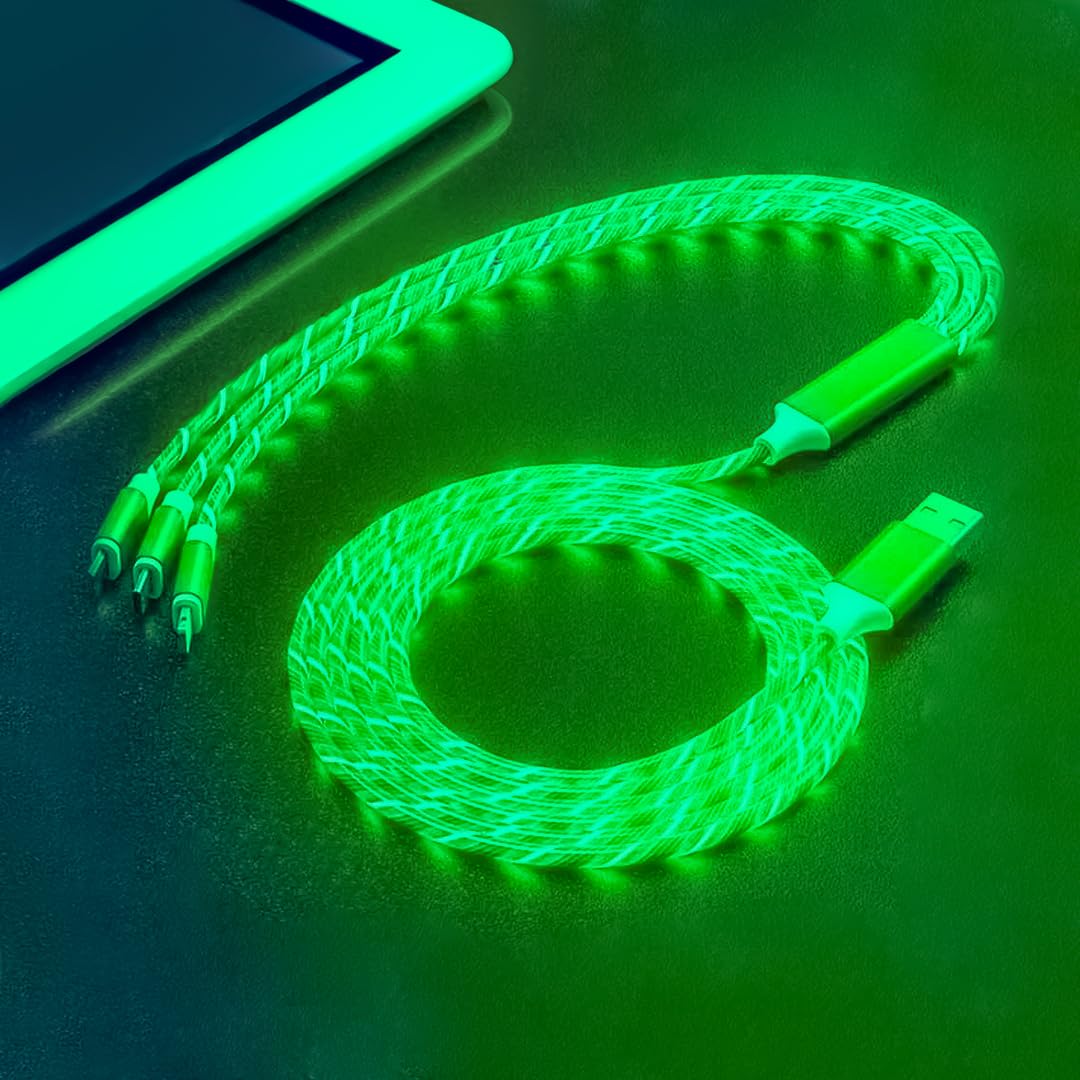
This image depicts the MILA FINDER 3-in-1 charging cable neatly coiled on a flat surface, positioned beside a tablet. The cable's green light-up effect is visible, suggesting proper storage and care.
Troubleshooting
Common Issues and Solutions
| Problem | Possible Cause | Solution |
|---|---|---|
| Cable not lighting up. | Not connected to power or device, or device not drawing power. | Ensure both ends are securely connected. Try a different power source or device. |
| Device not charging. | Loose connection, incompatible power adapter, or device issue. | Check connections. Use a compatible USB power adapter. Test with another cable to rule out device issues. |
| Slow charging. | Low-power USB port, high device usage during charging, or power adapter limitations. | Use a high-power USB wall adapter. Avoid using the device heavily while charging. |
| Data transfer failure. | Loose connection, incorrect device settings, or computer port issue. | Ensure secure connections. Check device settings for data transfer mode. Try a different USB port on the computer. |

This image shows the MILA FINDER 3-in-1 charging cable illuminated with green light, coiled within a car's center console area, near the gear shifter. This illustrates a common environment where troubleshooting might be needed.
Specifications
Product Specifications
- Model: 6F3_LIGHTUP_GREEN
- Brand: MILA FINDER
- Cable Length: 6 feet 3 inches (approx. 1.9 meters)
- Connector Types (Input): USB-A
- Connector Types (Output): Lightning, USB-C, Micro USB
- Max Current Load: 6A
- Data Transfer Speed: Up to 480Mbps
- Special Feature: LED Light-Up Function
- Compatible Devices: Smart Watch, Smartphone, Tablet
Warranty and Support
Warranty Information
For warranty details and customer support, please refer to the MILA FINDER official website or contact your retailer. Keep your purchase receipt for warranty claims.
Customer Support
If you encounter any issues not covered in this manual, please contact MILA FINDER customer support for assistance.