
1. Introduction
This user manual provides essential information for setting up, operating, and maintaining your Philips 48OLED819 48-inch OLED UltraHD 4K HDR10+ Adaptive TV. This television combines cutting-edge OLED display technology with Philips' unique Ambilight feature, powered by the P5 AI Perfect Picture Engine, to deliver an immersive viewing experience. It also integrates Google TV for seamless access to your favorite content and advanced gaming features.

2. Safety Information
Before operating your television, please read all safety instructions carefully. Keep this manual for future reference.
- Power Supply: Ensure the TV is connected to a power outlet with the correct voltage. Do not overload power outlets.
- Ventilation: Do not block ventilation openings. Allow adequate space around the TV for proper airflow.
- Water and Moisture: Do not expose the TV to rain or moisture. Do not place objects filled with liquids on the TV.
- Cleaning: Unplug the TV before cleaning. Use a soft, dry cloth. Do not use liquid cleaners or aerosol cleaners.
- Servicing: Do not attempt to service the TV yourself. Refer all servicing to qualified service personnel.
- Mounting: When wall-mounting, ensure the mount is suitable for the TV's weight and the wall structure.
3. What's in the Box
Carefully unpack the box and ensure all items are present:
- Philips 48OLED819 TV
- Remote Control with 1 x rechargeable Lithium-ion battery
- 1 x USB-C cable for remote control charging
- Tabletop Stand
- Power Cord
- Quick Start Guide
- Legal and Safety Information Booklet


4. Setup
4.1 Physical Setup
Before connecting cables, decide whether to use the included tabletop stand or a wall mount (sold separately). Follow the instructions provided with the stand or wall mount for secure installation.
4.2 Connections
Connect your devices to the TV's various ports. Ensure the TV is unplugged before making any connections.
- HDMI: For high-definition video and audio from devices like Blu-ray players, game consoles, and set-top boxes. This model features HDMI 2.1 ports supporting 4K 120Hz.
- USB: For connecting USB storage devices to play media files or for software updates.
- Network (Ethernet/Wi-Fi): For internet access and Smart TV features.
- TV Antenna/Satellite: For receiving broadcast signals.
- Digital Audio Out: For connecting to external audio systems.
- Common Interface (CI+): For conditional access modules (CAMs) to view encrypted channels.


4.3 Initial Power On & First-Time Setup
After connecting all necessary cables, plug in the power cord. The TV will guide you through the initial setup process, including language selection, network connection, and Google account sign-in for Smart TV features.
5. Operating Instructions
5.1 Remote Control Overview
The included remote control allows you to navigate the TV's functions. It features dedicated buttons for popular streaming services and a built-in microphone for voice control.

5.2 Basic Functions
- Power: Press the power button to turn the TV on or off.
- Volume: Use the volume buttons to adjust the sound level.
- Channel: Use the channel buttons to switch between TV channels.
- Source: Select the input source (HDMI, USB, etc.).
5.3 Smart TV Features (Google TV)
Your Philips TV runs on Google TV, providing a personalized home screen with content recommendations from your apps and subscriptions. Access a vast library of apps via the Google Play Store.


5.4 Picture Settings
Optimize your viewing experience with advanced picture technologies.
- OLED Display: Experience true blacks, infinite contrast, and vibrant colors. OLED technology ensures consistent image quality even from wide viewing angles.
- P5 AI Perfect Picture Engine: Philips' P5 AI processor uses deep-learning algorithms to optimize picture quality in real-time, enhancing detail, color, contrast, and motion.
- 4K UltraHD HDR: Supports all major HDR formats, including HDR10+ and Dolby Vision, for brighter highlights, deeper shadows, and more vivid colors.
- Ambilight: The unique Ambilight feature projects colors from the screen onto the wall behind the TV, creating an immersive halo of light that makes the screen appear larger and enhances the viewing experience. Customize Ambilight modes to match your preference (e.g., follow video, audio, or a fixed color).
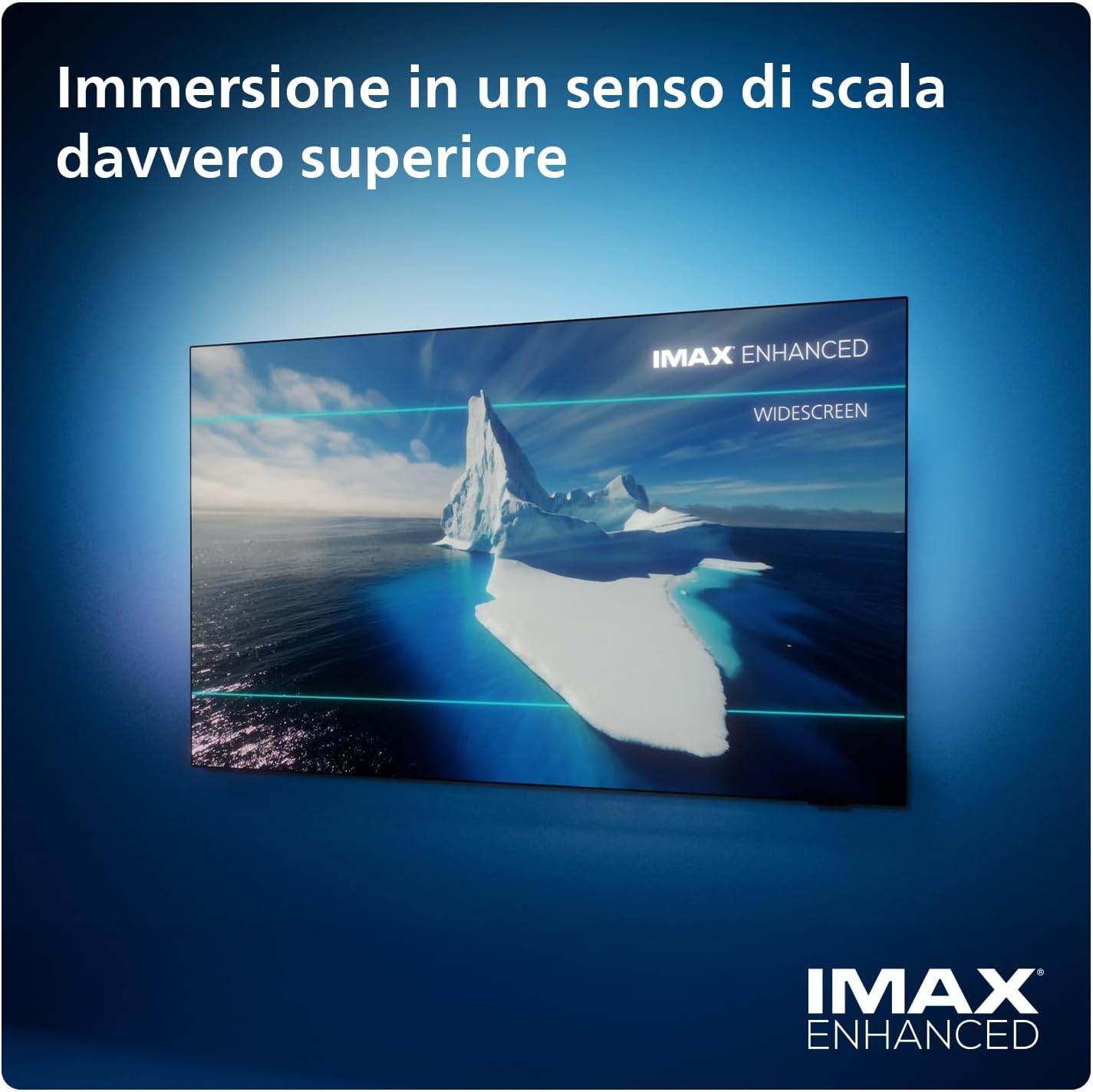
- IMAX Enhanced: Experience movies with the full impact intended by filmmakers, with optimized picture and sound for IMAX Enhanced content.


5.5 Audio Settings
- Dolby Atmos: Enjoy immersive, multi-dimensional sound that flows around you.
- DTS Play-Fi: Connect compatible soundbars and wireless speakers to create a multi-room audio system or a surround sound setup, using the TV as a central speaker.

5.6 Gaming Features
The Philips 48OLED819 is designed for an exceptional gaming experience.
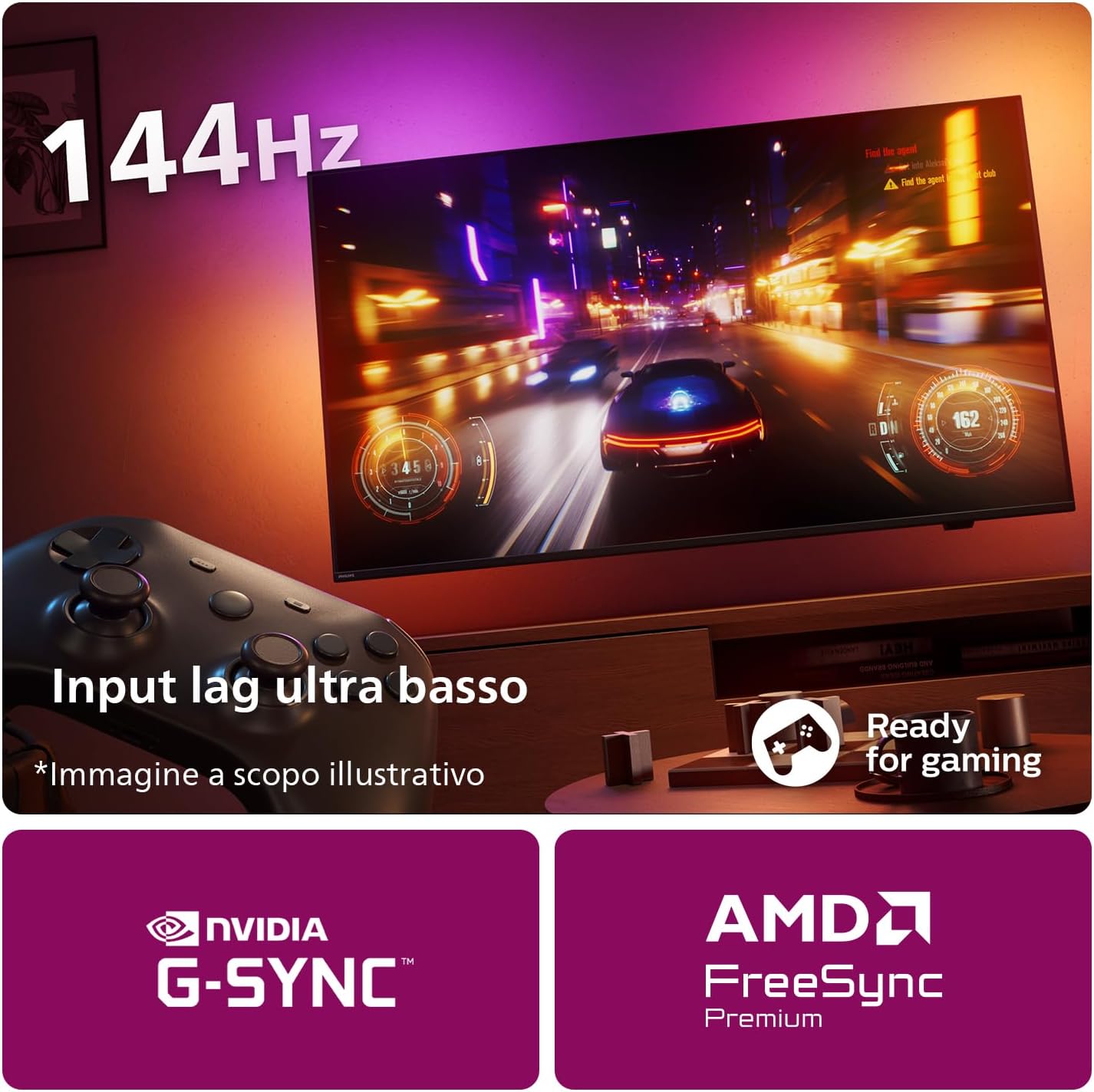
- 120Hz Refresh Rate: Enjoy ultra-smooth motion for fast-paced games.
- Ultra-Low Input Lag: Minimizes delay between your controller input and on-screen action.
- HDMI 2.1: Supports advanced gaming features like 4K 120Hz, Variable Refresh Rate (VRR), and Auto Low Latency Mode (ALLM).
- NVIDIA G-SYNC & AMD FreeSync Premium: Ensures tear-free and stutter-free gaming.
5.7 Voice Control
Control your TV using voice commands with Google Assistant or Alexa-enabled devices.
- Press the dedicated Google Assistant button on your remote to activate voice control.
- Use voice commands to search for content, control playback, adjust settings, and more.
6. Maintenance
6.1 Cleaning
To clean your TV, first unplug it from the power outlet. Use a soft, lint-free cloth to gently wipe the screen and cabinet. For stubborn marks, slightly dampen the cloth with water. Avoid using abrasive cleaners, alcohol, or solvents.
6.2 Software Updates
Your TV may receive software updates to improve performance and add new features. Ensure your TV is connected to the internet to receive automatic updates. You can also manually check for updates in the TV's settings menu.
7. Troubleshooting
If you encounter issues with your TV, refer to the following common problems and solutions:
| Problem | Possible Solution |
|---|---|
| No picture, no sound | Check if the power cord is securely plugged in. Ensure the correct input source is selected. |
| No sound, but picture is fine | Check volume level and mute setting. Ensure external audio devices are properly connected. |
| Poor picture quality | Check antenna/cable connection. Adjust picture settings (brightness, contrast, sharpness). Try a different source. |
| Remote control not working | Ensure the remote control battery is charged. Point the remote directly at the TV's IR sensor. |
| Cannot connect to Wi-Fi | Check your router and internet connection. Re-enter Wi-Fi password. Try restarting the TV and router. |
8. Specifications
Detailed technical specifications for the Philips 48OLED819 TV:
- Model Number: 48OLED819/12
- Screen Size: 48 inches (121 cm)
- Display Technology: OLED
- Resolution: 4K Ultra HD (3840 x 2160 pixels)
- Refresh Rate: 120 Hz (up to 144Hz for gaming via HDMI)
- Aspect Ratio: 16:9
- Special Features: Ambilight, Built-in Speaker, Gaming Mode, Smart Voice Recognition, Flat Panel
- Connectivity: Bluetooth, Wi-Fi, USB, Ethernet, HDMI (multiple HDMI 2.1 ports)
- Product Dimensions (W x H x D): 107 cm x 68.4 cm x 22 cm (with stand)
- Weight: 17.3 kg (with stand)
- Power Consumption (SDR): 66 kWh/1000h
- Power Consumption (HDR): 69 kWh/1000h
- Energy Efficiency Class: G (SDR), G (HDR)
- Batteries: 1 Lithium-ion battery required (included for remote)
- First Available Date: April 14, 2024


9. Warranty and Support
Philips provides a general warranty for this product. The minimum general warranty period offered by the supplier is 2 years. For specific details regarding warranty claims, returns, or technical support, please refer to the official Philips support channels or the documentation included with your product.
For returns within 30 days of receipt due to a change of mind, please consult the Amazon return policy. If you have received a defective or damaged product, please refer to the Amazon help page for defective or damaged products. For specific information on purchases made through the Marketplace, consult the Amazon help page for Marketplace purchases.