
Emoonland HL129
Emoonland Keyboard Case User Manual
For iPad Air 13 inch (M3 2025 / M2 2024) and iPad Pro 12.9 inch (6th/5th/4th/3rd Gen)
Introduction
This manual provides detailed instructions for the setup, operation, and maintenance of your Emoonland Keyboard Case. Please read this manual thoroughly to ensure proper use and to maximize the functionality of your device.
Compatibility
This keyboard case is designed for specific iPad models. Verify your iPad's model number (located on the back of your iPad) for compatibility.
- iPad Air 13-inch M3 2025 (Models: A3268, A3269, A3271)
- iPad Air 13 inch M2 2024 (Models: A2898, A2899, A2900)
- iPad Pro 12.9 inch 6th Gen 2022 (Models: A2436, A2764, A2437, A2766)
- iPad Pro 12.9 inch 5th Gen 2021 (Models: A2378, A2461, A2379, A2462)
- iPad Pro 12.9 inch 4th Gen 2020 (Models: A2229, A2069, A2232, A2233)
- iPad Pro 12.9 inch 3rd Gen 2018 (Models: A1876, A2014, A1895, A1983)
Note: This case is not compatible with iPad Pro 13-inch M4 2024, iPad Pro 12.9 (1st/2nd Gen), or other iPad sizes (11-inch, 10.9-inch, 10.2-inch).

Image: Compatibility chart for Emoonland Keyboard Case.
Package Contents
Please check the package for the following items:
- 1x Emoonland Keyboard Case for iPad Air 13 (M3 2025 / M2 2024) & iPad Pro 12.9 inch (6th, 5th, 4th, 3rd Gen)
- 1x Keyboard Transparent Cover
- 1x Type-C Cable
- 1x User Manual (this document)

Image: Included accessories with the keyboard case.
Setup Instructions
1. Attaching Your iPad
- Gently align your compatible iPad with the magnetic back cover of the keyboard case.
- The strong magnets will secure the iPad in place. Ensure the camera hole on the case aligns with your iPad's camera.

Image: Steps for attaching and detaching the iPad from the case.
2. Initial Charging
Before first use, fully charge the keyboard. Locate the Type-C charging port on the keyboard and connect it to a power source using the provided Type-C cable. The LCD display will show the charging status.

Image: Type-C charging port and LCD display.
3. Bluetooth Connection
- Ensure the keyboard is charged and powered on.
- On your iPad, go to Settings > Bluetooth.
- Turn on Bluetooth. Your iPad will search for available devices.
- Select the keyboard from the list of devices to pair. The LCD display on the keyboard will indicate a successful Bluetooth connection.
Operating Instructions
Floating Cantilever Stand
The keyboard case features a floating cantilever design. Once your iPad is magnetically attached, you can adjust the viewing angle up to 135 degrees for optimal comfort. The aluminum hinges provide stability and durability.

Image: Floating Cantilever Stand in use.
Multi-Touch Trackpad
The integrated multi-touch trackpad supports various gestures for navigation and control, similar to a laptop. Ensure your iPad's operating system is iOS 15.0 or above for full functionality.
- Slide up/down: Scroll content.
- Zoom in/out: Pinch with two fingers.
- Switch Apps: Swipe with three fingers.
- Click: Single tap or press.
To adjust trackpad sensitivity: Go to Settings > General > Trackpad. Enable "Two finger Secondary click" and adjust "Tracking speed" as desired.
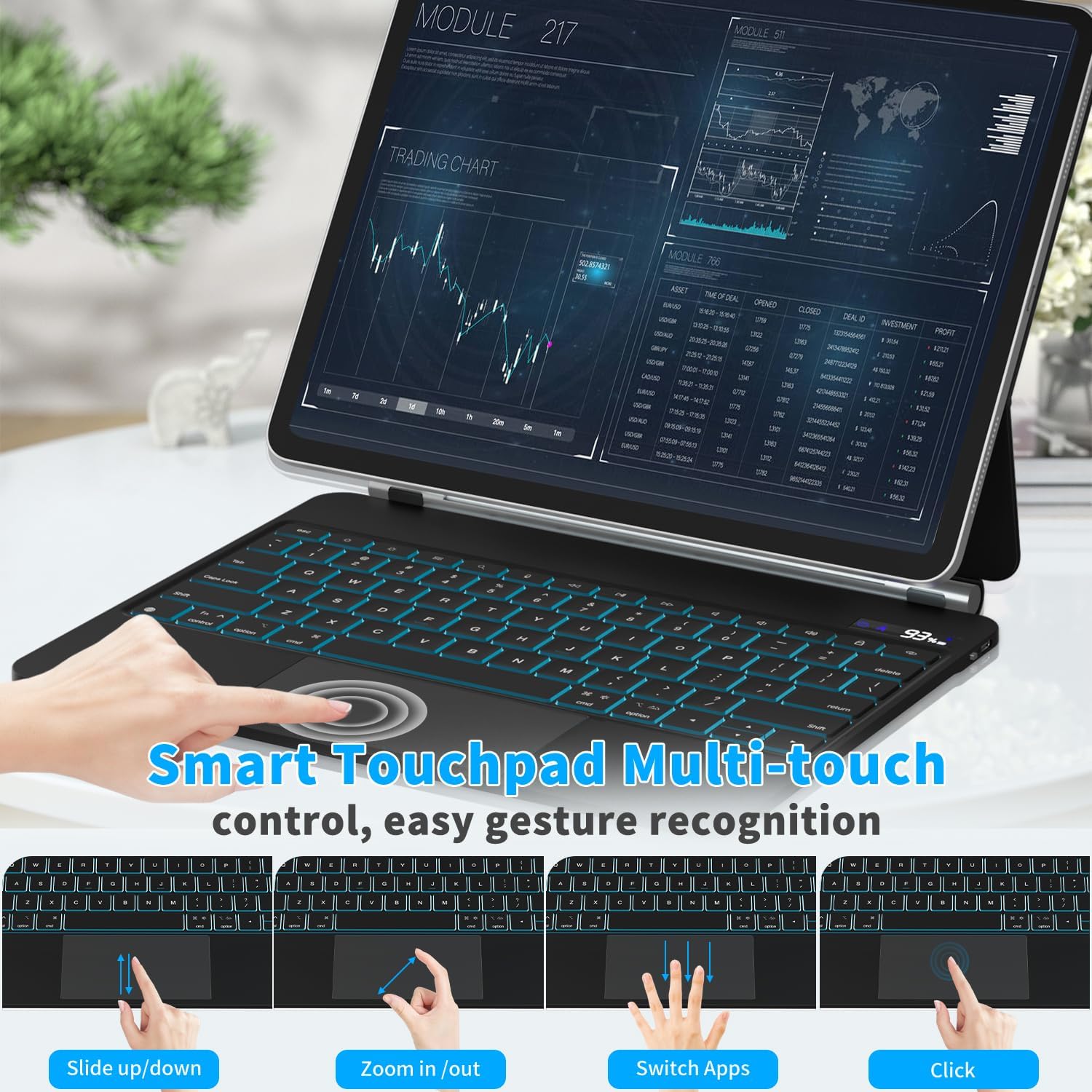
Image: Multi-touch trackpad gestures.
Backlit Keyboard
The keyboard features a backlight with 7 colors, 3 brightness levels, and a breathing mode for enhanced visibility in various lighting conditions.
- Change Backlight Color: Press Fn + Return.
- Adjust Brightness/Breathing Mode: Press Fn + Shift. This cycles through low, medium, high brightness, and breathing mode.

Image: Backlit keyboard features.
LCD Display
The small LCD screen on the keyboard provides real-time information:
- Battery Status: Displays the remaining battery percentage.
- CAPS Lock Indicator: Shows when CAPS Lock is active.
- Bluetooth Status: Indicates Bluetooth connection status.
Smart Auto Sleep/Wake
To conserve battery, the keyboard automatically enters sleep mode after 10 minutes of inactivity. It will auto-wake when you resume use. This feature maximizes battery life.
Maintenance
To ensure the longevity and optimal performance of your Emoonland Keyboard Case, follow these maintenance guidelines:
- Cleaning: Use a soft, dry, lint-free cloth to clean the keyboard and case. For stubborn marks, slightly dampen the cloth with water. Avoid harsh chemicals or abrasive materials.
- Storage: When not in use, keep the keyboard case closed to protect both the keyboard and your iPad. Store in a cool, dry place away from direct sunlight and extreme temperatures.
- Charging: Use only the provided Type-C cable or a certified equivalent for charging. Avoid overcharging or completely draining the battery frequently.
- Handling: Avoid dropping the case or subjecting it to strong impacts, which can damage internal components or the magnetic attachment system.
Troubleshooting
iPad Not Magnetically Attaching / Keyboard Not Working
Ensure your iPad model is compatible with the keyboard case. Incorrect model fit can lead to poor magnetic attachment and improper keyboard function. Refer to the compatibility section or the product description for supported iPad models. If your model is not listed, contact customer support.
Keyboard Not Charging Wirelessly with iPad
The Emoonland Keyboard Case does not support simultaneous wireless charging with your iPad. Charge each device separately for optimal performance.
Symbol Keys Issues (12.9-13 inch keyboard only)
If you experience issues with symbol keys, perform a keyboard reset:
- Locate the "esc", "brightness down", and "brightness up" keys (typically in the upper left corner of the keyboard).
- Press and hold these three keys simultaneously for 3 seconds. This action will reset the keyboard's settings and may resolve symbol functionality issues.
Touchpad Not Working or Low Sensitivity
System Requirement: Ensure your iPad's operating system is iOS 15.0 or above.
Sensitivity Settings: After successful pairing, go to Settings > General > Trackpad.
- Enable "Two finger Secondary click".
- Adjust "Tracking speed" to a suitable level.
- Go to Settings > Accessibility > Touch > Touch Accommodations and toggle it off/on.
- If the mouse icon is absent on your tablet, try zooming in and out with two fingers on the trackpad to restore it.
Specifications
| Model Number | HL129 |
| Product Dimensions | 11.18"L x 9.02"W x 0.59"H |
| Item Weight | 2.59 pounds |
| Connectivity Technology | Bluetooth |
| Battery Type | 1 C battery (included) |
| Battery Capacity | 500mAh |
| Charging Time | Less than 3 hours |
| Continuous Operation (Backlight On) | >5 hours (high), >7.5 hours (medium), >12 hours (low) |
| Continuous Operation (Backlight Off) | >150 hours |
| Standby Time | 180 days |
| Backlight Colors | 7 colors (RGB) |
| Backlight Brightness Levels | 3 levels + breathing mode |
| Keyboard Description | Multi-functional, Scissor switches, 18mm key travel |
| Manufacturer | Emoonland |
Warranty and Support
Emoonland is committed to providing quality products and customer satisfaction. For any inquiries or support, please refer to the following:
- Customer Service: Quick replies within 24 hours.
- Return Policy: 30-day unconditional return policy.
- Replacement: 12-month replacement available.
- Technical Support: Lifetime after-sales service and technical support.
For further assistance, please visit the Emoonland Store on Amazon.

Image: Emoonland Customer Support Information.
Ask a question about this manual
Ask about setup, troubleshooting, compatibility, parts, safety, or missing instructions. Manuals+ will review the question and use this page’s manual context to help answer it.