
WCKUN PDM-15T
WCKUN Portable Monitor Touchscreen 15.6 Inch 1080P FHD User Manual
Model: PDM-15T
1. Introduction
This manual provides essential instructions for the proper setup, operation, and maintenance of your WCKUN Portable Monitor Touchscreen 15.6 Inch 1080P FHD (Model PDM-15T). Please read this manual thoroughly before using the product to ensure optimal performance and longevity.
The WCKUN Portable Monitor is designed for versatility, offering a 15.6-inch Full HD IPS display with 10-point touch functionality. Its compact and lightweight design makes it suitable for various applications, including extended desktop use, gaming, and mobile productivity.
2. Package Contents
Verify that all items listed below are included in your package. If any items are missing or damaged, please contact customer support.
- WCKUN Portable Monitor (Model PDM-15T)
- Standard HDMI Cable (59 inch)
- USB-C to USB-C Cable (39 inch)
- USB-A to USB-C Cable (47 inch)
- Power Adapter
- Neoprene Protection Sleeve
- User Manual (this document)

Figure 2.1: Included Accessories
3. Product Overview
The WCKUN Portable Monitor features a sleek design with multiple connectivity options and integrated features for enhanced user experience.
3.1 Key Features
- Display: 15.6-inch Full HD (1920x1080) IPS screen with 16.7 million colors and 178° wide viewing angle.
- Touchscreen: Tempered glass 10-point multi-touch panel for intuitive interaction.
- Visual Enhancements: HDR and FreeSync support for improved image quality and smoother visuals.
- Design: Ultra-thin (0.23 inch) and lightweight (2.6 lbs) metal shell with an integrated adjustable stand (0-85° tilt).
- Audio: Built-in dual speakers for audio output.
- Compatibility: Driver-free support for iOS, Android, Windows, macOS, Linux, SteamOS.
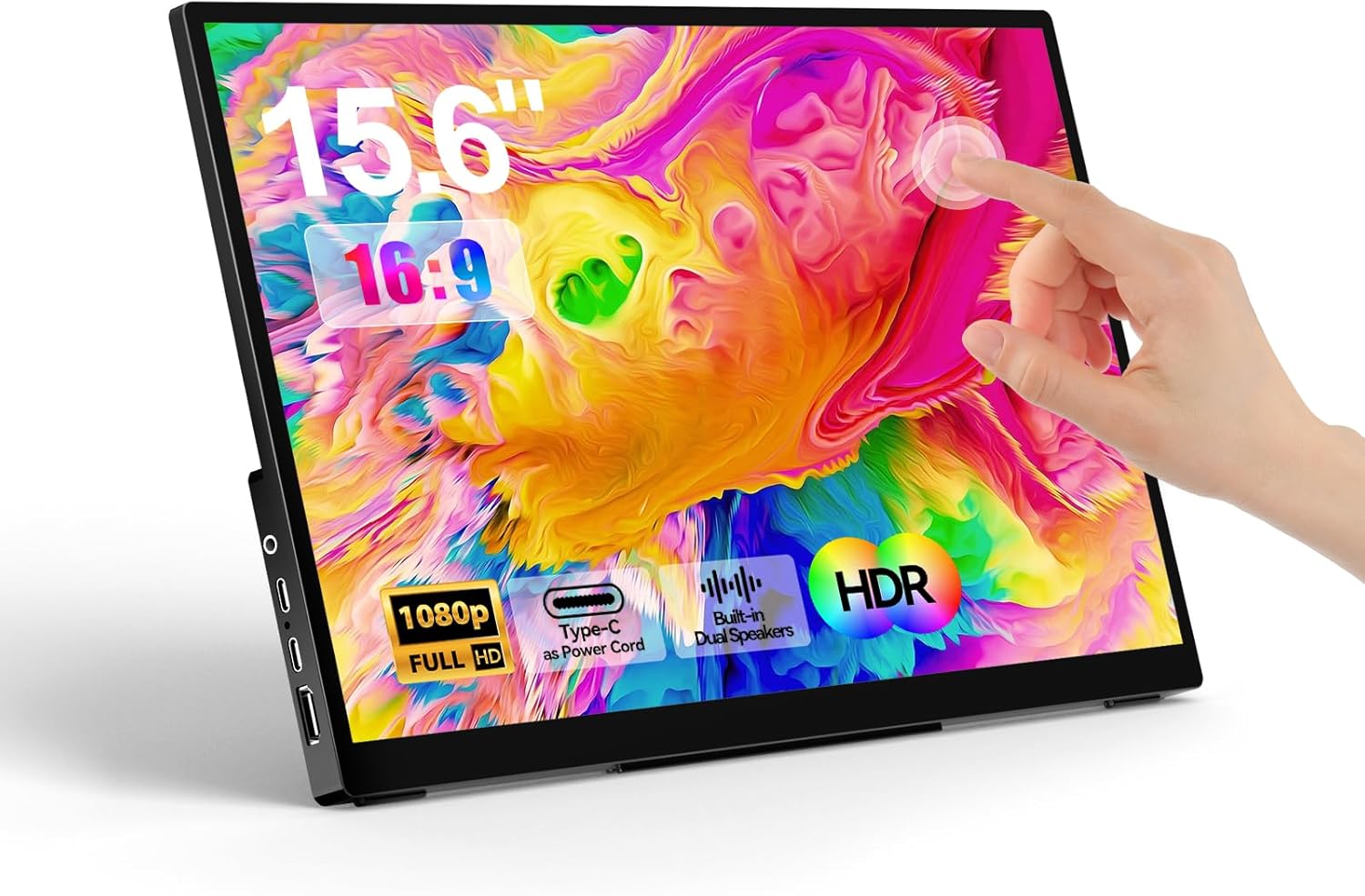
Figure 3.1: WCKUN Portable Monitor Front View
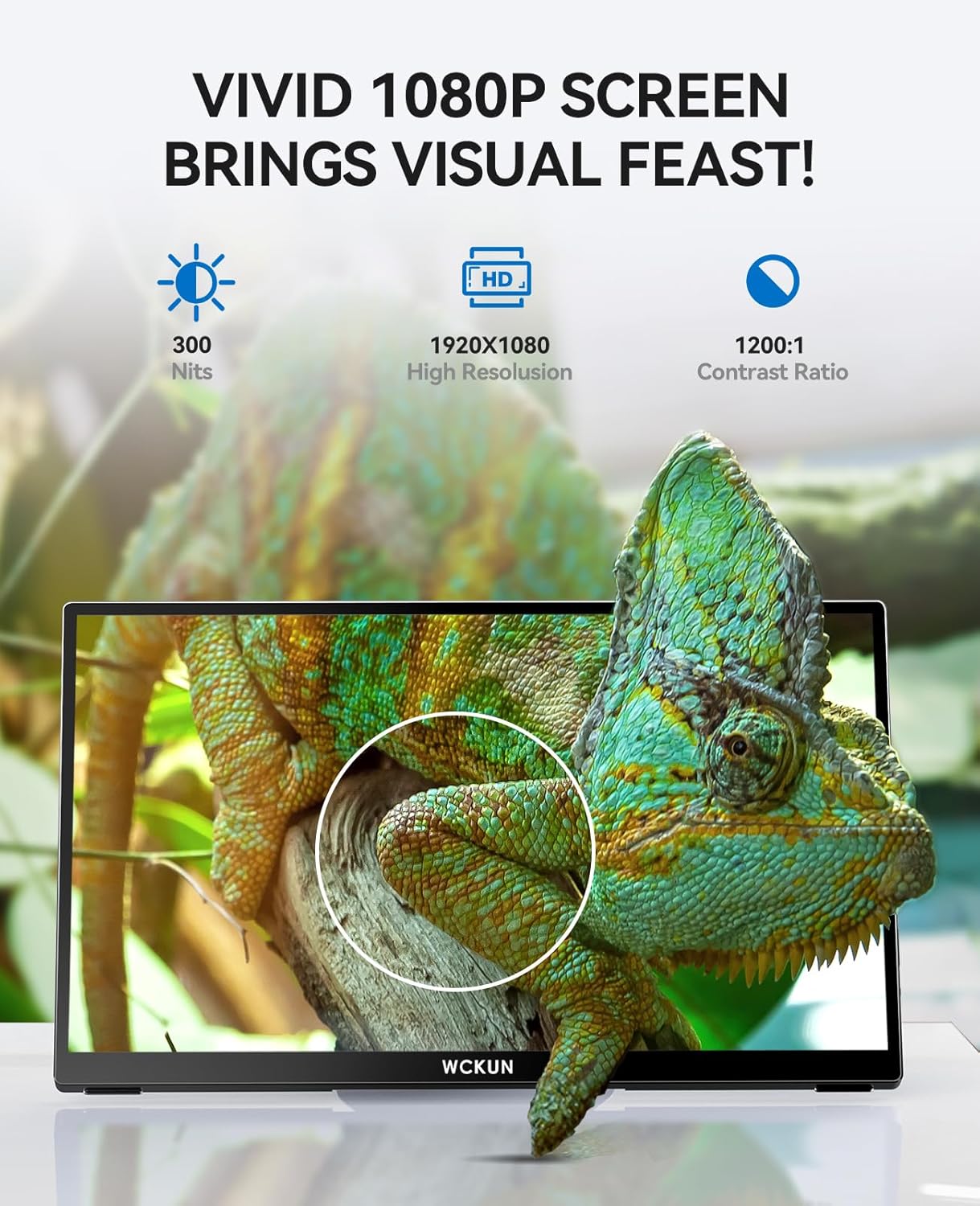
Figure 3.2: Vivid Display Quality

Figure 3.3: Design and Features Overview
3.4 Ports and Controls
Familiarize yourself with the ports and controls on your monitor:
- Full-Featured USB-C Port (x2): For power, video, audio, and touch signal transmission. Connects to compatible laptops, phones, tablets, and gaming consoles.
- Mini HDMI Port: For video and audio input from devices like PCs, laptops, and game consoles.
- USB-A Port: For connecting USB peripherals such as a flash drive, keyboard, or mouse. Also used for touch signal when using HDMI.
- 3.5mm Audio Jack: For connecting external headphones or speakers.
- Power Button/OSD Joystick: Used to power the monitor on/off and navigate the On-Screen Display (OSD) menu.

Figure 3.5: Monitor Ports and Interfaces
4. Setup and Connection
The WCKUN Portable Monitor offers flexible connectivity options. Ensure your device supports the necessary output for video and touch functionality.
4.1 Connecting via Full-Featured USB-C (Single Cable Solution)
This method is ideal for devices with a full-featured USB-C port (USB 3.1 or higher) that supports DisplayPort Alternate Mode and power delivery.
- Connect one end of the provided USB-C to USB-C cable to a full-featured USB-C port on your device (e.g., laptop, smartphone, tablet, Nintendo Switch).
- Connect the other end of the USB-C to USB-C cable to either of the full-featured USB-C ports on the WCKUN Portable Monitor.
- The monitor should automatically detect the signal and display your device's screen. Touch functionality will also be active.
Note: If your device's USB-C port does not provide sufficient power, the monitor may require external power via the included power adapter connected to one of the USB-C ports.

Figure 4.1: Connection Diagram (Type-C)
4.2 Connecting via HDMI and USB-A (for Video and Touch)
This method is used for devices that have an HDMI output for video and a USB-A port for touch signal transmission (e.g., desktop PCs, older laptops, game consoles like PS4/PS5).
- Connect one end of the provided HDMI cable to the HDMI output of your device.
- Connect the other end of the HDMI cable to the Mini HDMI port on the WCKUN Portable Monitor.
- Connect the provided USB-A to USB-C cable:
- Plug the USB-A end into a USB-A port on your device.
- Plug the USB-C end into one of the full-featured USB-C ports on the WCKUN Portable Monitor. This cable is essential for touch functionality and additional power if needed.
- Connect the power adapter to the remaining USB-C port on the monitor for stable power supply.
- The monitor should display the video signal, and touch functionality will be enabled.
Note: The USB-A to USB-C cable is crucial for touch input when using an HDMI connection. Without it, only video will be displayed.

Figure 4.2: Connection Diagram (HDMI and USB)
5. Operating Instructions
5.1 Power On/Off
Press and hold the Power Button/OSD Joystick for approximately 3 seconds to turn the monitor on or off.
5.2 On-Screen Display (OSD) Menu
The OSD menu allows you to adjust various display settings. Use the Power Button/OSD Joystick to navigate:
- Press Joystick: Enters the OSD menu.
- Push Up/Down: Navigates through menu options.
- Push Left/Right: Adjusts values or enters sub-menus.
- Press Joystick (again): Confirms selection or exits sub-menu.
Common OSD settings include Brightness, Contrast, Color Temperature (6500K-9300K), Aspect Ratio, and various Display Modes (e.g., Standard, Game, Movie).
5.3 Touch Functionality
The monitor supports 10-point multi-touch input. Ensure your device and connection method support touch signal transmission.
- USB-C Connection: Touch is automatically enabled when connected to a full-featured USB-C port on a touch-compatible device.
- HDMI Connection: Touch requires the USB-A to USB-C cable to be connected from your device's USB-A port to the monitor's USB-C port.
Note: Touch functionality may vary depending on the operating system and device. macOS does not natively support external touchscreens.

Figure 5.1: 10-Point Touch Interaction
5.4 Display Modes and Usage Scenarios
The monitor supports various display modes when connected to a PC or laptop:
- Duplicate Mode: Mirrors your primary display.
- Extend Mode: Expands your desktop across both screens, allowing for increased workspace.
- Second Screen Only: Displays content only on the portable monitor.
These modes can be configured through your operating system's display settings.

Figure 5.2: Productivity with Multiple Display Modes

Figure 5.3: Leisure and Entertainment
6. Maintenance
Proper care and maintenance will ensure the longevity and optimal performance of your WCKUN Portable Monitor.
- Cleaning the Screen: Use a soft, lint-free cloth slightly dampened with water or a non-abrasive screen cleaner. Avoid harsh chemicals, alcohol, or ammonia-based cleaners.
- Cleaning the Casing: Wipe the metal casing with a soft, dry cloth.
- Storage: When not in use, store the monitor in the provided neoprene protection sleeve to prevent scratches and dust accumulation.
- Handling: Avoid applying excessive pressure to the screen or dropping the monitor.
- Environment: Keep the monitor away from extreme temperatures, direct sunlight, and high humidity.
7. Troubleshooting
If you encounter issues with your WCKUN Portable Monitor, refer to the following troubleshooting guide:
| Problem | Possible Cause | Solution |
|---|---|---|
| No display/Black screen |
|
|
| Touchscreen not working |
|
|
| Flickering or unstable display |
|
|
| No sound from speakers |
|
|
8. Specifications
| Feature | Detail |
|---|---|
| Model Number | PDM-15T |
| Screen Size | 15.6 Inches |
| Resolution | 1920 x 1080 Pixels (FHD 1080p) |
| Panel Type | IPS |
| Aspect Ratio | 16:9 |
| Brightness | 300 Candela (Nits) |
| Contrast Ratio | 1200:1 |
| Viewing Angle | 178° (H/V) |
| Touch Panel | 10-point Multi-touch, Tempered Glass |
| HDR Support | Yes |
| FreeSync Support | Yes |
| Speakers | Dual Built-in Speakers |
| Connectivity | 2x Full-Featured USB-C, 1x Mini HDMI, 1x USB-A, 1x 3.5mm Audio Jack |
| Power Input | 12 Volts (via USB-C) |
| Product Dimensions | 14 x 0.23 x 8.5 inches |
| Item Weight | 2.6 pounds |
| Manufacturer | WCKUN |
9. Warranty and Support
WCKUN products are designed for reliability and performance. For warranty information and technical support, please refer to the official WCKUN website or contact their customer service directly.
- Keep your purchase receipt as proof of purchase for warranty claims.
- For common issues, please consult the troubleshooting section of this manual.
- For further assistance, visit the WCKUN product page on Amazon or contact WCKUN customer support.
Related Documents - PDM-15T
 |
WatchGas PDM+ Single Sustainable Gas Detector User Manual Comprehensive user manual for the WatchGas PDM+ Single Sustainable Gas Detector, detailing its features, operation, calibration procedures, maintenance, specifications, safety certifications, and limited warranty. |
 |
WatchGas PDM Single Gas Detector User Manual User manual for the WatchGas PDM Single Gas Detector, providing detailed information on its features, operation, calibration, specifications, safety certifications, and warranty. Learn how to activate, use, and maintain your gas detection device. |
 |
Casio PDM-100, PDM-110, PDM-120, PDM-130 Pedometer User Manual Comprehensive user manual for Casio PDM-100, PDM-110, PDM-120, and PDM-130 pedometers. Learn about functions, step measurement, calorie tracking, stopwatch, clock settings, and maintenance. |
 |
Шагомеры Casio серии PDM: Руководство пользователя и характеристики Подробное руководство по шагомерам Casio PDM-100, PDM-110, PDM-120 и PDM-130. Узнайте о функциях, использовании, измерении длины шага, секундомере, настройке часов и технических характеристиках. |
 |
CASIO PDM Series Pedometers: User Guide and Specifications Comprehensive guide to CASIO PDM-100, PDM-110, PDM-120, and PDM-130 pedometers, covering setup, operation of stopwatch and clock functions, and technical specifications. |
 |
Casio PDM Series Pedometers: User Manual and Specifications Detailed user manual and technical specifications for the Casio PDM-100, PDM-110, PDM-120, and PDM-130 pedometer series. Learn how to use functions like step counting, distance measurement, calorie tracking, stopwatch, and clock. Includes care instructions and product details. |
Ask a question about this manual
Ask about setup, troubleshooting, compatibility, parts, safety, or missing instructions. Manuals+ will review the question and use this page’s manual context to help answer it.