1. Introduction
This manual provides comprehensive instructions for the installation, operation, and maintenance of your BEENOZO QW6-MD1 2K Dual Lens Outdoor WiFi Surveillance Camera. Please read this manual thoroughly before using the product to ensure proper functionality and safety. Keep this manual for future reference.
2. Product Overview
2.1 Package Contents
- BEENOZO 2K Dual Lens Outdoor WiFi Surveillance Camera (QW6-MD1) x1
- Solar Panel x1
- USB-C Charging Cable x1
- Solar Panel Stand x1
- Mounting Screws and Wall Plugs x2 sets
- Drill Templates x2
- Reset Pin x1
- User Manual x1
2.2 Key Features
- 2K Dual Lens: High-resolution 2K video with a 6x hybrid zoom for clear imaging.
- Solar Powered & Battery: Integrated 15,000 mAh battery with solar panel for continuous power.
- 360° PTZ Coverage: Horizontal 355° and vertical 110° rotation for comprehensive area monitoring.
- Color Night Vision: Automatic switching to color night vision using integrated CMOS sensor and IR light.
- PIR Human Detection: Advanced infrared sensor detects human movement up to 10 meters, reducing false alarms.
- Two-Way Audio: Built-in speaker and microphone for real-time communication.
- IP66 Weatherproof: Designed for outdoor use, resistant to water and dust.
- Storage Options: Supports Cloud storage (3 days free) and local SD card storage (up to 256GB, not included).
- 2.4GHz WiFi Connectivity: Stable wireless connection (5GHz WiFi not supported).
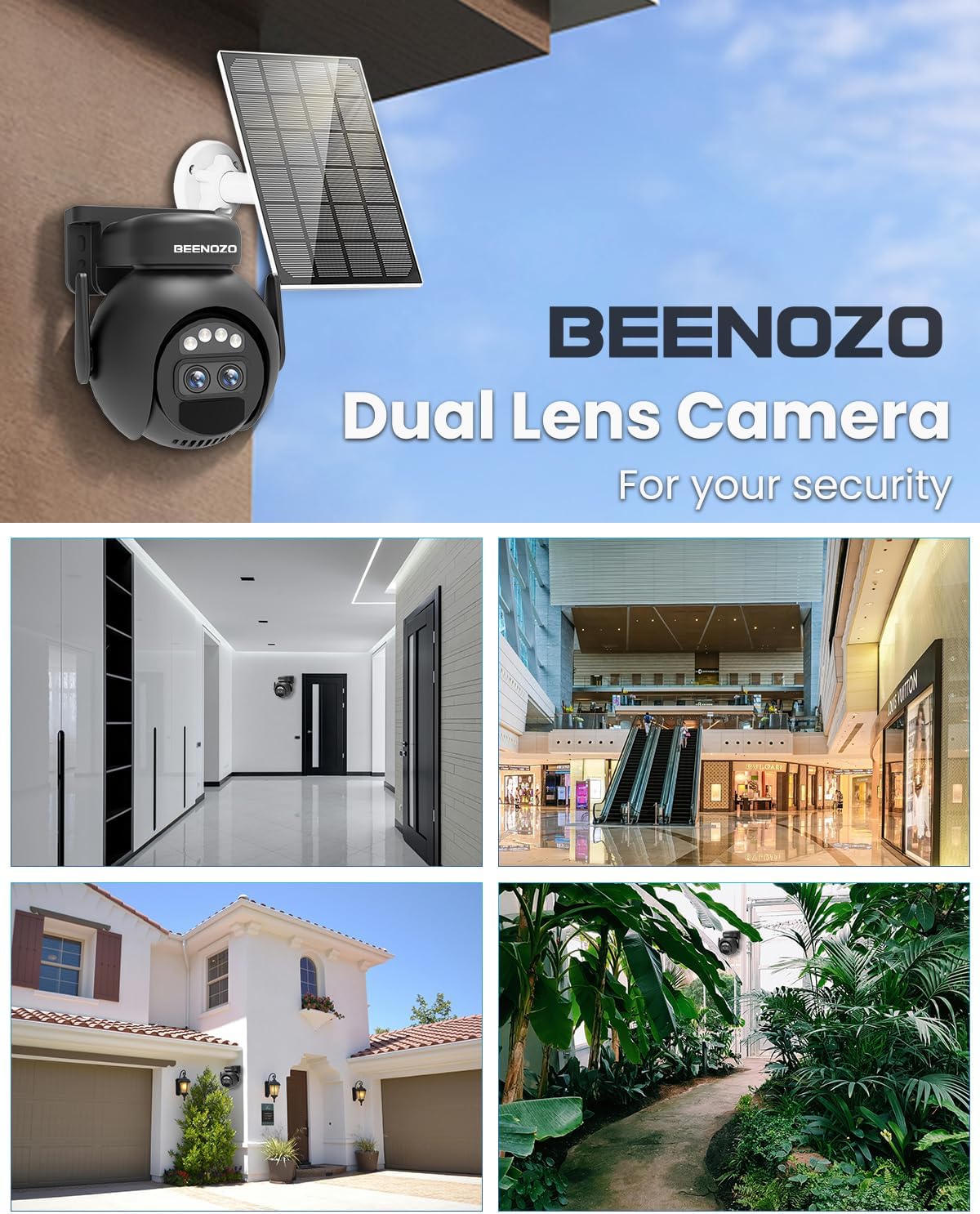
Figure 2.1: Overview of the BEENOZO Dual Lens Camera and its applications.
3. Setup and Installation
3.1 Initial Charging
Before initial use, fully charge the camera's internal battery using the provided USB-C cable and a 5V power adapter (not included). The red LED near the Type-C port will turn off once charging is complete. This ensures optimal battery performance, especially before relying on solar power.
3.2 App Download and Account Registration
- Scan the QR code in the user manual or search for "O-KAM Pro" in your mobile app store (iOS or Android).
- Download and install the "O-KAM Pro" application.
- Open the app and register for a new account. Ensure Bluetooth, Wi-Fi, and Location services are enabled on your smartphone.
3.3 Camera Pairing with App
- Power on the camera by sliding the switch near the Type-C port to the ON position. The camera will begin self-calibration.
- In the "O-KAM Pro" app, tap the '+' icon in the top right corner to add a new device.
- Scan the QR code located on the camera itself.
- Follow the on-screen prompts to connect the camera to your 2.4GHz Wi-Fi network. Note: 5GHz Wi-Fi networks are not supported.
- The app will display a QR code on your smartphone. Position your camera's lens to scan this QR code. Adjust the distance slowly until you hear a confirmation sound from the camera.
- Once connected, the camera will be added to your app.
3.4 Physical Installation
The camera and solar panel are designed for easy, 100% wireless installation. Use the provided drill templates, screws, and wall plugs to mount the camera and solar panel in your desired outdoor location. Ensure the solar panel is positioned to receive maximum sunlight for optimal charging.
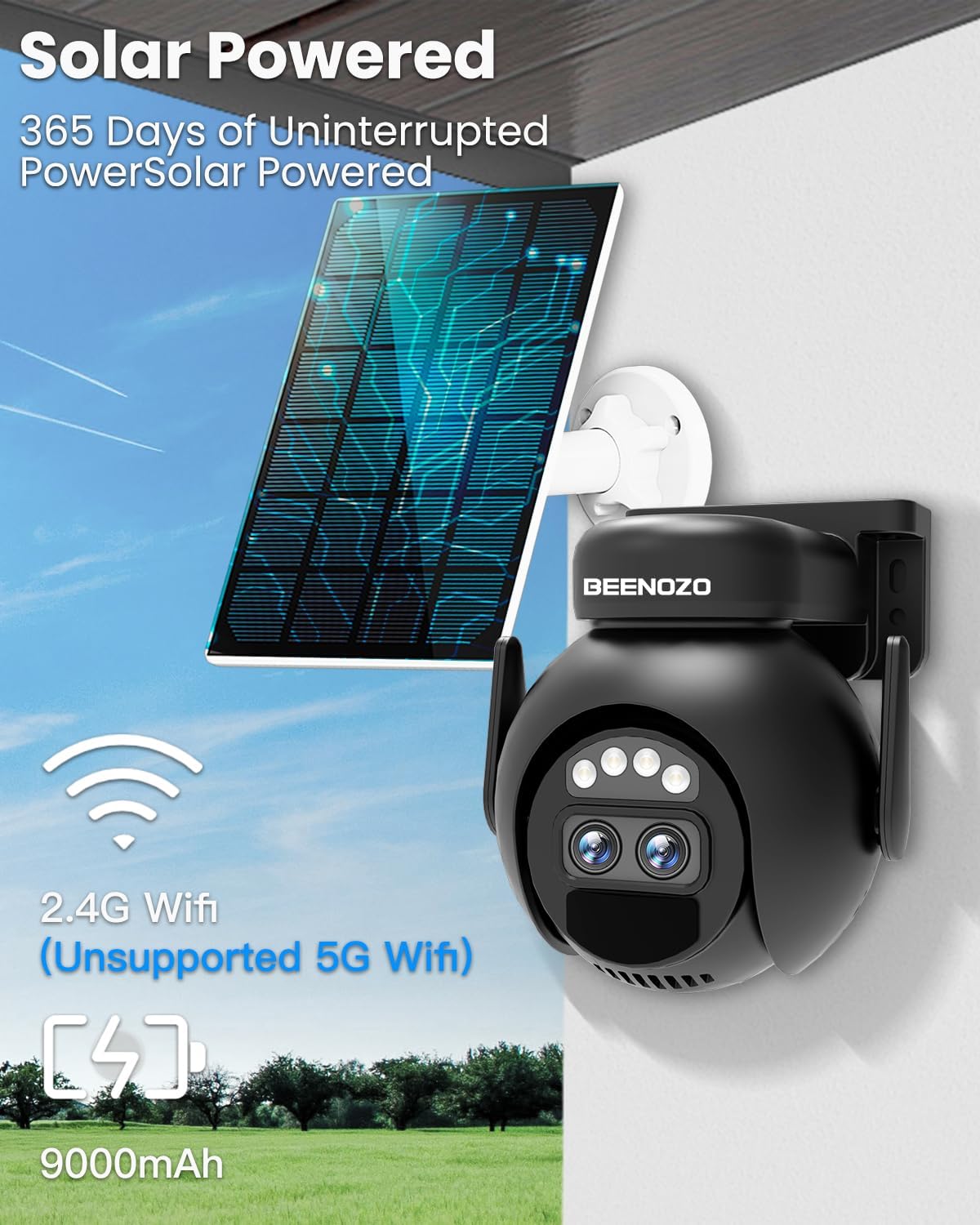
Figure 3.1: The camera is solar-powered and connects via 2.4G WiFi.
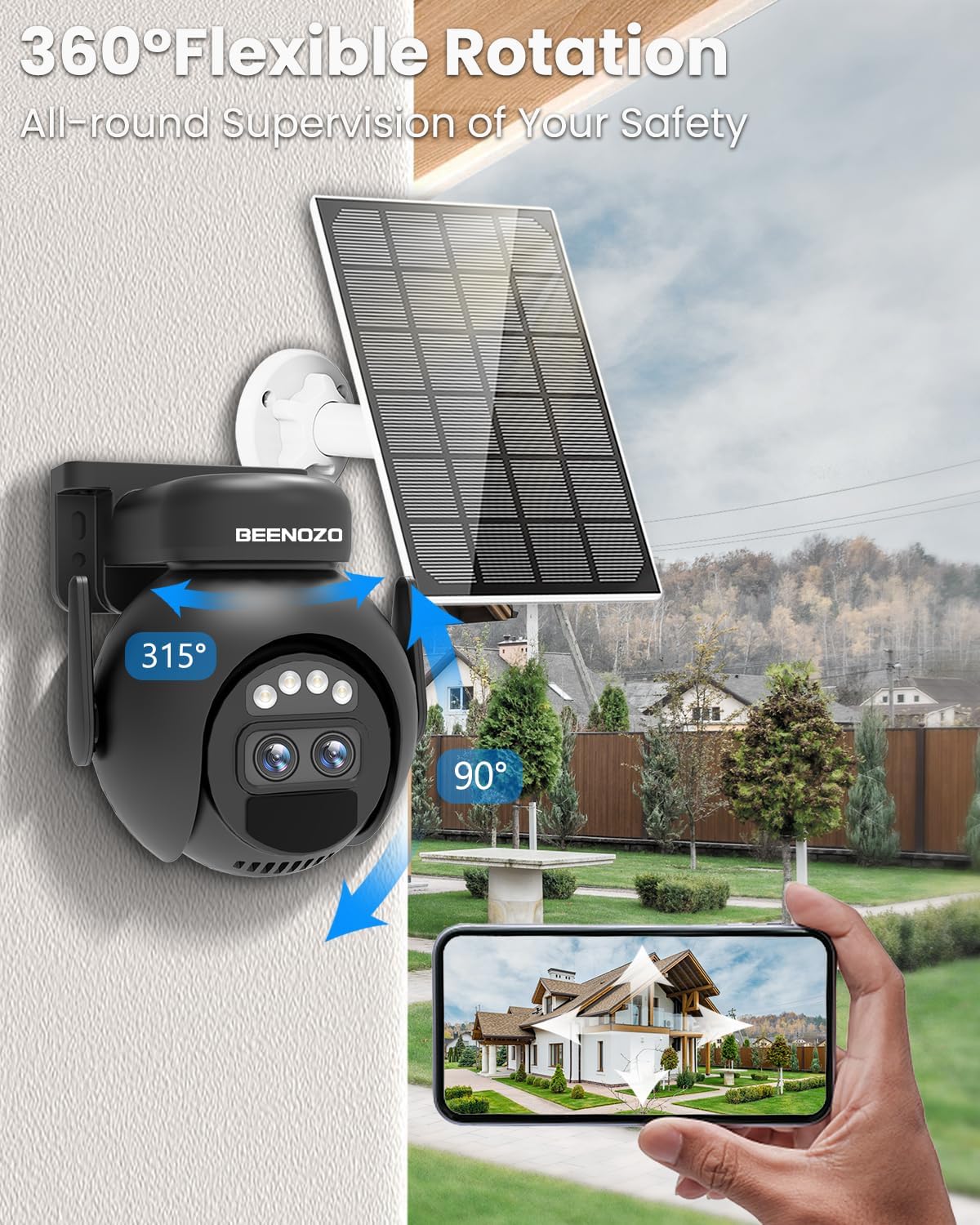
Figure 3.2: The camera offers 360° flexible rotation for comprehensive supervision.
4. Operating Instructions
4.1 Live View and PTZ Control
Once connected, open the "O-KAM Pro" app to access the live video feed from your camera. Use the on-screen controls to pan horizontally (355°) and tilt vertically (110°) to adjust the camera's viewing angle. The 6x hybrid zoom allows for closer inspection of details.
4.2 Motion Detection and Alerts
The camera features advanced PIR human detection. When human motion is detected, the camera can send real-time alarm notifications to your phone, trigger a siren, spotlight, or audible alarm to deter intruders. You can customize detection sensitivity and alert preferences within the app.

Figure 4.1: The camera's human motion detection supports human shape tracking and intelligent alarm pushes, reducing false alarms.
4.3 Two-Way Audio
Utilize the built-in microphone and speaker for two-way communication. Tap the microphone icon in the app to speak, and your voice will be transmitted through the camera. You can hear audio from the camera's vicinity through your phone.

Figure 4.2: The camera supports two-way audio for remote communication.
4.4 Night Vision
The camera automatically switches to color night vision in low-light conditions, providing clear surveillance even in darkness.

Figure 4.3: The camera provides 2K Ultra HD resolution and full-color night vision.
4.5 Storage Management
The camera supports two storage methods:
- SD Card Storage: Insert a microSD card (up to 256GB, not included) into the designated slot. Format the SD card via the app for optimal performance. The camera will automatically record and save videos to the card.
- Cloud Storage: Enjoy 3 days of free cloud storage for recorded events. Subscription options may be available for extended cloud storage periods.
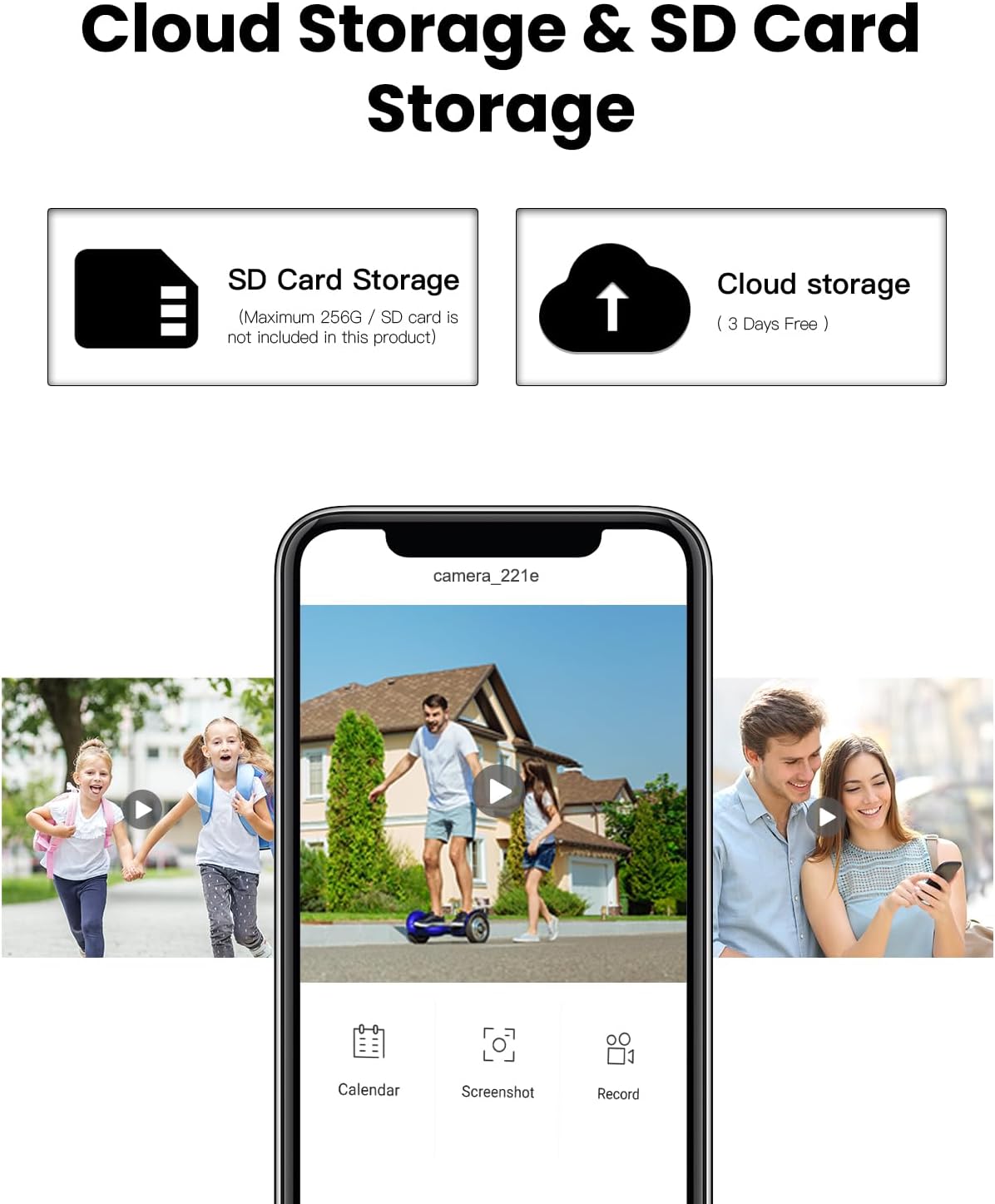
Figure 4.4: The camera offers both SD card and cloud storage solutions.
4.6 Sharing Device Access
You can share access to your camera's live feed and recordings with family or friends by scanning a QR code generated within the app. This allows multiple users to monitor the property simultaneously.
5. Maintenance
5.1 Cleaning
Regularly clean the camera lens and solar panel with a soft, damp cloth to ensure clear image quality and efficient solar charging. Avoid using harsh chemicals or abrasive materials that could damage the surfaces.
5.2 Battery Optimization
While the camera is solar-powered, prolonged periods of low sunlight may reduce battery levels. Ensure the solar panel is free from obstructions and receives direct sunlight whenever possible. The camera's low-power consumption system helps extend battery life.
5.3 Weather Resistance
The camera is IP66 rated, making it resistant to dust and strong jets of water. It can operate in temperatures ranging from -20°C to +48°C. While designed for outdoor use, positioning it under a protective overhang can further extend its lifespan.

Figure 5.1: The camera features IP66 waterproofing and dustproofing for ultra-long service life in various weather conditions.
6. Troubleshooting
| Problem | Possible Cause | Solution |
|---|---|---|
| Camera fails to connect to Wi-Fi. | Incorrect Wi-Fi password, 5GHz network used, camera too far from router, weak signal. |
|
| Poor image quality or blurry video. | Dirty lens, poor lighting, network issues. |
|
| Motion detection not working or too many false alarms. | Incorrect sensitivity settings, environmental factors (e.g., moving branches). |
|
| Battery not charging via solar panel. | Solar panel obstructed, insufficient sunlight, panel dirty. |
|
| Camera unresponsive. | Software glitch, low battery. |
|
7. Specifications
| Feature | Detail |
|---|---|
| Model Number | QW6-MD1 |
| Brand | BEENOZO |
| Video Recording Resolution | 2K (1296p) |
| Connectivity Technology | Wireless (Wi-Fi 2.4GHz only) |
| Usage Environment | Outdoor |
| Special Features | HD Resolution, Dual Lens, Solar Powered, PTZ, Color Night Vision, PIR Human Detection, Two-Way Audio |
| Water Resistance Level | IP66 (Waterproof) |
| Power Source | Battery (Lithium-ion, 15000 mAh) / Solar Panel |
| Power Consumption | 4 Watts |
| Night Vision Range | Up to 10 meters (PIR detection) |
| PTZ Rotation | Horizontal 355°, Vertical 110° |
| Storage | MicroSD card (max 256GB, not included), Cloud Storage |
| Operating Temperature | -20°C to +48°C |
| Dimensions (L x W x H) | 5 x 4.99 x 4.99 cm |
| Weight | 900 grams |
8. Warranty and Support
8.1 Warranty Information
BEENOZO provides a 1-year warranty and replacement services from the date of purchase for this product. Please retain your proof of purchase for warranty claims.
8.2 Customer Support
For any questions, technical assistance, or support regarding your BEENOZO QW6-MD1 camera, please contact our customer service. Our support team is available 24/7 to assist you.
Contact information can typically be found on the product packaging or the official BEENOZO website.


