
PHILIPS Phil-GS5101-P
PHILIPS GoSure GS5101 Dash Cam User Manual
Comprehensive guide for setup, operation, and maintenance of your PHILIPS Dash Cam.
Introduction
The PHILIPS GoSure GS5101 Dash Cam is designed to enhance your driving safety and provide reliable video evidence on the road. Featuring 1600P 2K front recording, built-in Wi-Fi, G-Sensor, night vision, and voice control, this dash cam offers comprehensive surveillance and convenience. This manual will guide you through the installation, operation, and maintenance of your device.

Image: The PHILIPS GoSure GS5101 Dash Cam, highlighting its compact design and connectivity with a mobile application.
What's in the Box
Please ensure all components are present before proceeding with installation.
- PHILIPS GoSure GS5101 Dash Cam (Front Camera)
- Car Mount
- Car Charger
- Hardwire Kit
- Charging Cable (3.6m power cord)
- User Manual
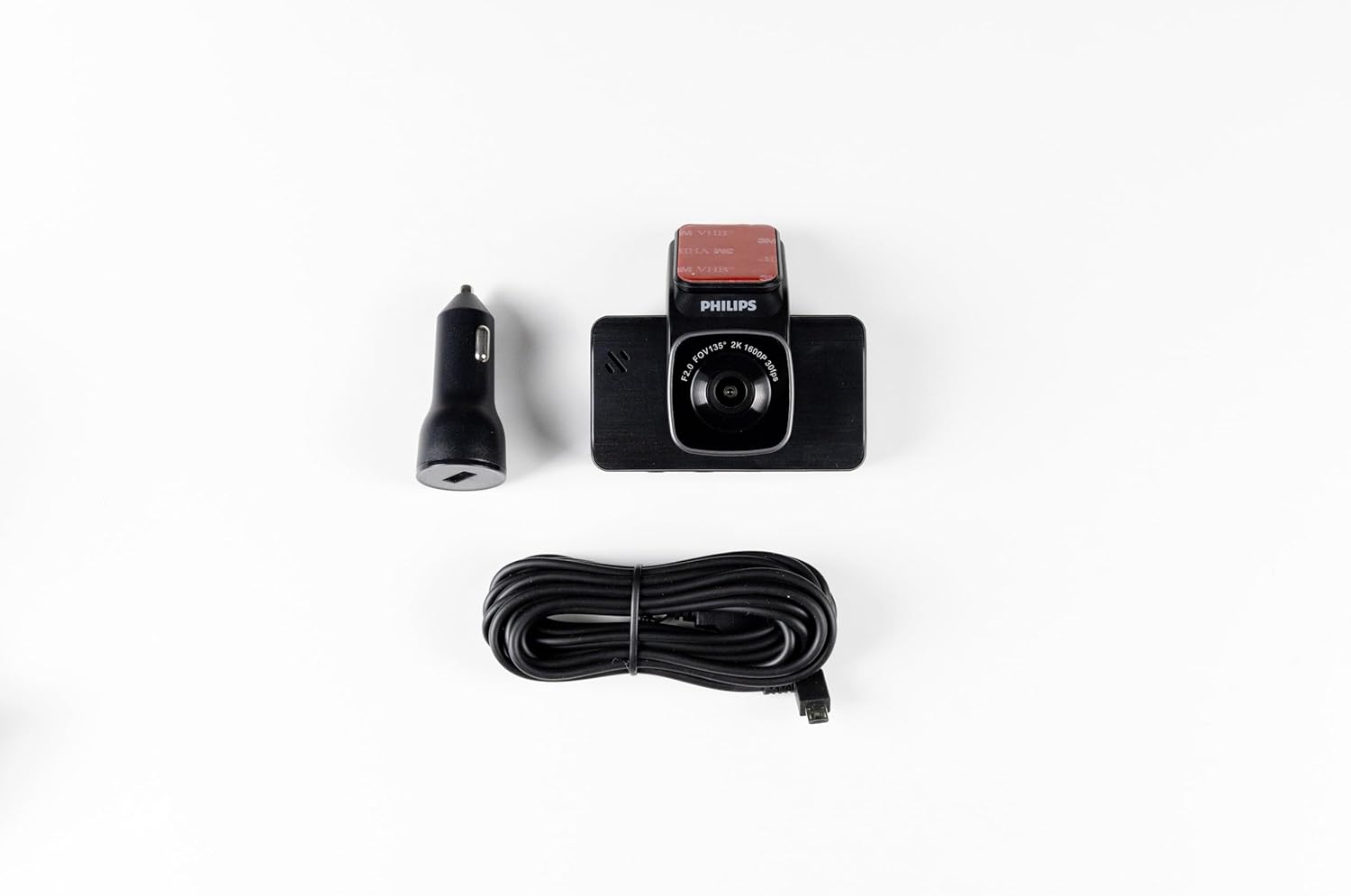
Image: Contents of the box, showing the 1600p Front Camera, Power Adaptor, 3.6m power cord, and User Manual. Note: MicroSD card is NOT included.
Setup
1. MicroSD Card Insertion
The MicroSD card is not included and must be purchased separately. Use a Class 10 or higher MicroSD card, up to 128GB capacity. Insert the MicroSD card into the designated slot on the dash cam before powering on the device.
2. Mounting the Dash Cam
Clean the area on your windshield where you intend to mount the dash cam. Remove the protective film from the detachable adhesive base of the car mount. Firmly press the mount onto the windshield, ensuring a clear view of the road. Attach the dash cam to the mount.

Image: Easy installation process, showing a hand attaching the dash cam to the windshield.
3. Power Connection
Connect the provided car charger to your vehicle's cigarette lighter socket. Connect the charging cable from the car charger to the dash cam. The dash cam will automatically power on and begin recording when your vehicle's engine starts.

Image: The dash cam starts recording automatically when the engine starts, powered via the car charger.
Operating Instructions
Basic Operation
The dash cam automatically starts recording when the engine is turned on. It records in a continuous loop, overwriting the oldest files when the MicroSD card is full. Important footage can be protected from being overwritten by the G-Sensor or manual locking.
Display and Controls
The 3-inch screen provides a convenient interface for viewing live footage, accessing settings, and playing back recordings. Use the physical buttons on the device to navigate through menus and adjust settings.
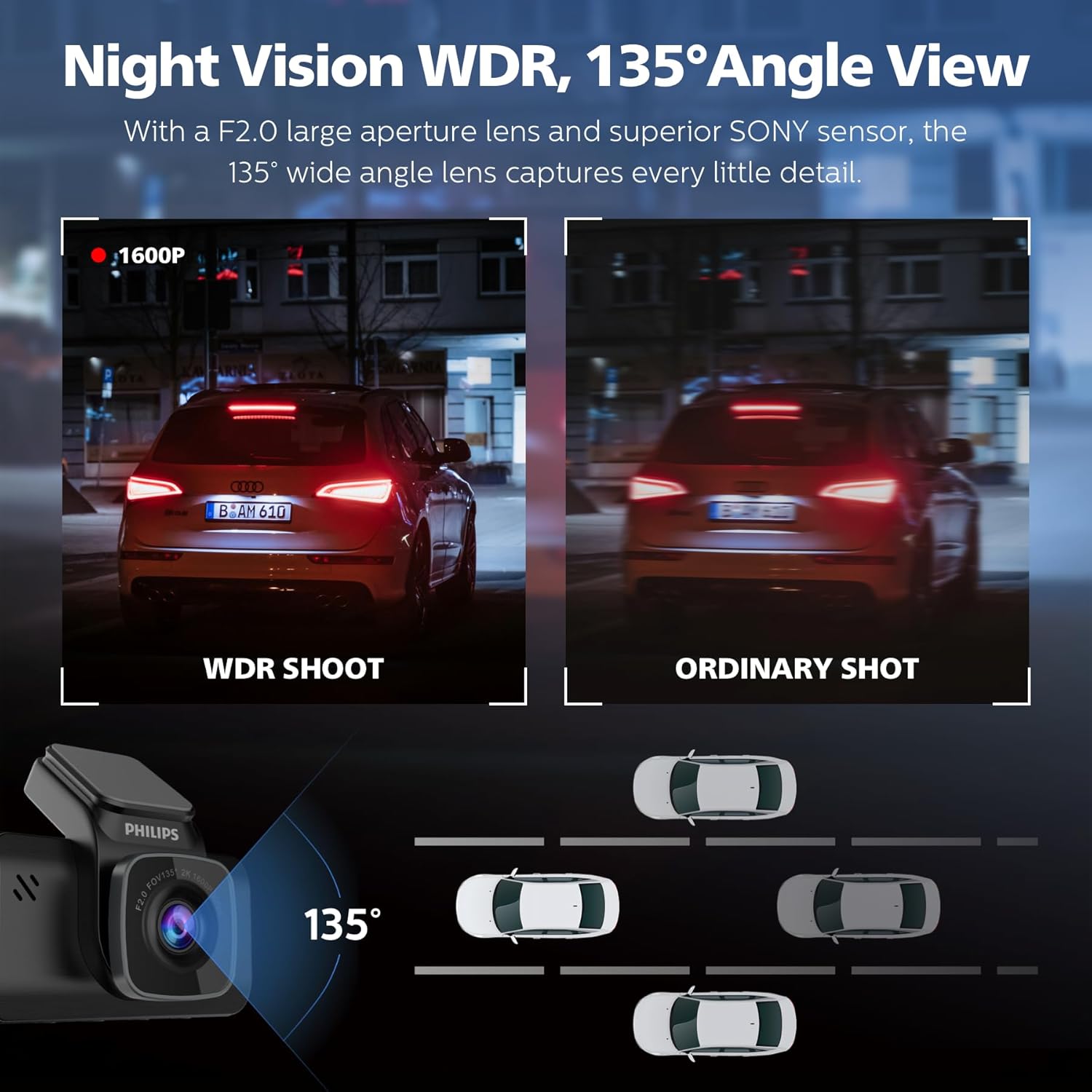
Image: The dash cam's screen and buttons for easy setting changes.
Voice Control
The GoSure GS5101 supports smart voice control, allowing you to operate the dash cam hands-free. You can issue commands such as "Take photo," "Lock video," "Open recorder," or "Close recorder." This feature helps you maintain focus on driving while managing recordings.
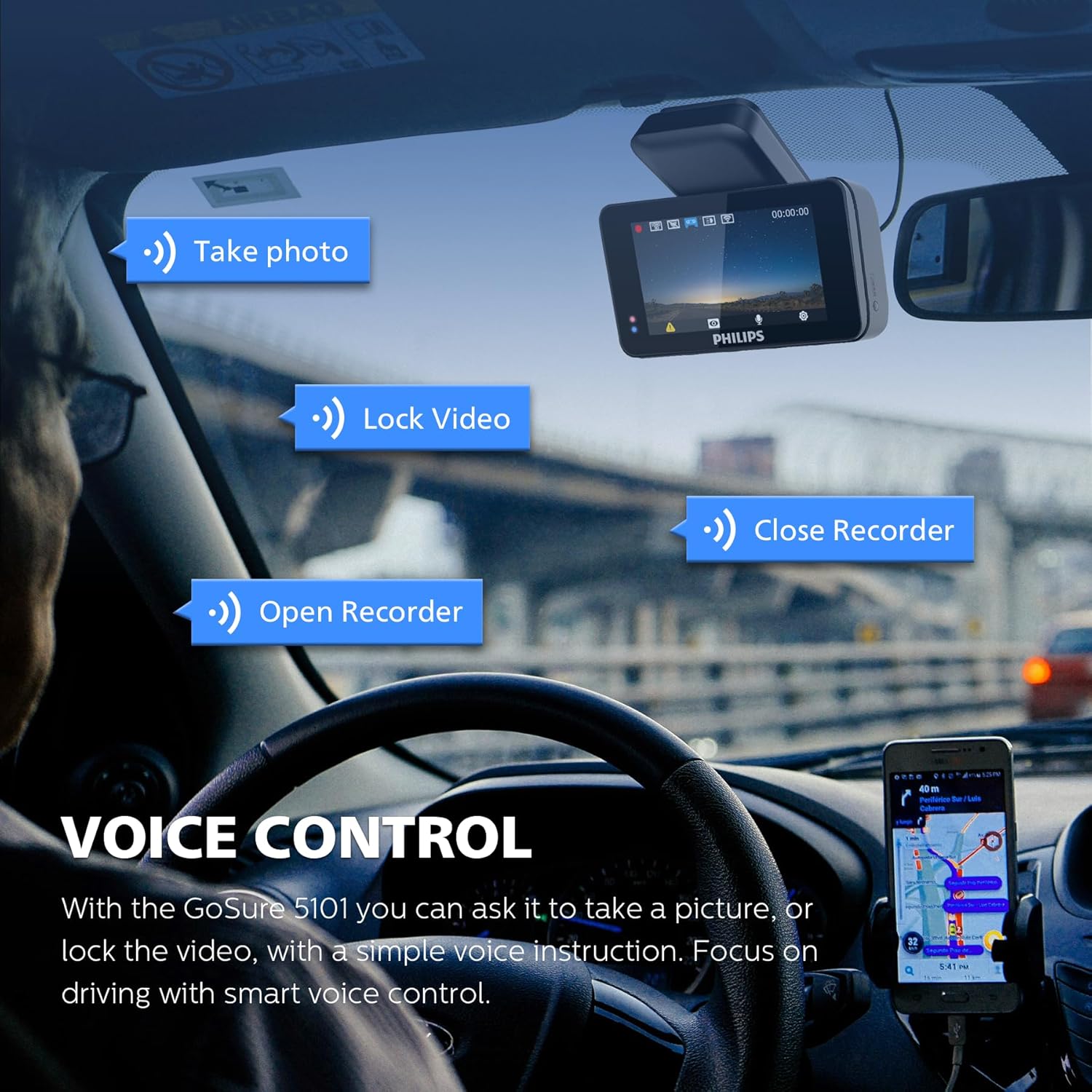
Image: Smart voice control features, enabling hands-free operation for taking photos, locking videos, and controlling the recorder.
Wi-Fi Connectivity and App Usage
The built-in Wi-Fi allows you to connect the dash cam to your smartphone or tablet using the GoSure Safe app (available on App Store and Google Play). Through the app, you can view live footage, manage recordings, download files, and adjust settings remotely.

Image: Stream your videos in real-time and manage them via the GoSure Safe app, supporting up to 128GB MicroSD card (not included).
G-Sensor and Accident Lock
The integrated 3-axis G-sensor detects sudden movements, impacts, or collisions. When triggered, it automatically locks the current recording, preventing it from being overwritten during loop recording. This ensures critical event footage is preserved as evidence.

Image: G-Sensor Accident Lock, which detects movement and triggers emergency recording, locking vital footage.
Night Vision with WDR and Wide-Angle View
The dash cam features enhanced night vision capabilities with WDR (Wide Dynamic Range) technology and a 135° wide-angle lens. WDR adjusts exposure to provide clear and balanced footage in various lighting conditions, including low light and high contrast environments. The wide-angle view captures a broader perspective of the road, covering multiple lanes.
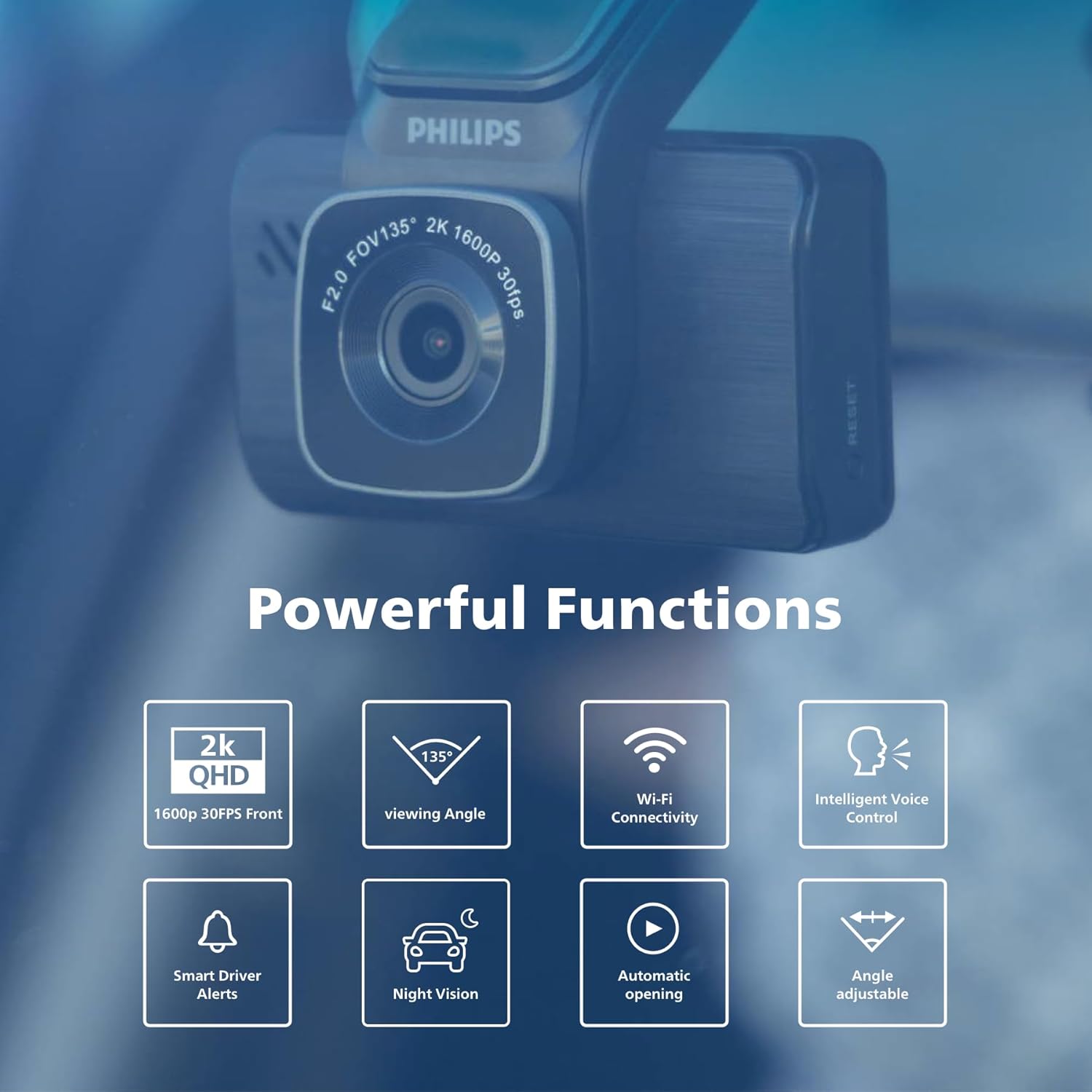
Image: Night Vision with WDR and 135° Angle View, capturing details in any light and covering three lanes of traffic.
Driver Safety and ADAS Alerts
The dash cam includes Advanced Driver-Assistance Systems (ADAS) features to enhance safety. These may include collision detection, buffered motion detection, and tired driving warnings. These alerts are designed to provide an extra layer of awareness during your drive.

Image: Driver Safety and ADAS Alerts, including Buffered Motion Detection, Collision Detection, Tired Driving Warning, and Loop Recording.
Official Product Video
Video: An official product video from BlackboxMyCar demonstrating the PHILIPS GoSure GS5101 Front Dash Cam features and functionality.
Maintenance
MicroSD Card Management
To ensure optimal performance and prevent data corruption, it is recommended to format the MicroSD card regularly (e.g., once a month). This can typically be done through the dash cam's settings menu or via the GoSure Safe app. Back up any important footage before formatting.
Cleaning the Device
Use a soft, dry cloth to clean the dash cam's lens and screen. Avoid using abrasive cleaners or solvents that could damage the device. Keep the lens free of dust and smudges for clear recording quality.
Troubleshooting
| Problem | Possible Cause / Solution |
|---|---|
| Dash cam frequently shuts down or reboots. | Power Source: While the dash cam can be powered through the vehicle's utility plug (cigarette lighter), connecting it directly to the battery (using the hardwire kit, if applicable and professionally installed) can provide a more stable power source, especially for power-intensive features like Wi-Fi. Faulty Cable/Charger: Try using a different power cable or car charger. |
| Cannot download recordings to phone via app. | App Compatibility/Bugs: Ensure your GoSure Safe app is updated to the latest version. Check app permissions on your phone to allow storage access. Wi-Fi Connection: Verify a stable Wi-Fi connection between the dash cam and your phone. |
| Dash cam does not turn on immediately with engine. | Power Delay: Some vehicles have a slight delay in providing power to the cigarette lighter socket after ignition. This is usually normal. If the delay is excessive or inconsistent, check the power connection. Software Glitch: If inconsistent, a firmware update might be needed (check PHILIPS support website). |
| Voice commands are not recognized or alerts are random. | Environmental Noise: Ensure minimal background noise when issuing voice commands. Software Issue: Verify voice control settings in the dash cam or app. A factory reset or firmware update might resolve persistent issues. |
| Poor night vision quality. | Windshield Cleanliness: Ensure the windshield area in front of the camera lens is clean and free of obstructions. Settings: Check if WDR is enabled in the settings. Ensure the lens is clean. |
Specifications
| Feature | Detail |
|---|---|
| Model Name | Philips GoSure GS5101 |
| Video Capture Resolution | 1600p (Front Camera) |
| Screen Size | 3 inches |
| Connectivity Technology | Wi-Fi |
| Special Features | Built-In WiFi, G-Sensor, App Control, Built-In Display, Voice Control, Night Vision, WDR |
| Field of View | 135° Wide Angle |
| Storage Support | Up to 128GB MicroSD card (Class 10 or higher, not included) |
| Product Dimensions | 4 x 2 x 1 inches |
| Item Weight | 12.3 ounces |
| Manufacturer | PHILIPS GoSure |
Warranty and Support
For warranty information, technical support, or service inquiries, please refer to the official PHILIPS GoSure website or contact their customer service directly. Keep your purchase receipt as proof of purchase for warranty claims.
You can also visit the PHILIPS Store on Amazon for more product information and support resources.
Related documentsPhil-GS5101-P


Ask a question about this manual
Ask about setup, troubleshooting, compatibility, parts, safety, or missing instructions. Manuals+ will review the question and use this page’s manual context to help answer it.