
1. Setup and Installation
This section provides instructions for the physical installation and initial setup of your Inefala car stereo.
1.1 Package Contents and Dimensions
Before installation, verify all components are present and understand the unit's dimensions for proper fitting.

Image: Product dimensions (9-inch screen, 230mm width, 135mm height) and included accessories: Power Cable, Horn Cable, Mounting Bracket, User Manual, and 12LED Rear Camera.
1.2 Wiring Port Diagram
Refer to the following diagram for connecting the main wiring harness to your vehicle's electrical system. Ensure all connections are secure and correctly matched to prevent damage.

Image: Rear view of the car stereo unit showing various input/output ports (RCA, D-BUS, FM antenna, USB) and a detailed color-coded wiring harness diagram with labels for each wire (e.g., Front Left Speaker +, Auto Antenna Power, ACC Ignition, Backup, SWC).
1.3 Backup Camera Wiring
To install the included backup camera, follow this wiring guide. Proper connection ensures the camera activates automatically when reversing.

Image: Diagram illustrating the connection of the backup camera to the car stereo. The camera's video cable connects to the stereo's video input, and the camera's power cable (red wire) connects to the reversing lamp's positive (+) terminal, while the black wire connects to ground (GND).
2. Operating Instructions
This section details the various functions and features of your Inefala car stereo.
2.1 Wireless Carplay and Android Auto
Connect your smartphone wirelessly to access navigation, music, calls, and messages through the car stereo interface.

Image: The car stereo screen showing a grid of application icons, including navigation, music streaming, and communication apps, demonstrating Wireless Carplay and Android Auto functionality. Voice commands like "I want pizza" and "Play 'Fearless'" are depicted.
2.2 Android/iOS Mirror Link
Use a USB cable to synchronize your phone's screen content directly to the car stereo display.

Image: A smartphone connected via USB cable to the car stereo, with the phone's navigation screen mirrored onto the larger car stereo display.
2.3 Steering Wheel Control (SWC)
Configure your steering wheel buttons to control the car stereo functions for safe and convenient operation.
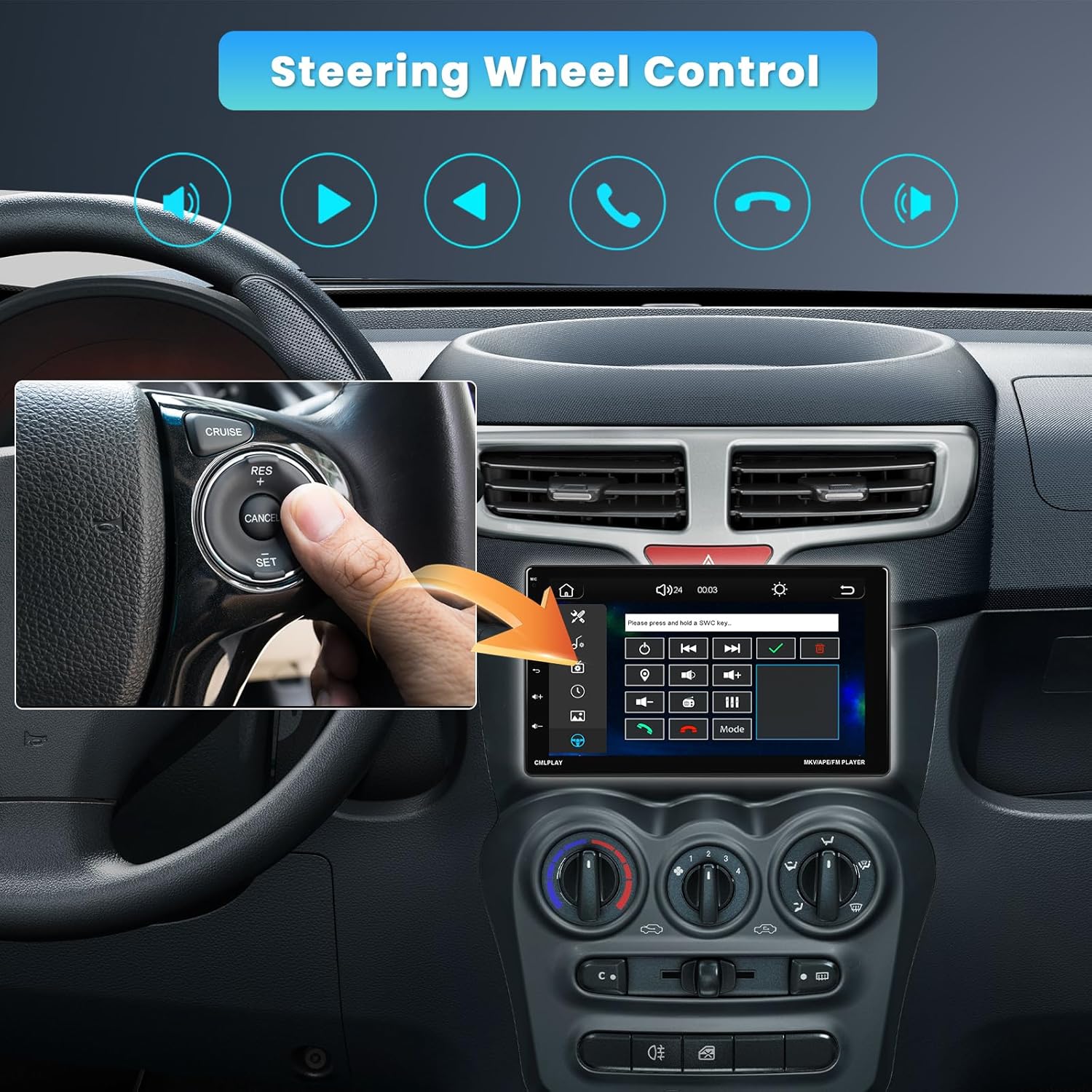
Image: A hand pressing a button on a car's steering wheel, with an inset showing the car stereo screen displaying a menu for programming steering wheel control buttons to various functions like volume, track skip, and call answer/end.
2.4 Hands-free Bluetooth and FM Radio
Utilize Bluetooth for hands-free calling and audio streaming. Tune into your favorite FM radio stations.
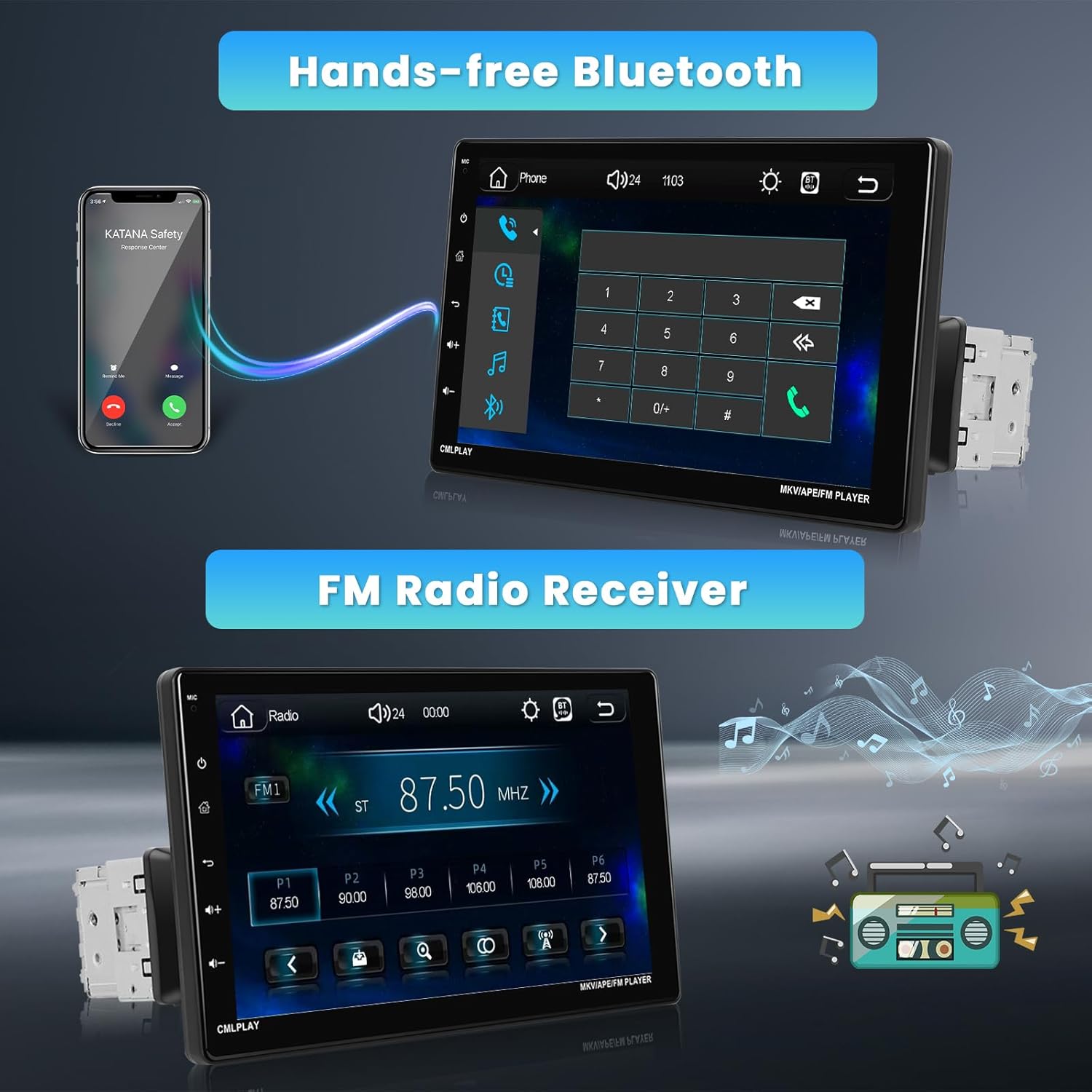
Image: The car stereo screen split into two sections. The top section shows a phone call interface with a dial pad, indicating hands-free Bluetooth functionality. The bottom section displays the FM radio tuner with frequency selection and preset options.
2.5 USB Playback and EQ Settings
Connect USB devices for media playback and customize your audio experience with the built-in equalizer.
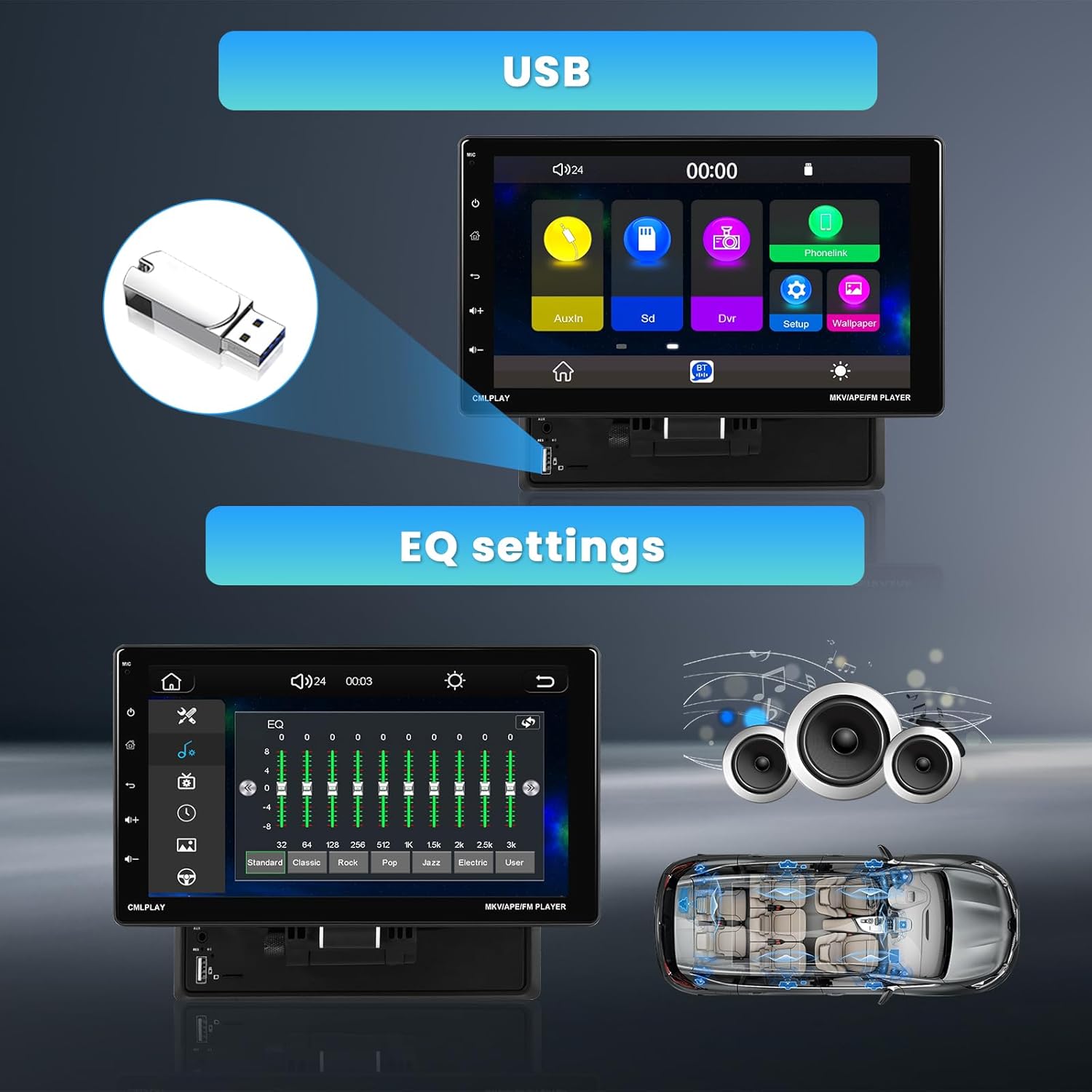
Image: The car stereo screen showing a USB drive connected, with options for media playback. Below, the equalizer interface is displayed, allowing adjustment of audio frequencies with various preset modes like Standard, Classic, Pop, Jazz, and Electric.
2.6 HD Rear View Camera Display
When reversing, the car stereo automatically displays the feed from the connected HD rear view camera, providing a clear view of the area behind your vehicle.

Image: The car stereo screen showing a wide-angle view from a rear view camera, with dynamic parking guidelines overlaid on the image of a car backing up. An inset diagram shows the camera's features: HD image, waterproof, night vision, and 170-degree wide angle.
2.7 Detachable Touch Screen
The 9-inch touch screen is detachable for security and convenience. To detach, gently press the release mechanism and pull the screen away from the main unit. To reattach, align the screen with the connectors and push until it clicks into place.
3. Maintenance
Proper maintenance ensures the longevity and optimal performance of your car stereo.
- Cleaning the Screen: Use a soft, lint-free cloth to wipe the touch screen. For stubborn smudges, slightly dampen the cloth with water or a screen-safe cleaner. Avoid abrasive materials or harsh chemicals.
- Cleaning the Unit: Keep the main unit and its connections free from dust and debris. Use a dry cloth or a soft brush.
- Detachable Screen Care: When the screen is detached, store it in a protective case to prevent scratches or damage. Avoid exposing it to extreme temperatures.
- Connection Integrity: Periodically check all wiring connections to ensure they are secure and free from corrosion.
4. Troubleshooting
This section addresses common issues you might encounter with your Inefala car stereo.
| Problem | Possible Cause | Solution |
|---|---|---|
| Unit does not power on | Incorrect wiring; Blown fuse; Power supply issue | Check power and ground connections. Verify the fuse in the car's fuse box and on the stereo's wiring harness. Ensure the ACC (ignition) wire is connected correctly. |
| No sound | Speaker wires disconnected; Volume too low; Mute function active; Incorrect audio settings | Check all speaker wire connections. Increase volume. Deactivate mute. Verify audio output settings (e.g., fader/balance). |
| Bluetooth not connecting | Bluetooth off on phone/stereo; Pairing mode not active; Device already paired to another unit | Ensure Bluetooth is enabled on both devices. Put the stereo in pairing mode. Forget previous connections on your phone and try pairing again. |
| Rear view camera not displaying | Camera wiring incorrect; Reverse trigger wire not connected; Faulty camera | Check camera power and video connections. Ensure the reverse trigger wire (BACK) is connected to the vehicle's reverse light circuit. Test camera functionality if possible. |
| Touch screen unresponsive | Software glitch; Screen calibration needed; Physical damage | Restart the unit. Perform a screen calibration if available in settings. If the issue persists, contact support. |
5. Specifications
Key technical specifications for the Inefala 9-inch Detachable Touch Screen 1 Din Car Stereo.
- Model Number: Inefala-A3664A3-EU60
- Screen Size: 9 Inches
- Product Dimensions (L x W x H): 23 x 12 x 13.5 cm
- Weight: 1.35 kilograms
- Connectivity Technology: Wireless/Bluetooth/USB
- Special Features: Bluetooth, Video Playback, Touch Screen, Equalizer, Wireless Carplay, Android Auto, Mirror Link, SWC, Backup Camera Support
- Supported Navigation System: GPS
- Audio Output Mode: Stereo
- Control Method: Touch
- Compatible Devices: Smartphone
- Display Type: LCD
- Touch Screen Type: Capacitive
- Mounting Type: Dashboard Mount
- Components Included: Car Stereo
6. Warranty and Support
6.1 Warranty Information
This product comes with a 24-month warranty from the date of purchase. This warranty covers manufacturing defects and ensures the product functions as intended under normal use.
6.2 Technical Support
For any technical assistance or inquiries, Inefala offers 24/7 online consultation. We aim to respond to all queries within 24 hours.

Image: A guide on how to obtain online assistance. It directs users to click on "Inefala EU" (seller name) and then send an email to inefalatech@163.com for support.
You can reach our support team by emailing us directly at inefalatech@163.com.