
1. Introduction
Thank you for choosing the Dexnor Magic Style Keyboard Case. This product transforms your iPad into a versatile laptop-like device, enhancing productivity and user experience. It features a floating cantilever design, multi-touch trackpad, backlit keys, and a built-in pencil holder, all designed for seamless integration and robust protection.
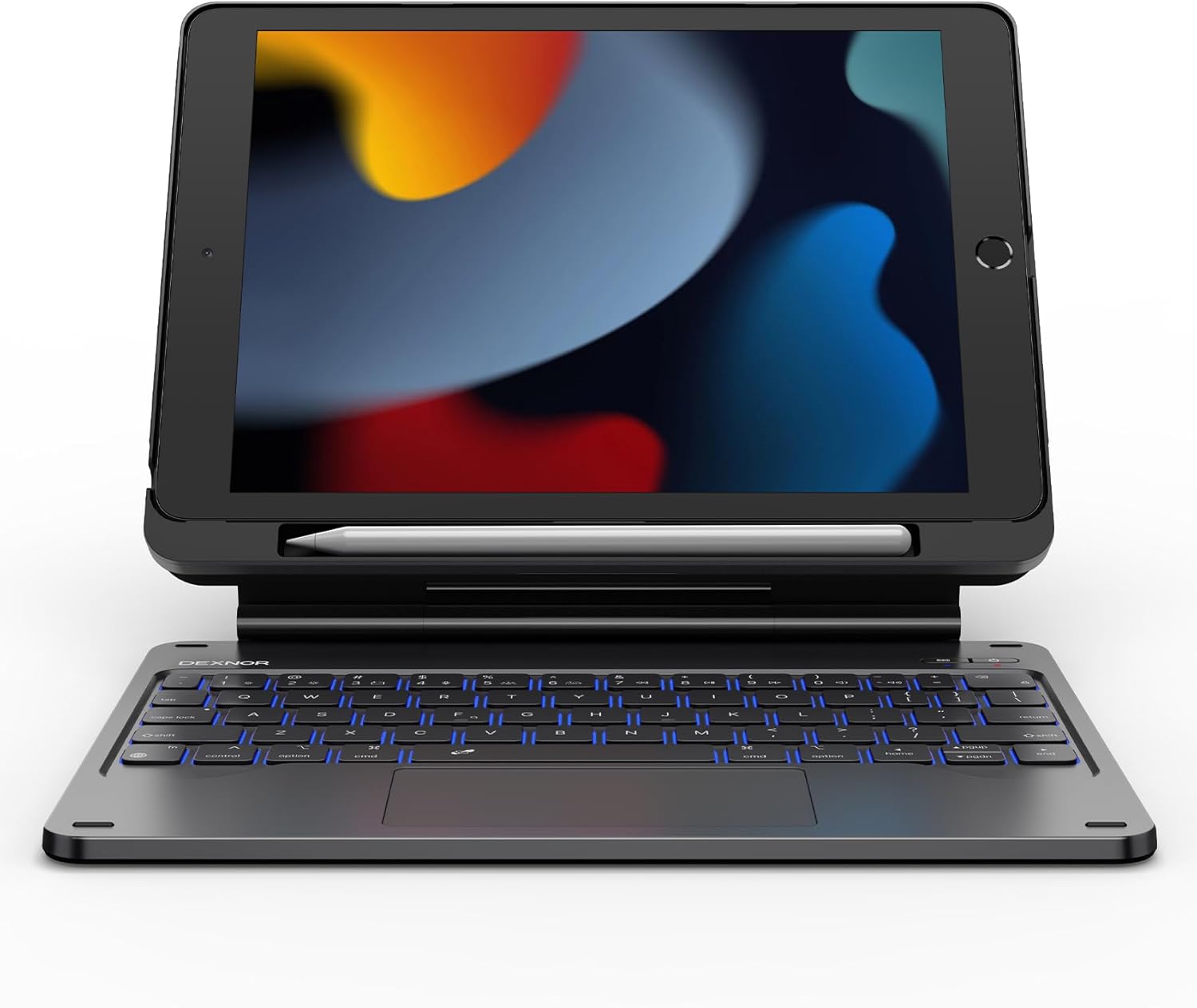
Image: The Dexnor Magic Style Keyboard Case with an iPad inserted, showcasing its laptop-like setup.
2. Package Contents
Please verify that all items are present in your package:
- 1 x Dexnor Bluetooth Keyboard Case
- 1 x USB-C Charging Cable
- 1 x Quick-start Guide
- 1 x User Manual (this document)
3. Compatibility
This keyboard case is specifically designed for the following iPad models:
- iPad 9th Generation (2021, 10.2"): Models A2602, A2603, A2604, A2605
- iPad 8th Generation (2020, 10.2"): Models A2270, A2428, A2429, A2430
- iPad 7th Generation (2019, 10.2"): Models A2197, A2198, A2200
Note: iPad and Apple Pencil are NOT included.
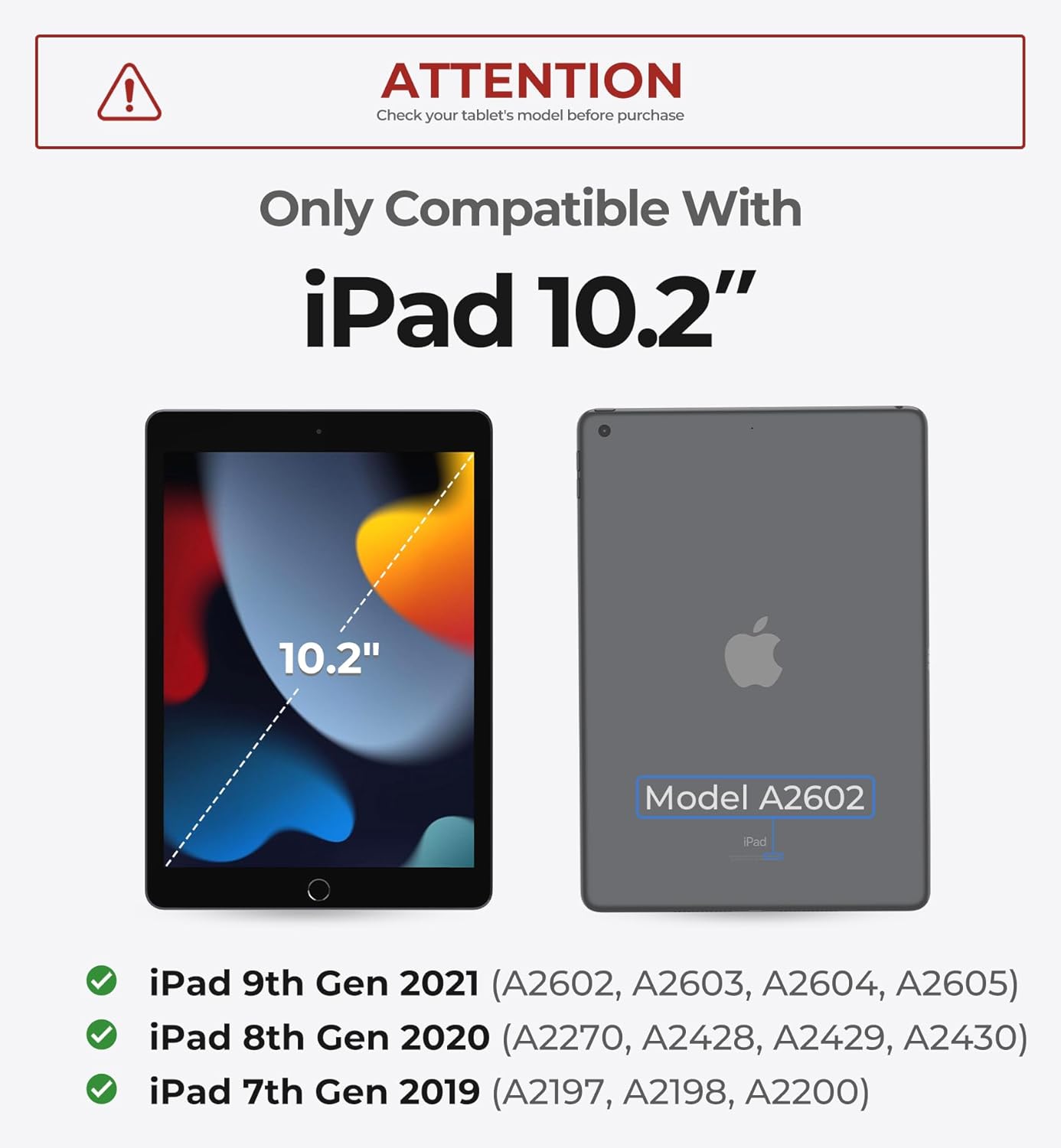
Image: Visual guide showing the 10.2-inch iPad and compatible model numbers for 7th, 8th, and 9th generations.
4. Setup & Installation
4.1 Attaching Your iPad
- Carefully remove the detachable PC case from the keyboard base.
- Align your iPad with the PC case and gently press it into place until it is securely seated.
- Attach the iPad (now in its PC case) to the magnetic stand on the keyboard base. The strong magnets will hold it firmly in position, allowing for a floating cantilever setup.
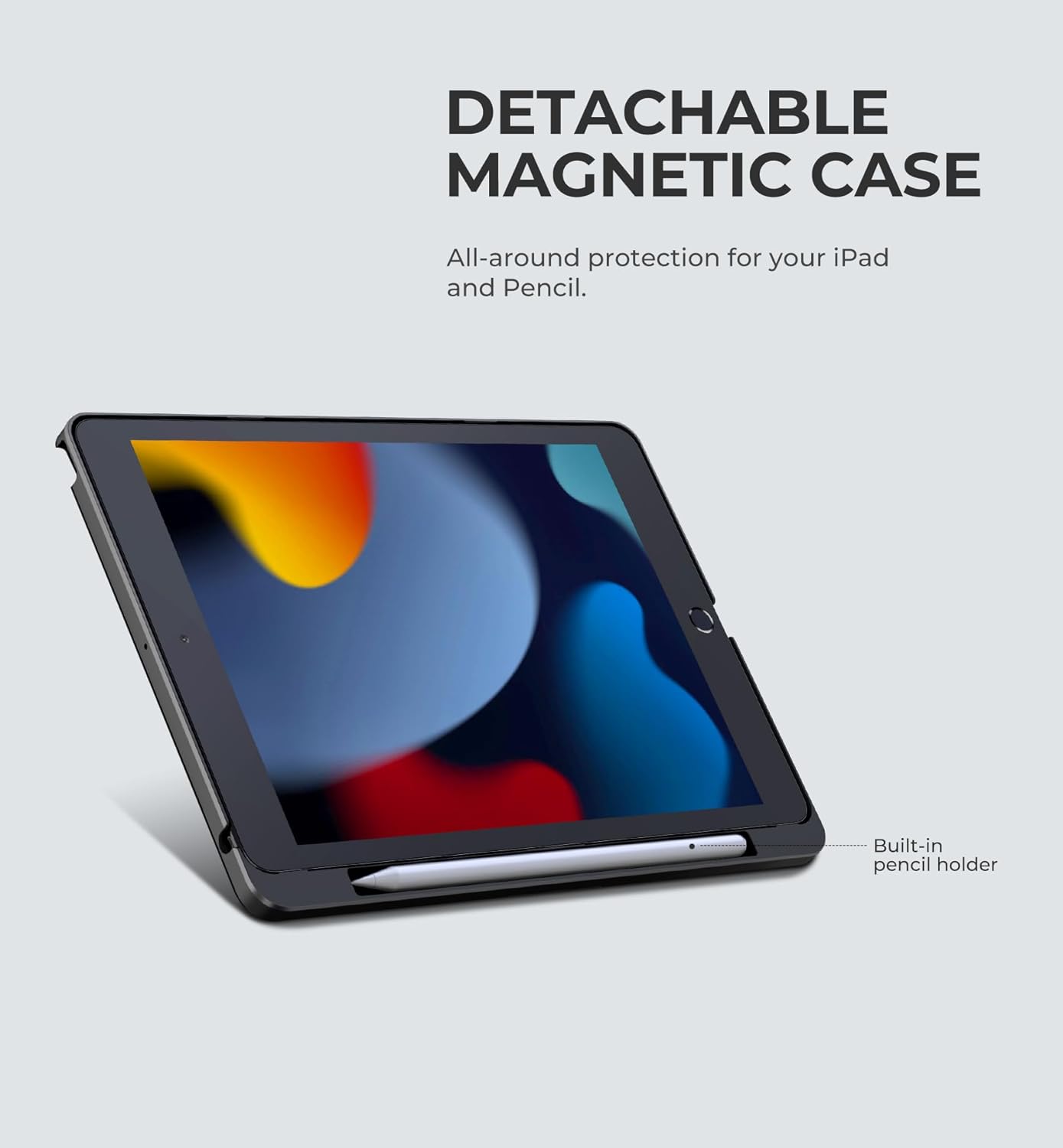
Image: The detachable magnetic case, highlighting the built-in pencil holder.

Image: The iPad magnetically attached to the keyboard stand, showing adjustable angles for landscape and portrait modes.
4.2 Bluetooth Pairing
- Ensure your keyboard is charged (refer to Section 5.4 for charging instructions).
- Press and hold the power button on the keyboard for 2 seconds to turn it on. The power indicator light will illuminate.
- Press and hold the Bluetooth pairing button (usually indicated by a Bluetooth icon) for 2 seconds to enter pairing mode. The Bluetooth indicator light will flash rapidly.
- On your iPad, go to Settings > Bluetooth.
- Ensure Bluetooth is turned ON.
- In the 'Other Devices' list, locate and tap on "Dexnor Keyboard" to pair.
- Once paired, the Bluetooth indicator light on the keyboard will stop flashing and remain solid, and "Dexnor Keyboard" will appear as "Connected" on your iPad.
Video: Step-by-step guide on installing the iPad into the case, attaching it to the magnetic stand, and pairing the keyboard via Bluetooth.
5. Operating Instructions
5.1 Keyboard Features
The keyboard features scissor-switch keys for a comfortable and quiet typing experience. It also includes a full row of practical shortcut keys for quick access to media controls, volume, and more.
Backlight Adjustment
The keyboard offers 7 solid color backlights and 3 adjustable brightness levels. To cycle through backlight colors and brightness, press the Fn key together with the light bulb icon key.

Image: The keyboard illuminated with various backlight colors, demonstrating the 7 backlight modes.
5.2 Multi-Touch Trackpad
The ultra-precise trackpad supports multi-finger gestures, allowing for seamless navigation. You can use gestures like tap, pinch, scroll, and swipe to control your iPad with unparalleled speed and efficiency.

Image: Close-up of the multi-touch trackpad, illustrating its functionality and precision.
5.3 Built-in Pencil Holder
The detachable back case includes a built-in pencil holder, providing secure storage and quick access for your Apple Pencil.
5.4 Charging the Keyboard
The keyboard is equipped with a long-lasting 650mAh battery. Use the included USB-C cable to charge the keyboard. The red LED will flash when charging is needed. A yellow LED will stay on during charging and turn off when fully charged. A full charge takes approximately 3.5 hours.
5.5 Usage Modes
The floating cantilever stand allows for customizable angles, transforming your iPad into various modes:
- Typing Mode: Ideal for writing documents, emails, and general productivity.
- Viewing Mode: Perfect for watching videos, presentations, or video calls.
- Reading Mode: Adjust the angle for comfortable reading of e-books or articles.
The auto wake/sleep function helps conserve battery life by automatically turning the iPad on/off when the case is opened/closed.
Video: Demonstrates various usage modes including typing, drawing, and viewing, highlighting the product's versatility and protective features.
6. Maintenance & Care
- Clean the keyboard and case with a soft, damp cloth. Avoid harsh chemicals or abrasive materials.
- Keep the product away from extreme temperatures, direct sunlight, and liquids.
- Store the keyboard case in a dry, cool place when not in use.
- Avoid placing heavy objects on the keyboard to prevent damage to the keys or trackpad.
7. Troubleshooting
7.1 Keyboard Not Connecting
- Ensure the keyboard is powered on and fully charged.
- Verify Bluetooth is enabled on your iPad.
- Re-enter pairing mode on the keyboard and re-attempt pairing from your iPad's Bluetooth settings.
- Forget the device on your iPad and try pairing again.
- Restart both your iPad and the keyboard.
7.2 Backlight Not Working/Adjusting
- Ensure the keyboard is powered on.
- Press the Fn key together with the light bulb icon key to cycle through modes and brightness levels.
- If the battery is low, the backlight may dim or turn off to conserve power. Charge the keyboard.
7.3 Trackpad Not Responding
- Ensure the keyboard is connected via Bluetooth.
- Check if the trackpad is enabled in your iPad's settings (Settings > General > Trackpad).
- Clean the trackpad surface to remove any dirt or debris.
- Restart the keyboard and iPad.
8. Specifications
| Model Number | DK007 |
| Product Dimensions | 11.57 x 9.45 x 1.54 inches |
| Item Weight | 1.79 pounds |
| Battery Capacity | 650mAh |
| Working Time | Up to 200 hours (without backlight) |
| Standby Time | Up to 1200 hours |
| Charging Time | Approx. 3.5 hours |
| Connectivity | Bluetooth, USB-C for charging |
| Keyboard Type | Scissor-switch, 64 keys |
| Backlight | 7 solid colors, 3 brightness levels |
9. Warranty & Support
The Dexnor Magic Style Keyboard Case is backed by a 1-year manufacturer's warranty, covering defects in materials and workmanship from the date of purchase. Additionally, Dexnor provides lifetime technical support for this product.
For technical assistance, troubleshooting, or warranty claims, please refer to the contact information provided in your Quick-start Guide or visit the official Dexnor website.


