
1. Introduction
This manual provides instructions for the installation, operation, and maintenance of your VIMIN X540-2T 10Gbps Dual RJ45 PCI-E Network Card. This high-performance network adapter is designed for servers, workstations, and high-performance computing devices requiring reliable 10 Gigabit Ethernet connectivity.
2. Product Features
- Dual 10Gbps RJ45 Copper Ports: Equipped with two RJ45 ports, providing up to 10Gbps network connection speed for high-speed data transmission.
- Intel X540-T2 Chipset Controller: Utilizes the Intel X540-T2 chipset for reliable performance and stability.
- Wide Operating System Compatibility: Supports Windows, Windows Server, Linux, and VMware environments.
- Flexible PCIe Compatibility: Compatible with PCI Express x8 and x16 slots, offering versatile deployment options.
- Standard and Slim Brackets Included: Comes with both standard and low-profile brackets for various server and device heights.
- Efficient Heat Dissipation: Features a heat sink to maintain optimal operating temperatures and ensure device stability.
- Stable Network Connection: Designed with a gold finger interface to reduce interruptions and ensure consistent network performance.
- Note: 2.5Gbps and 5Gbps speeds are not supported. If your network device is 2.5G or 5G, this card will operate at 1Gbps.
3. Package Contents
Verify that all items are present in the package:
- VIMIN X540-2T 10Gbps Dual RJ45 PCI-E Network Card
- Standard Profile Bracket (pre-installed)
- Low-Profile Bracket
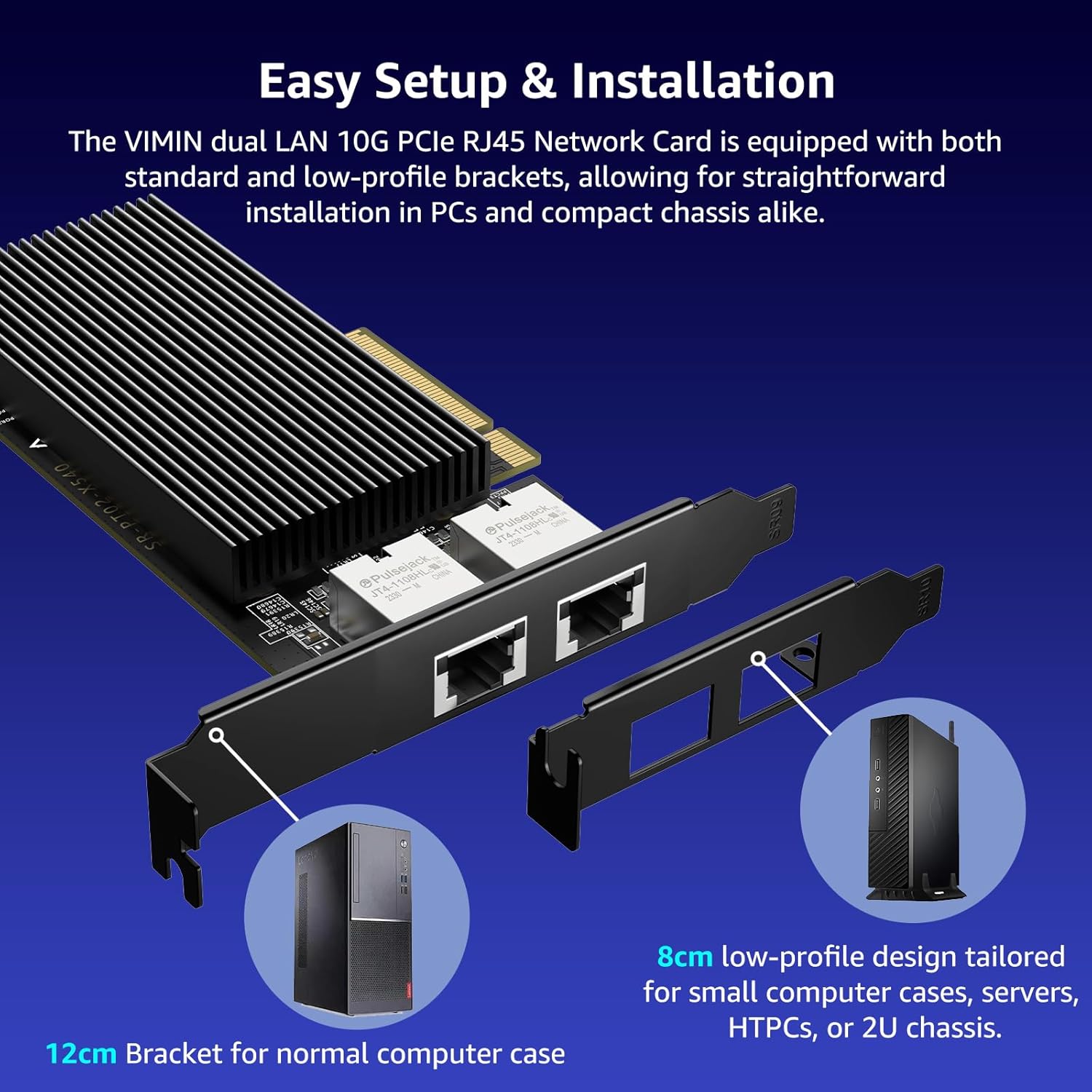
Image: The VIMIN X540-2T network card shown with both the standard and low-profile brackets.
4. Installation Guide
4.1 Hardware Installation
Prepare your computer: Power off your computer and disconnect all cables. Open the computer case to access the motherboard.
Identify an available PCIe slot: Locate an available PCI Express x8 or x16 slot on your motherboard. Refer to your motherboard's manual if unsure.

Image: Illustration showing compatible PCIe x8 and x16 slots on a motherboard.
Remove the slot cover: Remove the metal slot cover from the back of your computer case corresponding to the chosen PCIe slot.

Image: Step 1 of installation, showing opening the chassis and removing the slot limiter.
Install the network card: Carefully align the network card with the PCIe slot and press it firmly until it is securely seated. Ensure the gold-plated fingers are fully inserted.
Image: Step 2 of installation, showing inserting the PCIe card into the slot.
Secure the card: Use a screw to secure the network card's bracket to the computer case.
Image: Step 3 of installation, showing securing the bracket with screws.
Close the case: Replace the computer case cover and reconnect all cables. Power on your computer.
4.2 Driver Installation
After physical installation, you may need to install drivers for the network card to function correctly. The VIMIN X540-2T uses the Intel X540-T2 controller, and drivers are available for Windows, Windows Server, Linux, and VMware.
For Windows 10/11:
Download Drivers: Visit the official Intel support website or VIMIN's support page to download the latest drivers for the Intel X540-T2 controller. For Windows 11, you may need to download the Windows 10 driver package.

Image: Screenshot showing driver download options for Windows.
Unzip the Driver File: Locate the downloaded driver package (e.g., "Wired_driver_XX.X_x64.exe"). Right-click the file and select "Extract All" or use a compression utility to unzip its contents to a known location. Do not double-click to install directly.

Image: Screenshot showing the unzipped driver folder contents.
Install Driver via Device Manager:
- Open Device Manager (Right-click Start button > Device Manager).
- Locate the network card, which may appear as "Ethernet Controller" with a yellow exclamation mark under "Other devices" or "Network adapters".
- Right-click on the network card and select "Update driver".
- Choose "Browse my computer for drivers" and navigate to the folder where you unzipped the driver files.
- Follow the on-screen prompts to complete the installation.

Image: Screenshot illustrating how to update the driver through Device Manager.
Verify Installation: After installation, the network card should appear correctly under "Network adapters" in Device Manager without any error symbols.
For Linux/VMware:
Refer to the specific documentation provided with the Intel X540-T2 drivers for detailed installation instructions on Linux distributions or VMware ESXi. Typically, these involve compiling and installing kernel modules or using pre-built packages.
5. Operating Instructions
Once the network card is installed and drivers are configured, connect your network cables to the RJ45 ports. The card will automatically negotiate the highest possible speed with your network equipment (up to 10Gbps).
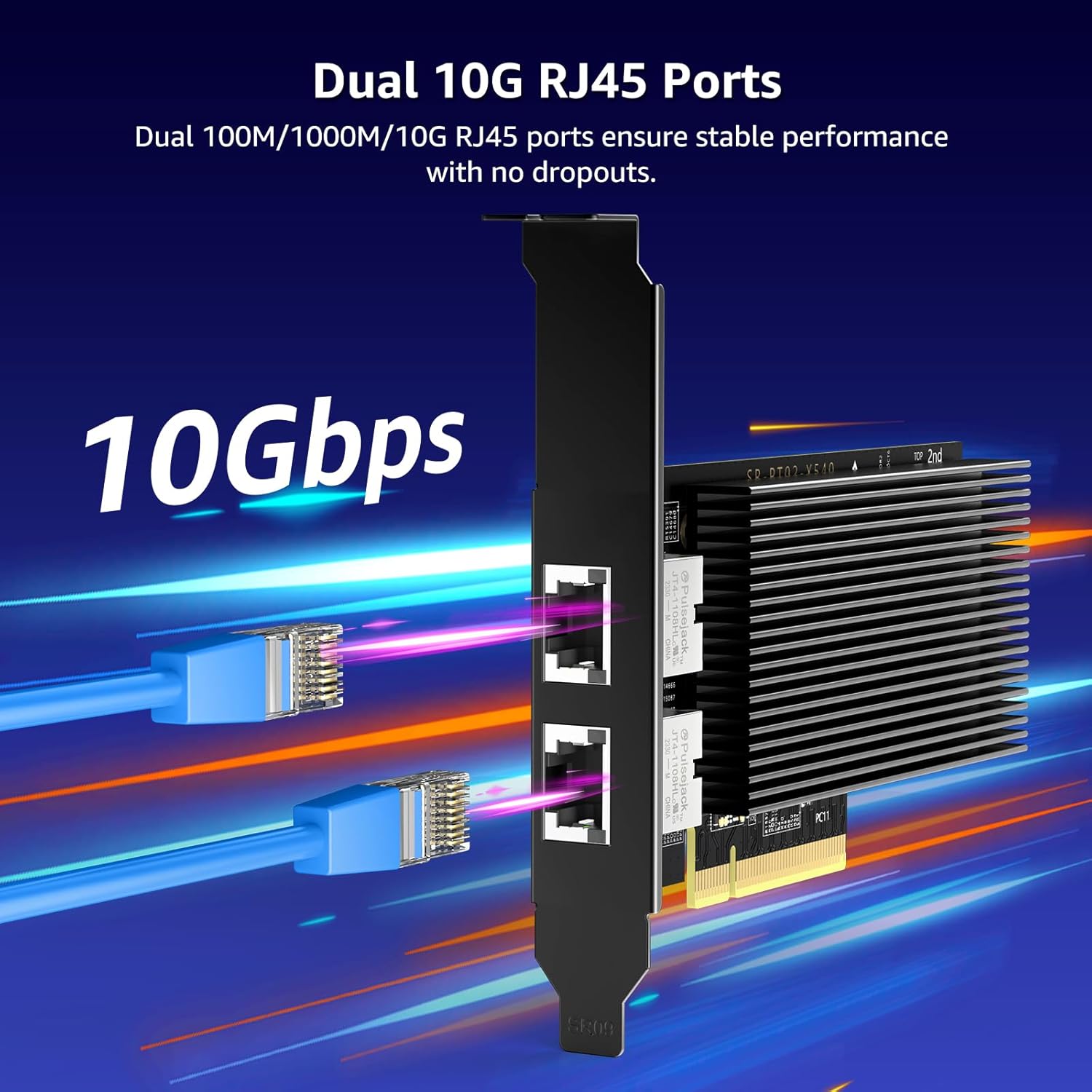
Image: A network cable connected to one of the 10Gbps RJ45 ports on the network card.
The network card supports full-duplex operation. Ensure your network switch or router also supports 10Gbps Ethernet for optimal performance. Link/Activity LEDs on the card will indicate connection status and data transmission.
Video: An overview of the VIMIN 10G PCI-E Network Card, demonstrating its features and connectivity.
6. Maintenance
- Keep Clean: Periodically clean the network card and surrounding area inside your computer case to prevent dust buildup, which can hinder heat dissipation.
- Firm Connections: Ensure all cable connections are secure to prevent intermittent network issues.
- Driver Updates: Regularly check the VIMIN or Intel website for updated drivers to ensure optimal performance and compatibility.
7. Troubleshooting
| Problem | Possible Cause | Solution |
|---|---|---|
| Network card not detected or showing error in Device Manager. |
|
|
| No network connectivity after driver installation. |
|
|
| Slow network speeds (e.g., 1Gbps instead of 10Gbps). |
|
|
| Card runs excessively hot. |
|
|
8. Specifications
| Feature | Detail |
|---|---|
| Model Number | X540-T2 |
| Brand | VIMIN |
| Ports | 2 x RJ45 Copper Ports |
| Controller | Intel X540-T2 |
| Data Transfer Rate | 10Gbps (10000 Megabits Per Second) |
| Interface | PCI Express x8 (Compatible with x16 slots) |
| Compatible Operating Systems | Windows, Windows Server, Linux, VMware |
| Data Link Protocol | IEEE 802.1Q |
| Item Weight | 8.8 ounces (0.25 Kilograms) |
| Package Dimensions | 8.15 x 5.59 x 1.06 inches |
9. Warranty and Support
VIMIN products come with a standard warranty. For specific warranty details, please refer to the warranty information included with your product or visit the official VIMIN website.
For technical support, driver downloads, or further assistance, please contact VIMIN customer support:
- Email: support@vimintech.com
- Website: Visit the VIMIN Store on Amazon for product information and support resources.
Our professional technical team is available to provide high-quality service.