
Introduction
This manual provides comprehensive instructions for the Lancoon LK-GT05 Wired Mechanical Gaming Keyboard. Please read this manual carefully before using the product to ensure proper operation and to maximize your user experience. Keep this manual for future reference.
Package Contents
- 1 x Lancoon LK-GT05 Wired Mechanical Gaming Keyboard
- 1 x User Manual
Setup
Connecting the Keyboard
- Locate an available USB port on your computer (PC).
- Plug the USB connector of the Lancoon LK-GT05 keyboard into the USB port.
- The operating system will automatically detect and install the necessary drivers. This process may take a few moments.
- Once the installation is complete, the keyboard is ready for use.
Operating Instructions
Adjusting the Keyboard Angle
The keyboard features an adjustable bracket to customize the typing angle for improved ergonomics and comfort.
- Gently flip out the adjustable feet located on the underside of the keyboard.
- Adjust the feet to your preferred height and angle. Ensure both feet are extended evenly for stability.
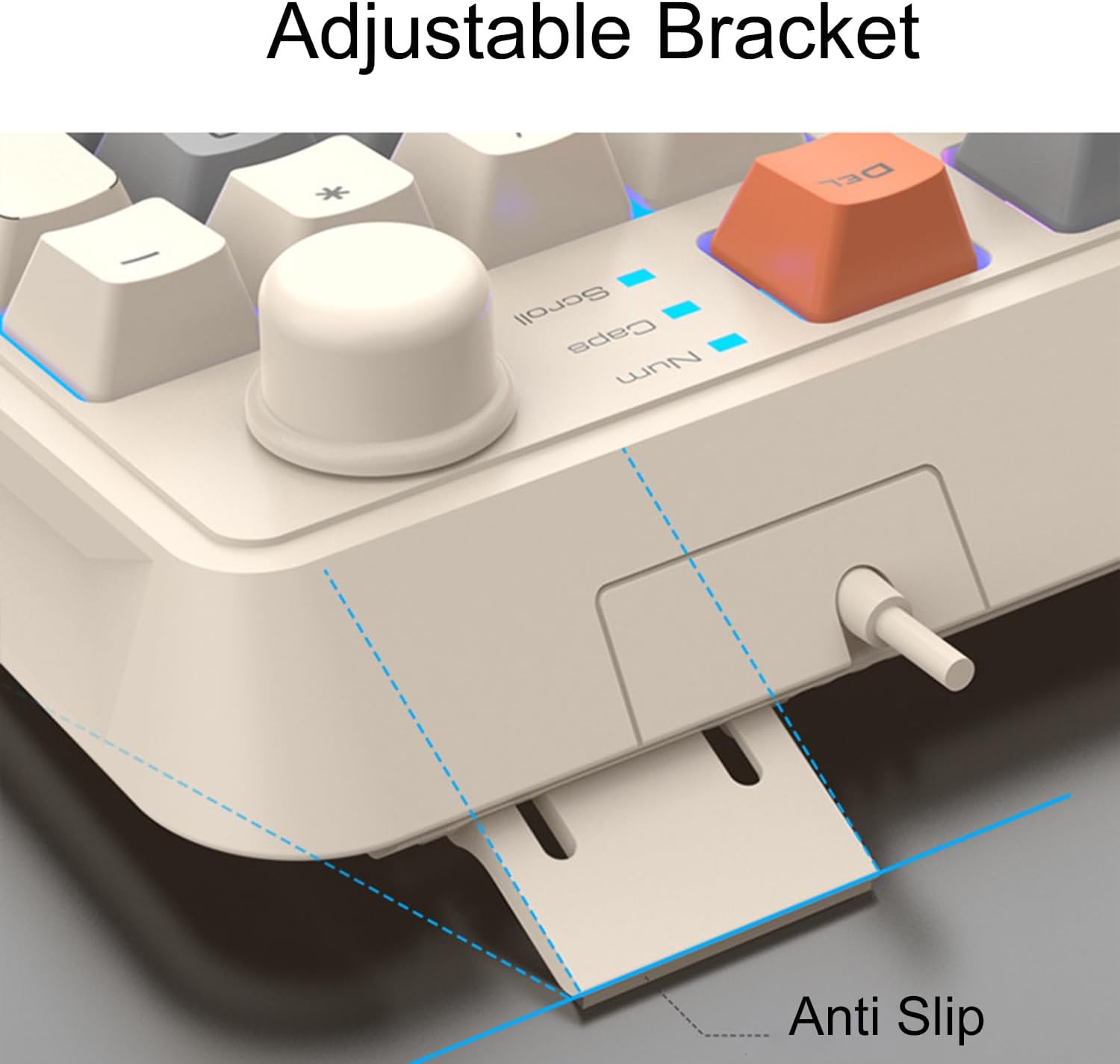
Figure 1: Adjustable bracket for ergonomic positioning. The image displays the underside of the keyboard with the adjustable stand extended, showing its anti-slip design.
Multimedia Control
The keyboard is equipped with dedicated multimedia shortcuts for convenient control of audio and video playback.
- To activate multimedia functions, press the Fn key simultaneously with the corresponding F1-F12 function keys.
- Specific functions include:
- Fn + F1: Media Player
- Fn + F2: Volume Down
- Fn + F3: Volume Up
- Fn + F4: Mute
- Fn + F5: Stop
- Fn + F6: Previous Track
- Fn + F7: Play/Pause
- Fn + F8: Next Track
- Fn + F9: Email
- Fn + F10: Web Browser
- Fn + F11: My Computer
- Fn + F12: Calculator
- The independent volume knob located on the top right of the keyboard allows for quick and precise volume adjustments without needing to use function key combinations. Rotate clockwise to increase volume, counter-clockwise to decrease.
Backlight Control
The keyboard features colorful mixed lighting effects. Use the dedicated lighting key to cycle through different modes.
- Press the Light Bulb icon key (usually located near the right Shift key or Fn key) to cycle through various lighting modes and effects.
- Some models may offer brightness adjustment by holding the Fn key and pressing the Up/Down arrow keys.

Figure 2: The Lancoon LK-GT05 keyboard showcasing its mixed color backlighting. The image highlights the 94-key layout and the distinct keycap colors.
Keycap Design
The keyboard utilizes a stable crater keycap structure for durability and a consistent typing experience.

Figure 3: Close-up view of the stable crater keycap structure. This image shows individual keycaps removed, revealing the underlying switch mechanism and LED lighting.
Ergonomic High and Low Key Layout
The keyboard features a high and low key layout designed to conform to natural hand movements, reducing strain during extended use.

Figure 4: Side profile illustrating the ergonomic high and low key layout. The image shows the varying heights of key rows, designed for comfortable typing.
Maintenance
Cleaning the Keyboard
- Disconnect the keyboard from your computer before cleaning.
- Use a soft, lint-free cloth slightly dampened with water or a mild cleaning solution to wipe the keycaps and surface.
- For dust and debris between keys, use compressed air.
- Do not immerse the keyboard in water or use harsh chemicals.
Troubleshooting
Common Issues and Solutions
| Problem | Solution |
|---|---|
| Keyboard not responding |
|
| Backlight not working |
|
| Multimedia keys not functioning |
|
Specifications
| Brand | Lancoon |
| Model Number | LK-GT05 |
| Color | White |
| Connectivity Technology | Wired (USB) |
| Number of Keys | 94 |
| Key Lifespan | 10 million times |
| Backlight | Mixed Color (RGB) |
| Multimedia Function | Fn + F1-F12, Independent Volume Knob |
| Material | ABS + Silica |
| Product Dimensions | 39.5 x 15.3 x 3.3 cm (15.55 x 6.02 x 1.3 inches) |
| Item Weight | 480 g (1.06 lbs) |
| Water Resistance | Yes |
| Compatible Devices | PC |
| Special Features | Mixed color lighting, independent volume knob, adjustable stand, ergonomic design |
Warranty and Support
Warranty Information
Information regarding specific warranty terms and duration is not available in the provided product details. Please refer to the product packaging or contact the retailer/manufacturer directly for warranty details.
Customer Support
For technical assistance or product inquiries, please contact Lancoon customer support through their official website or the retailer where the product was purchased.