
TP-Link ER706W
TP-Link ER706W Omada Gigabit AX3000 WiFi 6 VPN Router User Manual
Model: ER706W
1. Introduction
The TP-Link ER706W Omada Gigabit AX3000 WiFi 6 VPN Router is a high-performance networking device designed for robust and secure network environments. It integrates advanced Wi-Fi 6 technology with comprehensive VPN capabilities, making it suitable for both home and business applications. This manual provides detailed instructions for setting up, operating, and maintaining your ER706W router.
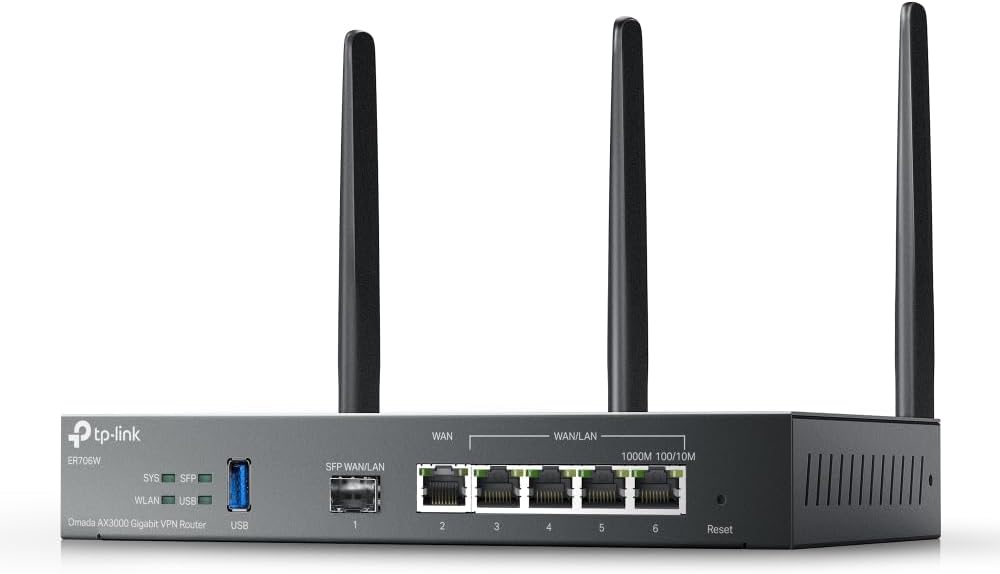
Figure 1: Front view of the TP-Link ER706W router, showing the ports and antennas.
2. Package Contents
Verify that all items are present in your package. If any item is missing or damaged, please contact your retailer.
- ER706W Omada Gigabit AX3000 WiFi 6 VPN Router
- Installation Guide
- DC Power Adapter
- Detachable Antennas (Quantity: 4)
3. Product Features
The ER706W router offers a comprehensive set of features designed for high performance, security, and flexibility:
- AX3000 WiFi 6: Delivers ultra-fast wireless speeds of up to 2402 Mbps on 5 GHz and 574 Mbps on 2.4 GHz, leveraging Wi-Fi 6 technologies like OFDMA and 1024-QAM.
- Multi-WAN Ports: Equipped with 1x Gigabit SFP slot and 5 Gigabit RJ45 ports, supporting up to 5 WAN ports for load balancing and increased broadband utilization.
- Omada Mesh Support: Seamlessly integrates with Omada access points to extend Wi-Fi coverage without additional cabling or switches, featuring intelligent self-organization and self-healing capabilities.
- Advanced VPN Capabilities: Supports high-security SSL/IPSec/GRE/WireGuard/PPTP/L2TP VPN and OpenVPN protocols for secure remote access and site-to-site connections.
- USB 3.0 Port: Includes one USB 3.0 port for USB storage support and LTE backup functionality when used with an LTE dongle.
- Centralized Management: Manage your network easily through the Omada SDN platform, including cloud access and the Omada App.
- Robust Security: Features a powerful firewall, IP/MAC/URL filtering, IP-MAC binding, DoS defense, and convenient VLAN support to protect your network.

Figure 2: Visual representation of the ER706W's core features.

Figure 3: Overview of the ER706W's security functionalities.
4. Hardware Overview
Familiarize yourself with the physical components and ports of your ER706W router.

Figure 4: Rear panel view with port descriptions.
4.1 Front Panel Indicators
| Indicator | Status | Description |
|---|---|---|
| SYS | Solid Green | System is operating normally. |
| Flashing Green | System is starting up or performing self-test. | |
| Off | Power is off or system error. | |
| SFP | Solid Green | SFP port is linked. |
| Flashing Green | SFP port is transmitting/receiving data. | |
| WLAN | Solid Green | Wireless function is enabled. |
| Flashing Green | Wireless data is being transmitted/received. | |
| USB | Solid Green | USB device is connected and recognized. |
| Flashing Green | USB data is being transmitted/received. |
4.2 Rear Panel Ports and Buttons
- Power Connector: Connects to the provided DC power adapter.
- USB 3.0 Port: For connecting USB storage devices or an LTE dongle for backup WAN.
- SFP WAN/LAN Port (Port 1): A Gigabit SFP slot that can function as either a WAN or LAN port.
- Gigabit RJ45 WAN Port (Port 2): A dedicated Gigabit Ethernet port for WAN connection.
- Gigabit RJ45 WAN/LAN Ports (Ports 3-6): Four Gigabit Ethernet ports that can be configured as WAN or LAN ports.
- Reset Button: Press and hold for approximately 8 seconds to restore the router to factory default settings.
- Antenna Connectors: Four connectors for attaching the detachable Wi-Fi antennas.
5. Setup
Follow these steps to set up your ER706W router.
5.1 Hardware Connection
- Attach Antennas: Screw the four detachable antennas firmly onto the antenna connectors on the rear panel of the router.
- Connect Internet:
- If you have a fiber optic connection, insert the SFP module (not included) into the SFP WAN/LAN port (Port 1) and connect the fiber cable.
- For a standard Ethernet connection, connect your modem or ISP's Ethernet cable to the Gigabit RJ45 WAN port (Port 2). You can also use Ports 1, 3, 4, 5, or 6 if configured as WAN ports.
- Connect Local Devices: Connect your computers, switches, or other network devices to any of the available LAN ports (Ports 1, 3, 4, 5, or 6, depending on configuration) using Ethernet cables.
- Power On: Connect the DC power adapter to the router's power connector and then plug the adapter into a power outlet. The SYS LED will flash during startup and turn solid green when the router is ready.
5.2 Initial Configuration
The ER706W can be managed via the Omada SDN Controller or through its standalone web interface.
Using Omada SDN Controller (Recommended for Omada Networks)
- Ensure your Omada SDN Controller (hardware controller, software controller, or cloud-based) is running and accessible.
- Connect the ER706W to your network where the Omada Controller can discover it.
- Log in to your Omada Controller. The ER706W should appear in the "Devices" list as "Pending".
- Adopt the device. Once adopted, you can configure all settings, including WAN, LAN, Wi-Fi, and VPN, from the Omada Controller interface.
Using Standalone Web Interface
- Ensure your computer is connected to one of the LAN ports of the ER706W.
- Open a web browser and enter the default IP address: 192.168.0.1 (or check the label on the bottom of the device).
- Enter the default username and password, which are typically admin for both. You will be prompted to change these upon first login.
- Follow the Quick Setup Wizard to configure your internet connection (WAN settings), LAN settings, and Wi-Fi settings.
- Save your settings and restart the router if prompted.
6. Operation
6.1 Wi-Fi Configuration
The ER706W supports Wi-Fi 6 (802.11ax) on both 2.4 GHz and 5 GHz bands.
- Access the wireless settings via the Omada Controller or standalone web interface.
- Configure your SSID (network name), security type (WPA2/WPA3 recommended), and password for both 2.4 GHz and 5 GHz bands.
- Enable or disable Wi-Fi as needed.

Figure 5: Wi-Fi 6 speed capabilities.
6.2 VPN Setup
The ER706W supports various VPN protocols for secure remote access and site-to-site connections.
- Navigate to the VPN section in the management interface.
- Choose the desired VPN type (e.g., IPSec, SSL VPN, OpenVPN, PPTP, L2TP, WireGuard).
- Follow the on-screen instructions to configure VPN parameters such as remote IP addresses, authentication methods, and encryption settings.
- Ensure proper firewall rules are in place to allow VPN traffic.

Figure 6: VPN connection example.
6.3 Omada Mesh Integration
When integrated into an Omada network, the ER706W can participate in Omada Mesh for extended Wi-Fi coverage.
- Ensure your Omada Access Points are also adopted by the same Omada Controller.
- The Omada Controller will automatically manage mesh connections, providing intelligent self-organization and self-healing capabilities.
- Refer to the Omada SDN Controller documentation for detailed mesh network configuration.
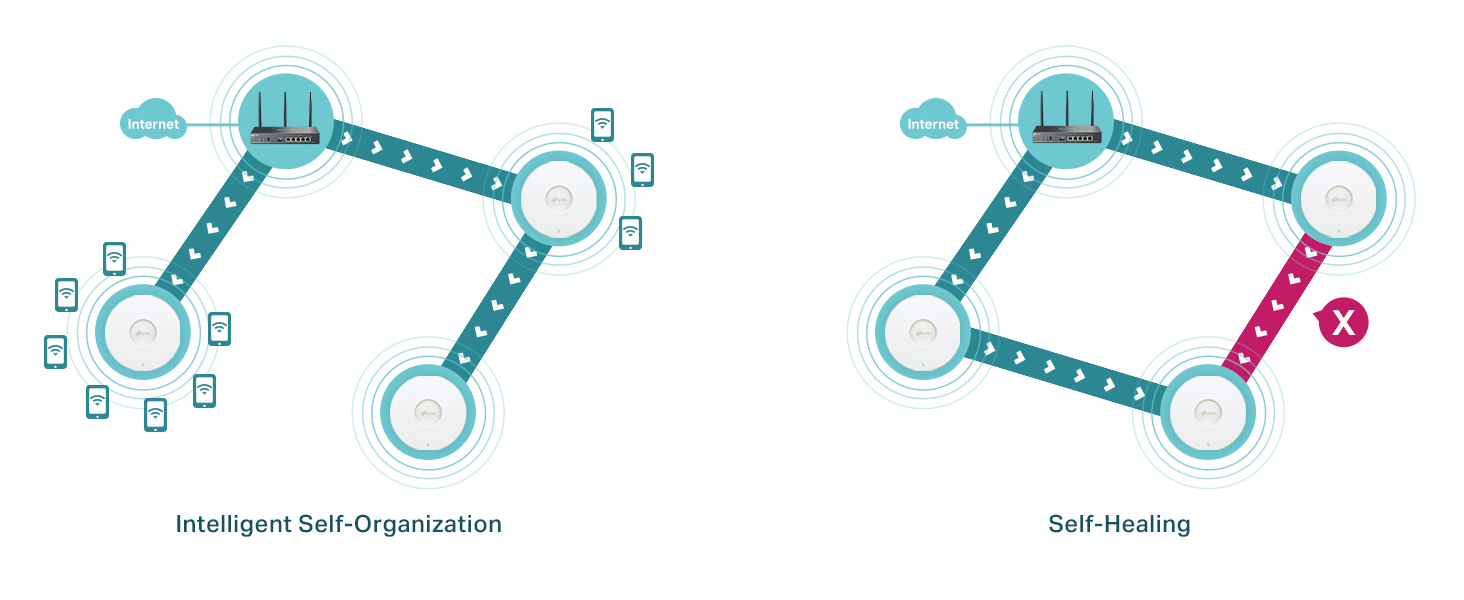
Figure 7: Omada Mesh network behavior.
7. Maintenance
7.1 Firmware Upgrade
Keeping your router's firmware up to date ensures optimal performance, security, and access to new features.
- Check for Updates:
- Via Omada Controller: The controller will notify you of available firmware updates for adopted devices. Follow the controller's instructions to perform the upgrade.
- Via Web Interface: Log in to the router's web interface, navigate to "System Tools" or "Firmware Upgrade", and check for new versions. You may need to download the latest firmware file from the TP-Link official website (www.tp-link.com/us/support/download/er706w/).
- Perform Upgrade: Follow the on-screen instructions to upload and install the firmware. Do not power off the device during the upgrade process.
7.2 Backup and Restore Configuration
It is recommended to back up your router's configuration before major changes or firmware upgrades.
- In the web interface, go to "System Tools" > "Backup & Restore".
- Click "Backup" to save the current configuration to your computer.
- To restore, select the backup file and click "Restore".
7.3 Device Cleaning
Keep the router clean to ensure proper ventilation and operation.
- Power off the device and disconnect all cables.
- Use a soft, dry cloth to wipe the exterior. Do not use liquid cleaners or aerosols.
- Ensure ventilation holes are free from dust and obstructions.
8. Troubleshooting
8.1 Cannot Access the Web Management Page
- Ensure your computer is connected to a LAN port of the router.
- Verify your computer's IP address is in the same subnet as the router (e.g., if router is 192.168.0.1, your computer should be 192.168.0.x). Set your computer to obtain an IP address automatically.
- Clear your browser's cache and cookies, or try a different browser.
- Disable any firewall or antivirus software temporarily.
- If the issue persists, try resetting the router to factory defaults (see Section 4.2).
8.2 No Internet Access
- Check all cable connections. Ensure the WAN cable is securely connected to the correct WAN port.
- Verify the WAN LED indicator is on or flashing, indicating a connection.
- Restart your modem and then the router.
- Check your WAN settings in the router's web interface. Ensure the connection type (DHCP, Static IP, PPPoE) and credentials are correct as provided by your ISP.
- If using a modem, ensure it is working correctly by connecting a computer directly to it.
8.3 Wi-Fi Connection Issues
- Ensure the WLAN LED is solid green.
- Check your Wi-Fi network name (SSID) and password.
- Move closer to the router to check for signal strength issues.
- Try changing the Wi-Fi channel or channel width in the wireless settings to avoid interference.
- Ensure your wireless adapter supports Wi-Fi 6 if you are trying to connect using AX speeds.
9. Specifications
| Category | Detail |
|---|---|
| Model | ER706W |
| Dimensions (L x W x H) | 14.72 x 8.9 x 1.4 inches (37.4 x 22.6 x 3.6 cm) |
| Item Weight | 3.43 pounds (1.56 kg) |
| Wireless Standards | IEEE 802.11ax/ac/n/a (5 GHz), IEEE 802.11ax/n/b/g (2.4 GHz) |
| Wi-Fi Speeds | AX3000 (2402 Mbps on 5 GHz, 574 Mbps on 2.4 GHz) |
| Frequency Band Class | Dual-Band |
| Interfaces | 1x Gigabit SFP WAN/LAN, 1x Gigabit RJ45 WAN, 4x Gigabit RJ45 WAN/LAN, 1x USB 3.0 Port |
| VPN Protocols | SSL/IPSec/GRE/WireGuard/PPTP/L2TP VPN, OpenVPN |
| Management | Omada SDN Controller (Cloud-Based, Hardware, Software), Standalone Web UI |
| Power Supply | DC Power Adapter (Included) |
| Operating Temperature | 0°C to 40°C (32°F to 104°F) |
| Storage Temperature | -20°C to 70°C (-4°F to 158°F) |
| Operating Humidity | 10% to 90% non-condensing |
| Storage Humidity | 5% to 90% non-condensing |
10. Warranty and Support
10.1 Warranty Information
TP-Link provides a limited warranty for this product. The specific warranty period and terms may vary by region and local laws. Please refer to the official TP-Link website or your local retailer for detailed warranty information.
10.2 Technical Support
For technical support, firmware updates, and product information, please visit the official TP-Link support website:
You can also find FAQs, troubleshooting guides, and community forums on the support page. When contacting support, please have your product model (ER706W) and serial number ready.
Related documentsER706W


Ask a question about this manual
Ask about setup, troubleshooting, compatibility, parts, safety, or missing instructions. Manuals+ will review the question and use this page’s manual context to help answer it.