
MAIWO 2 Bay - RAID - USB 3.0
MAIWO Dual Bay Hard Drive RAID Enclosure User Manual
Comprehensive guide for setup, operation, and maintenance of your MAIWO RAID Enclosure.
1. Introduction
Thank you for choosing the MAIWO Dual Bay Hard Drive RAID Enclosure. This device is designed to provide reliable and high-performance external storage for your 2.5/3.5 inch SATA SSD/HDD, supporting up to 48TB total capacity. With USB 3.0 connectivity and multiple RAID modes, it offers versatile data management solutions for various operating systems. This manual will guide you through the installation, configuration, and maintenance of your new enclosure.

Image: The MAIWO Dual Bay Hard Drive RAID Enclosure, showcasing its sleek black design and compact form factor.
2. Package Contents
Please verify that all items are present in your package:
- 1x Dual Bay RAID Enclosure for 3.5'' SATA HDD
- 1x USB 3.0 Type-A to Type-A Data Cable
- 1x 12V/4A Power Adapter
- 2x Screwdrivers, Screws
- 1x User Manual (this document)

Image: A visual representation of all items included in the MAIWO Dual Bay Hard Drive RAID Enclosure package, including the enclosure, cables, power adapter, and tools.
3. Product Overview
Key Features:
- Wide Compatibility: Supports 2.5 and 3.5 inch SATA I/II/III hard disk drives. Compatible with Windows, Mac OS, and Linux. (Note: 2.5'' drives may require an additional mounting bracket, not included).
- High-Speed Data Transfer: USB 3.0 Type-A interface provides speeds up to 5Gbps, enabling quick data transfers. Supports UASP for enhanced performance on Windows 8.1 and above.
- Multiple RAID Modes: Easily switch between RAID 0 (FAST), RAID 1 (SAFE), LARGE (JBOD), and NORMAL (PM) modes to suit your storage needs.
- Efficient Heat Dissipation: Features a full aluminum body, ABS plastic bracket, and a built-in two-speed cooling fan for optimal thermal management.
- Large Capacity: Two drive slots support up to 18TB each, totaling 48TB of storage capacity.
- User-Friendly Design: Portable size (184x65x116mm), LED progress indicators, and plug-and-play functionality.
Component Identification:
Familiarize yourself with the various parts of your MAIWO RAID Enclosure:

Image: Detailed view of the rear panel of the MAIWO RAID Enclosure, showing the USB 3.0 port, power input, fan, reset button, and RAID setting DIP switches.
- Front Panel: LED indicators for power and drive activity.
- Rear Panel: USB 3.0 Type-A port, DC 12V power input, ON/OFF switch, fan speed switch, reset button, and RAID mode DIP switches.
- Drive Bays: Two internal bays for 2.5/3.5 inch SATA drives.
- Cooling Fan: Integrated fan for heat dissipation.
4. Setup
4.1. Hard Drive Installation:
- Prepare the Enclosure: Ensure the enclosure is powered off and disconnected from your computer.
- Remove Drive Tray: Use the provided screwdriver to loosen the screws on the rear panel and gently pull out the internal drive bracket/tray.
- Insert Hard Drives: Carefully slide your 3.5-inch SATA HDD(s) into the designated slots on the tray. Ensure the SATA connectors align properly. For 2.5-inch SSD/HDD, an additional 2.5 to 3.5 mounting bracket (not included) is required.
- Secure Drives: If applicable, use screws to secure the drives to the tray.
- Reinsert Tray: Slide the loaded tray back into the enclosure until it clicks into place. Tighten the screws on the rear panel.

Image: A four-step visual guide demonstrating how to install hard drives into the MAIWO enclosure: removing screws, inserting HDD, replacing the bracket, and tightening screws.
4.2. Connecting to Your Computer:
- Connect Power Adapter: Plug the 12V/4A power adapter into the DC 12V port on the rear of the enclosure, then plug the other end into a power outlet.
- Connect USB Cable: Connect one end of the USB 3.0 Type-A to Type-A data cable to the USB 3.0 port on the enclosure and the other end to an available USB 3.0 port on your computer.
- Power On: Flip the ON/OFF switch on the rear panel to the "ON" position. The LED indicators on the front will light up.
- Initialize/Format Drives: For new hard drives, you may need to initialize and format them through your operating system's Disk Management (Windows) or Disk Utility (Mac OS) before use.
Video: An official MAIWO video demonstrating the setup process, including hard drive installation, connecting cables, and initial recognition by the computer. This video highlights the ease of use and connectivity of the dual bay enclosure.
5. Operation
5.1. RAID Mode Configuration:
The MAIWO enclosure supports four RAID modes. Important: Back up all important data before changing RAID modes, as this process will erase all data on the drives. New drives must be initialized and formatted after setting the RAID mode.
- RAID 0 (FAST): Combines both drives into a single large volume for maximum speed. No data redundancy.
- RAID 1 (SAFE): Mirrors data across both drives for redundancy. If one drive fails, data is preserved on the other. Capacity is limited to the size of the smaller drive.
- LARGE (JBOD): Concatenates both drives into a single large volume without striping or mirroring. Drives are filled sequentially.
- NORMAL (PM): Presents each drive as an independent volume.

Image: A diagram illustrating the DIP switch settings on the rear of the enclosure for configuring RAID 0, RAID 1, LARGE (JBOD), and NORMAL (PM) modes, along with their respective capacity, safety, and speed characteristics.
To change RAID mode:
- Power off the enclosure.
- Use a small tool (like a pen tip) to adjust the DIP switches on the rear panel according to the desired RAID mode diagram.
- Press and hold the "RESET" button on the rear panel.
- While holding "RESET", power on the enclosure. Continue holding "RESET" for approximately 5-10 seconds until the LED indicators change, then release.
- The new RAID mode is now set. Proceed to initialize and format the drives via your operating system.
5.2. Data Transfer:
Once the drives are recognized and formatted by your operating system, the enclosure functions like any other external storage device. You can drag and drop files, use backup software, or access the drives as network shares (if configured on your system).
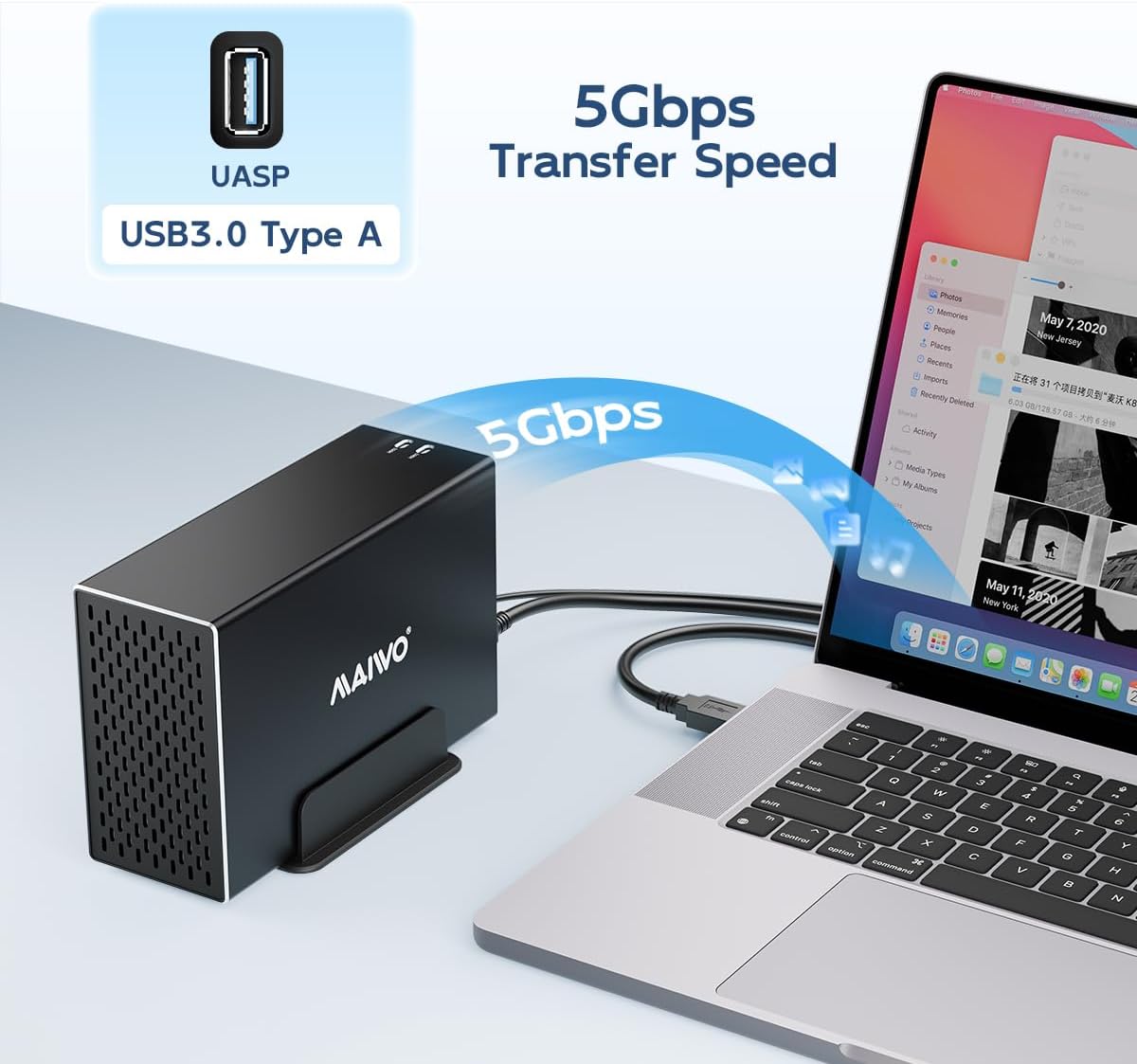
Image: The MAIWO enclosure connected to a laptop, illustrating its 5Gbps USB 3.0 transfer speed capability, ideal for large file transfers.
6. Maintenance
- Cleaning: Use a soft, dry cloth to clean the exterior of the enclosure. Do not use liquid cleaners or aerosols.
- Fan Maintenance: Periodically check the cooling fan for dust accumulation. If necessary, gently clean the fan blades with compressed air to ensure optimal airflow and prevent overheating.
- Firmware Updates: Check the MAIWO official website for any available firmware updates for your enclosure model. Follow the instructions provided with the update carefully.
- Safe Ejection: Always safely eject the enclosure from your operating system before disconnecting the USB cable or power to prevent data corruption.

Image: An exploded view diagram highlighting the heat dissipation features of the MAIWO enclosure, including the two-speed manual adjustment fan, aluminum alloy shell, and honeycomb cooling holes.
7. Troubleshooting
If you encounter issues with your MAIWO RAID Enclosure, please refer to the following common problems and solutions:
| Problem | Possible Cause | Solution |
|---|---|---|
| Enclosure not recognized by computer. | Loose USB connection, power off, uninitialized/unformatted drives, driver issues. |
|
| Slow data transfer speeds. | Connected to USB 2.0 port, UASP not enabled, drive performance limitations. |
|
| Drives not appearing after RAID mode change. | RAID mode not properly set, drives not initialized/formatted. |
|
| Enclosure disconnects intermittently. | Loose USB connection, insufficient power, faulty cable. |
|
8. Specifications
| Feature | Detail |
|---|---|
| Brand | MAIWO |
| Model Number | 2 Bay - RAID - USB 3.0 |
| Memory Storage Capacity | 48 TB (Total) |
| Compatible Devices | NAS, Laptop, Desktop, DAS, Tablet |
| Hard Disk Form Factor | 2.5 / 3.5 Inches SATA I/II/III |
| Max Number of Supported Devices | 2 (drives) |
| Data Transfer Rate | 5 Gigabits Per Second (USB 3.0) |
| Product Dimensions | 7.24 x 2.6 x 4.6 inches (184x65x116mm) |
| Item Weight | 1.94 pounds |
| Hardware Interface | USB 3.0 Type A |
| Hardware Platform | PC |
| Material | Aluminum, High-strength Plastic Drawer |
| RAID Modes Supported | RAID 0, RAID 1, LARGE (JBOD), NORMAL (PM) |
| Cooling | Built-in two-speed cooling fan |
9. Warranty & Support
9.1. Warranty Information:
MAIWO products are designed and manufactured to the highest quality standards. This product is covered by a manufacturer's warranty. Please refer to the warranty card included in your package or visit the official MAIWO website for detailed warranty terms and conditions specific to your region.
9.2. Customer Support:
For technical assistance, troubleshooting, or any questions regarding your MAIWO Dual Bay Hard Drive RAID Enclosure, please contact MAIWO customer support. Contact information can typically be found on the official MAIWO website or on the product packaging.
You can visit the MAIWO Store on Amazon for more product information and support resources.